Chapter 218 min read
Provider cost multipliers vs. user billing multipliers
Learn which multipliers are used only for routing and cost statistics and which count toward the user's bill, how each kind is multiplied together, and where to set them in the console.
CCHP has two kinds of multipliers, and both apply to the same base cost. The base cost is the cost of one request calculated at model prices.
- Provider cost multipliers: Reflect what you actually pay to buy credit from the upstream. They’re used only for routing and cost statistics, and don’t count toward the user’s bill.
- User billing multipliers: Decide how much the user is charged. The amount deducted from the user’s wallet = base cost × user billing multiplier.
Neither kind takes part in the other’s calculation: provider cost multipliers don’t count toward the user’s charge, and user billing multipliers don’t count toward the provider cost.
Provider cost multipliers#
The provider cost multiplier is the product of two multipliers:
Provider cost = base cost × top-up ratio × cost multiplier
The console calls the product of the two the effective multiplier.
Provider cost multipliers are used for:
- Routing: When a group’s routing strategy compares the prices of provider keys, it uses prices multiplied by the effective multiplier. The Price priority strategy compares price first. TTFT priority and Success rate priority also compare price after they compare the other metrics. Manual doesn’t compare prices.
- Cost statistics: The account cost shown in the provider key list, and the spend shown on Leaderboards when you switch to Supplier cost.
Warning: Enter the upstream group ratio only in the provider key’s Cost multiplier, and enter only the top-up discount in Top-up ratio. If you enter the same ratio in both places, the provider cost is counted twice. When neither value is 1.00, the console prompts you to check them on the provider details page and in the key edit dialog.
Example#
You spend $50 on a top-up with the upstream https://api.example.com and receive $100 of credit. On the upstream, this key belongs to a group with a ratio of 1.2.
- Top-up ratio: 50 ÷ 100 =
0.50 - Cost multiplier:
1.20
For a request with a base cost of $1.00, provider cost = 1.00 × 0.50 × 1.20 = $0.60.
User billing multipliers#
The user billing multiplier is the product of the following six multipliers:
User charge = base cost × group multiplier × member billing multiplier × organization extra multiplier × team extra multiplier × organization’s own multiplier × team’s own multiplier
- All multipliers default to
1.00. - Group multiplier and Member billing multiplier (×) can be less than
1.00, and can also be set to0. When one is set to0, requests through this group or handled by this key aren’t charged to the user. - The four multipliers on organizations and teams have a minimum of
1.00and can only mark up. - When an organization has a parent organization, the parent organization’s Own multiplier is also multiplied in. Likewise, a sub-team also multiplies in its parent team’s Team multiplier and Team ×.
- When a member doesn’t belong to any team, Team × and Team multiplier count as
1.00.
Example#
alice@example.com, a member of the organization Example Inc, belongs to the team dev. One of her requests goes through a provider group, and the relevant multipliers are:
- Group multiplier:
1.50 - Member billing multiplier (×):
1.00 - Organization ×:
1.20, set byExample Incfor this group - Team ×:
1.00 - Own multiplier:
1.00 - Team multiplier:
1.10
User billing multiplier = 1.50 × 1.00 × 1.20 × 1.00 × 1.00 × 1.10 = 1.98. For the same request with a base cost of $1.00, $1.98 is deducted from alice’s wallet. Based on the example in the previous section, the provider cost of this request is $0.60.
Check in the request logs#
In the sidebar, click Call Records (Usage Records in a platform super admin’s sidebar) to open the request logs. Requests whose billing multiplier isn’t 1.00 show a multiplier badge in the Provider column. Hover over the badge, or click the request and look at Cost breakdown on the Overview tab, to see the multiplier at each level and the Effective multiplier. Levels whose multiplier is 1.00 aren’t shown. There, Provider-group multiplier is the product of the group multiplier, the member billing multiplier, the organization extra multiplier, and the team extra multiplier, while Organization multiplier and Team multiplier correspond to the organization’s own multiplier and the team’s own multiplier.
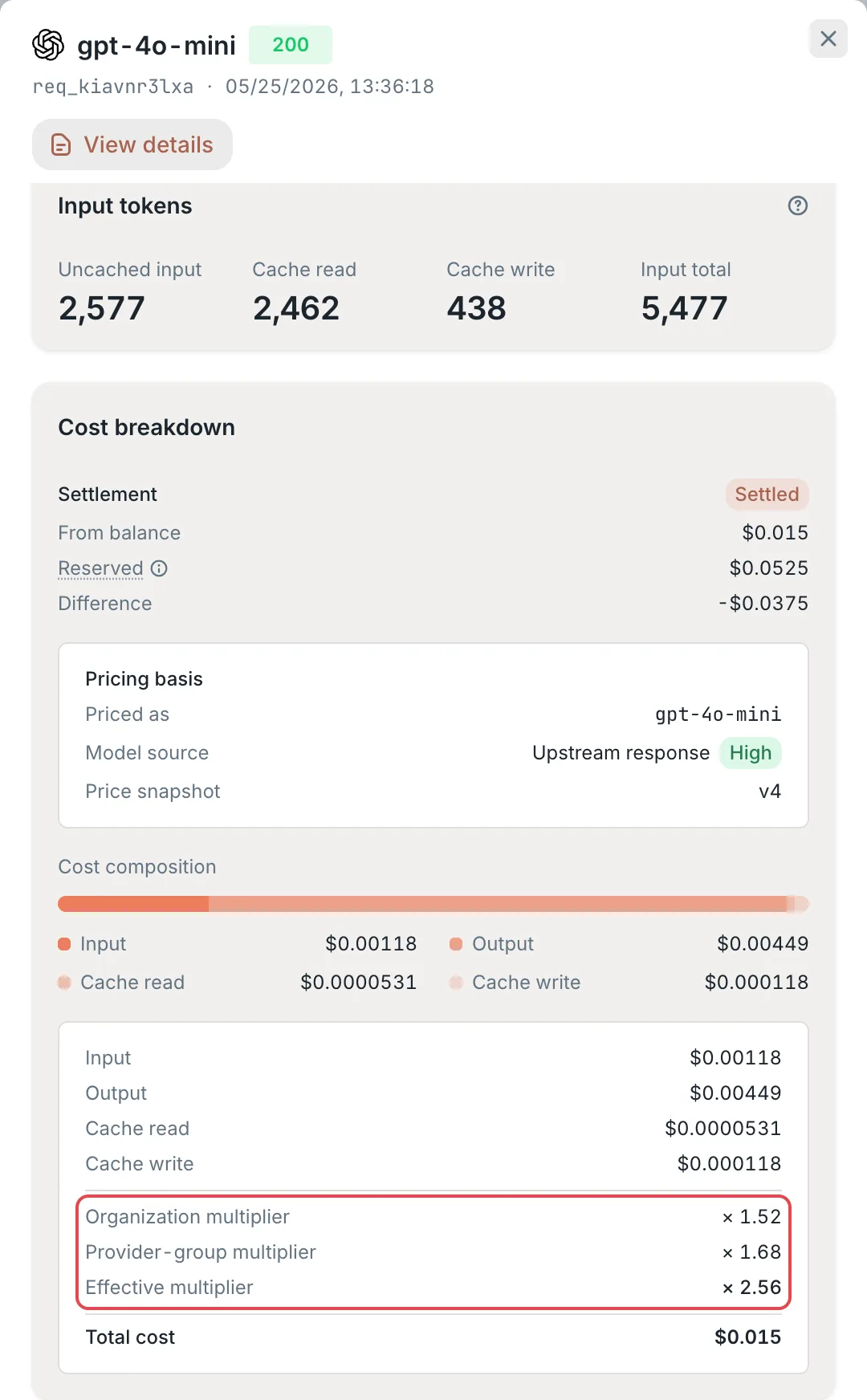 Request details: billing multipliers in Cost breakdown
 CCHP
CCHP
Who can change multipliers#
All multipliers belong to the current organization. If you manage several organizations, first click the organization name on the left of the top bar to switch to the organization you want to configure.
- Organization admins, organization super admins, and platform super admins can change all the multipliers on this page.
- Team admins can change only their own team’s Team multiplier, and can’t see the Provider groups section of the team details page.
Where to set them#
Except for provider keys, after you change a value, the You have unsaved changes action bar appears at the bottom of the page. The change takes effect only after you click Save in it.
Top-up ratio#
In the Org management group in the sidebar, click Provider Management. On the Providers tab, click the provider name to open the provider details page. In the Basic section, change Top-up ratio.
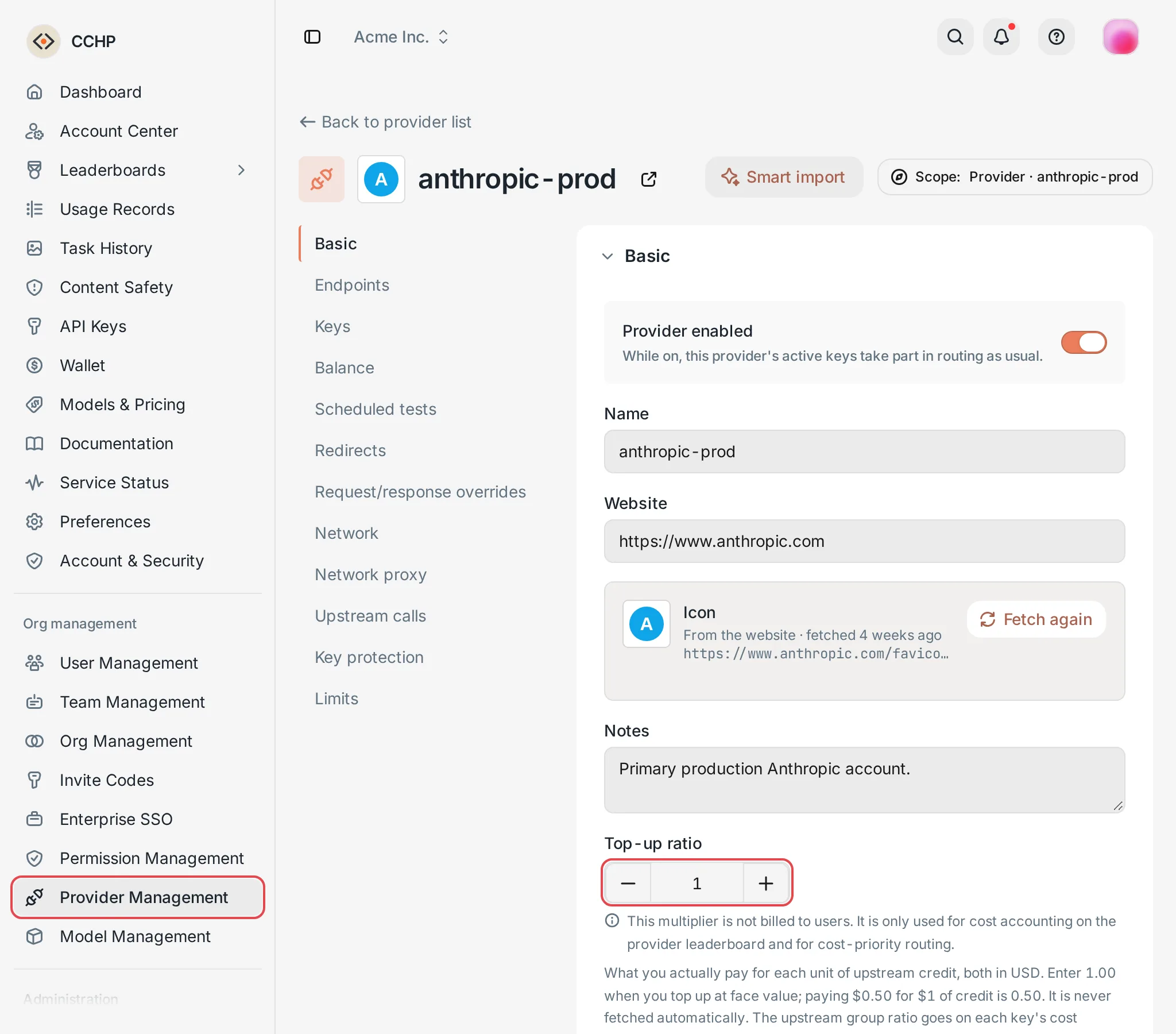 Provider details: Top-up ratioCCHP
Cost multiplier#
On the Keys tab of Provider Management, click the key name to open the Edit provider key dialog. Click Routing, change Cost multiplier, and then click Save in the dialog.
If you can’t edit Cost multiplier, the key has Fetch ratio automatically turned on, and the system regularly updates the value with the upstream group ratio. To enter it manually, first turn off Fetch ratio automatically. See Upstream ratios and balances.
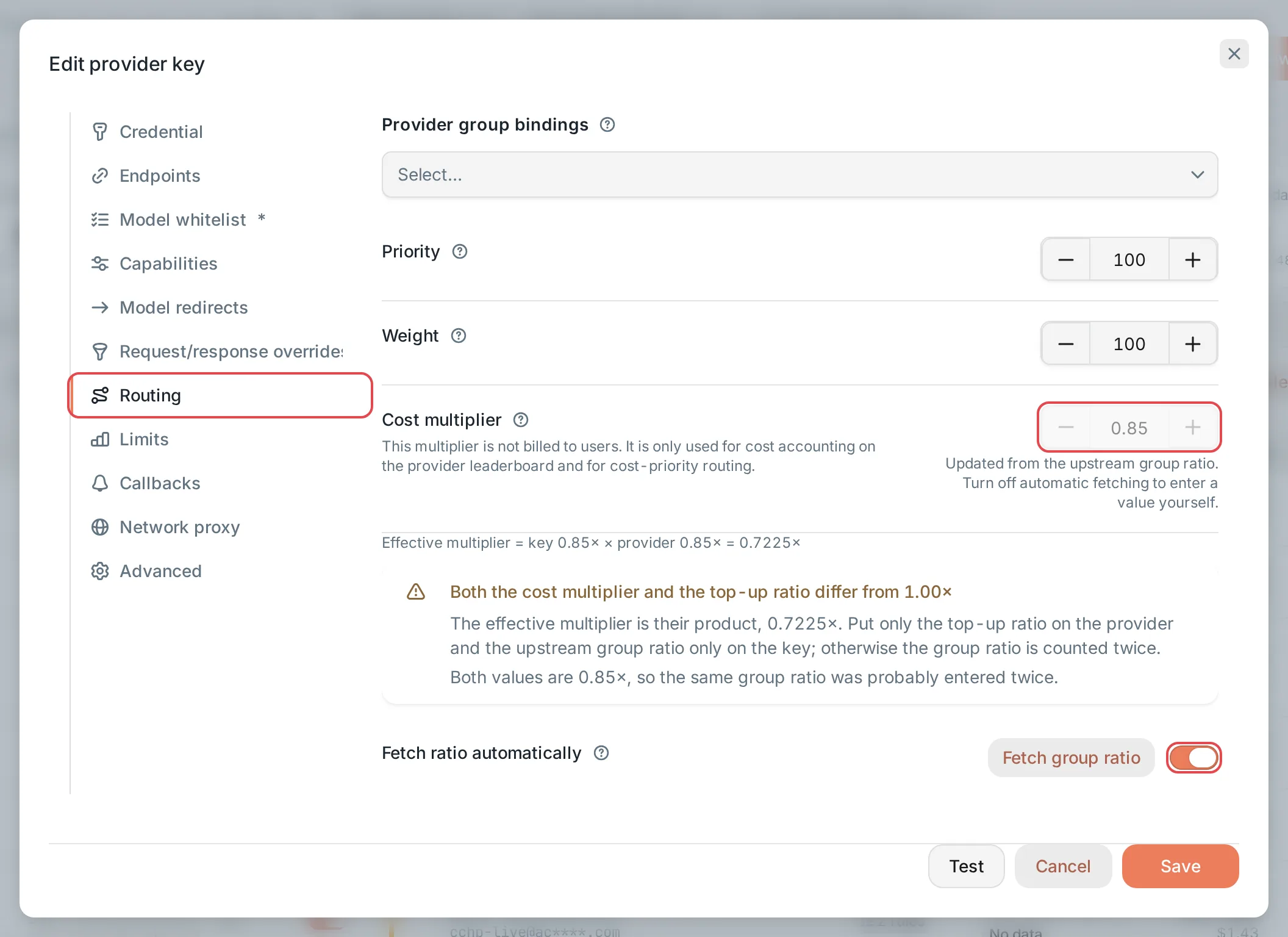 Edit provider key: Cost multiplierCCHP
Group multiplier#
On the Provider groups tab of Provider Management, click the group name to open the Edit provider group page. Click the Settings tab, and then change Group multiplier.
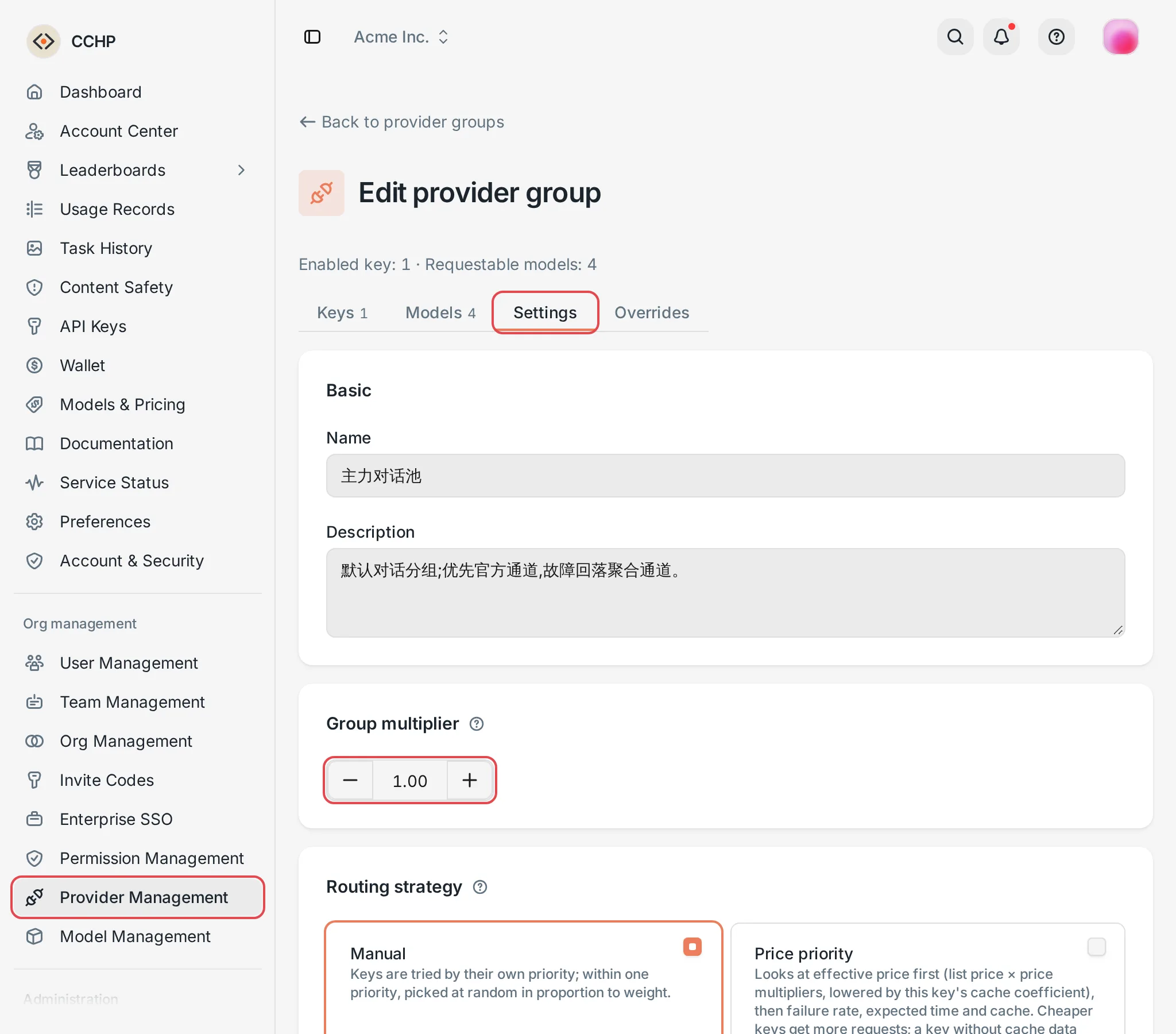 Edit provider group: Group multiplierCCHP
Member billing multiplier#
On the Keys tab of the Edit provider group page, click the key’s row, and change Member billing multiplier (×) in the panel on the right. Close the panel, and then click Save at the bottom of the page.
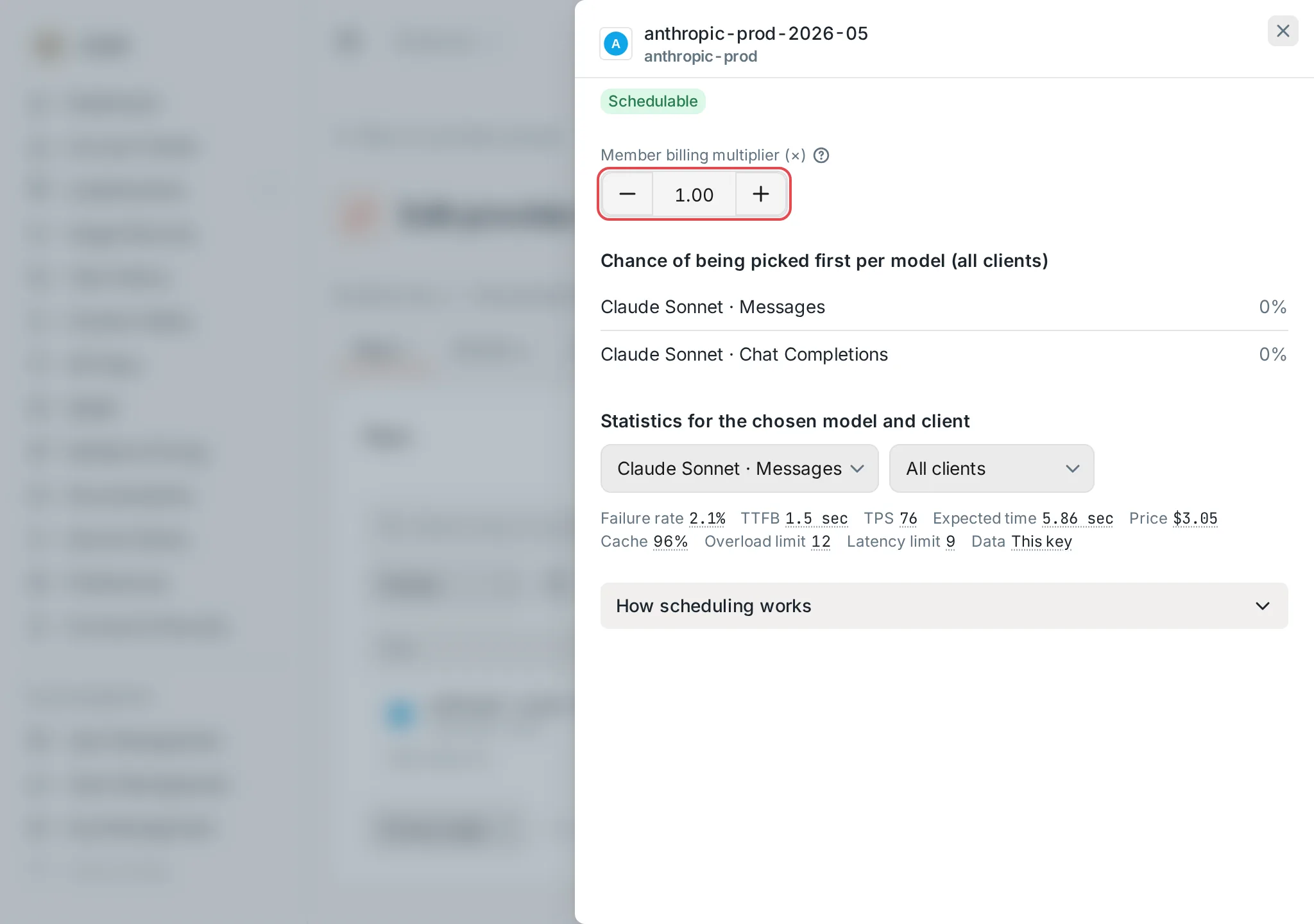 Group member details: Member billing multiplier (×)CCHP
Organization extra multiplier#
In the Org management group in the sidebar, click Org Management, open the organization you want to configure, and click Provider groups in the section navigation on the left. Then change Organization × in the row of the group you want to mark up.
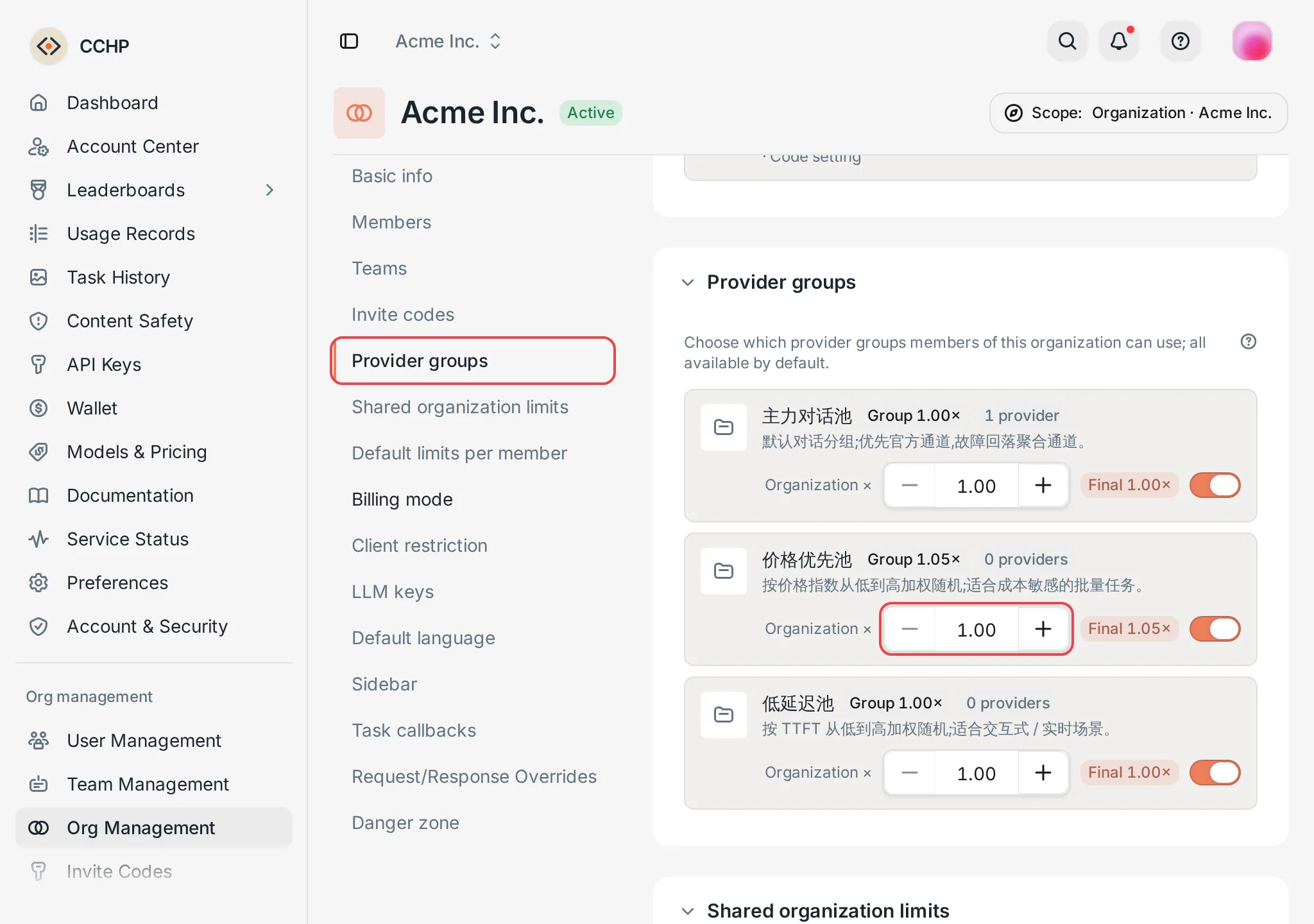 Organization details: a group's Organization × valueCCHP
Team extra multiplier#
In the Org management group in the sidebar, click Team Management, open the team you want to configure, and click Provider groups in the section navigation on the left. Then change Team × in the row of the group you want to mark up. Sub-teams inherit this team’s settings.
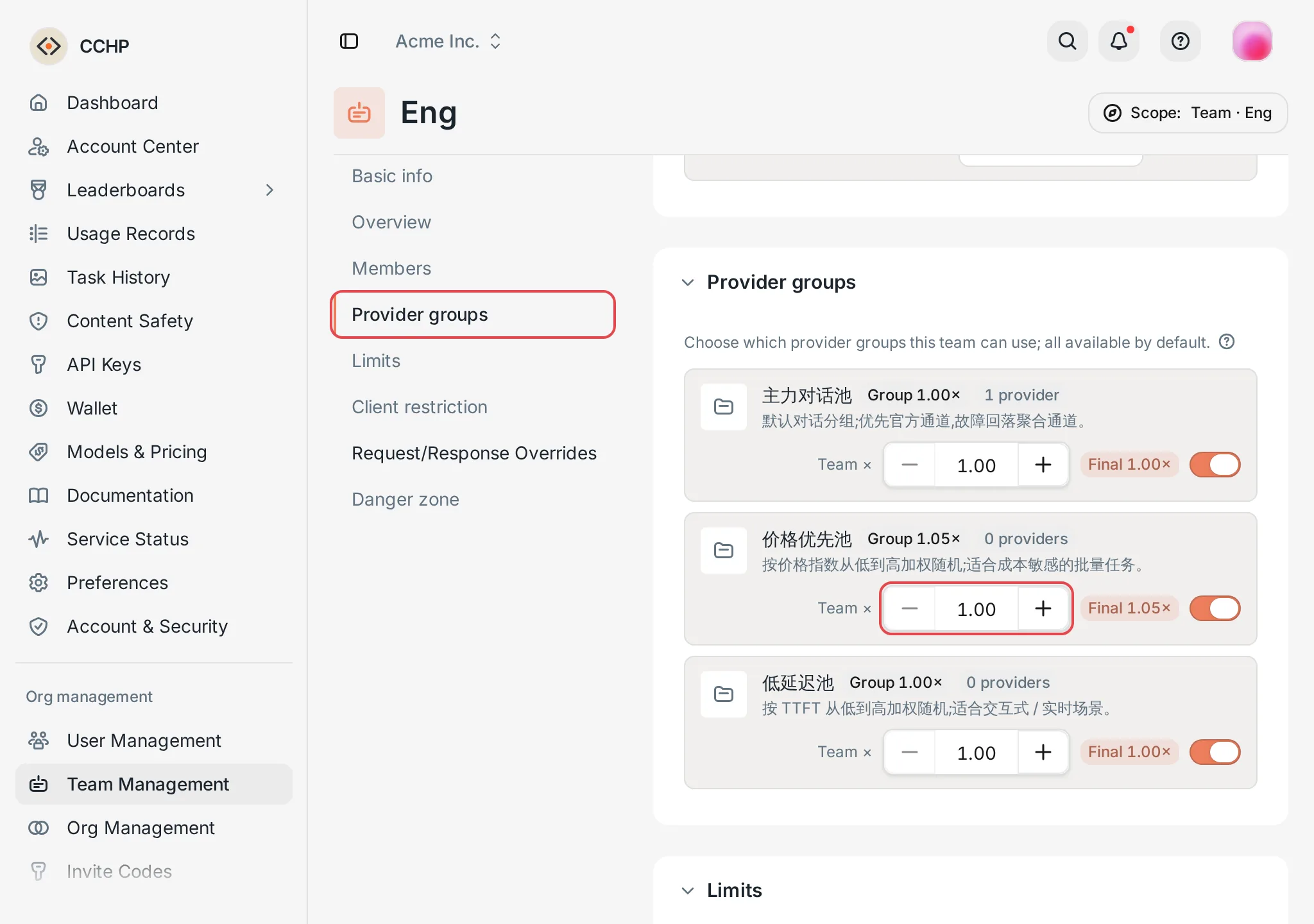 Team details: a group's Team × valueCCHP
Organization’s own multiplier#
Open the organization details page, and change Own multiplier in the Basic info section. You can also enter it in the create dialog when you create an organization.
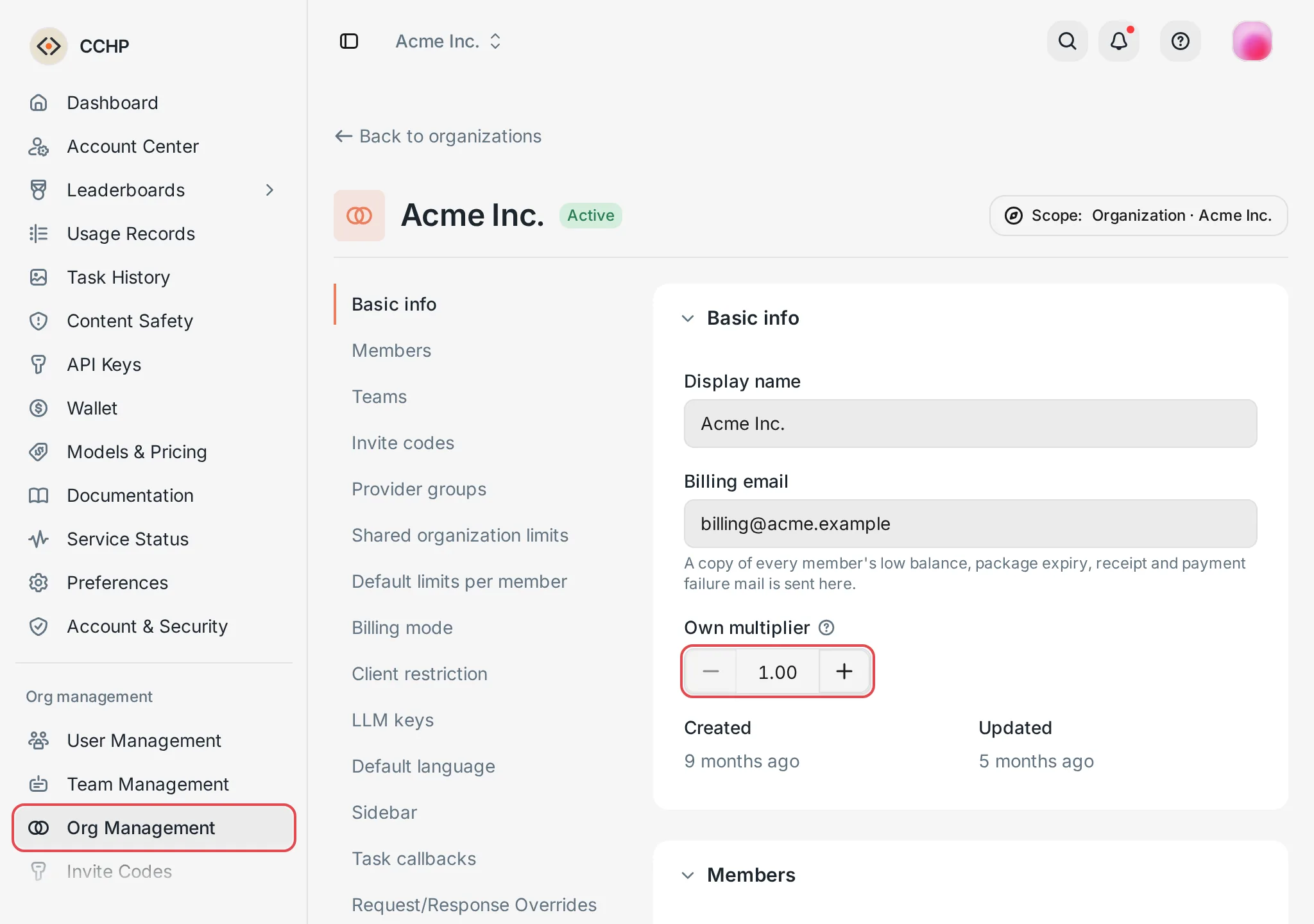 Organization details: Own multiplierCCHP
Team’s own multiplier#
Open the team details page, and change Team multiplier in the Basic info section. You can also enter it in the create dialog when you create a team.
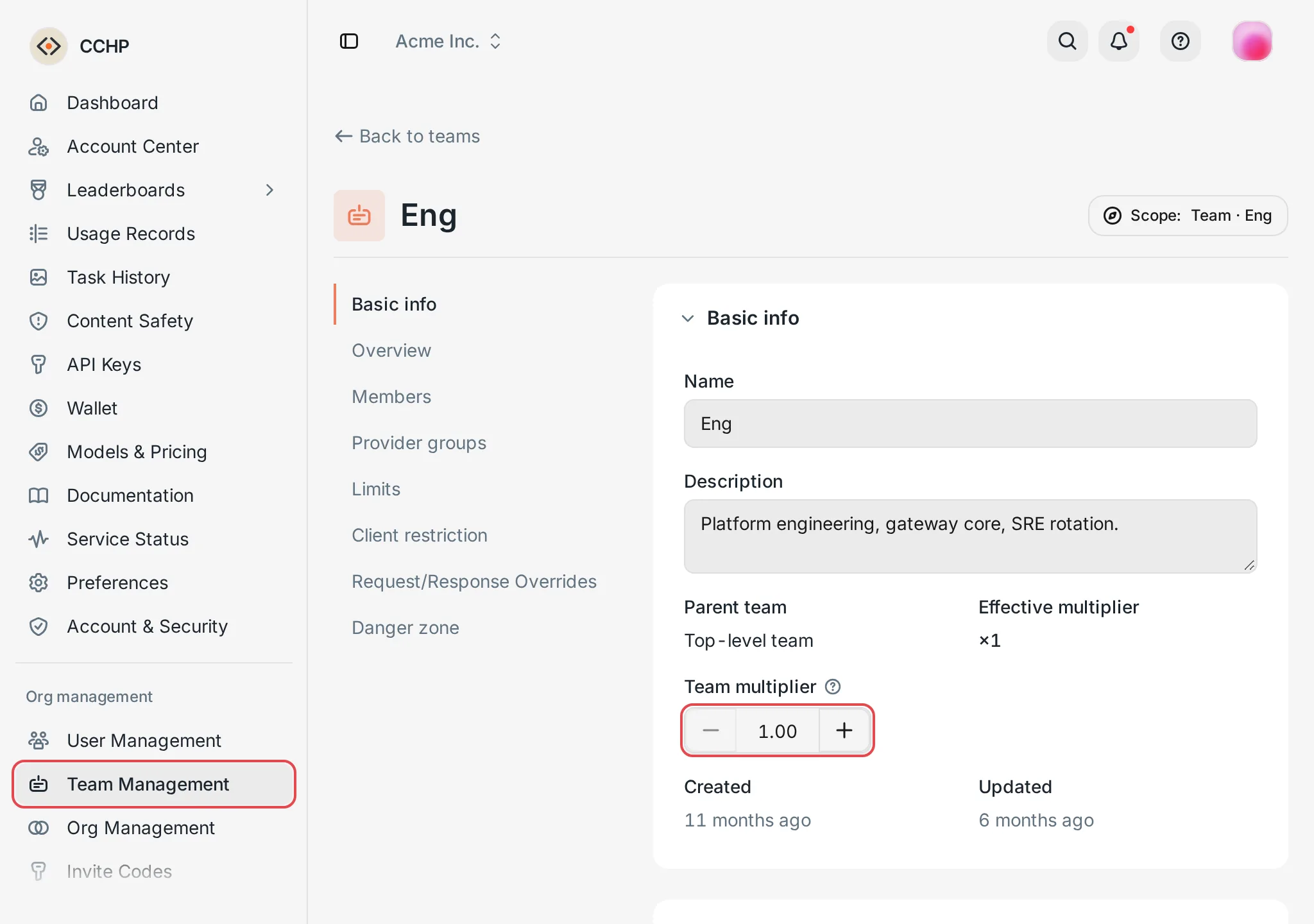 Team details: Team multiplierCCHP
Frequently asked questions#
Why didn’t the user’s charge change after I changed the top-up ratio or the cost multiplier?#
These two multipliers are provider cost multipliers, which don’t count toward the user’s bill. To adjust the price you charge users, change a user billing multiplier, for example the provider group’s Group multiplier.
Can I set the organization’s own multiplier below 1.00 to give an organization a discount?#
No. Own multiplier, Organization ×, Team multiplier, and Team × all have a minimum of 1.00. To lower the price, set the provider group’s Group multiplier or Member billing multiplier (×) to a value less than 1.00.