Chapter 134 min read
Customize the sidebar
Hide or move the console sidebar's built-in entries and groups, change icons, and add link entries that open a URL or a console page, or embedded page entries that open inside the console.
You can adjust the console sidebar that members see after signing in, per organization: hide or move built-in entries and groups, change icons, and add your own entries anywhere. There are two kinds of custom entries: a Link opens a URL or a page in the console; an Embedded page shows an external web page right inside the console, for example your team’s usage guide.
Where to set it#
The sidebar has a global setting and an organization setting, and the organization setting wins:
- Global: a platform super admin goes to Administration → System Management → Site and expands the Sidebar block. Entries in the Administration group can be adjusted only here.
- Organization: an organization admin goes to Org management → Org Management and clicks Sidebar on the left of the organization settings page. Organizations without their own setting use the global one. After an organization has its own setting, click Restore inheritance to go back to the global one.
After a change, a save bar appears at the bottom of the page. Click Save, then click Confirm in Confirm submit. Members see the new sidebar the next time they open the console.
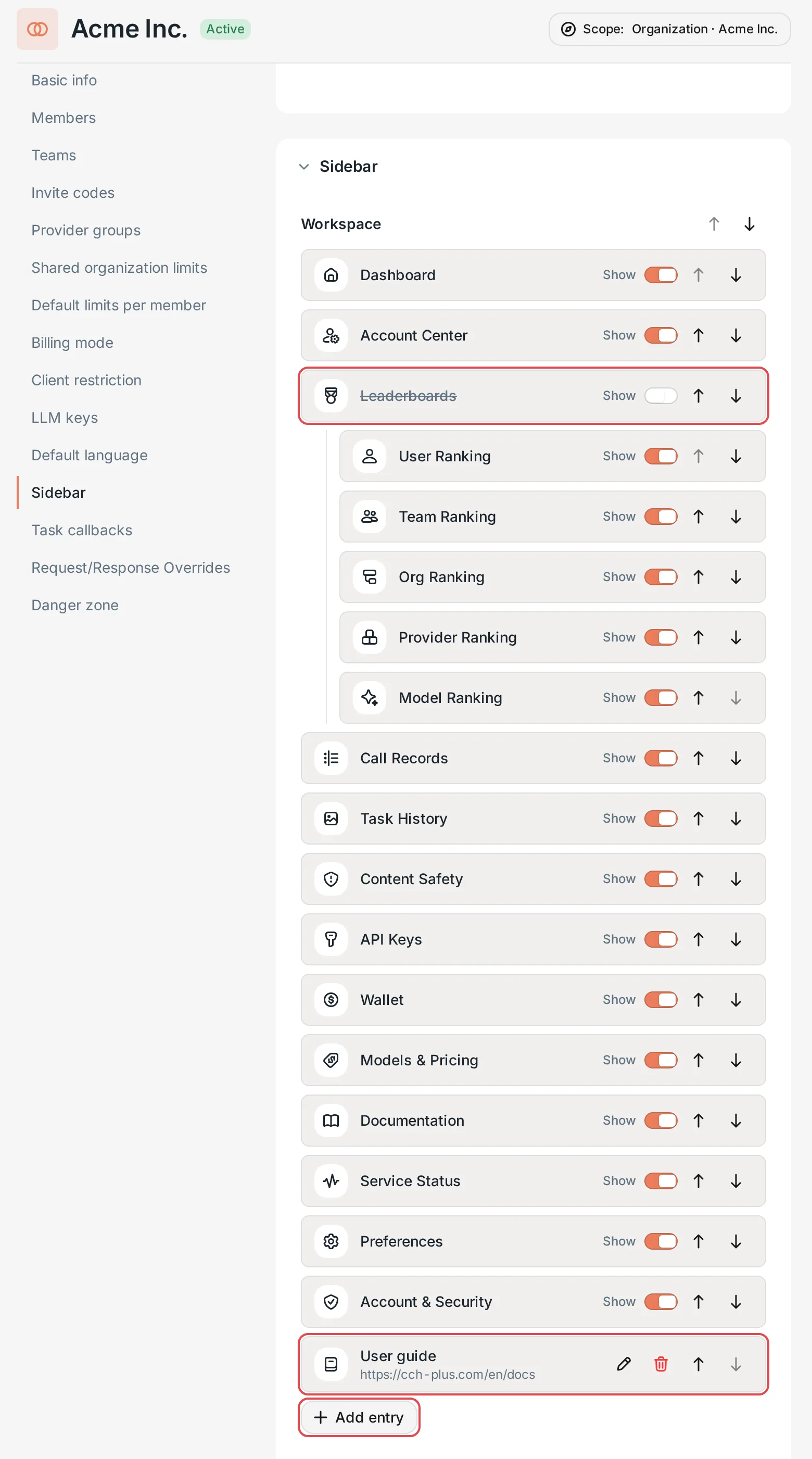 Organization settings page: the Sidebar section, with a hidden entry and a custom entry
 CCHP
CCHP
Adjust built-in entries#
The sidebar lists every entry by group, such as Workspace and Org management. On each row you can:
- Turn Show on or off: when it is off, the entry no longer appears in the sidebar, and it is also removed from feature search and the new-user tour.
- Click the up and down arrows to move the entry within its group; the arrows next to a group title move the whole group.
- Click the icon at the start of the row to open Choose icon and pick another icon.
The top of the section shows how many entries are hidden and how many custom entries were added.
Add an entry#
Open the add dialog#
Click Add entry below the group that the entry belongs in.
Fill in the entry#
- Type: Link or Embedded page.
- Label: the name shown in the sidebar, up to 64 characters. In Label language you can fill in a label for each of the five interface languages; languages without one show the label in Default.
- Address: for a Link, a URL that starts with
http://orhttps://, or a console path that starts with/, for example/app/logs; external URLs open in a new tab. An Embedded page must be a URL that starts withhttps://; with Reduced-security deployment turned on, it can also be anhttp://URL, a LAN IP, or a host name without a public domain. The address can have up to 2048 characters and cannot carry a user name and password, point to a cloud metadata address, or use any other protocol. - Icon: click it, then search by name in Choose icon and pick one of the 809 icons.
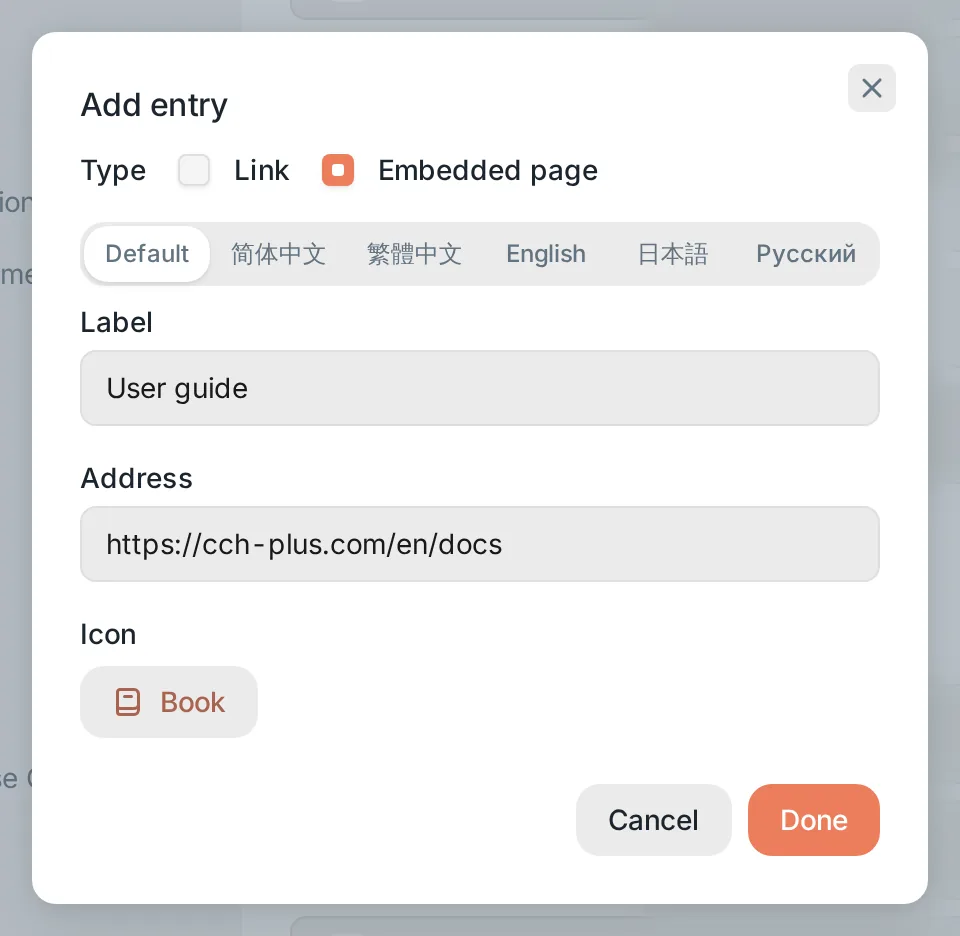 Add entry: type, label, address, and iconCCHP
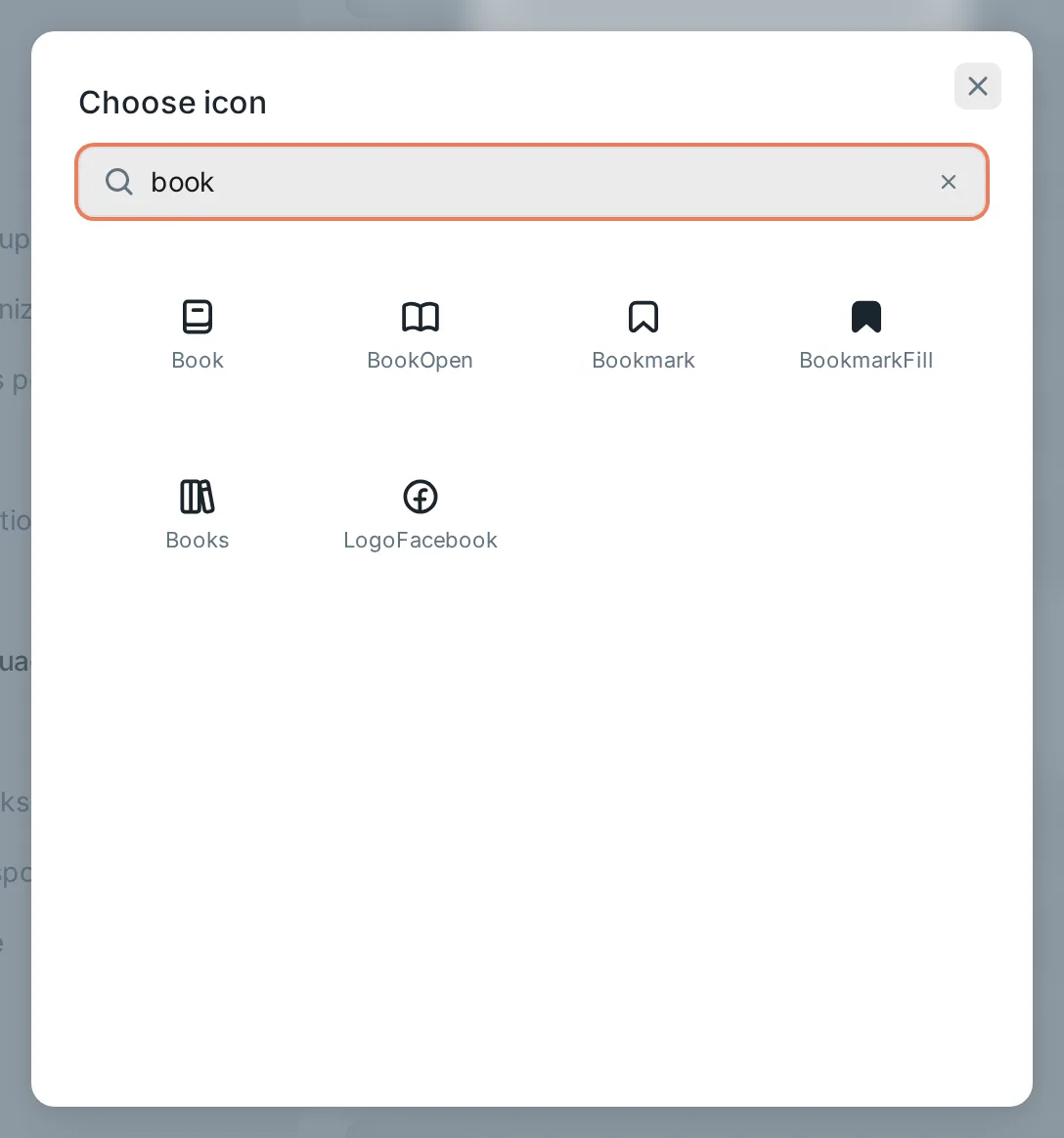 Choose icon: search by nameCCHP
Save#
Click Done to close the dialog, then save at the bottom of the page.
Each setting scope can have up to 20 custom entries. Custom entries can be edited, removed, moved, and hidden in the same way, and they can be found in feature search.
How an embedded page opens#
When a member clicks an embedded page entry, the page opens inside the console, and the sidebar and top bar stay in place. Open in new tab in the upper-right corner opens the original URL in a new browser tab; use it when the web page does not allow itself to be embedded.
Embedded pages run in a sandbox, and CCHP sends them no Referer. Before opening one, CCHP checks that the visitor is signed in, is a member of the organization, and that the entry still exists. Switching organizations does not reload the page.
When the console is opened over HTTPS and an embedded page is an http URL, the browser blocks it as mixed content and the page cannot show in the console; the editor points this out on that entry. After reduced-security deployment is turned off, saved http embedded pages are no longer served, saving settings that still contain such entries is rejected, and the editor explains why on that entry.
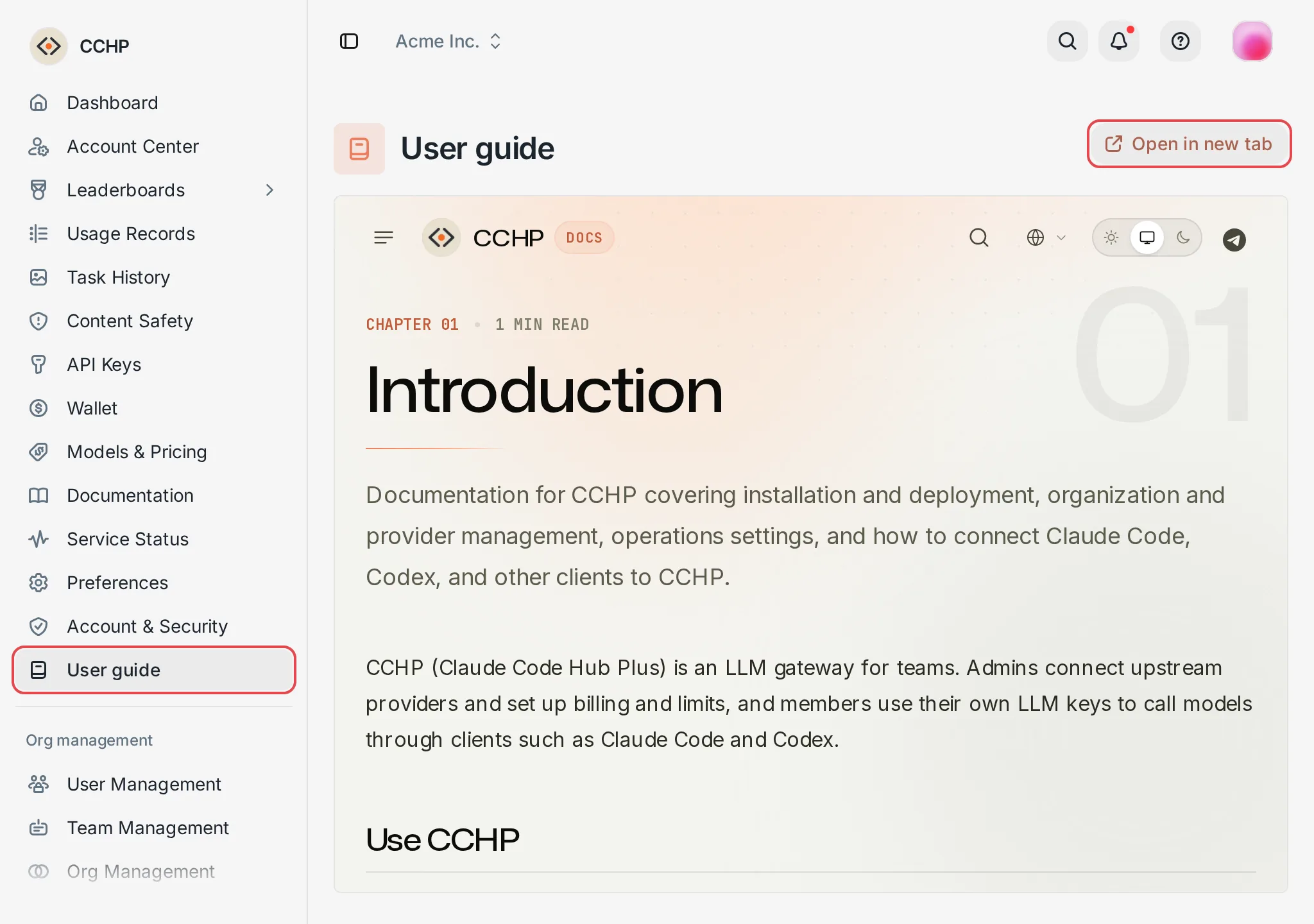 An embedded page opened in the consoleCCHP