Chapter 2511 min read
Set up packages
Create usage packages and time packages in the operations settings, set their prices, credit, purchase rules, and team-specific prices, control whether a package is listed, and learn how users buy and renew packages in their wallet.
A package is prepaid credit that users buy in Wallet. When a user calls a model, the cost is covered first by the user’s active packages, and any remainder is deducted from the wallet balance. There are two package types:
- Usage: Grants a one-time amount of credit on purchase. It stays valid with no time limit until it’s used up.
- Time: Refreshes a fixed amount of credit Daily, Weekly, or Monthly during its valid days, and expires at the end.
Package credit can pay for calls to any model, and you can’t limit it to specific models. Packages are configured only in Administration → Operations Settings → Packages, and only a platform super admin can see this page.
Before you begin#
- Users can buy packages with their wallet balance. To let users pay online, configure a payment channel first. See Set up payment channels.
- Prices and credit are both in
$, the same unit as the wallet balance. - Every change to the package catalog (creating, editing, deleting, or switching Listed) is saved immediately. The page has no separate save button.
Create a package#
Open the package catalog#
Go to Administration → Operations Settings. The page opens on the Packages section by default. Make sure that Scope at the top right is Global, and then click New package in Package Catalog.
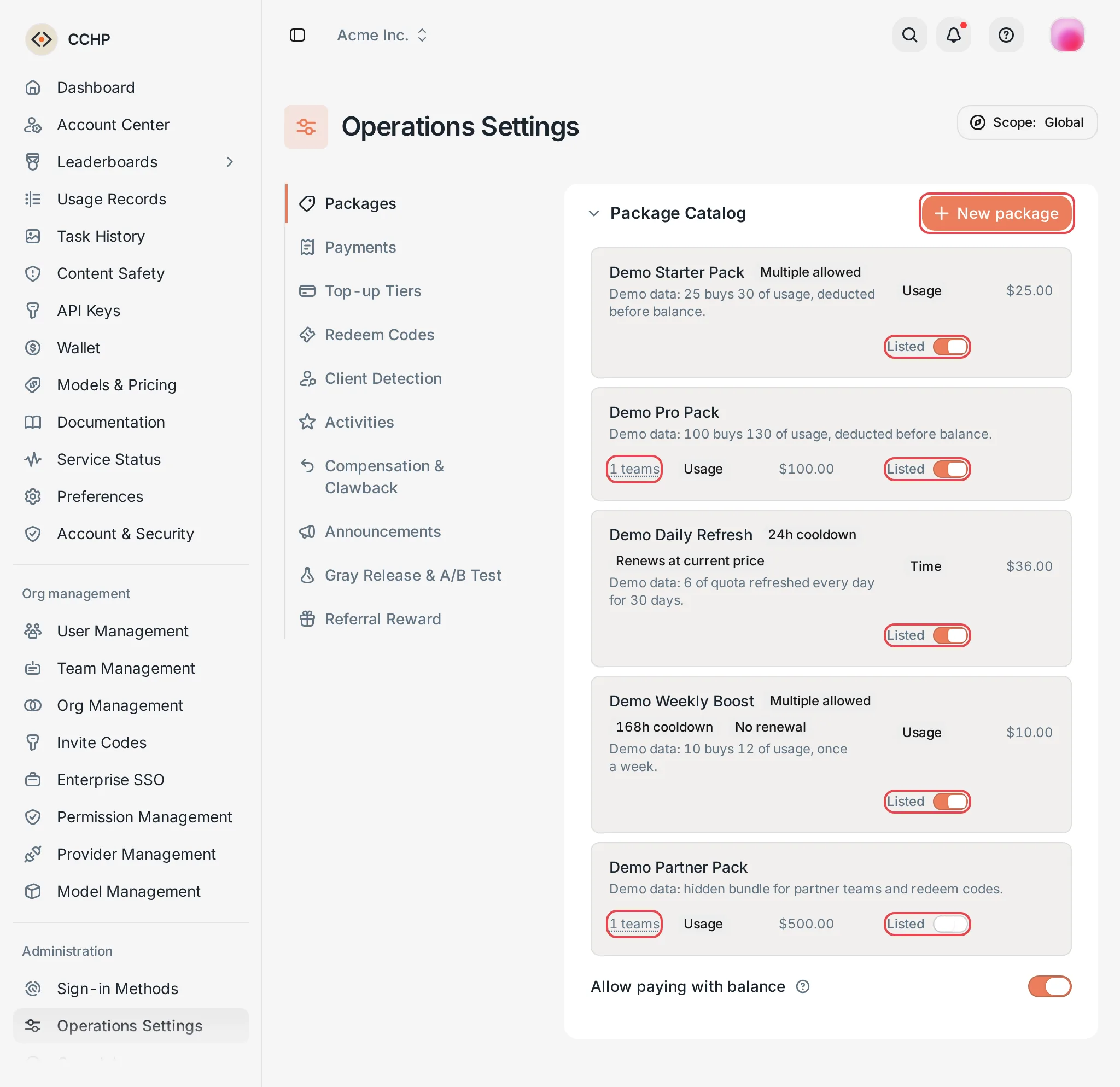 Package Catalog: the Listed toggles and team overrides
 CCHP
CCHP
Fill in the package details#
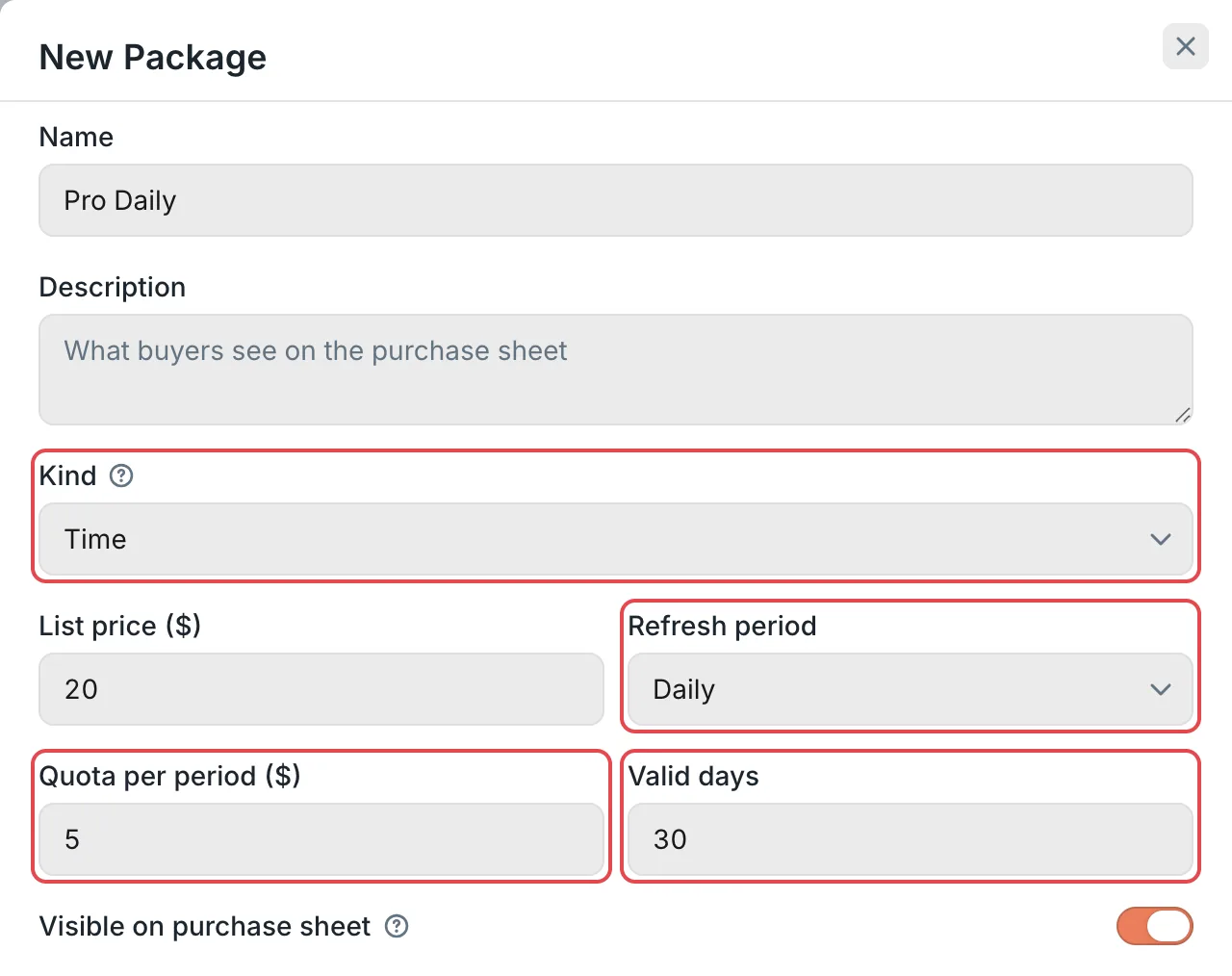 New Package panel: the refresh period and credit of a time packageCCHP
Set purchase rules and team prices#
Set Purchase rules as needed (see Purchase rules). To give a team a discount or a team-specific price, add the team in Team overrides (see Team-specific prices). You can keep the defaults for both.
Create the package#
Click Create. The button is unavailable if a required field is empty or a value is invalid.
Result: The page shows Package created, and the package appears in Package Catalog. Packages with Visible on purchase sheet turned on appear in the user’s Buy a Package window.
Purchase rules#
Purchase rules limit only the purchases, renewals, and redemptions that users make themselves. Custom orders that admins create and redeem codes that admins apply in bulk are not limited.
“Active” means that the package hasn’t expired, hasn’t been used up, and hasn’t been revoked by an admin. After a usage package is used up or a time package expires, the user can’t renew it but can buy it again.
Packages with non-default rules show badges after their names in the catalog, such as Multiple allowed, 24h cooldown, No renewal, and Renews at current price.
A renewal doesn’t add a new copy of the package. It extends the user’s existing copy:
- Usage package: Adds one more allowance, and the package stays valid with no time limit.
- Time package: Moves the expiry back by one term of valid days. The refresh period and the quota per period stay the same.
The allowance or number of days in each term is based on the package as it was when the user got it. If you later change the package’s Allowance ($) or Valid days, only new buyers are affected.
Team-specific prices#
Team overrides lets the same package have different prices for different teams, or be listed only for certain teams.
- In Team overrides in the package panel, click Add team and select a team. The candidate teams come from the organization currently selected in the top bar. To set up teams of another organization, switch the organization in the top bar first.
- Fill in the team row as needed:
- Discount %: A whole number from 0 to 99. For example,
10means that the package sells at 90% of the list price. - Price ($): A fixed price for that team. If you fill in both a discount and a price, the price takes precedence.
- Visible: When it’s on, members of this team can see and buy the package on the purchase page even if the package is hidden. When it’s off, it follows the package’s Visible on purchase sheet setting.
- Discount %: A whole number from 0 to 99. For example,
- Click Create or Save.
Result: The purchase page for members of that team shows the team price, with the discount percentage and the original price. The package row in the catalog shows a link such as 1 teams. Click it to see the teams that have overrides.
A team override applies only to members of that team, not to its sub-teams. Add sub-teams separately. Members who don’t belong to any team buy at the list price.
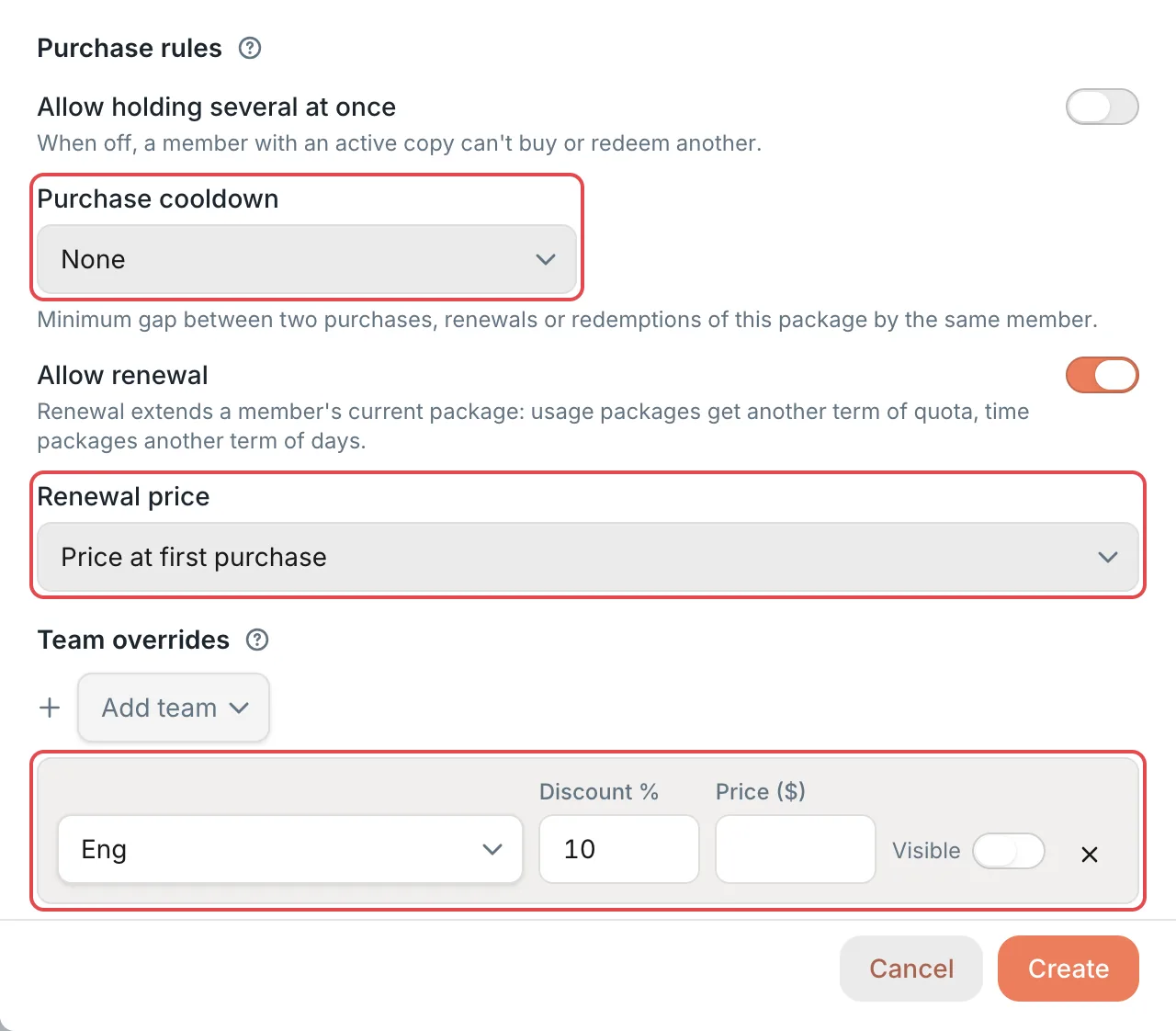 New Package panel: purchase rules and team overridesCCHP
Listing and hiding#
The Listed toggle on each package row in the catalog and Visible on purchase sheet in the panel are the same setting. When it’s off, the package becomes a hidden package:
- It isn’t shown on the purchase page, and users can’t buy it themselves.
- Teams with Visible turned on in Team overrides can still see and buy it.
- It can still be used to generate package redeem codes. See Set up redeem codes.
- Admins can still generate a payment order for this package for a specific user in Create custom order in the Payments section.
- Users who already hold it are not affected and can keep using and renewing it.
Edit or delete a package#
Edit: Hover over the package row, click the edit icon that appears, make your changes in the Edit Package panel, and click Save. You can’t change the package type. Changes affect only later purchases: packages that users already hold and redeem codes that were already generated keep granting and counting credit based on the original details.
Delete: Click the more actions icon at the end of the package row, select Delete package, and click Delete package again in the confirmation dialog. After you delete it:
- Users can no longer buy or renew this package, and new redeem codes can’t select it.
- Packages that users already hold stay active until they’re used up or expire.
- Redeem codes already generated for this package can still be redeemed. To invalidate them, turn off their Enabled toggle in the Redeem Codes list of the Redeem Codes section.
If you only want to pause sales, turn off Listed. You don’t need to delete the package.
Give an organization or team its own packages#
By default, users across the platform see the same Global package catalog. To show an organization or team a different list of packages, set up a separate catalog for it:
- Click Scope at the top right. In Select scope, select Organization or Team, select the specific organization or team, and click Apply.
- A notice above the catalog says that the configuration shown is inherited from the global scope. At this point, the catalog is the same as the global one.
- In this scope, create, edit, delete, or toggle any package.
Result: The organization or team gets its own complete catalog, and its members see only this catalog. A team takes priority over an organization, and an organization takes priority over global.
Warning: After you set up a separate catalog, this organization or team no longer follows the global catalog. Its members can’t see the packages that you add or change in Global later. To go back to the global catalog, click Restore inherited in that scope.
If you only want to give a team a different price, team-specific prices are simpler and don’t need a separate catalog. Packages created only in an organization or team scope can’t be used to generate redeem codes. See Packages and redeem codes.
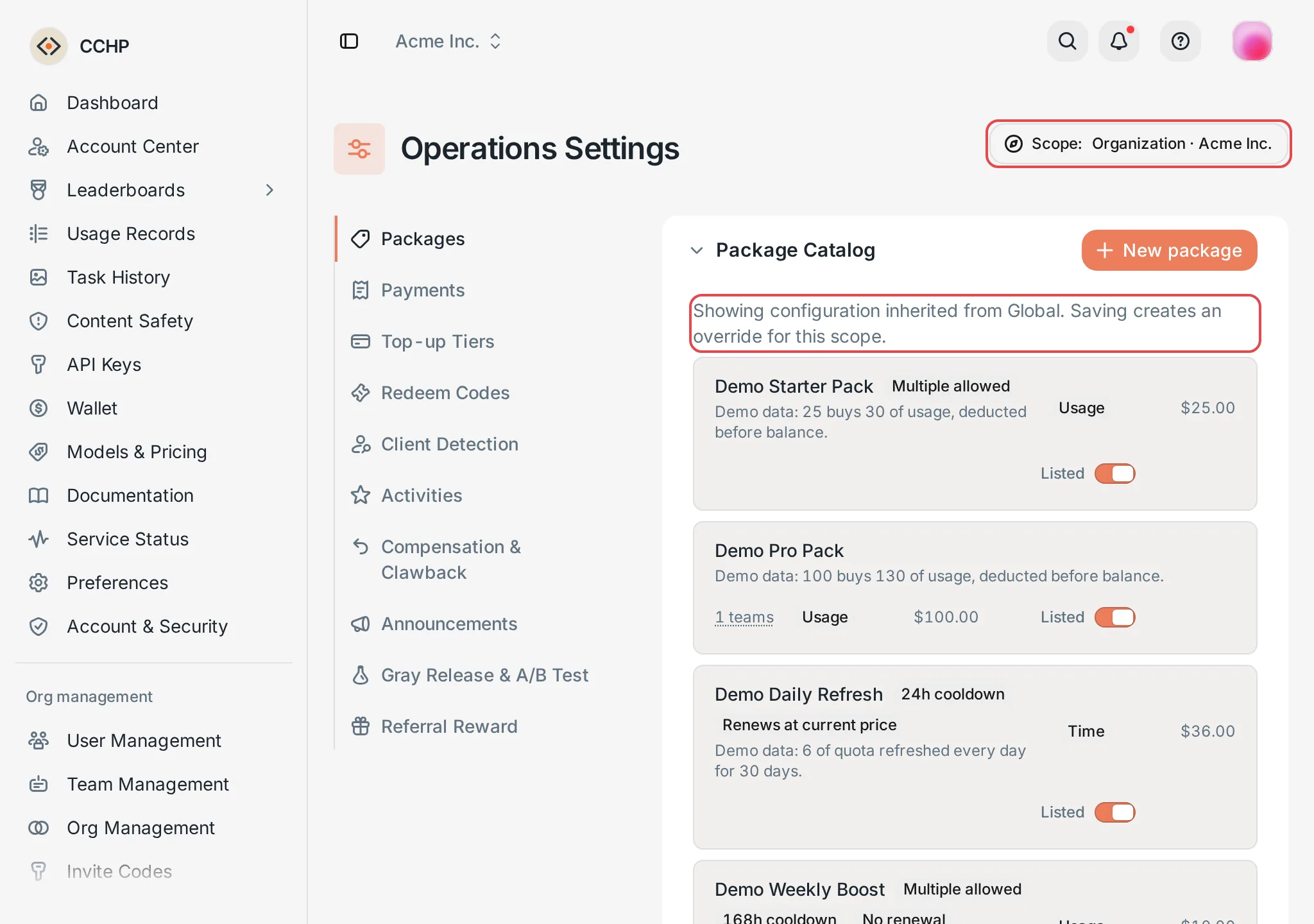 Package Catalog: the inheritance notice in an organization scopeCCHP
How users buy and renew packages#
In the sidebar, the user opens Wallet and clicks Buy package. The window lists the packages that are listed for the user’s team, and each card shows the capacity, validity, and price. Packages with a team discount show the discount percentage and the original price. After selecting a package, the user can:
- Click Pay (the button shows the amount due) to pay online. When the wallet has a balance but less than the price, the window also shows Use balance toward this purchase (on by default), which covers part of the price with the wallet balance so the user pays the rest online.
- Click Pay from balance to pay the full price from the wallet balance. The button is unavailable if the balance is too low.
The Allow paying with balance toggle at the bottom of the Package Catalog is on by default, and it can be changed only in the Global scope. When it is off, users can buy and renew packages only by paying online, and the window no longer shows Pay from balance or Use balance toward this purchase.
If the user already holds this package and the package can’t be held more than once, the card shows Owned. If the package allows renewal, the window shows a Renew current package button. During the purchase cooldown, it shows Cooling down and the time when the user can buy again.
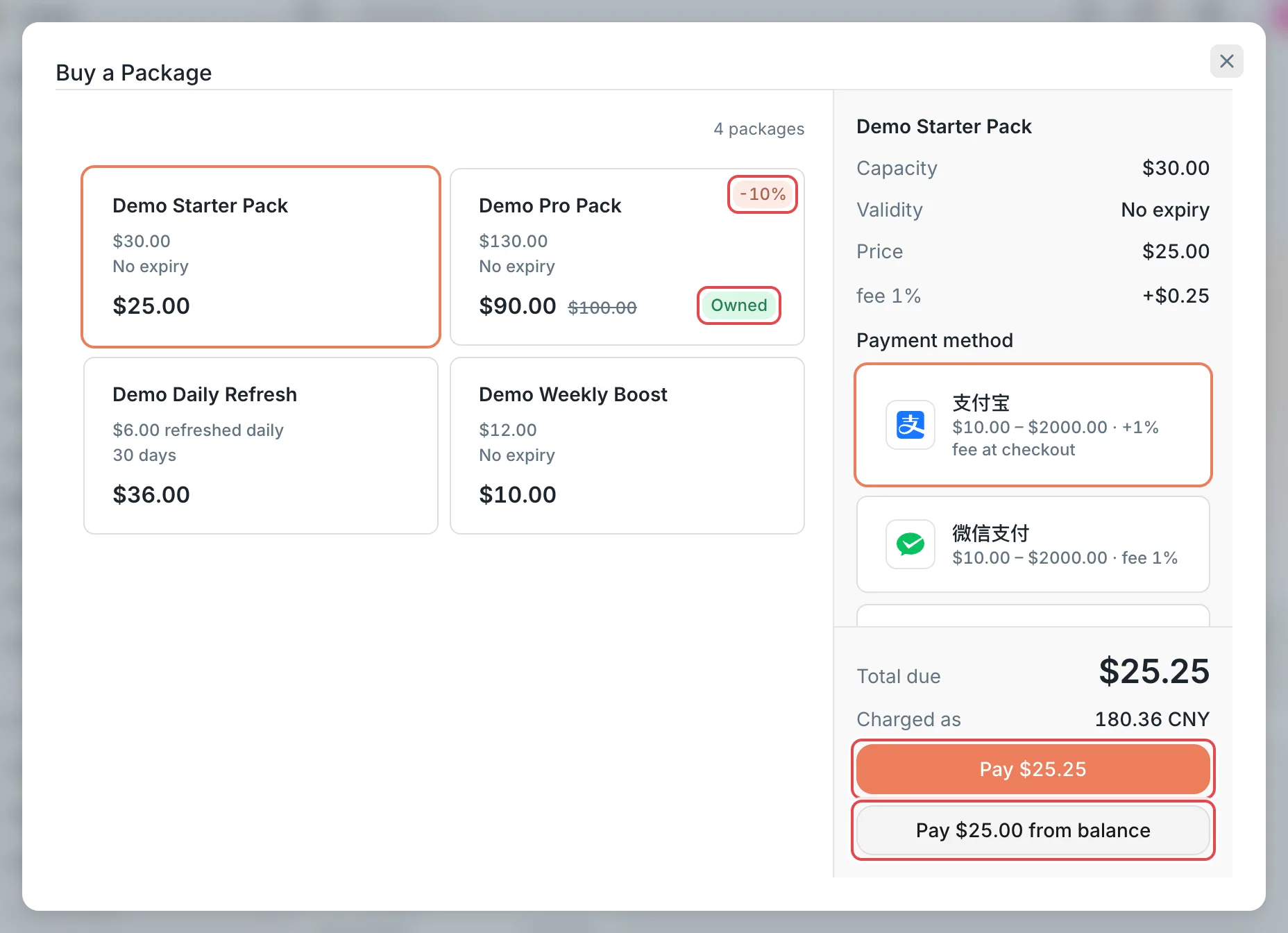 Buy a Package dialog: the package cards and the pay buttonsCCHP
After a successful purchase, the package appears in Your Plans in Wallet with the status Active. A package belongs only to the buyer and covers only the buyer’s own call costs in the current organization. Charges are deducted in this order:
- The current period’s credit of time packages.
- The remaining credit of usage packages.
- The wallet balance.
The periods of a time package start from the time of purchase: Daily is 24 hours, Weekly is 7 days, and Monthly is 30 days. Credit left unused in a period doesn’t carry over to the next period.
To renew, the user clicks the Renew button on the package in Your Plans, confirms the added credit or days in the Renew Package window, and pays. For a package that can’t be renewed or is in its cooldown, Your Plans shows the reason.
Before a time package expires, CCHP sends the holder a reminder email, 3 days in advance by default. To change the number of days or turn off the reminder, go to Administration → System Management → Transactional email and set Package expiry notice.
Packages and redeem codes#
When you generate redeem codes in the Redeem Codes section, set Type to Package to select a package from the global catalog, including hidden packages. A redeem code records the package’s details when it’s generated, so editing or deleting the package later doesn’t affect codes that were already generated.
When users redeem a package redeem code, Allow holding several at once and Purchase cooldown also apply. If a rule rejects the redemption, the code isn’t used up and can be used later. When a package obtained from a redeem code is renewed, Price at first purchase is the package’s price for the user’s team at the time of redemption. To generate and distribute redeem codes, see Set up redeem codes.
Frequently asked questions#
Why didn’t the user get the package after paying online?#
CCHP checks the purchase rules again when the payment completes. If the user already holds this package at that point (and it can’t be held more than once), or is still in the cooldown, the package isn’t granted, and the amount paid goes into the user’s wallet balance.
Why can’t I find a package when I generate redeem codes?#
Redeem codes can select only packages in the Global catalog. The package may have been created only in an organization or team scope, or it may have been deleted.
Why doesn’t a new package appear on the user’s purchase page?#
Check the following in order:
- Whether the package’s Listed toggle is on, or whether the user’s team has Visible turned on in Team overrides.
- Whether the user’s organization or team has its own catalog. If it does, packages added to the global catalog don’t appear in that organization or team. See Give an organization or team its own packages.