Chapter 367 min read
View available models
Find the models you can call in Models & Pricing, compare prices across provider groups, and copy the model ID. Or call the gateway's /v1/models with an LLM key to get the list of models that key can call right now.
Which models you can call depends on which provider groups the admin has opened to your organization and team. You can check in two ways: browse models, prices, and call examples on the Models & Pricing page in the console, or call the gateway’s /v1/models with an LLM key to get the list of models that key can call right now. When you configure a client, enter the model’s ID as the model name.
Find models in Models & Pricing#
In the sidebar, click Models & Pricing. The page lists only the models you can use: provider groups that your team or organization has disabled aren’t shown, and neither are models offered only by those groups. If you have joined several organizations, the page shows the models of the current organization in the top bar. To see another organization’s models, switch organizations in the top bar first.
The top of the page shows the current Organization and Team and their multipliers, and the prices on the page already include these two multipliers. To find a model:
- Enter a model name, a vendor, or a keyword from the description in the search box.
- In Filters on the left, narrow the results by Provider groups (at the top), Vendor, Capabilities, Input price, Context window, and more. Filtering by entry format is in Advanced filters, which is collapsed by default.
- To the right of the search box, sort by Released, Name, Input price, or Context window.
Each card shows the model name, the model ID (the monospace text below the name), capability tags, the starting input and output prices, and the context window. /M after a price means per million tokens. The bottom-right corner of the card shows the number of groups that offer this model, for example 3 groups. Prices can differ between groups, so check them one by one in the model details.
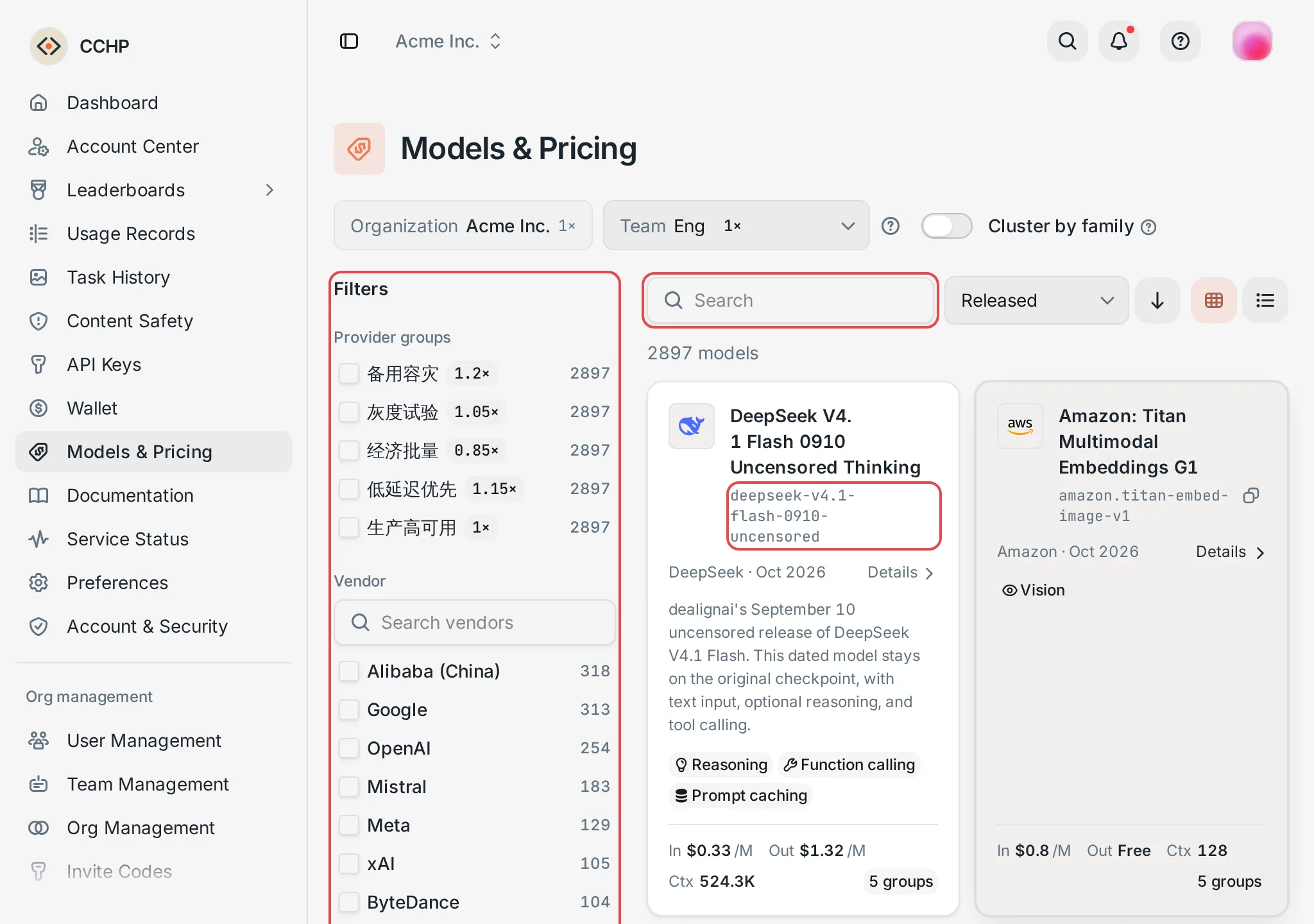 Models & Pricing: search, filters, and model cards
 CCHP
CCHP
View model details and prices#
Click a model card to open the details panel on the right. The model ID is below the name. Click it to copy it. Group shows the currently selected provider group. When a model is offered by several groups, click it to switch groups, and the prices, call examples, and live test below change accordingly.
The details panel has four tabs:
- Overview: The description, vendor, context length, max output, release date, capabilities, and the teams that can use this model through the selected group (Available teams).
- Pricing tiers: The effective unit price of each billable item in the selected group, such as input, output, and cache read, per million tokens. Effective unit prices already include the group, team, and organization multipliers. When a model is priced in tiers based on request conditions (for example, a different price applies once input exceeds a certain length), the other tiers are listed in Other price tiers.
- Formats & code: Select an entry format and a programming language, and copy the call example. The example uses the gateway URL, and the key in it is a placeholder. Replace it with your own LLM key to run the example.
- Live test: Select Use an existing key or Paste a key to send one request to the gateway from your browser and see the response. A live test sends a real request, which is billed just like a client call and recorded in Call Records.
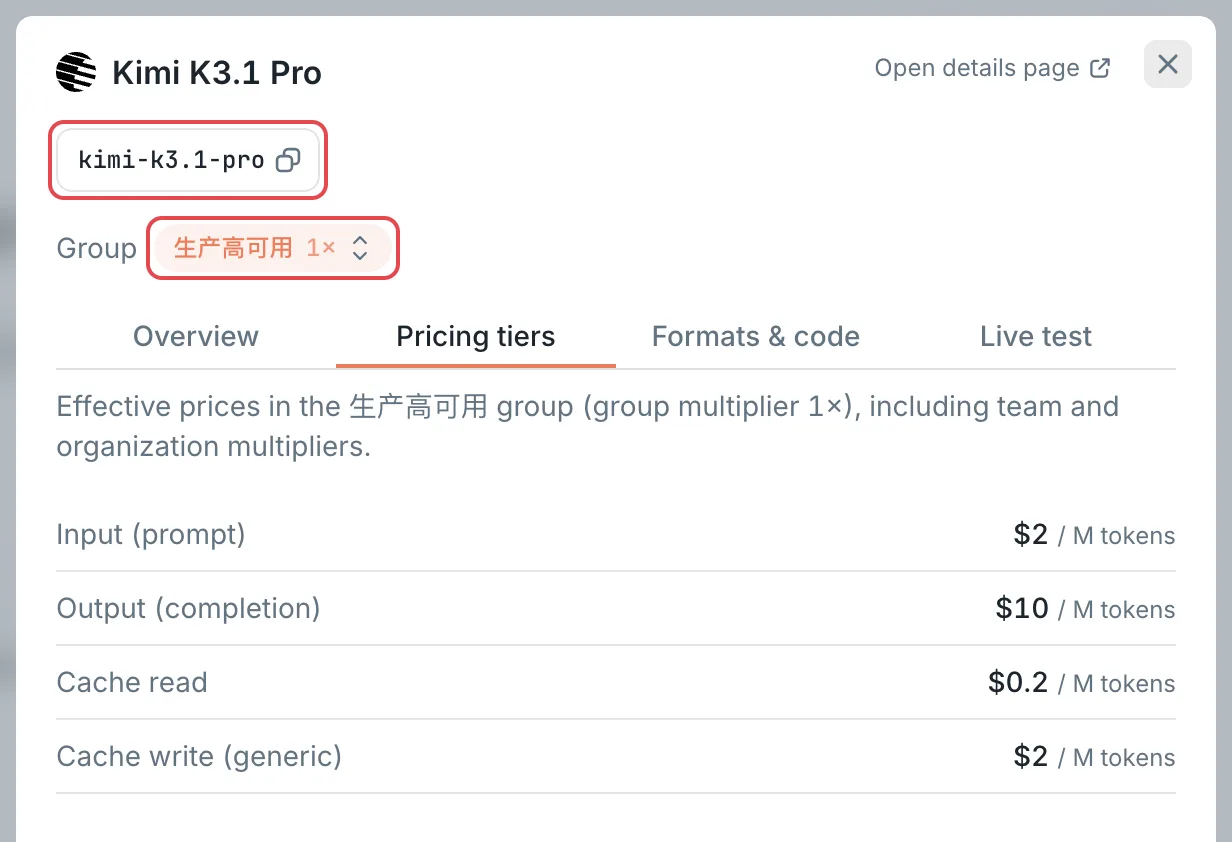 Model details: the model ID, the group, and pricing tiersCCHP
Compare prices and performance across groups#
Click Open details page in the top-right corner of the details panel to go to the model’s full page. The Provider Groups section lists each group’s Multiplier, Input and Output unit prices, Output speed p50, and Success rate. Click a row to switch the current group, and Pricing, Docs, and Test switch with it. Further down the page are the Performance charts and Model Info.
Enter the model name in your client#
The model name in a client request (the model field in the request body, or the model name in the client configuration) must be the model ID:
- Enter the model ID, not the display name. Different models can share a display name, but model IDs are unique.
- Model names are case-sensitive by default. For example,
GPT-6.1-SOLandgpt-6.1-solare two different names. Copy them from Models & Pricing to avoid typos. - The model names that
/v1/modelsreturns are model IDs, so you can enter them as they are.
Query available models with the API#
Call the gateway’s /v1/models with an LLM key to get the models that key can call right now. Compared with Models & Pricing, this list is further narrowed by the key’s own settings, such as Model whitelist, Pinned groups, or Price intent, and it excludes models that currently have no available provider. That makes it the best check before you configure a client. The list doesn’t include prices.
In the commands below, replace https://api.cchp.example.com with your gateway URL, and set the CCHP_API_KEY environment variable to your LLM key. Choose the command for the request format your client uses: the list includes only the models that can be called with that format, so results can differ between formats.
OpenAI format
curl https://api.cchp.example.com/v1/models \
  -H "Authorization: Bearer $CCHP_API_KEY"
In the returned data array, each item’s id is a model name.
Anthropic format
curl "https://api.cchp.example.com/v1/models?limit=1000" \
  -H "x-api-key: $CCHP_API_KEY" \
  -H "anthropic-version: 2023-06-01"
When the request includes the anthropic-version header, the gateway responds in Anthropic format, and each item’s id in data is a model name. This format is paginated, with 20 items per page by default and a maximum limit of 1000. When has_more is true, pass the value of last_id as the after_id parameter to request the next page.
Gemini format
curl https://api.cchp.example.com/v1beta/models \
  -H "x-goog-api-key: $CCHP_API_KEY"
In the returned models array, each item’s name looks like models/gemini-4-argon. Remove the models/ prefix to get the model name.
An example response in OpenAI format:
{
  "object": "list",
  "data": [
    {
      "id": "gpt-6.1-sol",
      "object": "model",
      "created": 1790640000,
      "owned_by": "system"
    }
  ]
}
Result: Every model in the list can be called with this key. If you get 401, check that the key is entered correctly and is still valid. If you get an empty list, this key has no available provider groups or models. Contact your organization admin.
Frequently asked questions#
The model is in Models & Pricing, so why does the call fail?#
Models & Pricing shows models based on the groups available to you personally, but every call also goes through the restrictions of the key it uses. Troubleshoot by the returned status code and message:
Why can’t I find the model I want?#
The page shows only the models you can use. When a model is missing from the list, it’s usually because no provider group offers it to you, or because the groups that offer it are disabled by your team or organization. Also, when an admin hasn’t set a price for a model, by default that model is neither shown nor callable. Contact your organization admin to get access.
Why don’t the prices on the page match the actual charges?#
The effective unit prices on the page include only the group multiplier and the team and organization multipliers. The markup an admin set on a group for your organization or team, and the billing multipliers of individual provider keys in the group, aren’t included in the page prices. Your actual charge is the amount in Call Records. For common causes, see Provider groups and your final price.