Chapter 3214 min read
Compensation and clawbacks
Revoke or claw back redeem codes, packages, check-in rewards, top-up bonuses, and referral rewards that members received, grant compensation to members, refund or claw back the costs of past requests and top-ups by percentage, and learn how these adjustments appear in users' wallets.
Compensation & Clawback handles two kinds of after-the-fact adjustments in one place:
- Marketing grants: View, by organization, the redeem codes, packages, check-in rewards, top-up bonuses, and referral rewards that members received, revoke or claw back some of them, or grant compensation to members.
- Billing corrections: Select past requests or top-up records by conditions such as time, user, and model, and refund or claw back their costs by percentage. This can span organizations.
The first part of this page is for platform super admins. For the records users see, see Where users see adjustments.
Choose an adjustment#
Before you begin#
- Compensation & Clawback is in Administration → Operations Settings, and only platform super admins can see this page. Organization admins can do everything in Marketing grants for their organization’s members in Org management → Clawback & Compensation, but they can’t use Billing corrections.
- All amounts are in
$, the same unit as the wallet balance. - A member’s wallets in different organizations are independent of each other. Adjustments in Marketing grants go to the wallet in the selected organization. Adjustments in Billing corrections go to the wallet in the organization where the request or top-up happened.
- When Marketing grants claws back from the balance, how it claws back depends on the organization’s Billing mode. In a Prepaid organization, the clawback stops when the member’s available balance reaches 0, and the part that can’t be clawed back is recorded as Unrecovered. In a Postpaid organization, the clawback goes ahead in full, and the balance can go negative. You set an organization’s billing mode in the Billing mode section of the organization details page. See Manage organizations.
Grants you can adjust in Marketing grants#
After you select an organization, the list shows all grants that this organization’s members received:
Each grant’s status is Active, Ended, or Revoked. Ended means the package is used up or has expired, and you can still revoke it. You can revoke the same grant only once. A package revoked in Billing on Manage users also shows as Revoked here.
Revoke or claw back grants#
Select the organization and find grants#
Go to Administration → Operations Settings, select Compensation & Clawback on the left, keep Marketing grants selected at the top, and then select the organization to adjust in Organization.
Use the search box above the list to find grants by redeem code, package, campaign, order number, or member. You can also filter by Grant type, Status, Member, and Team, and sort by Granted at or Amount granted.
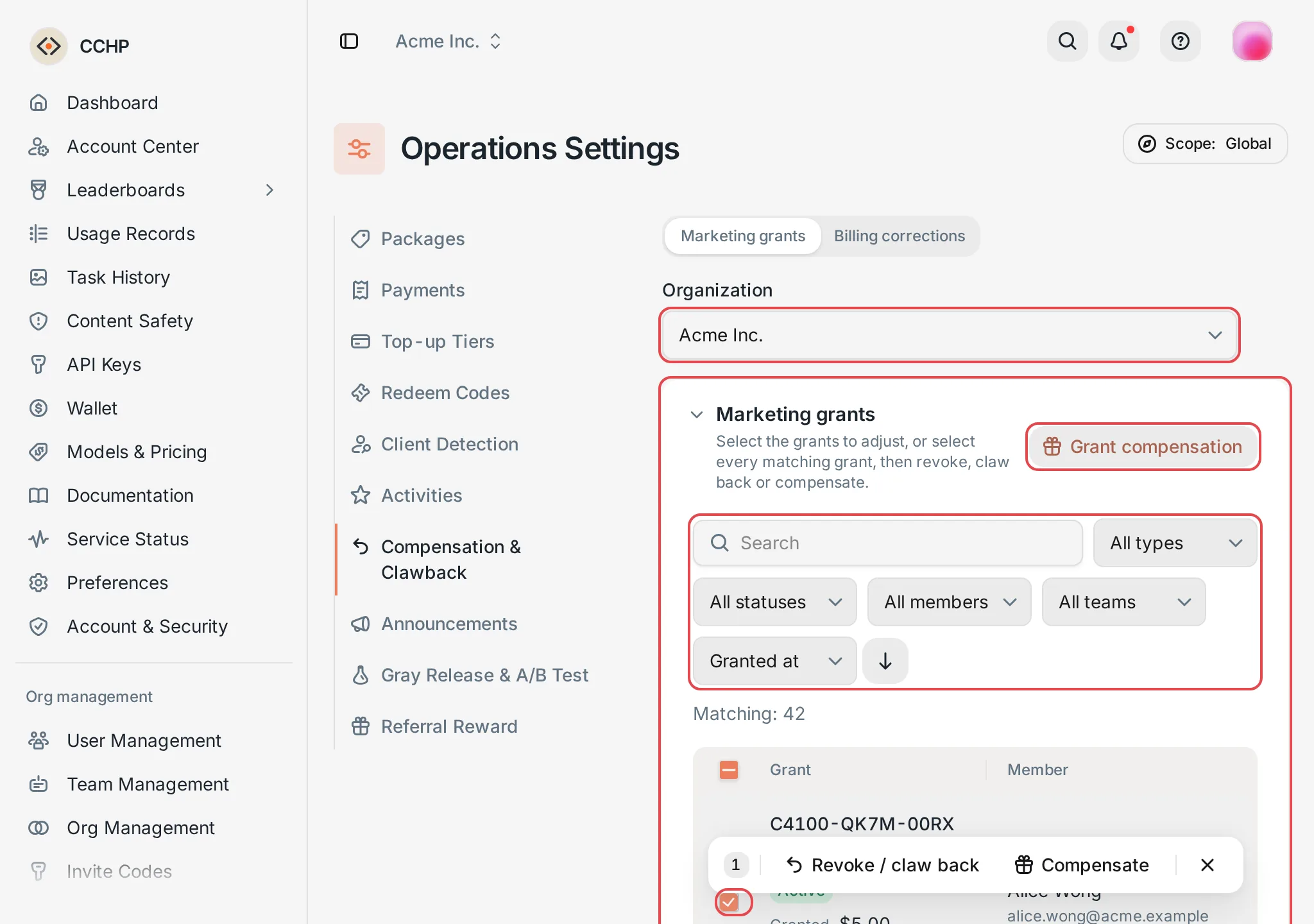 Marketing grants: the grant list and the bulk action bar
 CCHP
CCHP
Select grants#
Select the grants to revoke. Grants you selected stay selected when you change pages. To select all grants under the current filters, first select the checkbox in the table header to select the current page, and then click Select every matching grant (N), which appears above the list. You can adjust up to 10,000 grants at a time.
When the action bar appears at the bottom of the page, click Revoke / claw back.
Choose how to revoke#
In the Revoke or claw back selected grants panel, set the following:
- Return codes to the pool: Affects only Redeem code credit and Redeem code package. When it’s off, the redeem codes are marked as revoked and can’t be redeemed again. When it’s on, the redeem codes go back to the pool and can be redeemed again later.
- Refund for purchased packages: Affects only Purchased package.
- No refund: Only ends the package. The amount paid isn’t returned, and the credit already used isn’t charged either.
- Full refund: Returns the full amount paid for the first purchase and every renewal to the balance, and charges the credit the package already used to the balance according to the billing mode.
- Prorated refund: Returns the amount paid in proportion to the remaining credit out of the total credit for a usage package, or to the remaining time out of the validity period for a time package. The credit already used isn’t charged. A time package without an expiry time can’t be refunded by proportion, and that item fails when it runs.
- Reason: Required, up to 500 characters. The reason is recorded in the audit log and the adjustment history, and it doesn’t appear in the member’s wallet.
Calculate the result and confirm#
Click Calculate result. The bottom of the panel shows:
- The organization’s billing mode and the clawback rule that goes with it.
- The totals for Items, Members, Clawed back, Refunded, Unrecovered, and Total balance change.
- For each grant, the used and remaining credit, the clawback or refund amount, and the change in the member’s balance, for example
$15.00 → $10.00. - The number of items that will fail when it runs. These items are recorded as failed, and the other items run as usual.
After you change any setting, click Calculate result again. When everything looks right, click Confirm revoke.
Result: Adjustments of 50 items or fewer run right away. When there are more than 50 items, or when you selected every matching grant, a background job runs the adjustment, and you can follow its progress in Adjustment history.
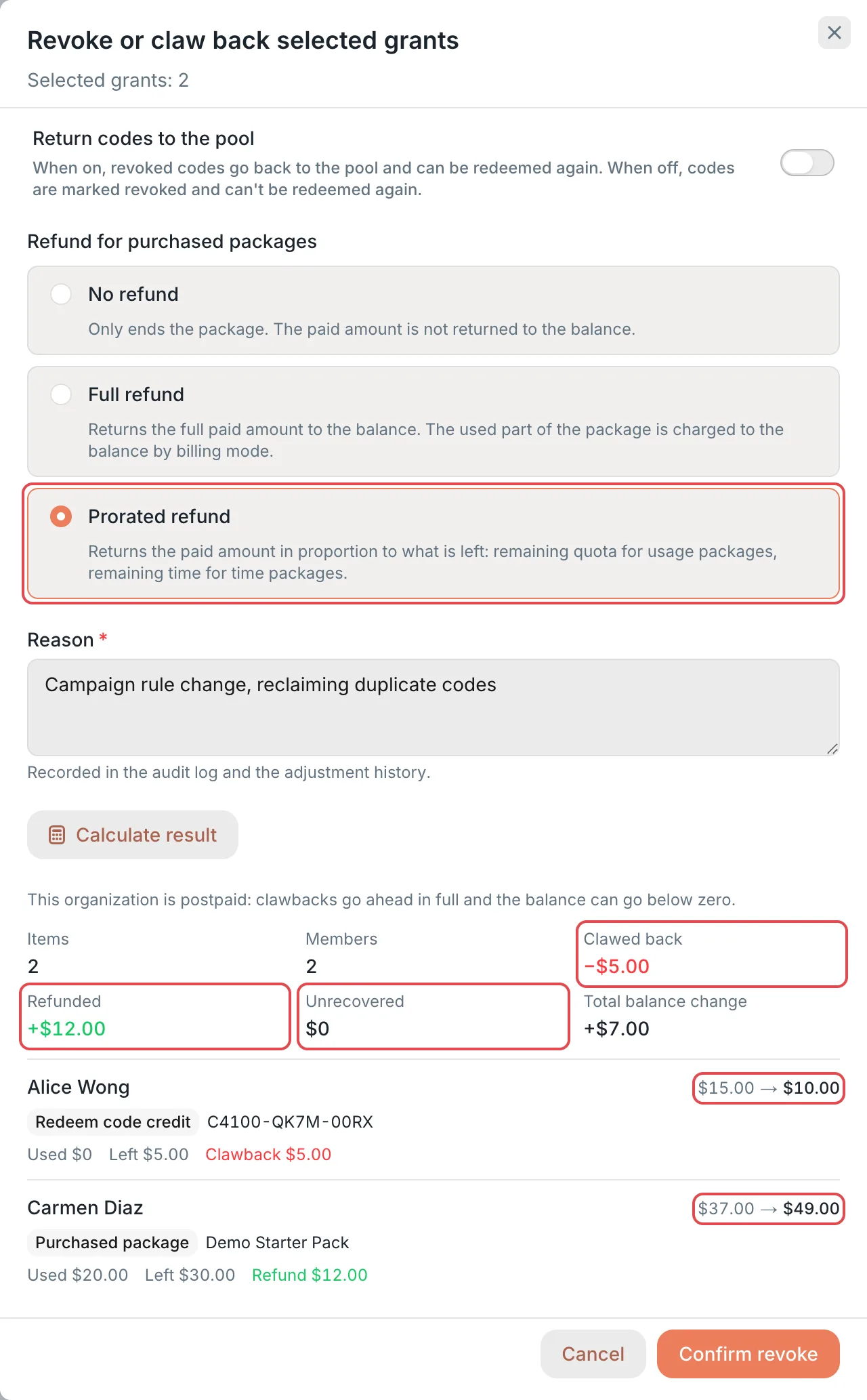 Revoke selected grants: the refund option and the calculated resultCCHP
Compensate selected grants#
Compensate grants the selected grants again with their original content. Use it when you revoked something by mistake and need to restore it, or when a batch of grants went wrong and needs to be granted again. You can also select grants that were revoked.
- Find and select the grants with the first two steps of Revoke or claw back grants, and then click Compensate in the action bar at the bottom.
- In the Compensate selected grants panel, fill in Reason, click Calculate result to review the amount credited and the balance change for each item, and then click Confirm compensation.
Result:
- Redeem code credit, Check-in reward, Top-up bonus, and Credit compensation: The original amount is credited to the member’s balance.
- Package grants: A new package is granted on the terms of the original package. A usage package gets the original total credit, and a time package gets the original credit per period and the original number of valid days.
- The new compensation appears in the grant list with the type Credit compensation or Package compensation.
When the selected grants include a Referral reward, Compensate can’t calculate a result. To grant a referral reward again, use Grant compensation directly to grant the same amount of balance instead.
Grant compensation directly#
To give members compensation that isn’t tied to a particular grant, click Grant compensation in the upper-right corner of the Marketing grants section, and fill in the panel:
After you fill it in, click Calculate result, review Items, Members, Compensation credited, and each member’s balance change, and then click Confirm compensation.
Result: Each member gets one compensation grant, and a background job runs it when there are more than 50 members. The compensation appears in the grant list with the type Credit compensation or Package compensation. If you granted it by mistake, you can revoke it like any other grant.
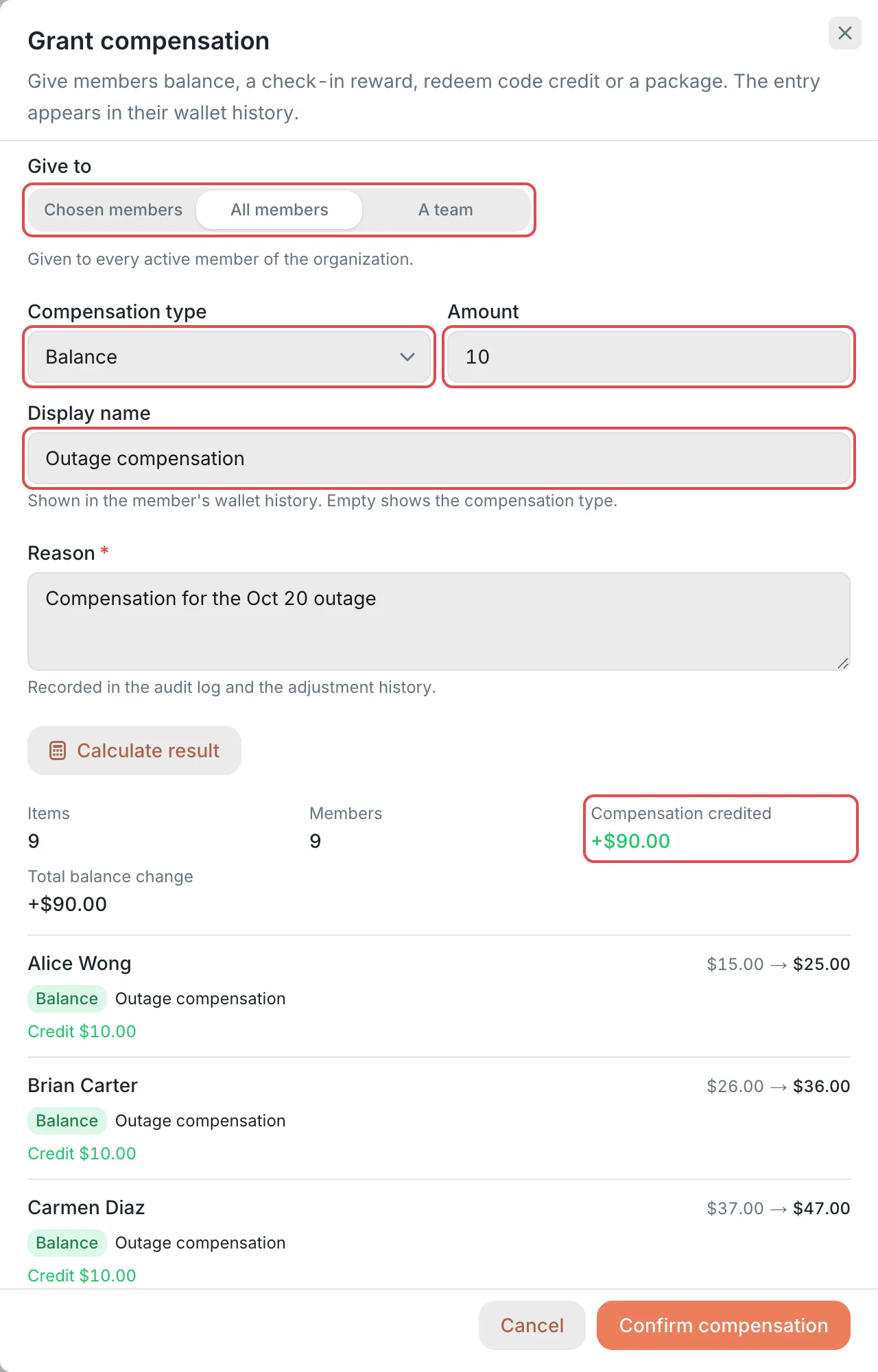 Grant compensation: all members and the calculated resultCCHP
View adjustment history#
Adjustment history below Marketing grants lists every adjustment, newest first:
- The action (Revoke / claw back or Compensation), how the grants were selected (Chosen grants, Every matching grant, or Granted compensation), and the status (Queued, Running, Completed, or Partly failed).
- The reason, the progress, the number of failed items, the number of members involved, the operator, and the time. For adjustments started by a platform super admin, the operator is followed by “(platform admin)”.
- Click the expand button at the end of a row to see each item’s status, amount, and change in the member’s balance.
When the status is Partly failed, click Retry failed items to queue the failed items to run again.
You can’t undo a Marketing grants adjustment after it runs. To offset a compensation, revoke the matching Credit compensation or Package compensation. To restore a revoked grant, run Compensate on it.
Refund or claw back costs by percentage#
Billing corrections adjusts the costs of a batch of past records by percentage: a positive percentage refunds the user, and a negative percentage claws back from the user. Only platform super admins can use it.
Enter the name, target, and percentage#
Go to Administration → Operations Settings → Compensation & Clawback, and switch to Billing corrections at the top. In New Adjustment, fill in the following:
- Name: Required. The name appears next to the Billing adjustment record in the user’s wallet, so use a name users can understand, for example
Refund 10%. - Applies to:
- Requests: Calculated from the cost charged to the user for each request. Includes only requests made by clients. Internal calls that the gateway makes for tasks or content moderation aren’t included.
- Top-ups: Calculated from the amount paid for each paid order. Includes only orders where the amount paid is greater than 0.
- Percent: A non-zero integer that stands for a percentage. The adjustment amount for each record = billing base × percentage ÷ 100, rounded. The percentage can go beyond ±100, for example
100refunds the full cost, and-20claws back an extra 20%.
Set filters#
All conditions must be met at the same time. When you enter several values in one condition, matching any one of them is enough. Leave a condition blank for no limit.
- Start (to the second) and End (to the second): Requests are filtered by start time and top-up records by payment time, and both ends are included.
- User IDs, Team IDs, and Org IDs: Search for and select in the dropdown. You can select several. When you filter top-up records by Team IDs, they’re matched against the team’s current members.
When Applies to is Requests, you can also set:
- Model names: Full model names, separated by commas, for example
claude-opus-5-5, claude-sonnet-5-5. A request matches when its model or the model finally called is the same as any one of them. - Provider IDs, Endpoint IDs, Provider key IDs, and Provider group IDs: Enter IDs, separated by commas.
- Response status: Select Any, Succeeded, or Failed.
- Charged: Select Any, Charged, or Not charged.
- Input tokens ≥, Input tokens ≤, Output tokens ≥, and Output tokens ≤: Ranges of token counts.
When the deployment has scheduled cleanup of request logs turned on, a correction that applies to Requests must have Start (to the second) filled in, and it can’t be earlier than the request log retention period. Otherwise, Preview matches reports an error. Older request logs may already be deleted and can’t be fully corrected.
Preview and execute#
Click Preview matches. The right side of the button shows the number of matches, the total billing base, and the estimated impact, for example 3 matched · base $236.00 · impact +$23.60. After you change any condition, preview again.
When the number of matches is greater than 0, click Execute. The confirmation dialog lists Matched and Estimated impact. Review them, and then click Confirm.
Result: Each matched record creates one item, the refunded or clawed-back amount goes into the user’s wallet right away, and this correction appears in History below. The set of matches is fixed when the correction runs, and records created afterward aren’t added.
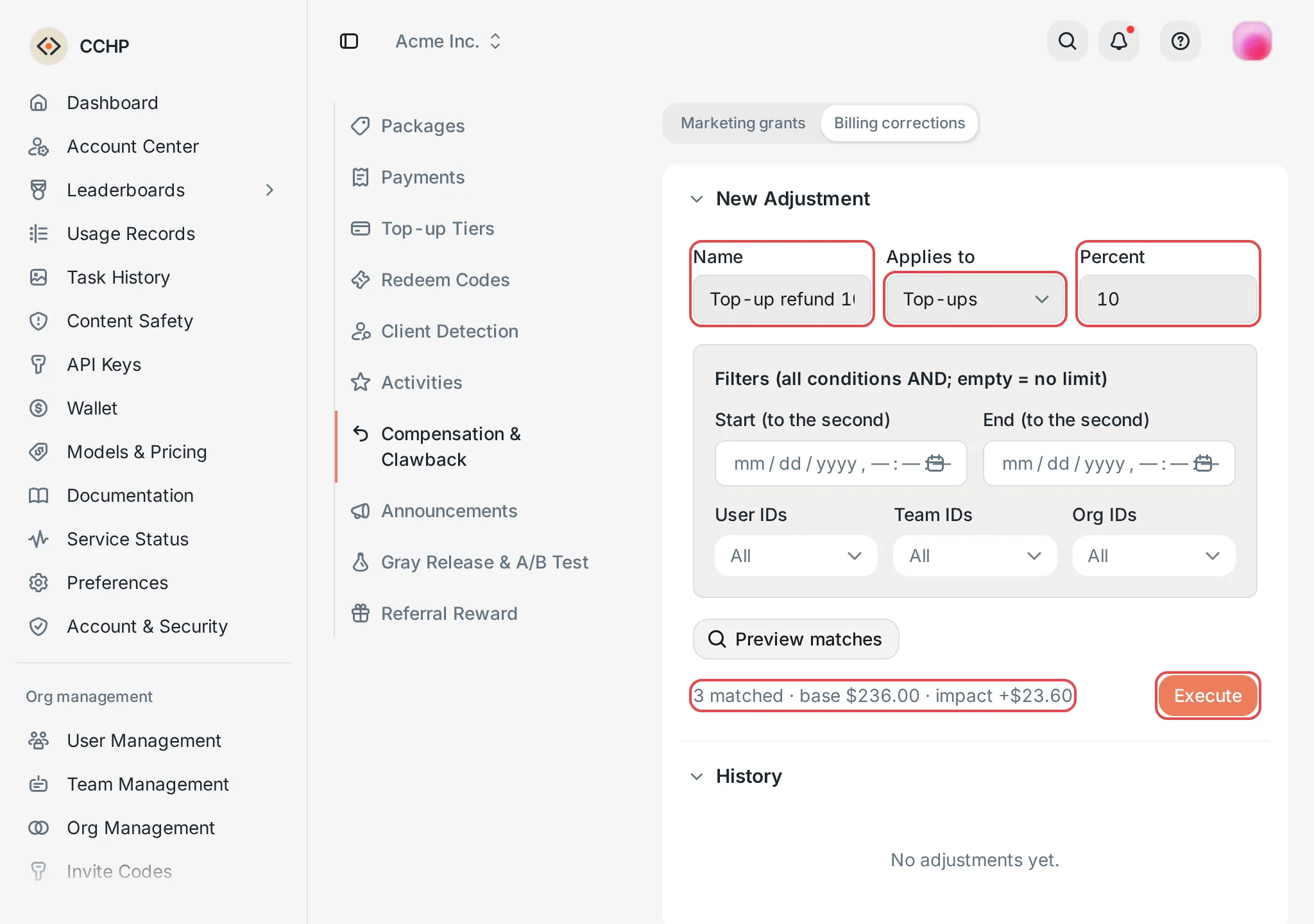 Billing corrections: a new adjustment and the preview resultCCHP
Warning: Clawbacks from billing corrections aren’t limited by the organization’s billing mode. Whether the organization is prepaid or postpaid, the clawback goes ahead in full, and the user’s balance can go negative. Review the estimated impact in the preview before you execute.
Revert a correction#
Each row in History shows the correction’s name, target, percentage, status (Running, Completed, or Reverted), number of items executed, Total impact, number of users involved, and time. Click the expand button at the end of a row to see each item’s user, request or top-up record ID, amount, and status.
To offset a completed correction, click Revert in its row, review the number of users involved and the amount in the confirmation dialog, and then click Revert adjustment.
Result: Each item is posted to the user’s wallet in the opposite direction, and the item status changes to Reverted. A correction can’t be reverted a second time. Only corrections with the status Completed can be reverted.
Where to check adjustments#
- Finance Events: Platform super admins view them in Administration → Finance Events, and organization admins view their organization members’ records in Org management → Finance Events. Marketing grants adjustments have the category Grant adjustment, and billing corrections have Billing adjustment. Reverting a billing correction records a separate event. Click a category in By category to show only that category.
- Audit Logs: Every adjustment is written to Administration → Audit Logs, with the operator and the scope of the adjustment. Marketing grants adjustments also record the Reason.
Where users see adjustments#
Users see the results of adjustments in Wallet. To see an adjustment, they switch in the top bar to the organization where it was recorded.
These records appear in Top-up History. Click a record to expand Reference and Time:
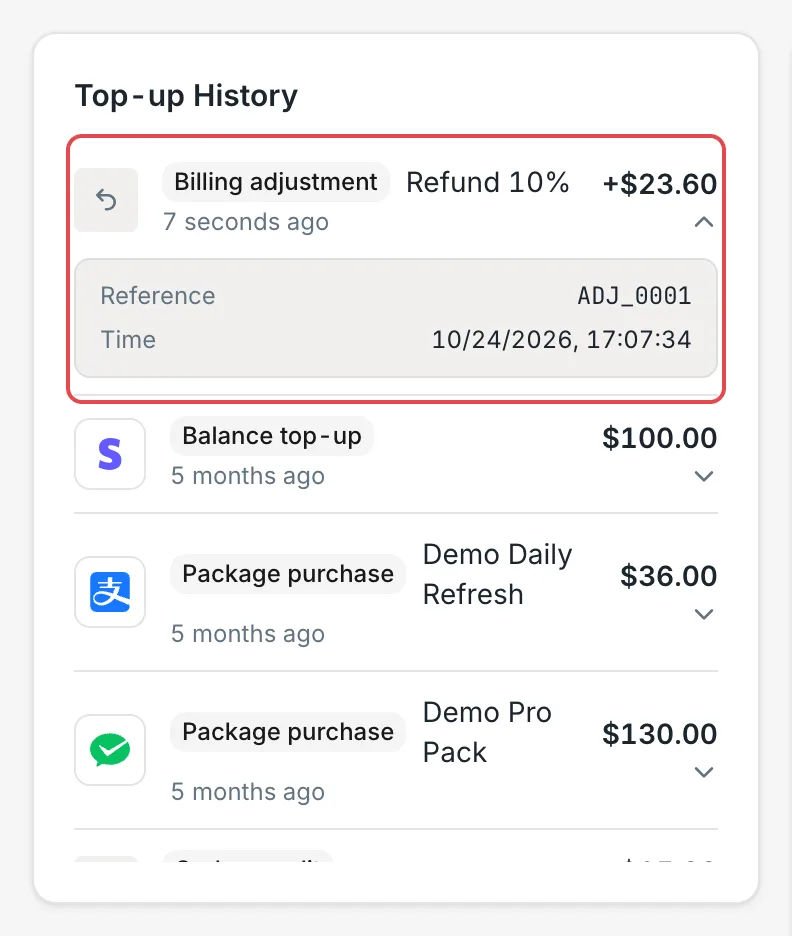 Wallet: a billing adjustment in Top-up HistoryCCHP
Other places:
- Your Plans: A revoked package shows as Revoked. Packages granted as compensation appear here, and clicking one shows Admin compensation in Package Details.
- Call Records: For a request that went through a billing correction, Cost breakdown on the Overview tab of the request details shows Compensation & Clawback, which lists the amount of each correction and the Net cost after corrections. A reverted correction is marked Reverted.
Users can’t see the Reason that the admin entered.
Frequently asked questions#
Why did the user’s balance go negative after a revoke or clawback?#
The Marketing grants revoke happened in a Postpaid organization, or a billing correction with a negative percentage ran. See Before you begin and Refund or claw back costs by percentage.
To return an amount that was over-deducted, use Grant compensation directly to grant balance for Marketing grants, or Revert a correction for billing corrections.
What if a user says they can’t see the compensation in their wallet?#
A user’s wallets in different organizations are independent of each other. Marketing grants compensation is recorded in the organization selected when it was granted, and billing corrections are recorded in the organization where the request or top-up happened. Ask the user to switch to that organization in the top bar, and then check Top-up History in Wallet.