Chapter 099 min read
Manage teams
Create teams and sub-teams in an organization, add members and assign team roles, and set a team's multiplier, available provider groups, limits, and allowed clients.
A team is a group of members in an organization. With teams, you can set a separate billing multiplier for a group of members, restrict the provider groups and clients they can use, and set limits that they share. A team can have sub-teams, which inherit their parent team’s settings. For how teams relate to organizations, see Organizations vs. teams.
This page is for organization admins. For what team admins can do, see Team admin permissions.
Open Team Management#
In the sidebar, click Org management → Team Management. The page lists the teams of the current organization shown in the top bar. You can search by name or description, and sort by creation time, name, or member count. To manage the teams of another organization, first switch organizations in the top bar.
Click a row to open the team details page. The left side of the details page is the section navigation, and you do each task below in the matching section.
Changes to Basic info, Provider groups, and Client restriction take effect only after you click Save at the bottom of the page. Click Discard changes to undo unsaved changes. Changes to members and limits are each submitted separately.
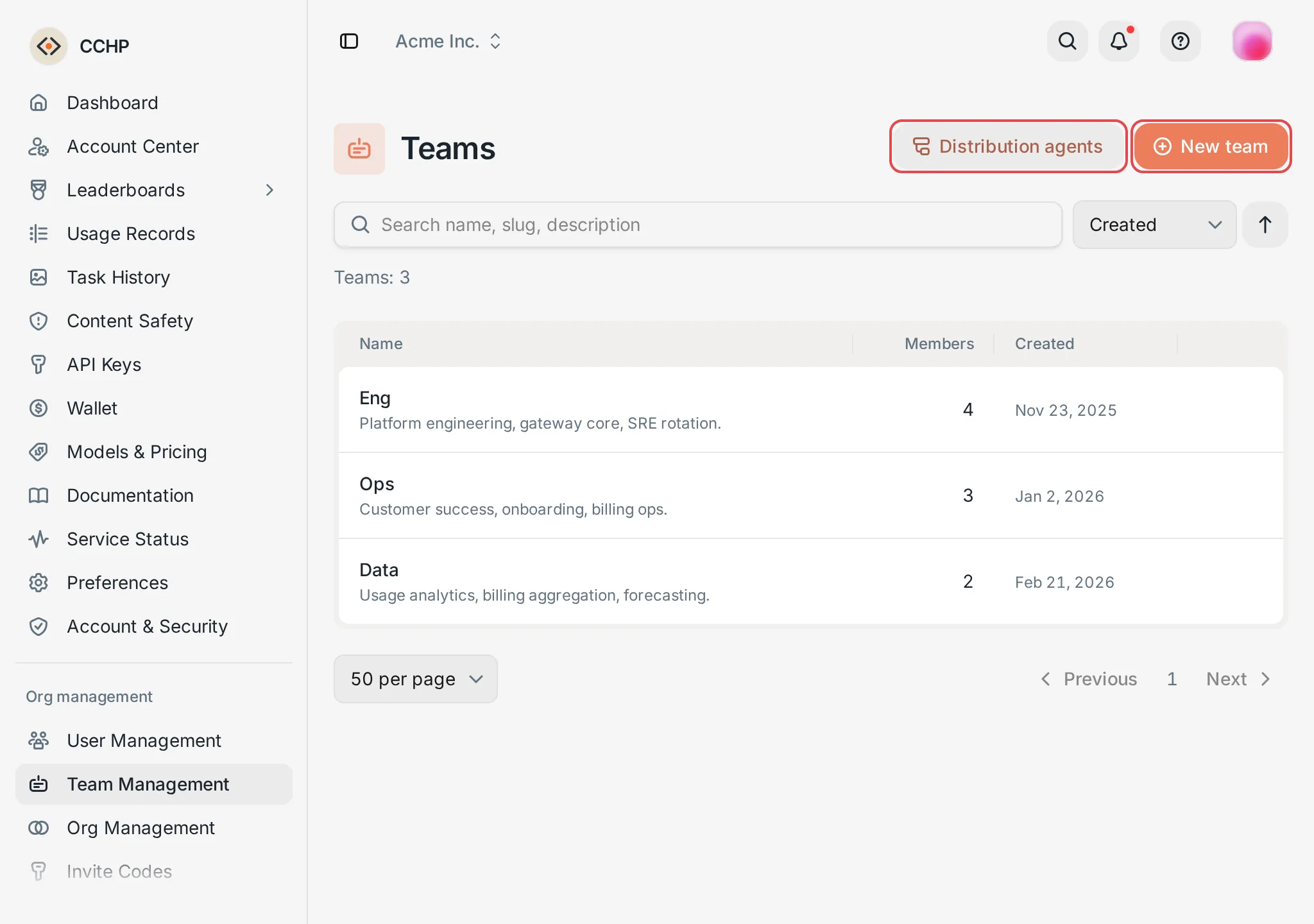 Team Management: the New team and Distribution agents buttons
 CCHP
CCHP
Create a team#
Open the create dialog#
In the upper-right corner of the Team Management page, click New team.
Fill in the team details#
- Name: Required, for example
Research. - Description: Optional.
- Parent team: Keep Top-level team (no parent) to make the new team a top-level team, or select an existing team to make the new team its sub-team.
- Own rate multiplier: Optional. Leave it blank for
1.0. See Set the team multiplier.
Create the team#
Click Create.
Result: The team is created, and the page opens the new team’s details page.
The first team of an organization automatically becomes the Default team, and new members join this team by default. To change the default team, see Set the default team.
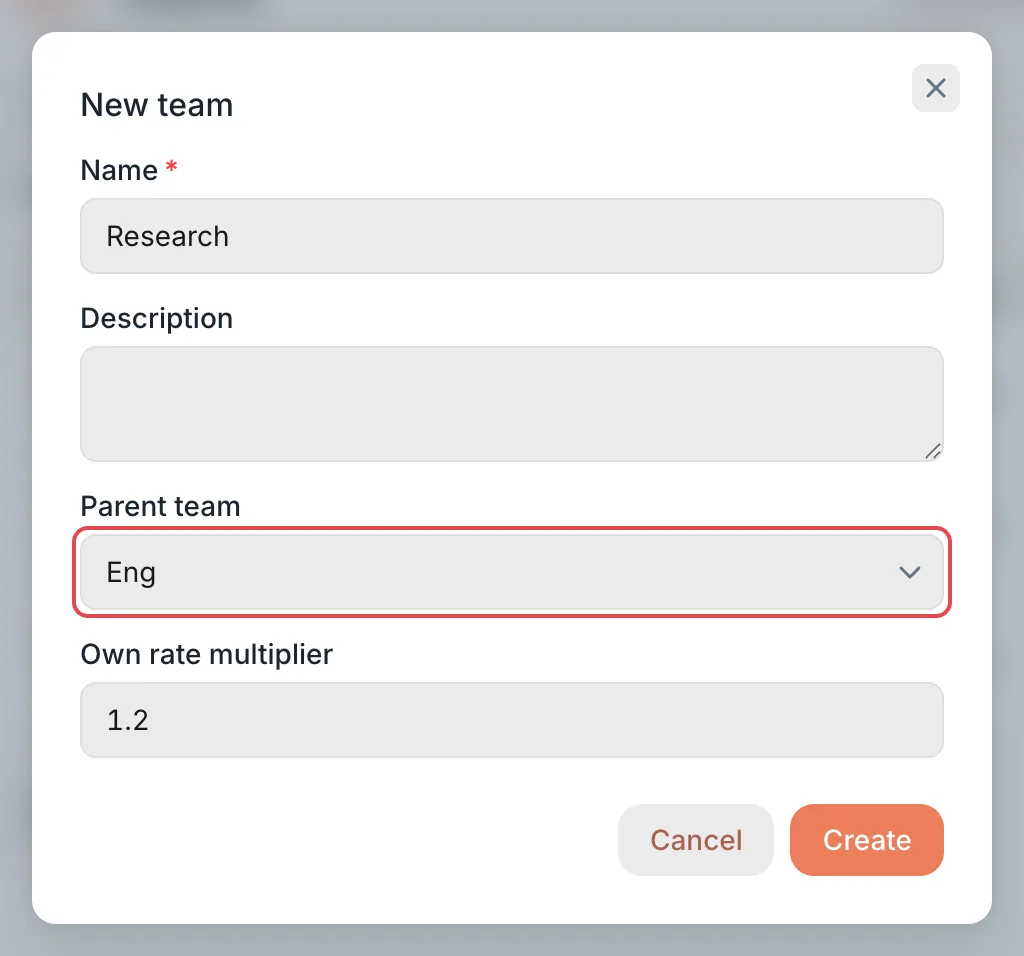 New team dialog: name, parent team, and multiplierCCHP
Add members and assign roles#
There are two team roles:
- Team admin: Manages this team and its sub-teams.
- Team member: A regular member with no team management permissions.
Open the add dialog#
In the Members section of the team details page, click Add member.
Select users and a role#
In Search users (name / email), select one or more users, and in Role, select Team member or Team admin. The candidates are members of this organization who are not suspended and are not already in this team.
Add them to the team#
Click Add. When you select several users at once, the button shows the count, for example Add 3.
Result: The users appear in the Members list.
A user can belong to only one team in the same organization. When you add a user who is already in another team of this organization, they leave their previous team automatically.
Users who are not yet members of the organization must first be added as described in Manage users. You can also generate a team invite code in the Invite codes section of the team details page. Users who join with that code always join this team. See Default organization and invite codes.
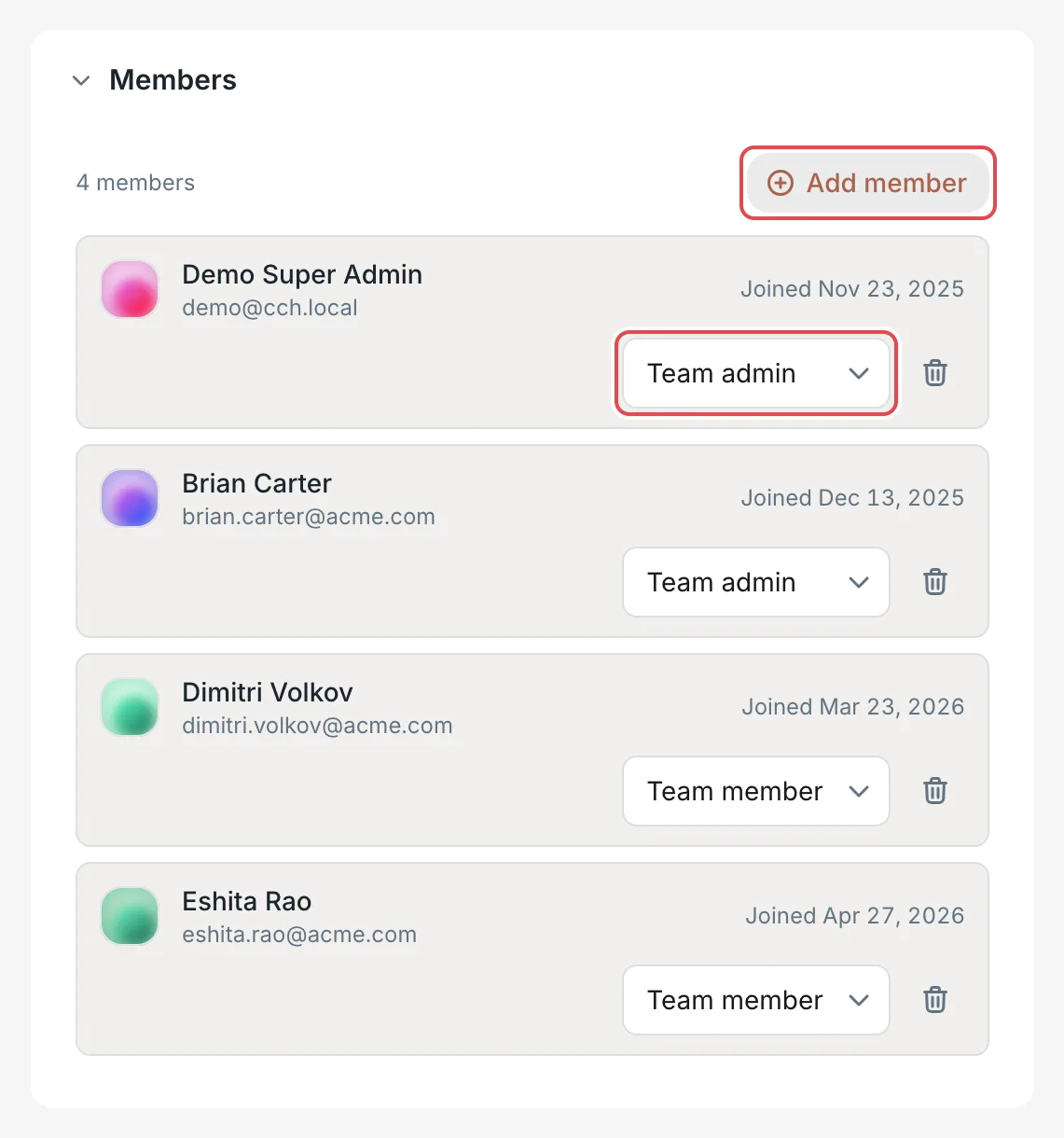 Team details: the Members sectionCCHP
Change a role or remove a member from the team#
- Change a role: In the role dropdown on the member’s row, select Team admin or Team member. The change takes effect immediately.
- Remove from the team: Click the Remove from team icon at the end of the member’s row, and then click Remove from team again in the confirmation dialog. The user is still a member of the organization but no longer belongs to any team, and their later requests no longer use this team’s multiplier, provider group settings, or limits.
To move a member to another team, add the member to the target team. You can also open the user in User Management and click Switch team in the Orgs & teams section.
Set the team multiplier#
In the Basic info section of the team details page, change Team multiplier, and then click Save at the bottom of the page.
- Team multiplier is at least
1.0and at most1000. A team can only mark up, not discount. - Effective multiplier = the organization’s effective multiplier × the multiplier of every level of parent team × the team’s own multiplier, and it is applied to the prices billed to the team’s members. For example, when the organization’s effective multiplier is
1.0, the parent team’s multiplier is1.2, and the team’s own multiplier is1.1, the effective multiplier is1.0 × 1.2 × 1.1 = 1.32. - Changing a parent team’s multiplier also changes the effective multiplier of all its sub-teams.
For what the multiplier at each level means, see Provider cost multipliers vs. user billing multipliers.
Restrict the available provider groups#
The Provider groups section of the team details page lists all Provider groups of the organization. Each row has a Team × value and a toggle. By default, all groups are available and Team × is 1.00.
- Turn off the toggle: Members of this team and its sub-teams can no longer use this group.
- Team ×: This team’s extra markup on the group, with a minimum of
1.00. The Final multiplier on the row = the group multiplier × the parent multiplier × the team extra multiplier. - Inheritance: Settings are inherited from the organization and the parent teams, and the level closest to the member takes priority. A group that a parent turned off shows Disabled by a parent. If you turn on its toggle, this team can use the group, and the row shows On for this team, off in a parent.
- Sub-teams inherit this team’s settings, and you can also set them separately.
When you are done, click Save at the bottom of the page. For how group multipliers and team extra multipliers affect the prices that members see, see Provider groups and your final price.
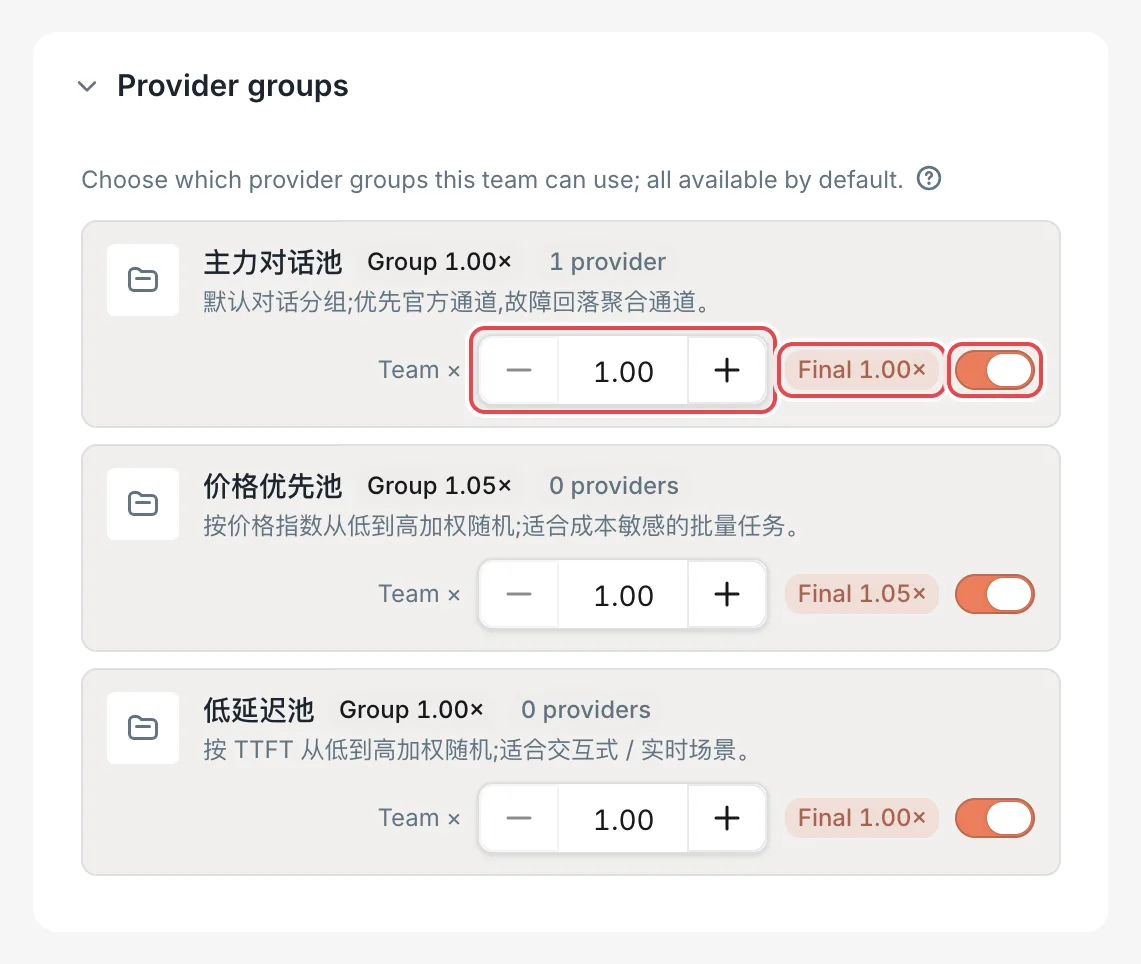 Team details: provider group toggles and Team ×CCHP
Set team limits#
A team limit is set by organization admins and is a total that all members of the team share: once the combined usage of the members of this team and all its sub-teams reaches the limit, their requests are rejected. Every request is held on the LLM key, user, team, and organization levels at once, and it is rejected when any level cannot take it. See Limits on every level and postpaid organizations.
In the Limits section of the team details page, click Add quota rule, select what to limit in Limit type, enter the Limit value, and then click Save. The limit types are Requests per minute (RPM), Concurrent sessions, 5-hour credits, Daily credits, Weekly credits, Monthly credits, and Total credits. When you no longer need a limit, delete its rule. A team admin who opens this section can only view the limits and their usage.
Set the limits of team members#
In the Members section of the team details page, click the Limits icon on a member’s row, and add or adjust the member’s limit rules in the side panel, the same way as in Set user limits. Team admins set the limits of the members of this team and its sub-teams this way, without permissions for User Management.
Restrict the allowed clients#
In the Client restriction section of the team details page, select the allowed clients in Search and select allowed clients, and then click Save at the bottom of the page. If you select no clients, all clients are allowed.
When the organization or a parent team also restricts clients, the section lists the clients that the parent levels allow. Only clients that every level allows can make calls, and requests from other clients are rejected. Sub-teams are also bound by this team’s restriction.
Change the team hierarchy#
On the Team Management page, click Distribution agents. The dialog lists the teams as a tree:
- Drag a team onto another team: It becomes a sub-team of that team.
- Drag it above or below a team: It becomes a sibling of that team. Among top-level teams, it becomes a top-level team.
A team moves together with all of its sub-teams, and its effective multiplier and inherited settings change with the new parent. Each row shows the team’s Effective multiplier (that is, its effective multiplier). Click it to see the Own multiplier. Click the Edit team icon to open that team’s details page.
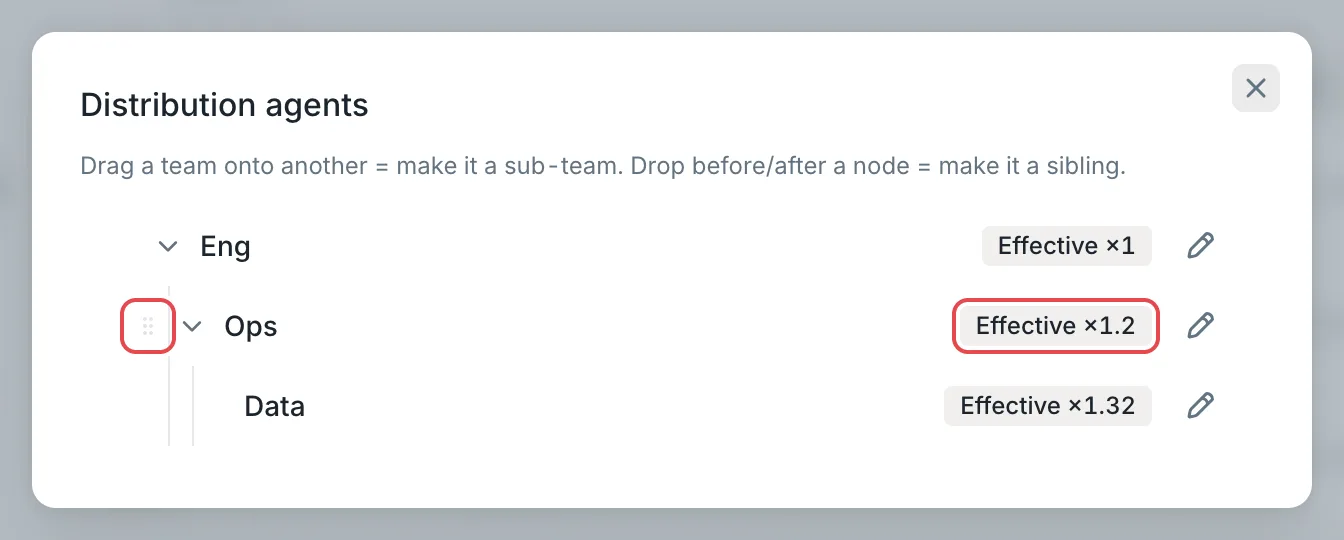 Distribution agents: the team tree and effective multipliersCCHP
Delete a team#
In the Danger zone section of the team details page, click Delete team, and then click Confirm in the confirmation dialog. After deletion:
- All team members are removed from the team and keep their organization membership.
- The team’s team invite codes are disabled, and join requests awaiting approval are withdrawn.
- If it was the organization’s default team, the default team changes to the earliest-created remaining team. If the organization has no other team, it no longer has a default team.
Warning: Deletion cannot be undone. Deleting a team does not delete its sub-teams. Before deleting, move the sub-teams under another team or to the top level in Distribution agents.
Team admin permissions#
With the default permissions, a team admin can:
- See this team and its sub-teams in Team Management, and create sub-teams under this team or its sub-teams. A team admin cannot create top-level teams or move a team to the top level.
- Change the Basic info (including Team multiplier) and Client restriction of this team and its sub-teams, or delete these teams. The team’s Limits are view-only.
- Set the limits of the members of this team and its sub-teams. See Set the limits of team members.
- Remove team members from this team, and change member roles or remove members in sub-teams.
A team admin does not see the Add member button, or the Invite codes and Provider groups sections. An organization admin handles these tasks.
To adjust which teams a team admin can view and change (this team, sub-teams, and whether they can create sibling teams), an organization admin can open Team administrator in Org management → Permission Management and change it in the Hierarchy permissions section.