Chapter 4112 min read
Connect Codex
Install the Codex CLI, connect it to CCHP with a configuration manager or by editing its config file manually, and verify the connection.
Codex CLI is OpenAI’s command-line coding assistant. It calls models in the OpenAI Responses format (/v1/responses). After installation, connect it to CCHP with a configuration manager or by setting a key environment variable and editing config.toml manually.
What you need#
- LLM key: A full key whose status is Active (not the masked key in the list). If you don’t have one yet, see Create an LLM key.
- Gateway URL: In the console sidebar, click API Keys, and copy the URL in the OpenAI row of the API base URLs card at the top of the page, for example
https://api.cchp.example.com/v1. Unlike the URL for Claude Code, the URL that Codex uses must end with/v1. If the page doesn’t show this card, ask your administrator for the gateway URL and add/v1to the end. - Model: The model ID of the model you want to use. You can copy it in Models & Pricing. See View available models.
Already installed the Codex CLI? Skip to configuration.
Step 1: Install the Codex CLI#
Select your operating system and use any one of the installation methods. The first method in each tab is the officially recommended one. Don’t run codex right after you install it: until you configure the gateway, Codex shows the OpenAI sign-in page the first time it starts. Start it after you finish configuring CCHP.
macOS
System requirements: macOS 12 or later, Apple silicon or Intel, and at least 4 GB of memory.
Official installation script (recommended)
Open Terminal and run:
curl -fsSL https://chatgpt.com/codex/install.sh | shThe installation script installs the program to ~/.local/bin/codex. If ~/.local/bin is not in your PATH, the script adds it to your shell’s startup file: ~/.zprofile for Zsh and ~/.bash_profile for Bash. By default, the script downloads from releases.openai.com. If that download fails, it automatically downloads from GitHub Releases instead.
When the script asks Start Codex now? [y/N] at the end, press Enter to skip. If Codex is already installed on your machine through npm or Homebrew, the script asks whether to uninstall it. If you keep it, the codex that comes first in your PATH takes effect. After the installation finishes, open a new terminal window before you use codex. To update, run the same installation command again.
Homebrew
If you have Homebrew installed, run:
brew install --cask codexTo update, run brew upgrade --cask codex.
npm
Requires Node.js 16 or later. Run:
npm install -g @openai/codexTo update, run the same command again.
Install manually from GitHub Releases
On the latest release page of the official Codex repository, codex-aarch64-apple-darwin.tar.gz is for Apple silicon and codex-x86_64-apple-darwin.tar.gz is for Intel. Taking Apple silicon as an example, run the following commands to download, extract, and install it to ~/.local/bin. On an Intel Mac, replace every aarch64 in the commands with x86_64.
curl -fsSLO https://github.com/openai/codex/releases/latest/download/codex-aarch64-apple-darwin.tar.gz
tar -xzf codex-aarch64-apple-darwin.tar.gz
mkdir -p ~/.local/bin
mv codex-aarch64-apple-darwin ~/.local/bin/codex
The archive contains a single file whose name includes the platform name, and the last line renames it to codex. If ~/.local/bin is not in your PATH, run the following two lines to add it to your PATH. If you use Bash, replace ~/.zshrc in both lines with ~/.bash_profile:
echo 'export PATH="$HOME/.local/bin:$PATH"' >> ~/.zshrc
source ~/.zshrc
To update, download the archive of the new version and repeat the steps above.
Linux
System requirements: an x64 or ARM64 processor and at least 4 GB of memory. The officially listed distributions are Ubuntu 20.04 and Debian 10, or later versions.
Official installation script (recommended)
Works on all distributions. The script needs curl, tar, and any one of sha256sum, shasum, or openssl (to verify the downloaded files). In a terminal, run:
curl -fsSL https://chatgpt.com/codex/install.sh | shThe installation script installs the program to ~/.local/bin/codex. If ~/.local/bin is not in your PATH, the script adds it to your shell’s startup file: ~/.bashrc for Bash, ~/.zshrc for Zsh, and ~/.profile for other shells. By default, the script downloads from releases.openai.com. If that download fails, it automatically downloads from GitHub Releases instead.
When the script asks Start Codex now? [y/N] at the end, press Enter to skip. If Codex is already installed on your machine through npm or Homebrew, the script asks whether to uninstall it. If you keep it, the codex that comes first in your PATH takes effect. After the installation finishes, open a new terminal window before you use codex. To update, run the same installation command again.
Homebrew
If you have Homebrew installed, run:
brew install --cask codexTo update, run brew upgrade --cask codex.
npm
Requires Node.js 16 or later. Run:
npm install -g @openai/codexTo update, run the same command again.
Install manually from GitHub Releases
On the latest release page of the official Codex repository, codex-x86_64-unknown-linux-musl.tar.gz is for x64 processors and codex-aarch64-unknown-linux-musl.tar.gz is for ARM64 processors. Taking x64 as an example, run the following commands to download, extract, and install it to ~/.local/bin. On an ARM64 processor, replace every x86_64 in the commands with aarch64.
curl -fsSLO https://github.com/openai/codex/releases/latest/download/codex-x86_64-unknown-linux-musl.tar.gz
tar -xzf codex-x86_64-unknown-linux-musl.tar.gz
mkdir -p ~/.local/bin
mv codex-x86_64-unknown-linux-musl ~/.local/bin/codex
The archive contains a single file whose name includes the platform name, and the last line renames it to codex. If ~/.local/bin is not in your PATH, run the following two lines to add it to your PATH. If you use Zsh, replace ~/.bashrc in both lines with ~/.zshrc:
echo 'export PATH="$HOME/.local/bin:$PATH"' >> ~/.bashrc
source ~/.bashrc
To update, download the archive of the new version and repeat the steps above.
Windows
System requirements: 64-bit Windows with an x64 or ARM64 processor. Windows 11 is recommended. Windows 10 requires version 1809 or later. winget (Windows Package Manager) must be available on your system. If it isn’t, update Windows or install Windows Package Manager first.
PowerShell installation script (recommended)
Open a new PowerShell window and run:
powershell -ExecutionPolicy ByPass -c "irm https://chatgpt.com/codex/install.ps1 | iex"The installation script installs the program to %LOCALAPPDATA%\Programs\OpenAI\Codex\bin and adds this folder to the current user’s PATH. By default, the script downloads from releases.openai.com. If that download fails, it automatically downloads from GitHub Releases instead.
When the script asks Start Codex now? [y/N] at the end, press Enter to skip. After the installation finishes, open a new PowerShell window before you use codex. To update, run the same installation command again.
npm
Requires Node.js 16 or later. Run:
npm install -g @openai/codexTo update, run the same command again.
WSL
Codex can also run in WSL2. WSL1 is not supported. Choose this method if you need native Linux tools or your code is already in WSL2.
Open PowerShell as an administrator and run the following two lines. The first line installs the default Linux distribution (e.g., Ubuntu), and the second line opens the WSL terminal.
wsl --install
wsl
In the WSL terminal, run the Linux installation script:
curl -fsSL https://chatgpt.com/codex/install.sh | shFrom then on, run codex in the WSL terminal, and also complete step 2 and step 3 in WSL the Linux way. Keep your code in your Linux home directory (e.g., ~/code) rather than under /mnt/c for faster reads and writes.
After the installation finishes, open a new terminal window and run:
codex --versionResult: The terminal prints codex-cli and the version number. If you get a message that codex can’t be found, check your PATH as described in the tab for your system above. To check the installation, configuration, and network further, run codex doctor. This command only runs checks and doesn’t start a session.
After installation: Configure CCHP#
Recommended: Use Magpie or CC Switch to configure CCHP through a graphical interface. Once you verify the connection in that guide, you can start using the client without following the manual steps on this page.
Edit the config file manually: Start at step 2 to set the key environment variable, then edit config.toml in step 3. The output checks in step 4 are for the manual configuration.
Step 2: Set the key environment variable#
Codex reads the key from an environment variable, so you don’t have to write the key into the configuration file. This page uses the environment variable CCHP_API_KEY. Replace cch_llm_live_xxxxxxxx in the examples with your full key.
macOS / Linux
Append the following line to your shell’s startup file, and then reload it. macOS uses Zsh by default. If you use Bash, replace ~/.zshrc with ~/.bashrc.
echo 'export CCHP_API_KEY="cch_llm_live_xxxxxxxx"' >> ~/.zshrc
source ~/.zshrc
Windows
In PowerShell, run the following command to save the key as an environment variable for the current user:
setx CCHP_API_KEY "cch_llm_live_xxxxxxxx"setx takes effect only in terminals that you open afterward. After you run it, close the current terminal and open a new one before you start Codex.
If you use Codex in WSL, Codex runs in a Linux environment, so set the variable in the WSL terminal as described in the macOS / Linux tab.
Step 3: Edit config.toml#
Open the Codex user configuration file. If the file or the .codex folder doesn’t exist, create it manually:
- macOS / Linux and WSL:
~/.codex/config.toml - Windows:
%USERPROFILE%\.codex\config.toml
Write the following content. Replace base_url with your gateway URL and model with the model you want to use:
model_provider = "cchp"
model = "gpt-6.1-sol"

[model_providers.cchp]
name = "CCHP"
base_url = "https://api.cchp.example.com/v1"
env_key = "CCHP_API_KEY"
wire_api = "responses"model_provider: Usescchp, which is defined below. You can choose your own name, but you can’t use the Codex built-in namesopenai,ollama, orlmstudio.model: The model ID. It is case-sensitive.base_url: The gateway URL, ending with/v1.env_key: The name of the environment variable that holds the key. EnterCCHP_API_KEY, not the key itself.wire_api: The request format. Enterresponses.
If the file already has model_provider or model, replace them with the values above instead of adding them again. These two lines must be at the top of the file, before any [...] table header: lines after a table header belong to that table, and Codex doesn’t treat them as top-level settings.
If you aren’t sure what to enter for model, use the following command to list the models that this key can call. This request doesn’t call a model and costs nothing.
macOS / Linux
curl https://api.cchp.example.com/v1/models \
  -H "Authorization: Bearer $CCHP_API_KEY"
In the returned data, the id of each item is a model ID.
Windows PowerShell
$headers = @{ "Authorization" = "Bearer $env:CCHP_API_KEY" }
(Invoke-RestMethod -Uri "https://api.cchp.example.com/v1/models" -Headers $headers).data.id
Each output line is a model ID.
Result: You can enter any model in the list as model. The list may also include models from other vendors. The gateway converts the request format for them, but some Codex features may not be available with those models. If you get 401, see Frequently asked questions.
Step 4: Verify the connection#
In a terminal, run:
codex exec --skip-git-repo-check "Reply with exactly: gateway-ok"By default, codex exec runs only in a Git repository, and --skip-git-repo-check lets it run in any folder. You can leave it out when you run the command in a Git repository.
Result: At the start of the output, the provider line is cchp and the model line is the model in config.toml. The output ends with the model’s answer, gateway-ok. If you get an error, see Frequently asked questions.
From now on, run codex in your project folder to use it in interactive mode. In interactive mode, enter /status to see the current model and model provider.
In the console sidebar, click Call Records (Usage Records in a platform super admin’s sidebar) to open the Request Logs page.
Result: In the latest record, the Model column is the model in config.toml, the Key column is the name of this key, and the Status column is 200. If you set a reasoning effort, the Effort column shows the requested level. When the gateway rewrote the effort to meet the upstream’s requirements, the request details also show Reasoning effort sent upstream.
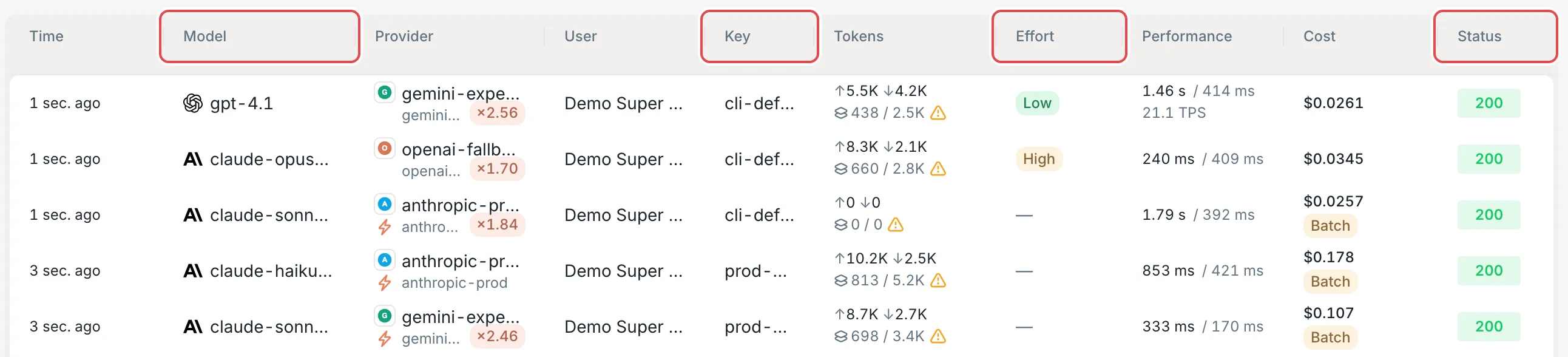 Request Logs: the Model, Key, and Effort columns
 CCHP
CCHP
Optional settings#
Add the following settings as needed. Codex works normally without them:
model_provider = "cchp"
model = "gpt-6.1-sol"
model_reasoning_effort = "high"

[model_providers.cchp]
name = "CCHP"
base_url = "https://api.cchp.example.com/v1"
env_key = "CCHP_API_KEY"
wire_api = "responses"
supports_websockets = true
capabilities.remote_compaction = "v2"model_reasoning_effort: The reasoning effort, for examplelow,medium, orhigh. The available levels depend on the model. Likemodel, it must go before all table headers.supports_websockets: Makes Codex connect to the gateway over WebSocket. A multi-turn conversation runs over the same connection, and later turns send only the new content. The gateway hands each turn to the upstream over WebSocket when the upstream supports WebSocket mode and over HTTP when it doesn’t, and Codex receives the same result either way. When gateway state management is off for this key, the gateway rejects the WebSocket connection (426,error.code20031), and Codex switches to HTTP right away.capabilities.remote_compaction: When the context nears its limit, the gateway compacts the conversation: upstreams that can compact natively do the compaction themselves, and for other upstreams the gateway generates a summary on their behalf. If you don’t set it, Codex compacts the conversation locally. If compaction fails, Codex receives502witherror.codeset to20025. Retry, or delete this line to go back to local compaction.
Frequently asked questions#
Codex still asks you to sign in to an OpenAI account?#
Codex didn’t read model_provider = "cchp" and is still using the built-in OpenAI provider. Check the following:
- The configuration is in the user configuration file, not in
.codex/config.tomlunder the project folder. A project configuration file can’t set the model provider, and Codex ignores those settings. model_providerandmodelcome before all[...]table headers.- If the
CODEX_HOMEenvironment variable is set, Codex reads theconfig.tomlin that folder.
Codex reports Missing environment variable: CCHP_API_KEY?#
The terminal that you start Codex in doesn’t have this environment variable. After you set it as described in step 2, open a new terminal and run Codex again. If you use Codex in WSL, set the variable in the WSL terminal.
Requests return 401?#
The requests that Codex sends don’t carry a valid key:
- In the terminal that you start Codex in, run
echo $CCHP_API_KEY(echo $env:CCHP_API_KEYin PowerShell) and confirm that it prints the full key. If you set it withsetx, reopen the terminal. - The value of
env_keyexactly matches the name of the environment variable. - The key isn’t disabled, expired, or revoked. Check the key status in API Keys. See Create an LLM key.
Requests return 403 or 404 saying the model is unavailable?#
The model in model isn’t in the key’s Model whitelist, the provider group that the key uses doesn’t offer this model, or the model name doesn’t match the model ID. Check the model name as described in View available models, or switch to a model returned by /v1/models.
Requests return 403: this client is not allowed for the organization or team?#
Your organization or team has set a Client restriction, and Codex isn’t among the allowed clients. Ask your organization admin or team admin to allow Codex in Client restriction. See Manage teams.
Codex reports Model metadata for … not found?#
The model in model isn’t in Codex’s built-in model list. This is common with models from other vendors. Codex uses generic model parameters instead, so requests go through normally, but features such as context length and reasoning effort may not match what the model can actually do. If you need the full set of Codex features, switch to an OpenAI model that Codex supports.