Chapter 1714 min read
Provider keys
Add an upstream API key to a provider and set its model whitelist and provider groups, adjust the cost multiplier, priority, and weight, and learn about disabling, deleting, automatic cooldown, and balance checks.
A provider key is an API key that the upstream issued to you, stored under a provider. A provider can have several keys, and each key takes part in routing on its own: it has its own model whitelist, provider groups, scheduling parameters, and health status. A user’s request first enters a provider group, and the gateway picks a key in the group and then sends the request to the upstream through the key’s endpoint.
The Keys tab in Org management → Provider Management lists all provider keys in the organization. You add keys in the Keys section of the provider details page.
Before you begin#
- Organization admins, organization super admins, and platform super admins can add and edit provider keys.
- The provider needs at least one endpoint. See Provider endpoints. Keys reach the upstream through endpoints, and tests also need an endpoint.
- The models in a model whitelist come from the organization’s model catalog (Org management → Model Management). You can register a model that isn’t in the catalog yet directly when you add it to the whitelist.
Add a key#
Open the create dialog#
Go to Org management → Provider Management, and on the Providers tab, click the provider name to open the provider details page. In the Keys section, click New key.
The New provider key dialog has eleven sections on the left. Only Credential and Model whitelist are required. You can leave the other sections at their defaults.
Fill in the credential#
In the Credential section, fill in these fields:
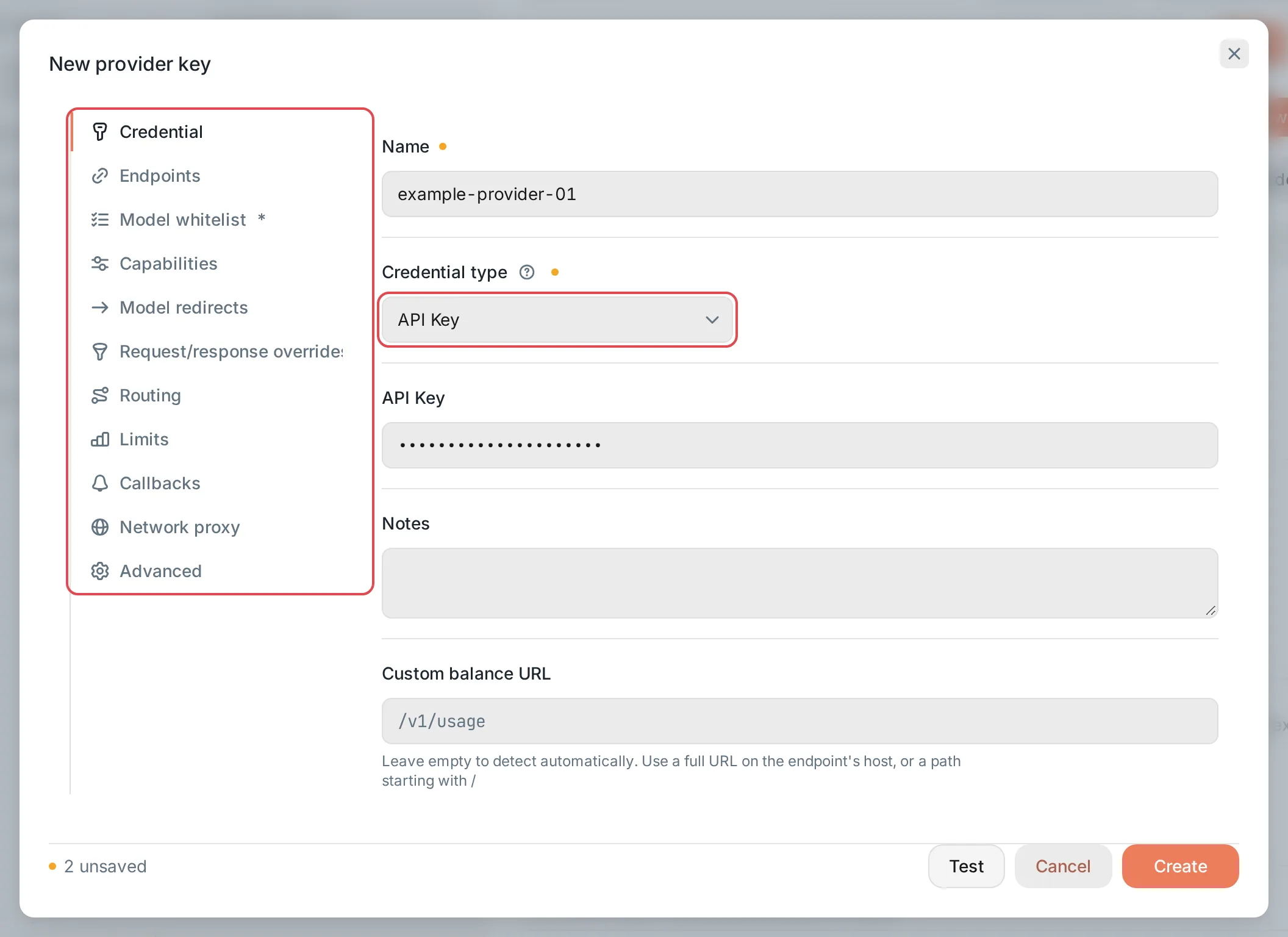 New provider key: the Credential section
 CCHP
CCHP
Add the model whitelist#
Switch to the Model whitelist section. The key is scheduled only when the requested model matches a rule in the whitelist. Click Add, and in the search box:
- Select a model from the catalog to add an exact rule. By default, only catalog models of the same vendor as the endpoint are shown.
- Enter a regular expression, for example
claude-sonnet-.*, to add a regex rule. The regex must match the whole model name. Backreferences and lookarounds aren’t supported. - When you enter a model name that isn’t in the catalog, select Register as organization model to register it in the organization’s model catalog and then add it to the whitelist.
After you fill in API Key, you can also click Sync upstream models: CCHP reads the model list from the upstream’s /v1/models, and after you confirm, adds the models that the upstream offers to the whitelist. Syncing changes only rules whose source is “Upstream”. Rules you added by hand and regex rules stay the same. Click Test and enter a model name to check whether the current rules allow it.
Warning: A key without a model whitelist is never scheduled. If you click Create while the whitelist is empty, the dialog returns to the Model whitelist section and prompts you to add rules.
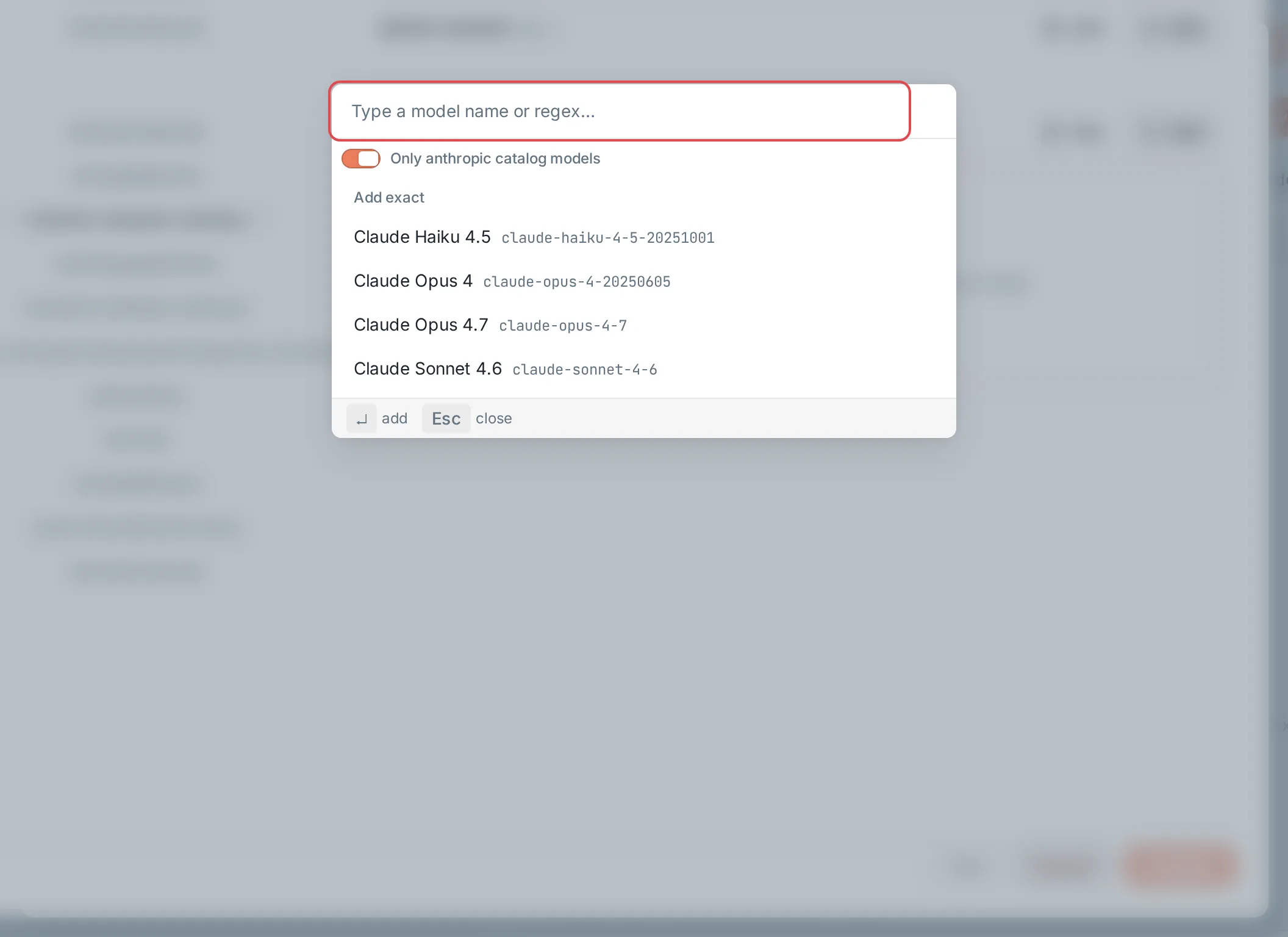 Model whitelist: add catalog modelsCCHP
Join provider groups#
Switch to the Routing section, and in Provider group bindings, select one or more groups. When you create an LLM key in the console, its routing strategy must cover at least one group, so users’ requests use only provider keys that have joined a group.
If the organization has no groups yet, you can skip this step for now. After you create a group, click Add provider keys on the group page to add the key. See Provider groups. You can leave Priority, Weight, and Cost multiplier in the same section at their defaults. They are explained below.
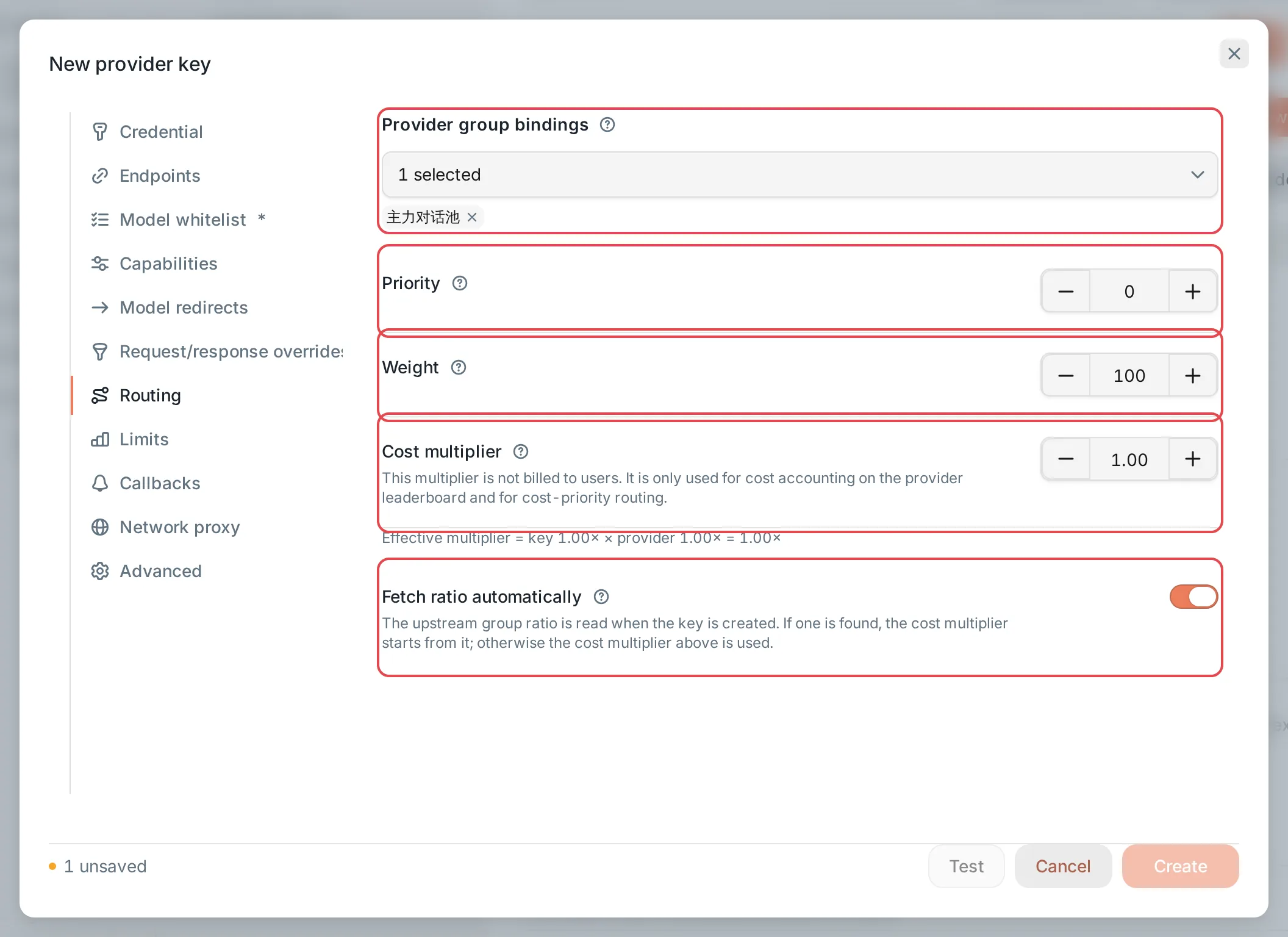 New provider key: the Routing sectionCCHP
Test and save#
After you fill in API Key, click Test at the bottom of the dialog, check Model and Endpoint, and click Run test. The test sends one real request to the upstream with the unsaved key, and the result isn’t saved. You can’t run a test when the provider has no conversation endpoint.
When everything looks right, click Create. The button is unavailable while Name or API Key is empty.
Result: The dialog closes, the page shows Key created, and the new key appears in the Keys section. Before saving, CCHP reads the upstream once with this key to recognize the upstream type (CCHP, sub2api, or New API) and read the group ratio. This read does not depend on the Fetch ratio automatically toggle or the organization’s ratio settings; the toggle only decides whether the ratio that was read is written into the cost multiplier. If a group ratio was read, the dialog first shows what was read. Click Done to close it. A failed read does not stop the key from being added.
When the upstream is recognized as a New API–style site and the provider has no working New API management token yet (not filled in, rejected, missing permissions, or the token’s account doesn’t own this key), the top of the Credential section asks for the Management token and an optional New API user ID, both in the dialog right after the key is added and whenever you later open this key’s edit dialog. After you click Save, the token is saved on the provider, and CCHP reads this key’s balance and group ratio again right away and shows them there; when the group ratio that was read differs from the Cost multiplier, you can click Use as cost multiplier. Once the read succeeds, the input area disappears and only the result stays. Without permission to change the provider, only the reason is shown.
Other sections#
Add several keys to one provider#
Repeat the steps above to add several keys to the same provider. How several keys in the same group share requests depends on the group’s routing strategy. See Group routing strategies.
To add a batch of keys at once, click Smart import in the top right of the provider details page and paste several API keys. All imported keys use the same Model whitelist for imported keys. Smart import doesn’t set groups. After the import, click Add provider keys on the group page to add the keys to groups.
Cost multiplier#
In Cost multiplier, enter the group ratio of the upstream group that this key belongs to. The default is 1.00. It is used only for routing and cost tracking, and doesn’t count toward the user’s bill. For how it differs from Top-up ratio and Group multiplier, see Provider cost multipliers vs. user billing multipliers.
When the upstream is CCHP, sub2api, or New API, the Fetch ratio automatically toggle (on by default) reads the upstream group ratio into the cost multiplier: once when you add the key, and afterward on a schedule by a background job. The cost multiplier then becomes read-only. To enter the cost multiplier by hand, turn off this toggle first. For how the ratio is read and for the organization-level settings, see Upstream ratios and balances.
Priority and weight#
Priority and Weight take effect only when the provider group’s routing strategy is Manual. Price priority, TTFT priority, and Success rate priority pick keys by live statistics and don’t use these two values. See Group routing strategies.
Where to change them:
- The Routing section of the edit dialog.
- The Scheduling column on the Keys tab: click the multiplier value, and in the panel that opens, expand Priority and weight.
- When the list is sorted by Priority in ascending order, drag the handle at the start of a row to change the order of keys. CCHP rewrites the priority of the affected keys automatically.
- Select several keys and click Batch edit to set their priority or weight together.
Enable, disable, and delete#
Manage existing keys on the Keys tab or in the Keys section of the provider details page. Click a key name to open the edit dialog. The more actions menu at the end of the row has Edit, Test, and Delete.
- Disable: Turn off the toggle in the Enabled column. A disabled key is no longer scheduled, its settings and group memberships stay the same, and turning the toggle back on restores it. After you select several keys, you can click Enable or Disable to switch them in bulk.
- Provider disabled: When this badge appears next to a key name, the key’s provider is disabled. The key’s own toggle stays the same, but the key doesn’t take part in routing. Turn on Provider enabled in the Basic section of the provider details page to restore it.
- Delete: In the more actions menu, select Delete and confirm. Deletion can’t be undone: the key stops being used immediately and can’t be enabled again. It moves to the Revoked keys list on the provider details page. There, click Delete permanently to clear the key’s configuration, such as its model whitelist, redirects, and group memberships. Request logs, bills, and audit records are kept as usual and show only the key ID afterward.
- Replace the API key: In the Credential section of the edit dialog, enter the new API key and save (leave it blank to keep the current one). CCHP revokes the old key and creates a new key with the same settings, and moves the model whitelist, groups, limits, and other settings to it. The old key appears in Revoked keys, and past request logs stay linked to the old key.
- View the full key: Click Reveal full value next to the key. Each view is written to the audit log, and by default each person can view keys at most 5 times per hour.
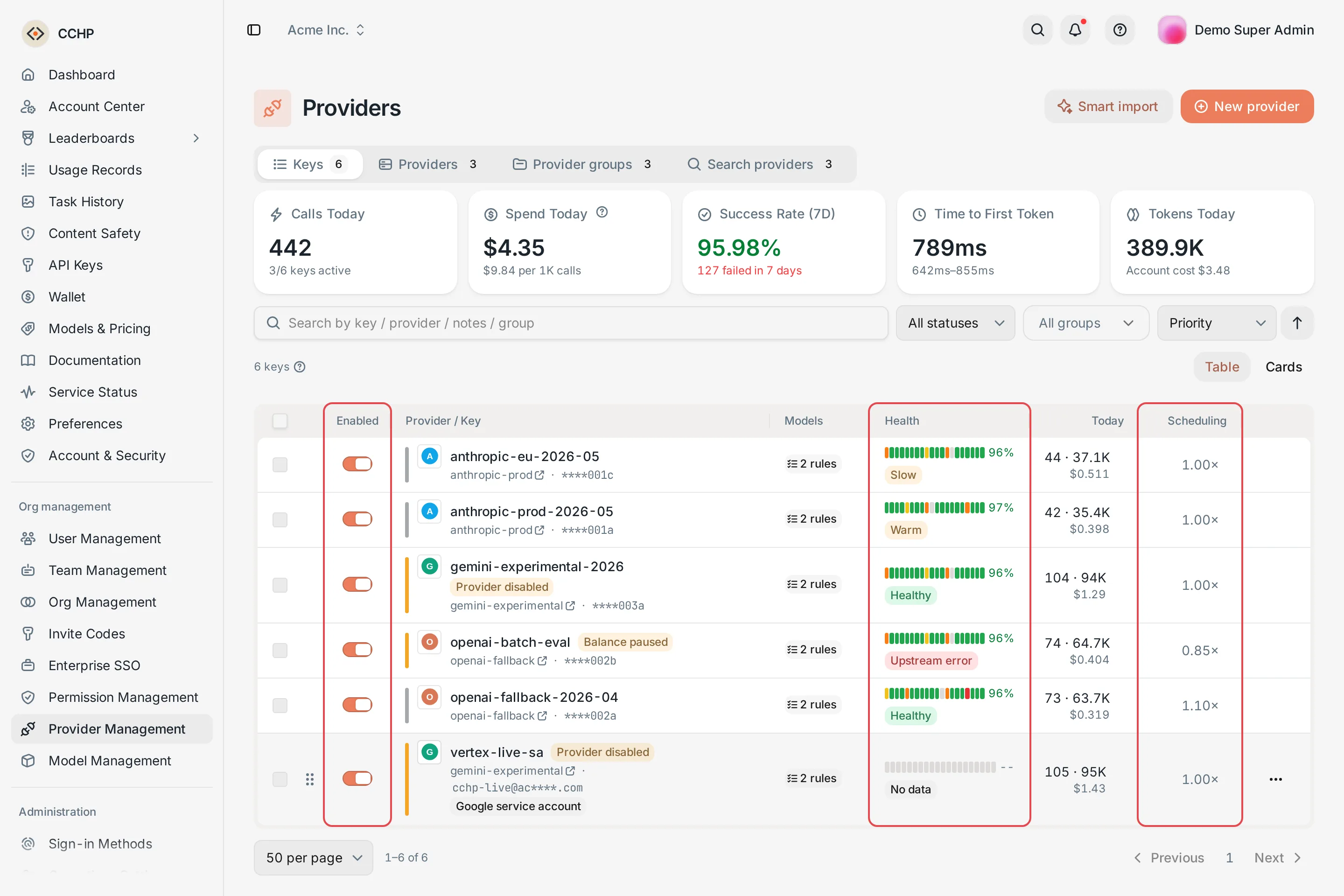 Key list: the Enabled, Health, and Scheduling columnsCCHP
Cooldown and automatic recovery#
The gateway automatically pauses keys that return errors, based on the upstream’s response (cooldown). You don’t need to do anything:
During cooldown or removal, the gateway prefers other keys. When only keys of these kinds are left, it still tries them, so requests don’t fail just because of cooldown. A key recovers automatically when its cooldown ends. If you run a manual Test on the key and it succeeds, the cooldown ends immediately. The Health column shows each key’s recent success rate and health status.
For a key whose remaining cooldown is longer than 15 minutes, the gateway sends a minimal real request in the background, using the key’s default endpoint and model, to check whether the key has recovered. The probe uses a small amount of upstream quota, and each key is probed at most once an hour. If the probe succeeds, the cooldown ends early. If it fails, the cooldown stays as it is.
You can change the values for the cooldown duration, recovery probes, and consecutive-failure removal per provider in the Key protection section of the provider details page, or for a single key in the Key protection part of the Advanced section in the edit dialog.
Check balances#
The Keys section of the provider details page shows each key’s upstream balance. Click the refresh button next to a balance to read it again. The Balance section shows Total balance and the balance of each key. To read the balance, CCHP tries the Custom balance URL, CCHP, sub2api, New API (requires the New API management token in the provider’s Basic section), and the OpenAI-compatible billing API, in that order. When the organization has turned off automatic balance reads, or the key is excluded by a list, the balance shows Not read automatically; clicking the refresh button still reads it right away.
When the balance falls below the floor that the organization set, Balance paused appears next to the key name and the key is paused from scheduling. It resumes automatically when the balance is back above the floor. Keys you disabled by hand are not enabled automatically. For the balance floor, balance alerts, and scheduled reads, see Upstream ratios and balances.
Frequently asked questions#
A new key receives no requests#
Check these in order:
- The Enabled toggle is on, and there is no Provider disabled or Balance paused badge next to the key.
- The key has joined at least one provider group, the user’s LLM key uses that group, and the group allows the requested model. See Provider groups.
- The Model whitelist includes the model the user requested. To verify, click Test in the Model whitelist section and enter the model name.
- The provider has at least one available endpoint. If the key selects only some endpoints in the Endpoints section, those endpoints are available.
- When the group’s routing strategy is Manual, this key doesn’t get a turn as long as a key with a lower priority is available.
Saving shows “Model not in catalog”#
An exact rule in the whitelist refers to a model that isn’t in the organization’s model catalog. Delete the rule, click Add again, and select Register as organization model. You can also add the model in Org management → Model Management first, or use a regex rule instead.