Chapter 308 min read
Daily check-in
Turn on daily check-in and set the reward amount, reward distribution, and check-in day boundary time zone, set it separately for an organization or team, view and revoke granted check-in rewards, and learn how users check in from their wallet.
Daily check-in lets users check in once a day in their Wallet to receive a balance reward of a random amount. The reward goes straight into the user’s wallet balance and, like balance from a top-up, pays for calls.
The first part of this page is for platform super admins and explains how to set up daily check-in. For what users do, see How users check in.
Before you begin#
- You set up daily check-in in Administration → Operations Settings → Activities. Only platform super admins can see this page.
- Daily check-in is on by default in a new deployment, and each reward is between
0.05and1. If you don’t want to grant check-in rewards, follow Turn off daily check-in. - Reward amounts use the same unit as the wallet balance.
Set up daily check-in#
Open Activities#
Go to Administration → Operations Settings, and select Activities on the left. Keep Effective scope in the upper-right corner of the page set to Global so that the settings apply to the whole platform. To set it up for only one organization or team, see Set it up for an organization or team.
Fill in the check-in settings#
In the Daily Check-in section, fill in the following:
Reward distribution has three options:
- Uniform random: Every amount in the range is equally likely.
- Normal (bell curve): Amounts near the middle of the range are the most common, and amounts near Minimum reward or Maximum reward are rare.
- Long tail (exponential): Small rewards are the most common, and the larger the amount, the rarer it is.
Each check-in reward is drawn anew between Minimum reward and Maximum reward, and it doesn’t grow with the number of consecutive check-in days. When you enter the same value in both, every reward is that fixed amount.
Save#
Click Save in the save bar, review Field changes in the Confirm submit dialog, and then click Confirm. Save is unavailable when Activity name is empty, an amount is invalid, or Maximum reward is lower than Minimum reward.
Result: The save bar shows All changes saved. Later check-ins grant rewards under the new settings, and rewards already granted don’t change.
To restore the global settings to the defaults in the table above, click Restore defaults in the save bar, and then click Save.
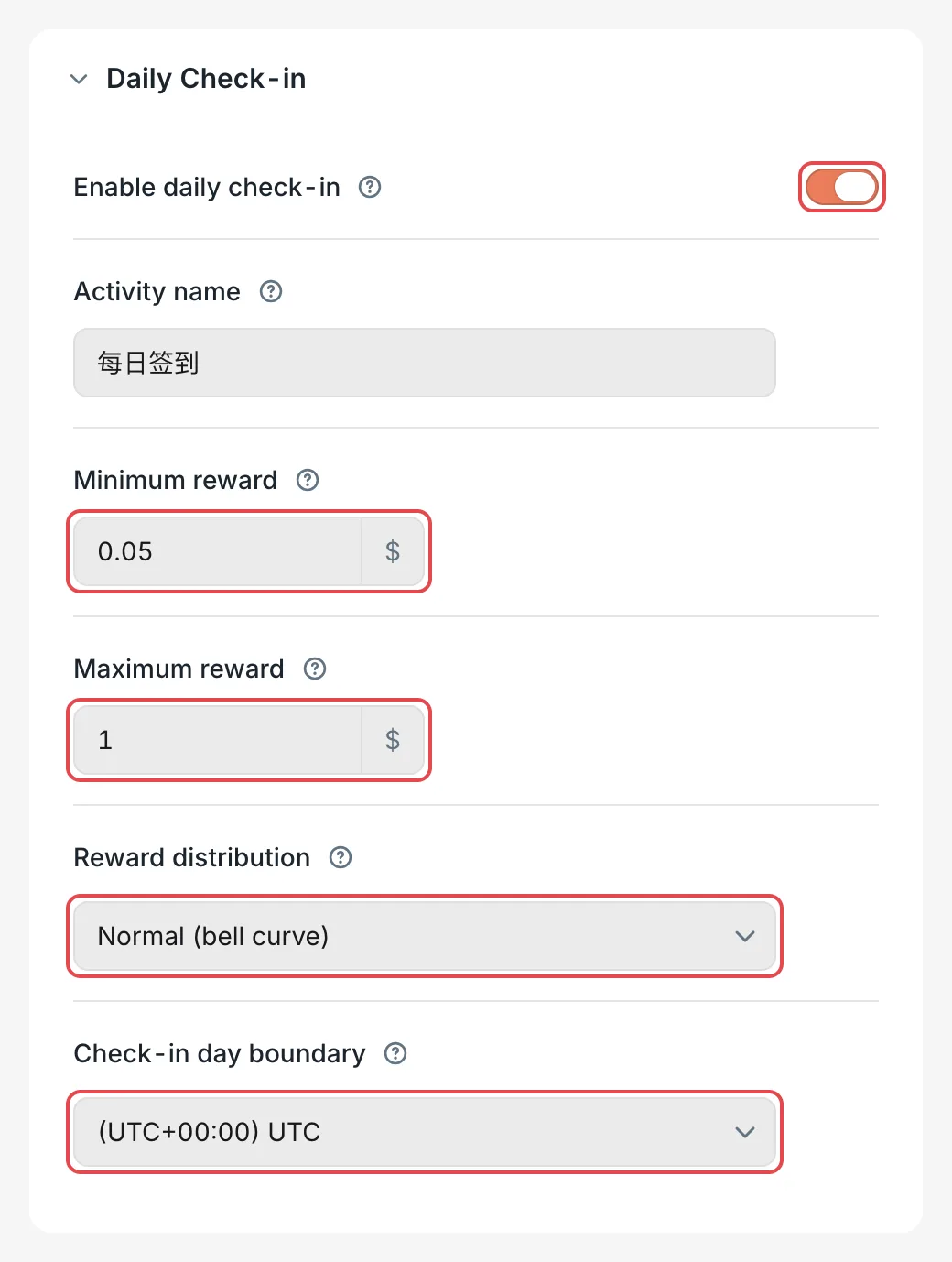 Activities: the daily check-in settings
 CCHP
CCHP
Check-in rules#
- The same user can check in only once a day in the same organization. A “day” follows Check-in day boundary, and the user’s browser time zone doesn’t affect the boundary. The default, 00:00
UTC, is 08:00 Beijing time. If your users are in mainland China, you can selectAsia/Shanghai. - The reward goes to the user’s wallet in the current organization. When a user has joined several organizations, they can check in once in each organization, and each organization grants rewards under its own settings.
- Within any rolling 24 hours, the same user can check in at most 2 times, and the rewards add up to no more than 2 times Maximum reward. As long as the day boundary and Maximum reward don’t change, this limit doesn’t affect normal check-ins. After you change Check-in day boundary or lower Maximum reward, a user who just checked in may have to wait until 24 hours have passed since their last check-in before they can check in again. A check-in over the limit is rejected, the user sees Already checked in, and the platform also raises a “Daily check-in reward limit reached” security alert.
- By default, users must pass human verification before they check in, which stops scripts from checking in in bulk. You set the verification rule in the Daily check-in item in Administration → System Management → Human Verification.
Set it up for an organization or team#
- On the Activities page, click Effective scope in the upper-right corner, select Organization or Team, then select the specific organization or team, and click Apply.
- Change the settings in Daily Check-in and click Save. In Confirm submit, confirm that Target scopes is this organization or team, and then click Confirm.
Result: A Restore inherited button appears in the save bar. Members of this organization or team check in under the new settings, and other organizations aren’t affected. Team settings take priority over organization settings, and organization settings take priority over Global settings.
- The settings for this organization or team include all 6 settings. After you save, it no longer follows changes to the settings of the level above, and that includes the settings you didn’t change.
- A sub-organization that has no settings of its own uses its parent organization’s settings.
- To remove the separate settings, click Restore inherited in this organization’s or team’s scope. It immediately goes back to using the settings of the level above.
Turn off daily check-in#
In Activities, turn off Enable daily check-in, click Save, and then click Confirm. To turn it off for only one organization or team, first select it in Effective scope.
Result: The Daily check-in button no longer appears in users’ wallets. Check-in rewards already granted stay in users’ balances. To take them back, see Revoke check-in rewards.
View granted check-in rewards#
Go to Administration → Finance Events, and click Activity reward in By category. The list then shows only check-in rewards, with one record for each check-in.
In each record, the Amount column is the reward granted, the Source column is the Activity name at the time of the check-in, the Reference column is the check-in date (based on Check-in day boundary), and the Operator column is Member.
Organization admins can view the check-in rewards of their organization’s members in Org management → Finance Events.
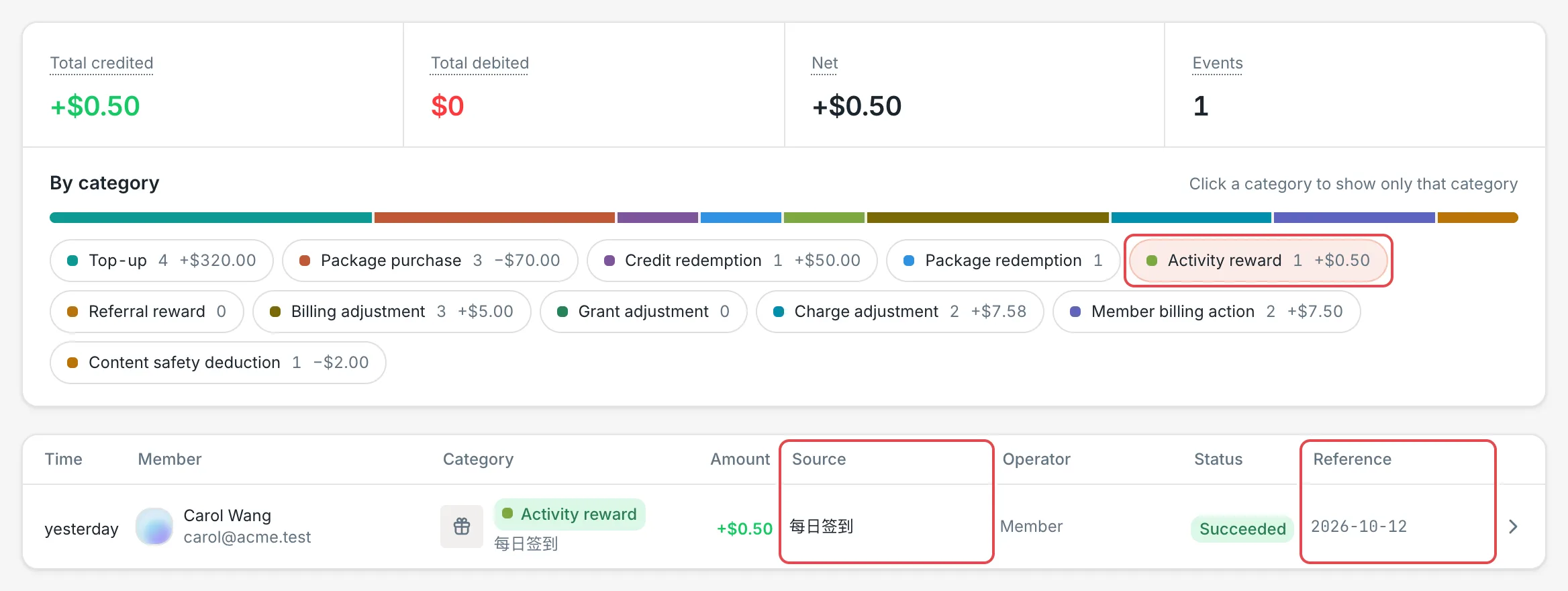 Finance Events: activity rewards onlyCCHP
Revoke check-in rewards#
After check-in rewards are granted, you revoke or claw them back in Administration → Operations Settings → Compensation & Clawback: in Marketing grants, select the organization, set Grant type to Check-in reward, select the grants to revoke, and then take action. For the full steps, see Revoke or claw back grants.
Organization admins can also revoke the check-in rewards of their organization’s members in Org management → Clawback & Compensation.
How users check in#
The user opens Wallet in the sidebar and clicks Daily check-in below the balance. The page may first run human verification, which usually shows Verifying… and then completes on its own.
Result:
- The page shows Checked in! You received $0.486.
- Available balance goes up by the same amount right away.
- The button changes to Checked in · 1 day streak and can’t be clicked again that day.
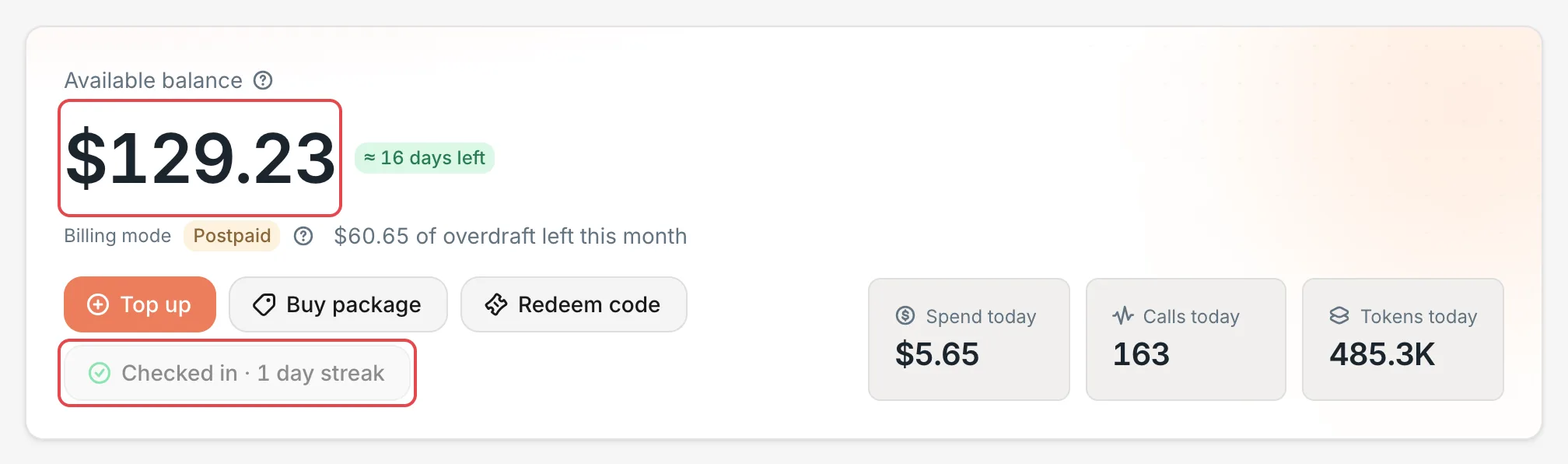 Wallet: the button and balance after check-inCCHP
The check-in reward goes to the user’s wallet in the current organization shown in the top bar. After switching to another organization, if that organization also has daily check-in turned on, the user can check in once more in that organization’s wallet.
The streak in the button is the number of days in a row the user has checked in. If the user misses a day, it starts again from 1. On the next check-in day, the button goes back to Daily check-in.
Check-in rewards appear in Top-up History at the bottom of the Wallet page, with a Check-in reward badge and the Activity name next to it, for example 每日签到. Click a record to expand it and see Reference and Time.
Frequently asked questions#
Why is there no daily check-in button in the user’s wallet?#
Check these two things:
- Enable daily check-in is turned off globally, or in the user’s organization or team. In Activities, check the settings in the Global scope, this organization’s scope, and this team’s scope.
- If buttons such as Top up and Redeem code are also missing from the wallet, the user doesn’t have permission to use the wallet in the current organization. Ask an organization admin to check the user’s role.
Why does a user see “Already checked in” when they haven’t checked in that day?#
“Today” follows Check-in day boundary, not the user’s local date. For example, with the default UTC, 00:00 to 08:00 Beijing time still belongs to the previous day in UTC: if the user checked in after 08:00 Beijing time on the previous day, they can check in again only after 08:00. Another reason is the limit of at most 2 check-ins within any rolling 24 hours. See Check-in rules.