Chapter 1910 min read
Provider groups
Create provider groups and add provider keys to them, set group multipliers and member billing multipliers, restrict the groups that organizations and teams can use, and learn how members' LLM keys choose groups.
A provider group is the only scheduling unit that members can choose. When members create an LLM key, they can choose only groups, and they can’t see the provider keys in a group. When a request reaches the gateway, the gateway picks one provider key from the group’s members according to the group’s Routing strategy.
The members of a group are provider keys, which can come from different providers, and one provider key can also join several groups. Every LLM key created in the console routes by group, so members’ requests never use a provider key that isn’t in any group. CCHP doesn’t create groups automatically: members can create LLM keys in the console only after the organization has at least one group, and requests succeed only when the group also has schedulable provider keys.
Prerequisites: You need permission to manage providers, which organization admins have by default. Add your providers and provider keys first. See Provider keys.
Step 1: Create a group#
- In the console, open Org management → Provider Management, click the Provider groups tab, and then click New group.
- On the Settings tab, fill in the following:
- Name: Required. Up to 64 characters, and it must be unique within the organization. Members choose groups by name.
- Description: Optional. Describe what the group is for. Members also see the description when they create an LLM key or view Models & Pricing.
- Group multiplier:
1.00by default. You can set it from0to999. This multiplier counts toward members’ bills. For example, if you set it to1.20, calls through this group are billed at 1.2 times the price. - Routing strategy: How the group picks provider keys. A new group uses Price priority by default. For the differences between the strategies, see Group routing strategies.
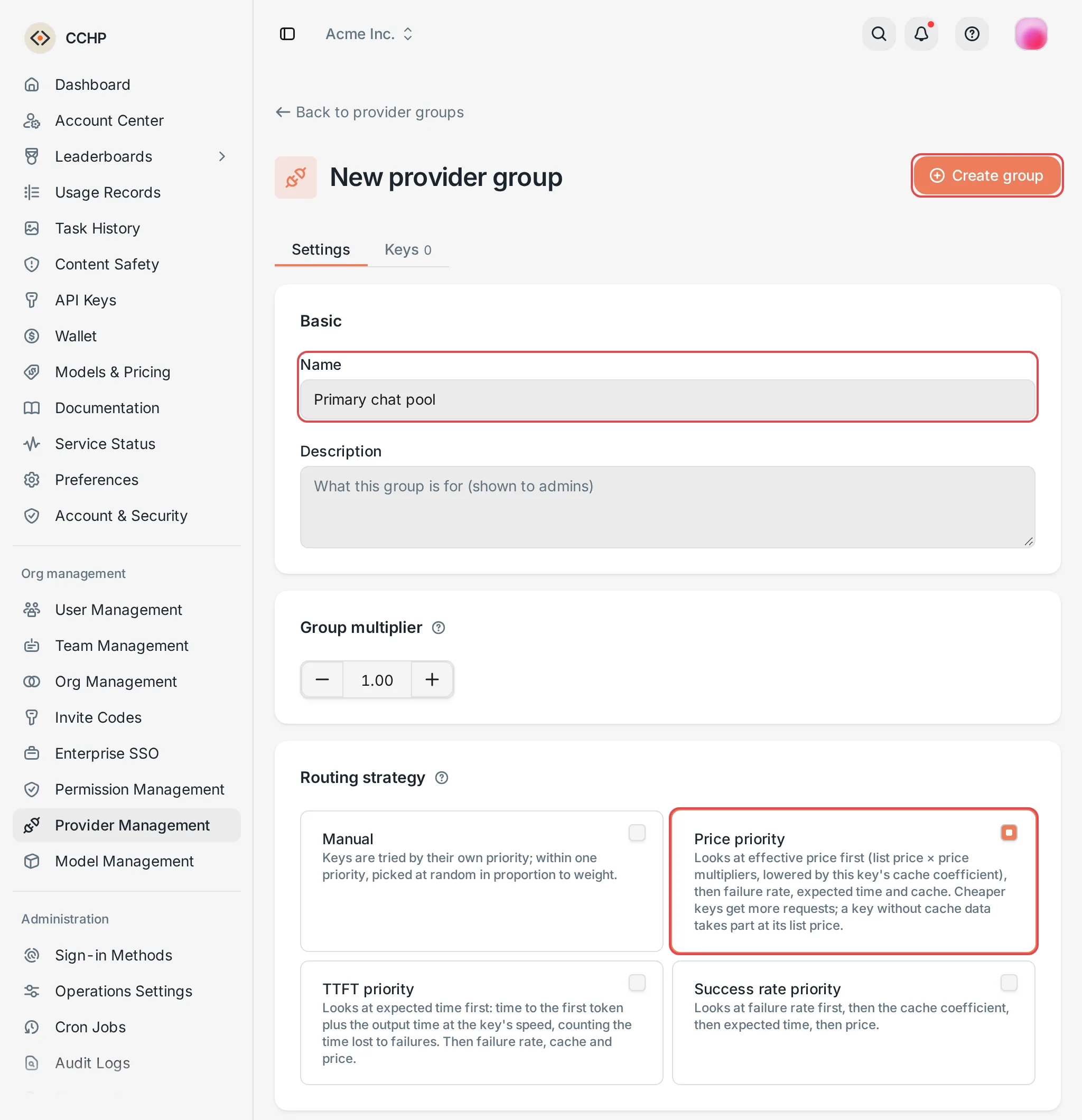 New provider group: the Settings tab
 CCHP
CCHP
Step 2: Add provider keys#
- Click the Keys tab, and then click Add provider keys.
- In the dialog, select the keys to add. You can search by name, or filter by status or provider.
- Click Add to group (N), where N is the number of selected keys. The selected keys appear on the Keys tab, marked To be added.
- Click Create group in the upper-right corner of the page.
You can select up to 1,000 keys one by one at a time. To add more keys, first select all keys on the current page, and then click Select all N matching keys. After the group is saved, CCHP adds these keys in the background based on the filters, and the progress appears above the key list.
Result: The page returns to the Provider groups list, and the new group’s Members column shows the number of keys you added.
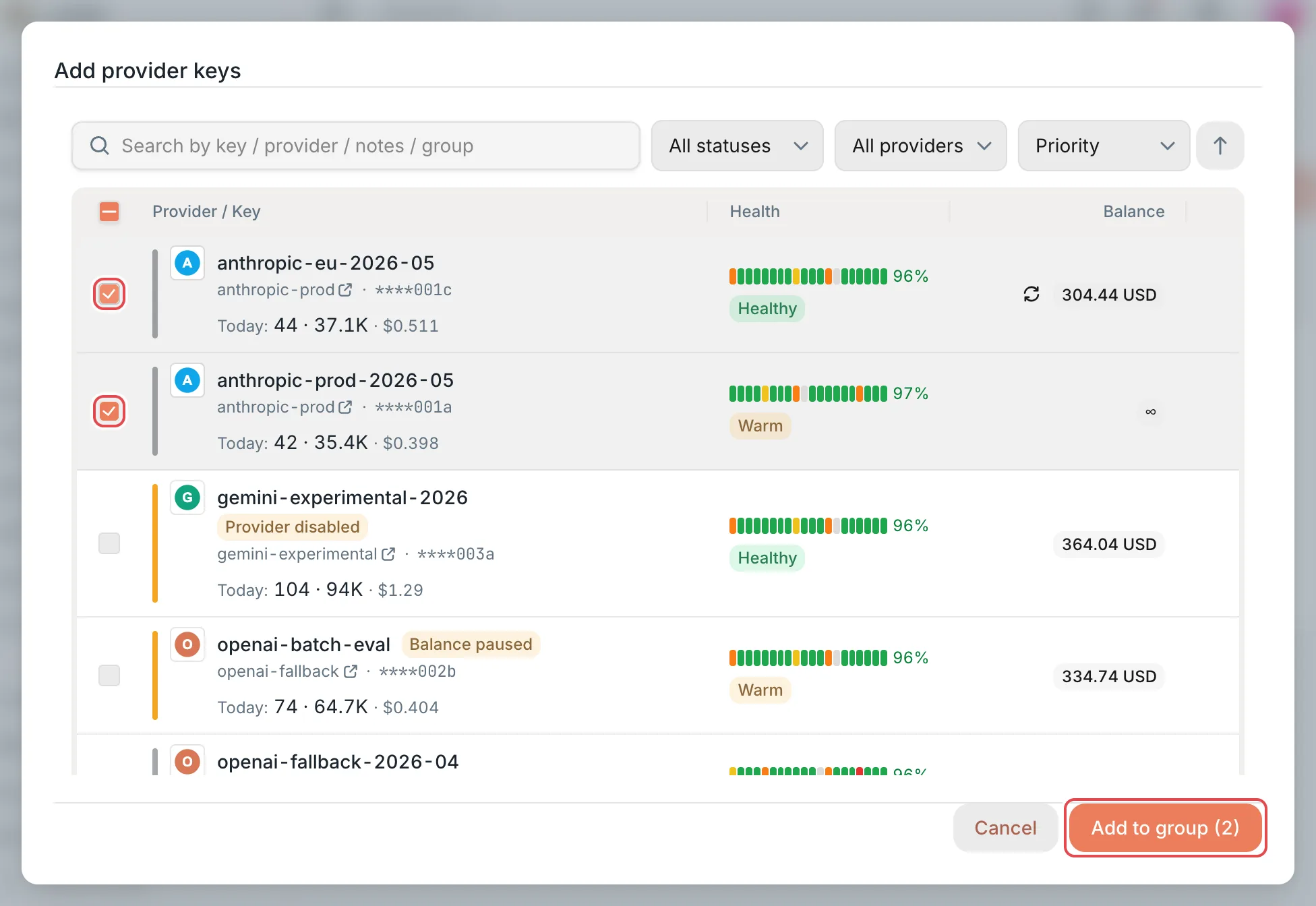 Add provider keys: select keysCCHP
You can also do this from the key side: in a provider key’s edit dialog, Provider group bindings in the Routing section lists the groups the key belongs to, and you can add the key to groups or remove it from groups there.
Step 3: Check whether the group is schedulable#
In the Provider groups list, click the group name to open the group details (the page title is Edit provider group).
- Keys tab: The top of the page shows the number of enabled keys and the number of models that can be requested. When the Schedulable column shows Not schedulable, the same cell gives the reason, for example the key is disabled, the upstream balance is too low, or the upstream rate-limited the key. Fix it in Provider keys. Chance of being picked is the share of requests the key is expected to get. Before the group receives any requests, it shows No scheduling data yet.
- Models tab: Lists the models that the group can serve. A Status of Schedulable means at least one member key can take requests for the model. Temporarily unavailable means none of the keys that can take requests for the model can be scheduled right now, and the reason is in the same cell.
By default, the group can schedule all the models that the member’s keys can schedule. To let the group serve only some of these models, click Customize in the Models tab (or Add when rules already exist). In the Models or wildcard picker of the Add rules dialog, select member models of the group (each shown with its vendor icon), or type a wildcard with *, for example claude-opus-*. As you type a wildcard, the picker lists the member models it matches under the gateway’s matching rules, and you can select the typed text itself as a wildcard rule. Click Add to save; the dialog closes as soon as the save finishes. When rules exist, the group schedules only the models that match the rules, and requests for other models move to the LLM key’s next group. Click Restore default to delete all the rules. Rule changes are saved immediately, and you don’t need to click Save at the bottom of the page.
When the group has a model redirect, the group looks up keys by the model after the redirect, and both the keys’ model whitelists and the group’s rules are checked against the rewritten model; see Where model redirects take effect.
Result: Every model you want to offer shows Schedulable on the Models tab.
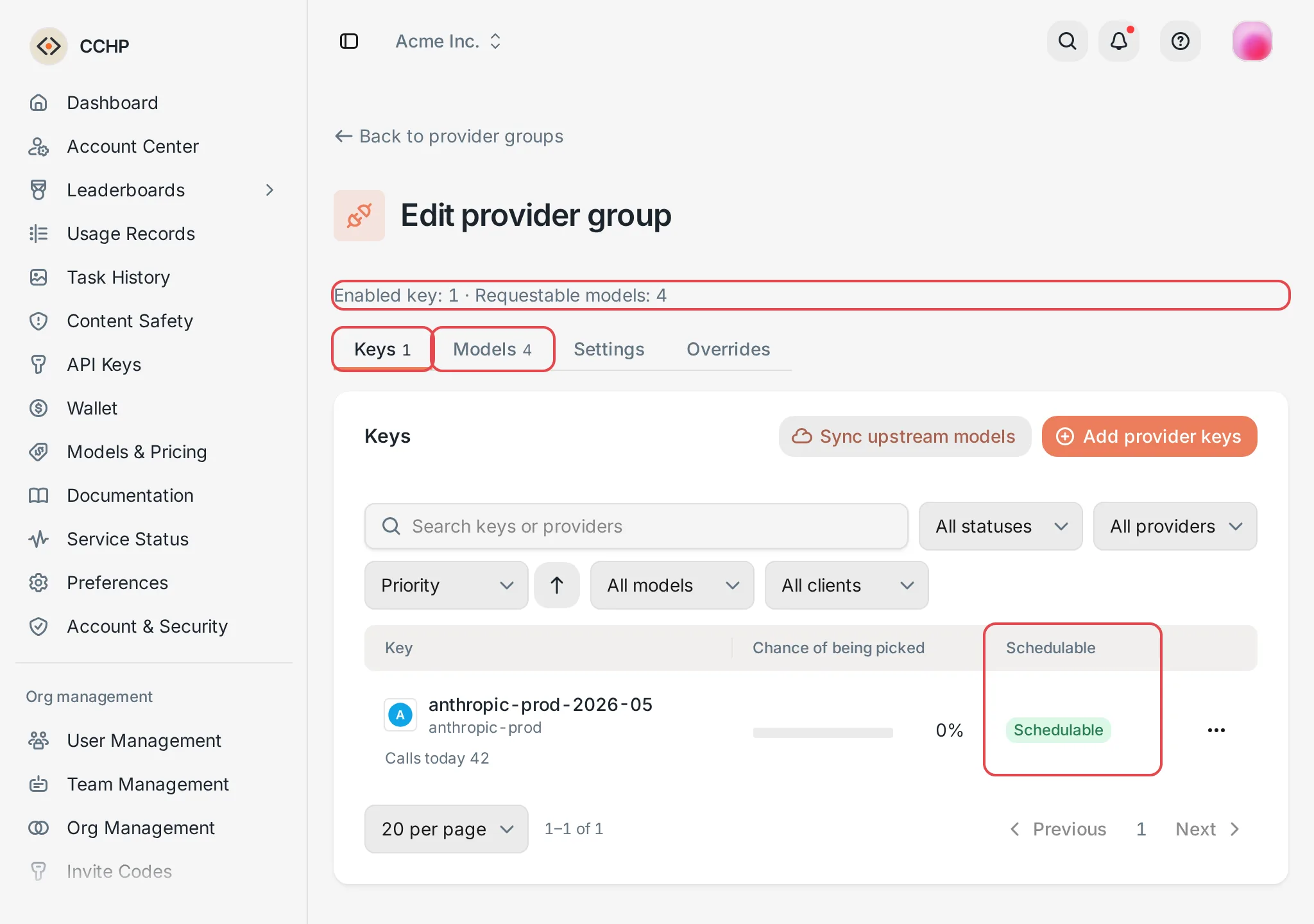 Group details: the Keys tab and scheduling statusCCHP
How members use groups#
On API Keys, members click Create key, and in Routing strategy they choose which groups the LLM key uses:
- Price intent (default): Set an Acceptable multiplier range. The LLM key uses all groups whose billing multiplier falls within the range, and tries them in order from the lowest billing multiplier to the highest. The default range is
0.00×to7.00×. - Pinned groups: The member selects one or more groups and arranges their Attempt order. The next group is used only after all earlier groups fail.
The billing multiplier here = group multiplier × organization extra multiplier × team extra multiplier. The next section covers the last two. Members can see and choose only the groups that are available to them. For the steps, see Create an LLM key. For how prices are calculated, see Provider groups and your final price.
New groups take effect automatically: LLM keys that use Price intent automatically use groups that are created later and whose billing multiplier falls within the range. If a group isn’t ready yet, first turn off its Available toggle in the organization’s Provider groups settings, and turn it back on when the group is ready.
Restrict the groups that organizations and teams can use#
By default, all groups in an organization are available to all members, and the organization extra multiplier and the team extra multiplier are both 1.00. Organization admins can narrow the available groups, or mark up on top of the group multiplier, on the organization or team details page:
- Organization: Go to Org management → Org Management, click the organization, and then click Provider groups in the section navigation on the left.
- Team: Go to Org management → Team Management, click the team, and then click Provider groups in the section navigation on the left.
The Provider groups section has one row for each group:
- Available: When you turn it off, members at this level can no longer use the group.
- Organization × or Team ×: A multiplier applied on top of the group multiplier. It can only mark up, and its range is
1.00to1000. The end of the row shows the final multiplier, which is the group multiplier multiplied by the multipliers of each level.
After you make changes, click Save at the bottom of the page.
The Available toggle follows these rules:
- Teams inherit the organization’s setting, and sub-teams inherit their parent team’s setting. When a lower level sets the toggle, the lower level’s setting wins, so a team can turn back on a group that the organization turned off.
- When a member belongs to several teams, the group must be available in every one of those teams for the member to use it. When a member doesn’t belong to any team, the organization’s setting applies.
After a group is turned off, members don’t see it when they create an LLM key, and requests from LLM keys that already use the group no longer go through it.
Set member billing multipliers#
Member billing multipliers let different provider keys in the same group bill at different prices. For example, when a group has a key that costs more, you can mark up only that key. The default is 1.00, and the range is 0 to 1000. When it’s set to 0, calls completed through this key aren’t billed.
- On the Keys tab of the group details, click the key’s row to open its details panel on the right.
- Enter the multiplier in Member billing multiplier (×).
- Close the details, and then click Save at the bottom of the page.
When a member’s call goes through this group and is completed by this key, the billing multiplier at the group level = group multiplier × member billing multiplier × organization extra multiplier × team extra multiplier. The same key can have different member billing multipliers in different groups.
A provider key’s own Cost multiplier is used only for routing and cost tracking, and doesn’t count toward members’ bills. For the differences between the multipliers, see Provider cost multipliers vs. user billing multipliers.
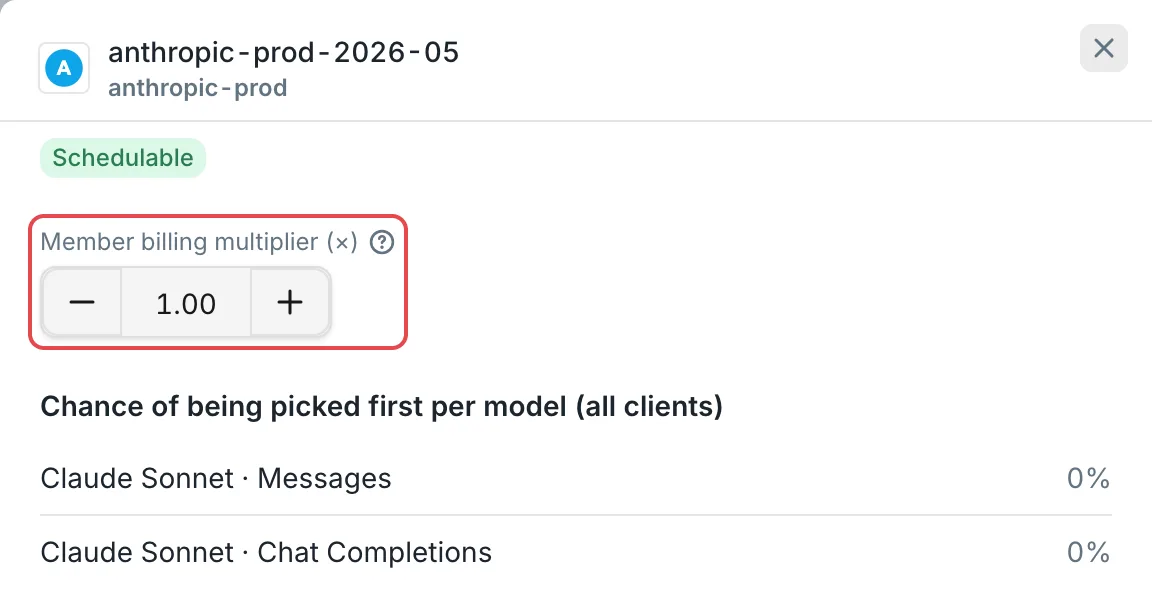 Key details: Member billing multiplier (×)CCHP
Warning: Members can’t see member billing multipliers. Neither the Price intent range of an LLM key nor the prices shown in Models & Pricing include them. When you set a value other than 1.00, the price members are actually billed differs from the price they see.
Edit and delete groups#
Edit: In the Provider groups list, click the group name or Edit at the end of the row. On the Keys tab, you can add keys or click Remove from group. On the Settings tab, you can change the name, the multiplier, and the routing strategy. All changes take effect together when you click Save at the bottom of the page, and you can click Discard changes to undo them. Renaming a group doesn’t affect its historical usage statistics.
On the Settings tab, a saved group also has settings such as fallback, service tier, Thinking signatures, web search, and content safety. For fallback, see Group routing strategies. For content safety, see Prompt safety and content moderation.
Delete: Click Delete at the end of the row, and then click Delete group to confirm. A deleted group can’t be restored. You can’t delete a group while LLM keys or provider keys still use it, and the confirmation dialog lists them. First change the routing strategy of those LLM keys to remove the group, and remove those provider keys from the group, then delete it. Revoked LLM keys and deleted provider keys don’t block the deletion.
Frequently asked questions#
Does CCHP create a default group automatically?#
No. A new organization has no groups, so create them with the steps on this page. When you import data from CC Hub, the groups in CC Hub are imported as provider groups that use the Manual routing strategy.
Why does “Chance of being picked” show 0% for keys in a group that uses the Manual strategy?#
Chance of being picked is calculated only for three strategies: Price priority, TTFT priority, and Success rate priority. The Manual strategy picks keys by their own Priority and Weight, so this column shows 0%. This doesn’t mean the key will never be picked.
Why can’t members see a group when they create an LLM key?#
In the Provider groups section of the organization and of the member’s teams, check that the group’s Available toggle is turned on. When a member belongs to several teams, the member can’t use the group if any one of those teams turns it off.