Chapter 2815 min read
Upstream ratios and balances
Have CCHP read upstream account balances and group ratios on a schedule: pause provider keys automatically when the balance is low, write group ratios into the cost multiplier, and send alerts when a provider's balance falls below the alert line.
CCHP regularly reads the account balance and group ratio that each provider key has on its upstream, and uses them to do three things automatically:
- When the balance falls below Balance floor, CCHP pauses scheduling for that key. It lifts the pause automatically after the balance recovers.
- CCHP writes the upstream group ratio into the key’s Cost multiplier. The cost multiplier is used only for routing and cost tracking, and it doesn’t count toward the user’s bill.
- When a provider’s total balance falls below Low balance alert line, CCHP marks the provider Low balance in the provider list and sends an alert.
On this page, “group ratio” means the ratio that an upstream relay service sets for its own groups. It isn’t the Group multiplier on a CCHP provider group. For the difference between the two, see Provider cost multipliers vs. user billing multipliers.
All of these features are on by default, and CCHP reads all enabled provider keys every 30 minutes. With a CCHP or sub2api upstream, you don’t need any setup. For other upstreams, add the settings described below.
Supported upstreams#
The OpenAI-compatible billing API means /v1/dashboard/billing/subscription and /v1/dashboard/billing/usage. CCHP reads the balance from the following sources in order and uses the first one that returns a result: the key’s Custom balance URL, CCHP, sub2api, New API, and the OpenAI-compatible billing API. Group ratios are read only from CCHP, sub2api, and New API. With a CCHP upstream, the balance is the amount this key can still spend there: the smallest of the amount the other side’s organization billing mode covers (wallet and plans when prepaid, the organization’s remaining credit for this month when postpaid) and the remaining amount of each spend limit on the key, its user, team, and organization. When nothing constrains it on the other side, the balance shows as ∞. The group ratio is the lowest billing multiplier among the groups this key can use.
Who can set it up#
- The Upstream Ratios & Balances page in System Management is open only to platform super admins. Use it to adjust how often the job runs, the toggles, and which providers and keys take part.
- Actions on providers and provider keys (viewing and refreshing balances, fetching group ratios, filling in Custom balance URL and New API management token, and setting Low balance alert line for a single provider) require organization admin or platform super admin permissions. A platform super admin first clicks the organization name on the left of the top bar to switch to the organization to configure.
View upstream balances#
In the Org management group in the sidebar, click Provider Management. You can view balances in the following places:
- The Balance column on the Providers tab shows each provider’s total balance and when it was last fetched.
- On the Providers tab, click a provider name to open its details page, and then click Balance in the section navigation on the left. This shows Total balance, the Per key readings, and Low balance alert line.
- The Balance column on the Keys tab shows each key’s reading. On narrow pages, the reading appears below the key name.
To read the latest balance right away, click Refresh balance on the provider details page, or hover over a balance in the list and click the refresh button that appears. Manual reads (including refreshing balances and fetching group ratios) are limited to 10 per person per minute. Beyond that, the page shows “Too many attempts. Try again later.”
How balances are displayed:
- Several keys that share the same upstream account are counted only once in the total.
- When the upstream declares no limit, the balance shows
∞. - When the balance is returned in a unit other than US dollars (for example,
CNY), the value and unit are shown as usual, but they aren’t used in the Balance floor and Low balance alert line checks. - When the upstream doesn’t provide a balance, the reading shows Not supported. When the read fails, it shows Fetch failed. When the organization has turned off Fetch balances automatically, or the key or its provider is excluded by a list, it shows Not read automatically. Hover over the reading to see why. A manual refresh ignores the toggle and the lists and always reads once.
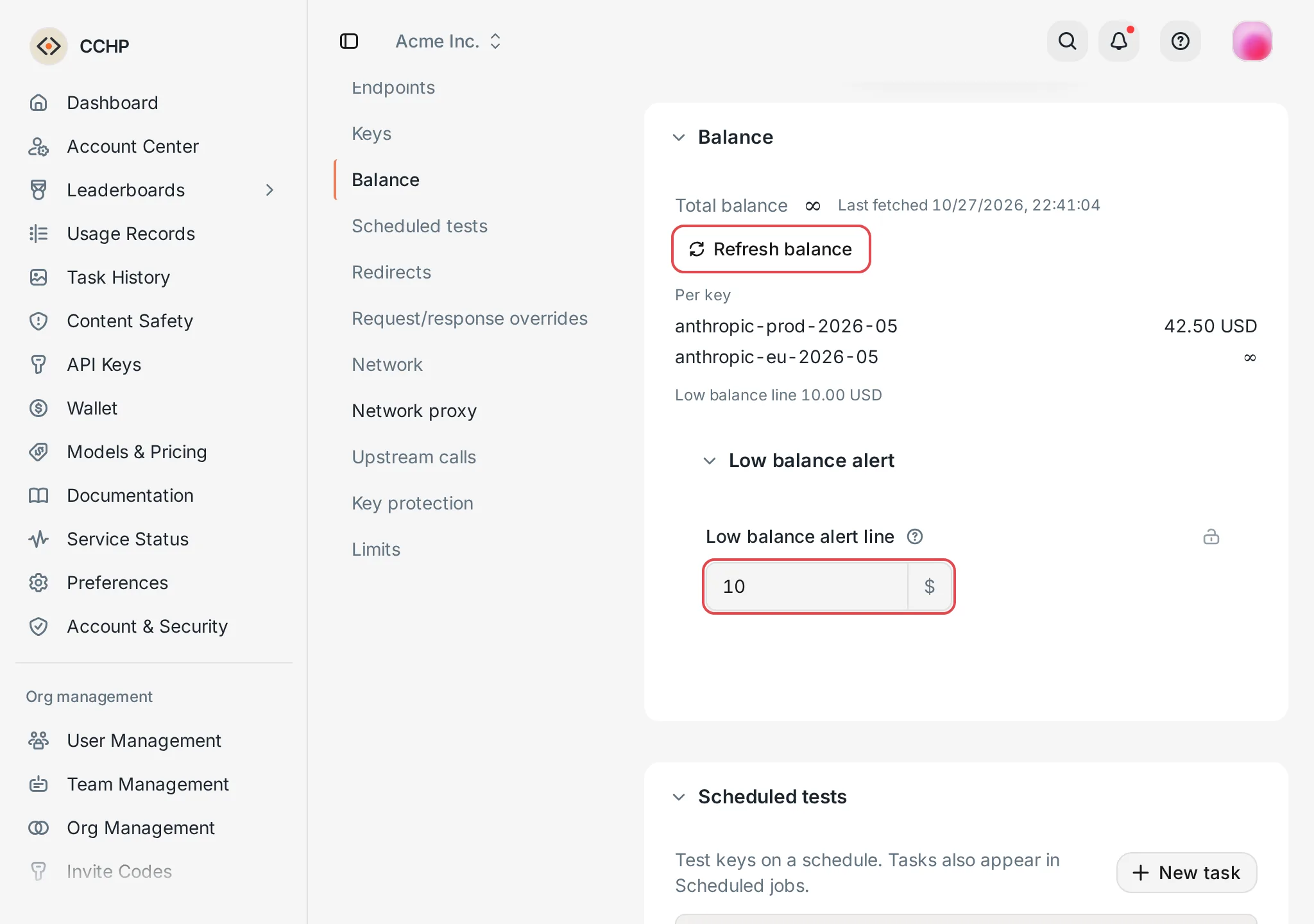 Provider details: Total balance and Low balance alert line
 CCHP
CCHP
Connect a New API upstream#
CCHP uses a New API management token to read the account balance and group ratios. You fill it in once for each provider, and all keys under the provider share it.
- In the New API console, generate an access token with the
api_key:readandprofile:readpermissions. - In CCHP, open this provider’s details page, and find New API management token in the Basic section.
- Paste the access token into Management token. Older versions of New API and some New API forks also need New API user ID. For newer versions, you can leave it blank.
- Click Save at the bottom of the page.
Result: “Configured · ends in” and the last 4 characters of the token appear next to Management token. The token is stored encrypted and isn’t shown again. Then click Refresh balance to confirm that the balance can be read.
You can also enter it on a key: after you add a key, when CCHP recognizes the upstream as a New API–style site and the provider has no working management token yet, the top of the Credential section asks for the Management token and an optional New API user ID, both in the dialog right after the key is added and in the Edit provider key dialog you open later. After you click Save, the token is saved on the provider, and CCHP reads and shows the balance and group ratio again right away; when the group ratio that was read differs from the cost multiplier, you can click Use as cost multiplier. The prompt appears only when the site accepts this key; when the site rejects the key with 401 or 403, the balance reports the key as invalid.
Fill in a balance URL for other upstreams#
Upstreams such as DeepSeek and Kimi aren’t relay services, so you need to tell CCHP the address of their balance query API on the provider key.
- On the Keys tab of Provider Management, click the key name to open the Edit provider key dialog.
- Fill in Custom balance URL in Credential, and then click Save.
Rules for the URL:
- Enter a path that starts with
/, or a full URL with the same protocol and host as the endpoint. A URL that points to another host fails when it’s read, with the message “The balance query URL must be on the endpoint’s host, or be a path starting with /”. - The URL can’t contain query parameters whose names include
key,token,secret, orpassword. CCHP sends aGETrequest with this key in theAuthorization: Bearerheader.
A self-hosted balance API is recognized if it returns JSON like the following:
{ "balance": 12.5, "unit": "USD" }- The balance is taken from the
balance,remaining,remain_quota, andtotal_availablefields, in that order. These fields can also be inside adataobject. If none of them is present, CCHP usestotalminusused. - The unit is taken from
unitorcurrency. If neither is present, it’s recorded asquota. Only balances inUSDare used in the balance floor and alert line checks. - When
unlimitedistrue, the balance has no limit.
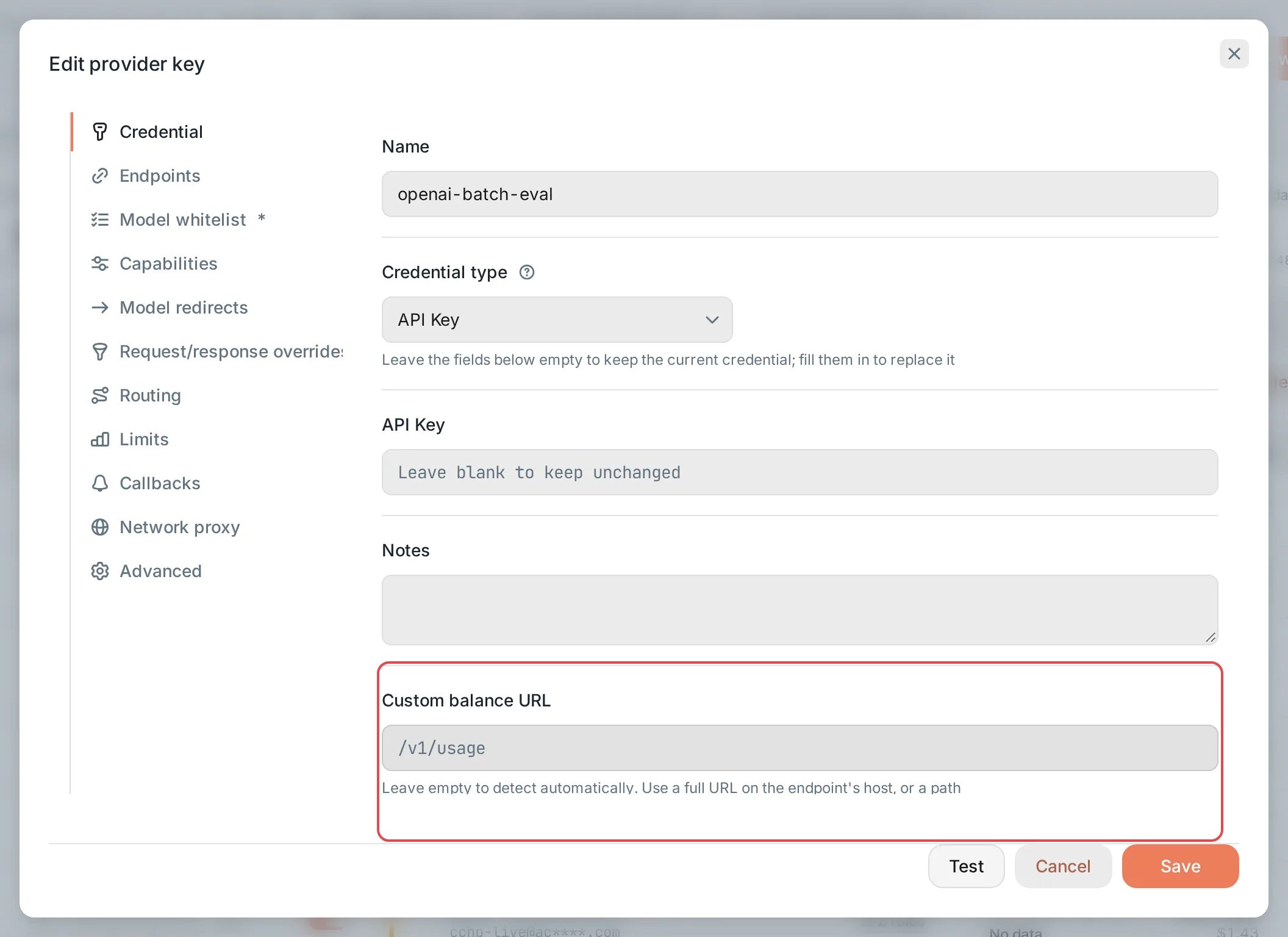 Edit provider key: Custom balance URLCCHP
Pause scheduling when the balance is low#
Each time CCHP reads a balance, it handles the key according to the following rules:
- If the balance is below Balance floor (default $1), scheduling is paused. A paused key no longer takes part in routing. On the Keys tab, a Balance paused badge appears next to the key name. Click the badge to see the current balance and the balance floor. Select Paused for low balance in the All statuses filter to list all paused keys.
- When the balance returns to the floor or higher, the pause is lifted automatically.
- Keys that were disabled manually aren’t paused, and lifting a pause doesn’t re-enable them.
- Keys whose upstream declares no limit, or whose balance isn’t in US dollars, aren’t paused because of their balance.
After you turn off Pause scheduling when the balance is low or Fetch balances automatically, all existing pauses are lifted within a few seconds. After you change Balance floor, CCHP also rechecks within a few seconds against the most recently read balances, and reads the balance again for the affected keys.
Update cost multipliers automatically#
When all of the following conditions are met, CCHP overwrites the key’s Cost multiplier with the upstream group ratio after each read:
- Fetch group ratios automatically and Write ratios into the cost multiplier are on (on by default).
- The key’s Fetch ratio automatically is on (on by default).
- The upstream is CCHP, sub2api, or New API with a management token filled in.
Result: In Routing in the Edit provider key dialog, Cost multiplier can’t be edited, and the note below it says “Updated from the upstream group ratio. Turn off automatic fetching to enter a value yourself.” Every write is recorded in the audit log.
To keep a manually entered cost multiplier for a key, turn off Fetch ratio automatically in Routing, and then change Cost multiplier and save. After you turn it off, the key is added to the Excluded keys list for group ratios.
CCHP doesn’t write the ratio in the following cases:
- The key uses New API’s auto group, where the ratio changes from request to request.
- The upstream ratio isn’t between 0 and 100.
When a sub2api group has a peak-hours ratio, the written value doesn’t include the peak-hours ratio.
When you create a provider key, CCHP always reads the upstream once with the key, regardless of Fetch ratio automatically, Fetch group ratios automatically, and the lists. When Fetch ratio automatically is on, Cost multiplier starts from the value that was read. When it is off, or nothing could be read, the Cost multiplier you entered is used.
Fetch group ratios manually#
If you turned off Write ratios into the cost multiplier, or you want to sync right away, you can fetch the ratios manually and then confirm the write:
- In Routing in the Edit provider key dialog, click Fetch group ratio. To handle several keys at once, select them on the Keys tab, and then click Fetch group ratio in the bulk action bar.
- In the Fetch group ratio dialog, check the result for each key. The results are Will update, Already matches, Not supported, and Read failed.
- Select the keys to write, and click Write N ratios.
Result: The Cost multiplier of the selected keys is updated to the upstream group ratio. CCHP reads the upstream again before writing. If the upstream ratio has changed, or someone else has changed the cost multiplier, that key isn’t written.
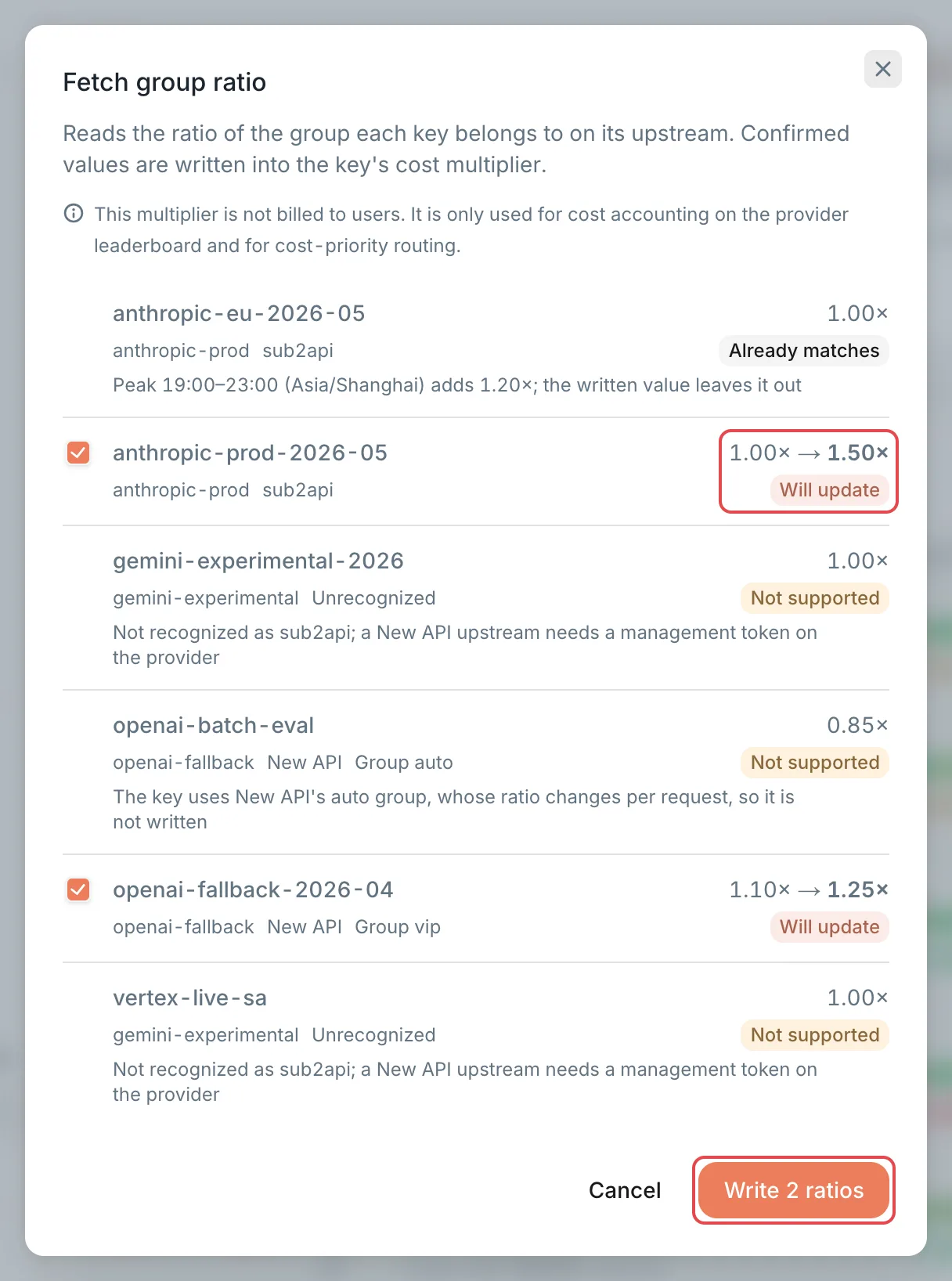 Fetch group ratio: confirm the write key by keyCCHP
Balance alerts#
When a provider’s total balance falls below Low balance alert line (default $10), the provider list and the details page show Low balance. When the total is zero, they show Depleted.
To set a different alert line for a single provider, change Low balance alert line under Low balance alert in the Balance section of the provider details page, and then click Save.
To receive alerts, a platform super admin clicks System Management in the Administration group in the sidebar and switches to Notifications:
- By email: Turn on Email, and select Provider balance low and Provider balance depleted in Email alert categories.
- Through Slack, Feishu, and other channels: In Notification channels, click Add channel, and select Provider balance low and Provider balance depleted in Subscribed alerts. Also select Provider recovered to get a notification after the balance recovers.
Adjust how often and what CCHP reads#
You change the following settings on the Upstream Ratios & Balances page:
- In the Administration group in the sidebar, click System Management, and switch to Upstream Ratios & Balances.
- The page shows the global settings by default, which are the defaults for all organizations. To configure an organization separately, click Effective scope at the top right of the page, select Organization and the organization to configure, and then click Apply.
- Change the settings, and click Save at the bottom of the page.
The four items in the Schedule section can be set only in the global scope.
Choose which providers and keys take part#
After you switch Effective scope to an organization, four lists appear in each of the Balance and Group ratio sections. They control which providers and keys are read:
- Included providers, Included keys: When they’re blank, everything takes part. When they’re filled in, only the listed items are read.
- Excluded providers, Excluded keys: Listed items don’t take part, and these lists take precedence over the included lists.
- When a provider is excluded, none of its keys take part. When you exclude a provider for group ratios, Fetch ratio automatically on its keys is locked off.
Click a list, and select providers or keys in the list that pops up.
The lists limit only scheduled reads and automatic refreshes. For excluded providers and keys, a manual refresh on the provider details page or on the key still reads them.
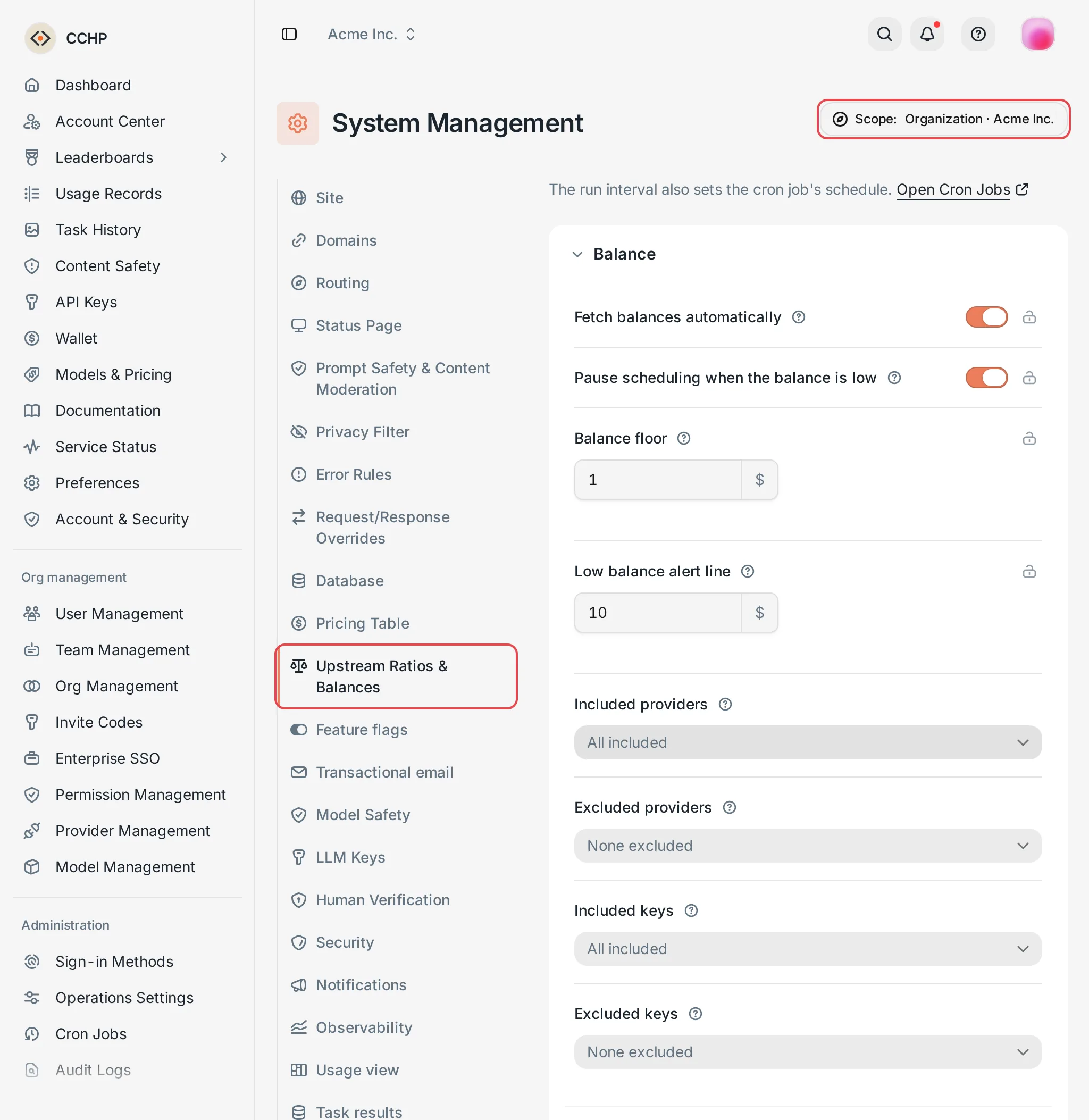 Upstream Ratios & Balances: organization-scope settings and listsCCHP
The cooldown list#
When both the balance read and the group ratio read fail for a key, the key enters a cooldown. When all keys of a provider fail in one round, the whole provider enters a cooldown. During the cooldown, scheduled reads skip them, and they recover after 4 hours by default.
A cooldown affects only reads, not how these keys handle requests. Providers and keys in a cooldown are listed in Cooldowns at the bottom of the page, along with the reason. After you fix the problem, click Release, and the next round reads them again. Manually refreshing balances or fetching group ratios on the provider pages isn’t limited by cooldowns, and a successful read lifts the cooldown automatically.
Run it once now#
In the Administration group in the sidebar, click Cron Jobs, find Fetch upstream balances and ratios, and click Run now. You can also get there by clicking Open Cron Jobs at the top of the Upstream Ratios & Balances page.
Sync upstream models on a schedule#
Sync upstream models on a schedule on the same page is off by default. When it’s on, CCHP reads the upstream model list for each enabled key every Sync interval (minutes) and updates the key’s Model whitelist: it adds models that the upstream newly offers and removes models that the upstream no longer offers. Manually added entries, imports, and regex rules stay unchanged, and keys whose read fails aren’t changed. The result of the last run appears below the toggle.
For providers you don’t want to sync, select them in Providers not synced in the organization scope. You can still sync the keys of these providers manually: select them on the Keys tab, and click Sync upstream models in the bulk action bar.
As the upstream of another CCHP#
When another CCHP connects with an LLM key issued by this site, it reads that key’s balance, limits, and billing multiplier here through GET /v1/cchp/account, and uses them for balance pauses and the cost multiplier. This endpoint returns only the account of the key that calls it, and it is not billed.
The billing multiplier is disclosed by default. When an organization doesn’t want downstreams to read it, a platform super admin goes to System Management → Routing → Routing Billing, switches Effective scope to that organization, turns off Share billing multiplier downstream, and saves. After that, GET /v1/cchp/account no longer returns the multiplier and GET /v1/sub2api/billing returns 404; balances are still provided.
Frequently asked questions#
Why does the balance or group ratio show “Not supported”?#
The upstream wasn’t recognized as CCHP, sub2api, or New API. For a New API upstream, first fill in New API management token on the provider. Other upstreams have no group ratio, and for their balance, you need to fill in Custom balance URL on the key. With a CCHP upstream, the reason may be The upstream CCHP does not disclose its billing multiplier (the other side turned off Share billing multiplier downstream), or that the key has no owning user on the upstream CCHP, so there is no wallet to read. Hover over the reading to see the specific reason.
Why do I see “sub2api returned no billing information”?#
Older versions of sub2api don’t provide the group ratio API. CCHP can read group ratios only after you upgrade sub2api to 0.2.14 or later. Balances aren’t affected.
The balance is already below the floor, so why isn’t the key paused?#
Check each of the following: whether the balance unit is USD (for example, a key isn’t paused when DeepSeek returns CNY), whether the upstream declares no limit, whether Pause scheduling when the balance is low is on, and whether this key is excluded by a list.