Chapter 2612 min read
Set up redeem codes
Generate credit or package redeem codes in bulk in Operations Settings, limit who can redeem them and how many each person can redeem, disable or revoke codes, and learn how users redeem codes in their wallet and where redemptions are recorded.
A redeem code is a single-use voucher that a platform super admin generates in bulk and gives to users to redeem in their Wallet. Each redeem code can be redeemed only once. There are two types:
- Credit: When the code is redeemed, its face value is added to the user’s wallet balance.
- Package: When the code is redeemed, the user gets a package directly, without paying.
You manage redeem codes in Administration → Operations Settings → Redeem Codes. Only a platform super admin can see this page. Redeem codes don’t vary by scope and apply to the whole platform.
Before you begin#
- To generate package redeem codes, first create the package in the Global catalog of the Packages section. See Set up packages. Hidden packages also work; a package created only in an organization or team scope can’t be used.
- The face value is in
$, the same unit as the wallet balance. - Redeem codes generated in the console are valid indefinitely and have no expiration time. To make a redeem code stop working, disable it. See Disable and enable redeem codes.
Generate redeem codes#
Choose the content and count#
Go to Administration → Operations Settings, and select Redeem Codes on the left. In Generate Redeem Codes, fill in the following:
Set the redemption rules#
- Who can redeem: In Users, Teams, and Organizations, choose who can redeem. Matching any one of them is enough to redeem. If you choose none of the three, all users can redeem.
- Users: the selected users themselves.
- Teams: the direct members of the team, not the members of its sub-teams, and the organization selected in the top bar at redemption time must be the one that contains the team.
- Organizations: the members of the organization, and the organization selected in the top bar at redemption time must be this organization.
- Let one user redeem several codes from this batch: Off by default, so each user can redeem only one of the codes generated this time. Turn it on when the same user needs to redeem several.
Eligibility is checked against memberships at the time of redemption: after a user is removed from a team or organization, they immediately can no longer redeem codes targeted at that team or organization.
Generate#
Click Generate. If the face value or count is invalid, the button is unavailable, and the page shows Check the face value and count (1-100).
Result: The page shows N codes generated (one per line) and the ID of this batch, and lists the codes generated this time below. The codes can be redeemed right away and also appear in the Redeem Codes list.
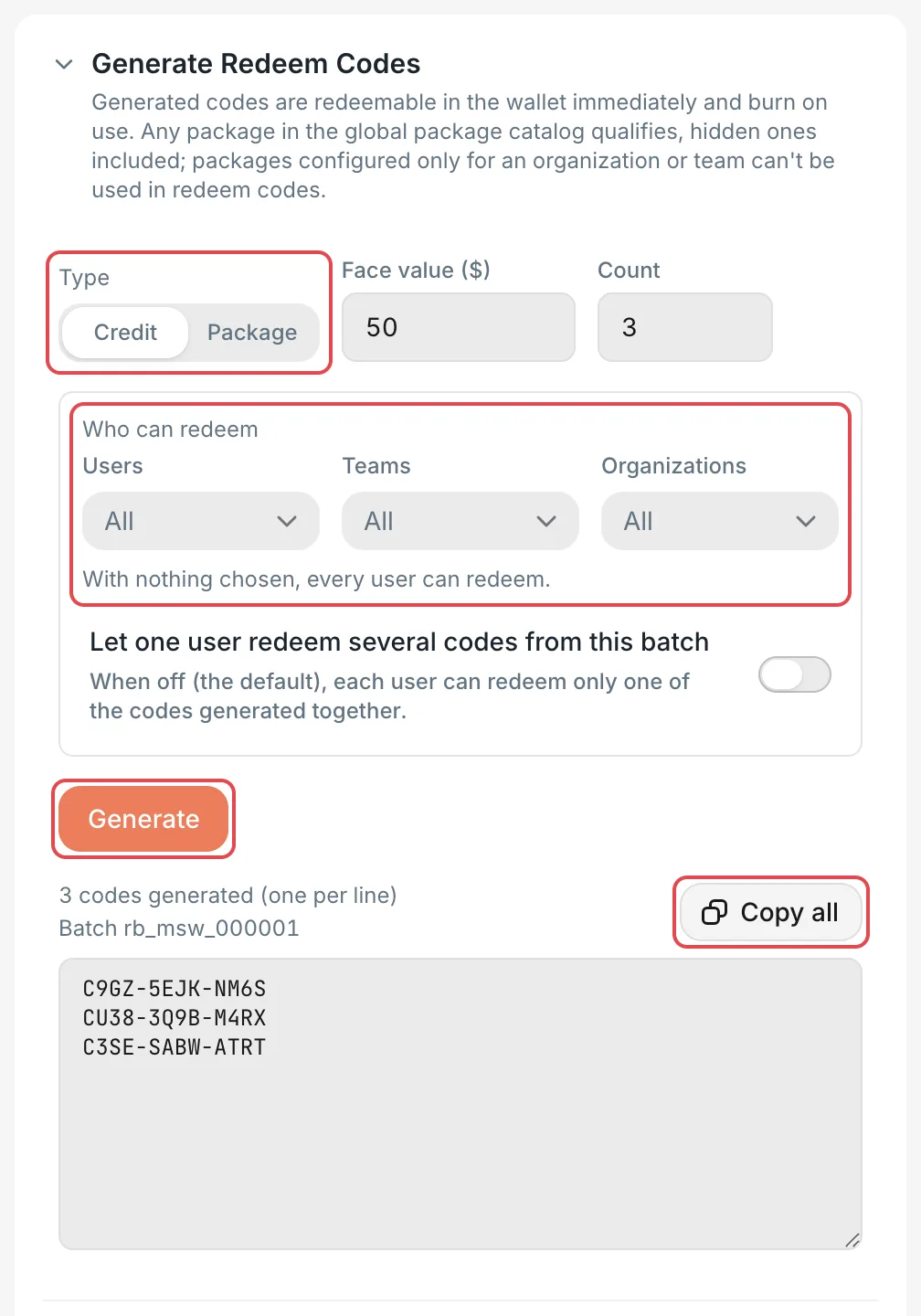 Generate Redeem Codes: the form and the generated result
 CCHP
CCHP
Copy and distribute redeem codes#
Click Copy all in the result area to copy the codes generated this time to the clipboard, one per line, and then send them to users through your own channels. CCHP doesn’t provide an export file of redeem codes.
The result area shows only the most recently generated codes and stops showing them after you leave the page. To retrieve a batch of codes again, enter the batch ID in the search box of the Redeem Codes list.
Warning: Anyone who has a redeem code and meets its redemption rules can redeem it. Distribute codes only through trusted channels. To target specific users, set Who can redeem, or apply the codes to users in bulk to credit them directly.
Manage the redeem code list#
The Redeem Codes list shows all redeem codes, newest first. You can search by redeem code, batch ID, or bulk-apply ID, and filter by Status and Who can redeem. Each row shows the code’s Content and Redemption rule, and redeemed codes also show Redeemed by and the redemption time.
Disable and enable redeem codes#
Turn off the Enabled toggle at the end of a code’s row to disable that code: it immediately can’t be redeemed and can’t be used in a bulk apply. Turn the toggle back on to return it to Available.
Only codes that are not redeemed and not reserved can be toggled. For Redeemed, Reserved, and Revoked codes, the toggle is unavailable, and hovering over it shows the reason. To take back credit or a package that has already been redeemed, see Revoke redeemed codes.
Change the rules for a batch of codes#
Codes generated together belong to the same batch. In the Actions column of a code’s row:
- Click Show this batch only (funnel icon) to show only this batch of codes in the list.
- Click Batch settings (gear icon) to view the batch’s Content, Redeemed progress, and who generated it. You can change Who can redeem and Let one user redeem several codes from this batch, and then click Save.
When the window is narrow, these two items are in the Actions menu.
Result: The page shows Batch settings saved. The new rules affect only later redemptions, and codes that were already redeemed aren’t affected.
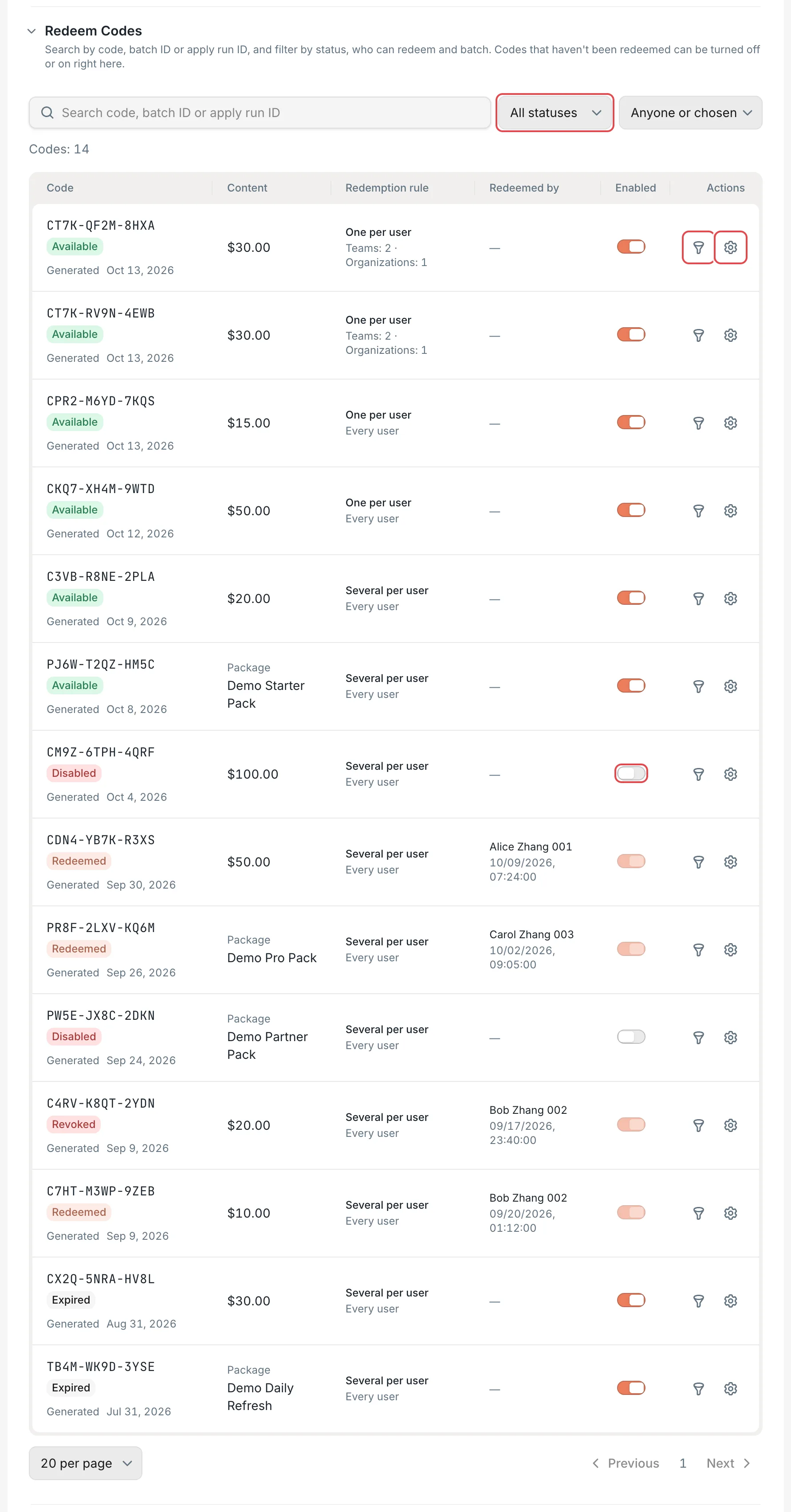 Redeem Codes: statuses, the Enabled toggle, and batch actionsCCHP
Apply codes to users in bulk#
When users don’t need to redeem codes themselves, you can apply codes directly to specific users: one code is redeemed for each user, the credit or package goes straight into that user’s wallet, and the record is the same as when users redeem codes themselves. A bulk apply is issued by an admin on the users’ behalf, so it isn’t restricted by the batch’s Who can redeem, the one-code-per-user rule, or the package purchase rules.
Enter the redeem codes#
In Redeem codes under Apply to Users, paste the codes, one per line. If you just generated codes, you can click Fill in the N just generated.
Choose the users#
Filter with Organization and Team, and search for and select users in Users. You can also select the whole current page or all filtered results at once. You can select up to 5,000 users at a time. The list includes only users who are enabled and belong to at least one organization.
Preview#
Click Preview balance changes. The preview lists each user’s status, what they get, and Current → expected balance. Under each user’s name, it shows the organization that is credited.
If there are fewer codes than users that can be applied, the page shows N fewer codes than users to apply, and you can’t run the apply. Add more codes and preview again, or select an option such as Issue N codes of the same value as needed (balance $50.00) so that CCHP generates the missing codes when it runs. Extra codes stay Available.
Run#
Click Apply to N users, and in the confirmation dialog, click Apply to N users again. You can’t cancel it after it runs.
Result: The page shows N applied, N failed, and Result lists each user’s balance before and after the apply. If a user was suspended or had left the organization when the apply ran, that row is recorded as failed, and the code assigned to them returns to Available.
Every bulk apply is recorded in Apply History. If a run is interrupted and shows Unfinished, click Continue to resume from the users that haven’t been processed. Users who were already credited aren’t credited again.
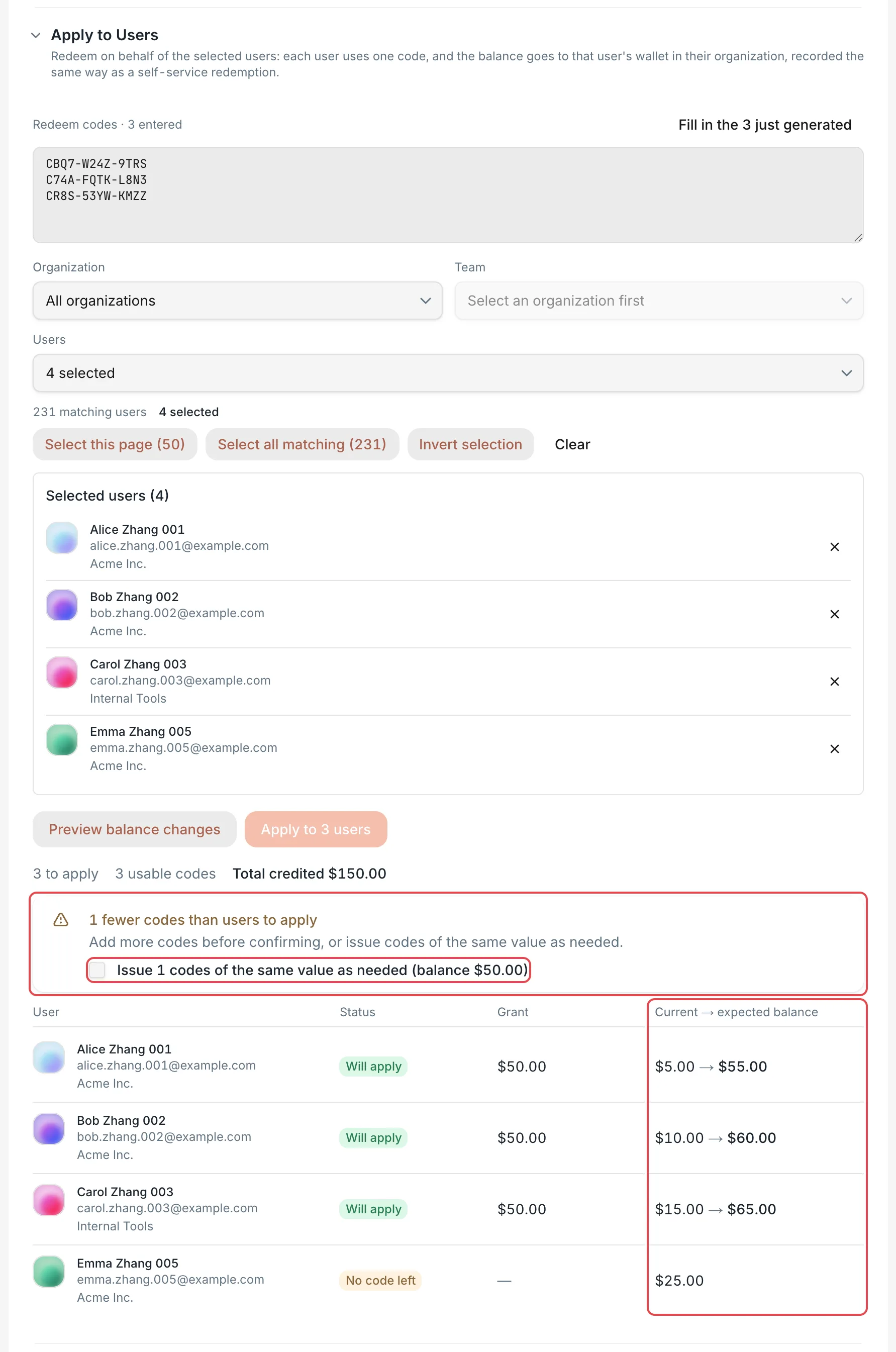 Apply to Users: the preview and the code shortfall noticeCCHP
How users redeem codes#
In the sidebar, the user opens Wallet, clicks Redeem code, enters the code in Redeem code or clicks Paste to read it from the clipboard, and then clicks Redeem.
- When only one code is entered, the dialog first shows This code redeems and the credit or package it gives. If the code can’t be used, the dialog shows the reason, and the Redeem button is unavailable.
- Users can submit several codes at once, separated by spaces, line breaks, or commas, up to 50 codes. CCHP checks them in order and redeems only the first code that can be used. The codes after it show Not checked and aren’t used, and the user can click Redeem more to submit them again.
Result: The dialog switches to Redemption result, lists the result for each code, and shows a message such as $15.00 credit added or Package “Demo Starter Pack” is now active. The credit and packages belong only to the person who redeems the code and go into their own wallet in the organization selected in the top bar at redemption time.
When a code can’t be used, Redemption result or the preview shows one of the following reasons:
In the last two cases, the code isn’t consumed, and the user can redeem it later. For these two package rules, see Set up packages.
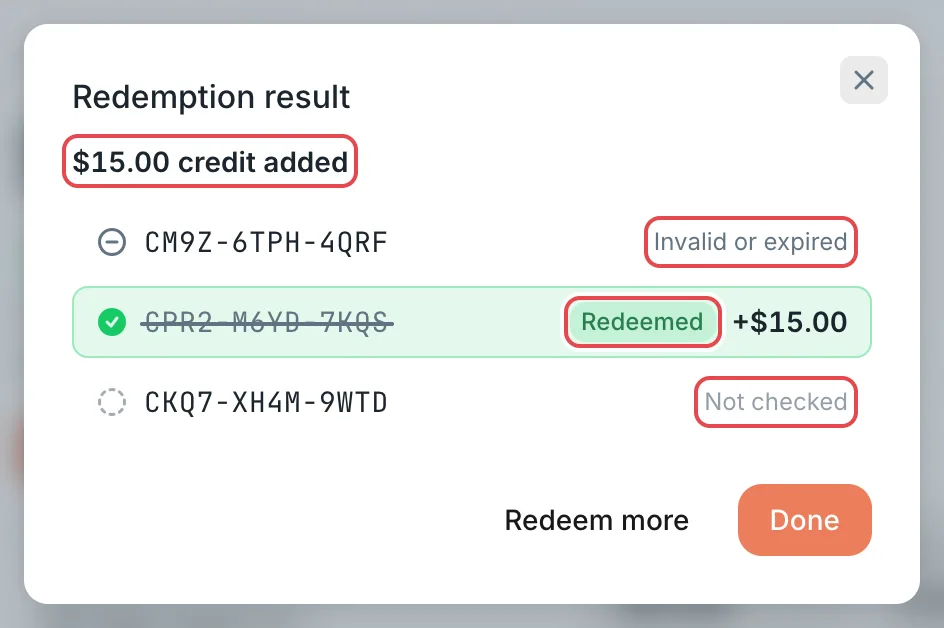 Redeem a Code: redemption results for several codesCCHP
Revoke redeemed codes#
For codes that haven’t been redeemed, disabling them is enough. For codes that have already been redeemed, revoke them in Compensation & Clawback:
- Go to Administration → Operations Settings → Compensation & Clawback, and select an Organization in Marketing grants.
- In Grant type, select Redeem code credit or Redeem code package, or enter a code in the search box, and then select the grants to revoke.
- Click Revoke / claw back. In Revoke or claw back selected grants, turn on Return codes to the pool if needed, fill in Reason, click Calculate result to see the clawback amount and the balance before and after for each entry, and then click Confirm revoke. Reason is required: Calculate result and Confirm revoke stay unavailable until you fill it in. Refund for purchased packages in the panel applies only to packages that users bought, so leave it at the default, No refund, when you revoke redeem codes.
Result:
- Credit codes: The redeemed amount is deducted from the member’s balance.
- Package codes: The package ends immediately, and the credit already used is deducted from the member’s balance.
- If the organization is prepaid, the clawback deducts at most until the member’s available balance reaches 0, and the part that can’t be deducted is recorded as unrecovered. If the organization is postpaid, the balance can go negative.
- Redeem codes: When Return codes to the pool is off, the code is marked Revoked and can’t be redeemed again. When it’s on, the code returns to Available and can be redeemed again.
Organization admins can also revoke redemptions by members of their own organization in Org management → Clawback & Compensation.
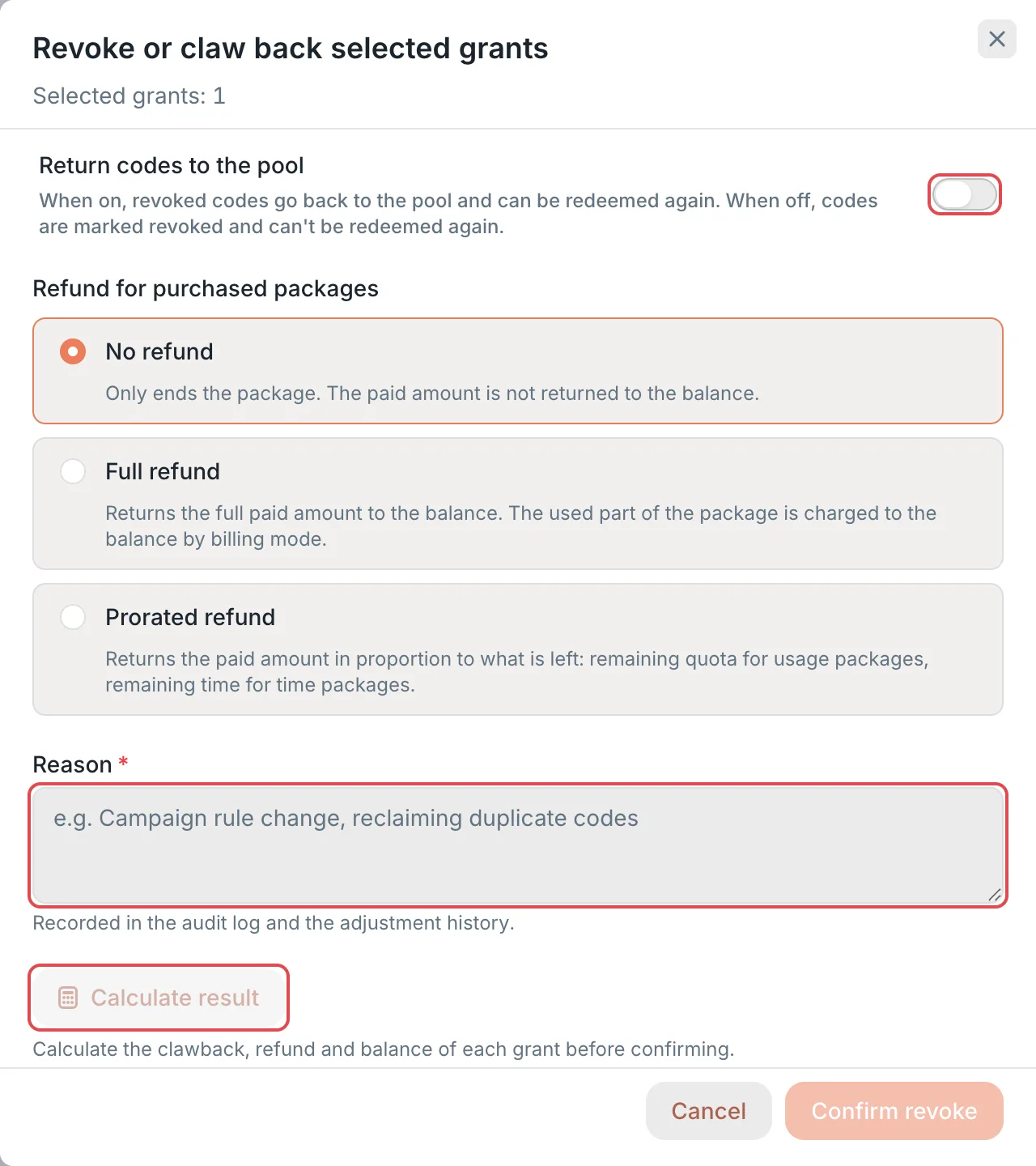 Revoke or claw back selected grants: the Return codes to the pool toggleCCHP
View redemption records#
- Redeem Codes list: In each row, the Redeemed by column shows who redeemed the code and when. Redeemed in Batch settings shows how many codes in a batch have been redeemed.
- Finance Events: A platform super admin views them in Administration → Finance Events, and an organization admin views the records of their organization’s members in Org management → Finance Events. Credit redeem codes have the category Credit redemption, package redeem codes have the category Package redemption, and the Source is Redeem code. Bulk-apply records are the same. In By category, click a category to see only that category. Click Export CSV to export the events in the current filter.
- Wallet: Users see Code · credit or Code · package records in Top-up History, and redeemed packages appear in Your Plans.
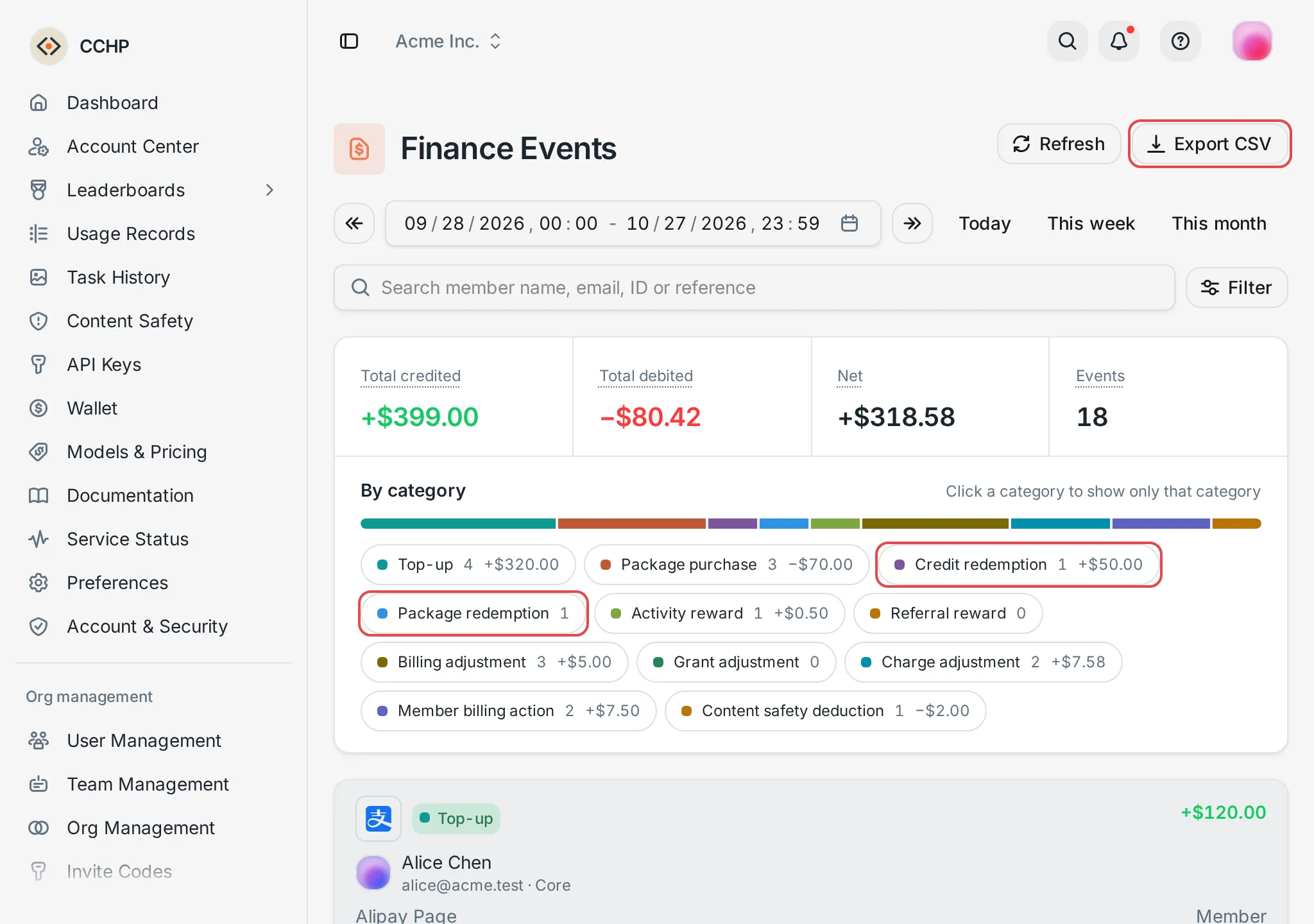 Finance Events: the Credit redemption and Package redemption categoriesCCHP
Frequently asked questions#
A user sees “You’re doing that too often. Wait a moment and try again.” when redeeming#
Each user can check at most 100 codes every 10 minutes, and the preview when a single code is entered also counts. Once a user goes over the limit, that submission doesn’t redeem any codes. Wait a few minutes and try again.
What happens to generated package codes after I change or delete the package?#
Codes that were already generated aren’t affected, and users still get the package with the content it had when the codes were generated. See Relationship to redeem codes. If you no longer want these codes to be redeemed, disable them in the Redeem Codes list.
Why doesn’t the credit a user redeemed appear in their wallet?#
A user’s wallets in different organizations are independent of each other. When users redeem codes themselves, the credit goes to the organization selected in the top bar at redemption time. Ask the user to switch to that organization in the top bar, and then check Wallet. For a bulk apply, the credited organization is shown in the preview and in Result.