Chapter 298 min read
Create a management token
Create a management API token in Account & Security, set its permissions and expiration, use it to call the CCHP management API from scripts or external systems, and rotate or revoke it when needed.
A management API token lets scripts, CI pipelines, and external systems call the CCHP management API as you, that is, /api/* under the console URL. Each token belongs to the organization where it was created and has its own permissions and expiration. Its plaintext is shown only once, when you create it.
A management API token can’t be used to call models. Clients call models with an LLM key. See Create an LLM key.
Who can create tokens#
- Platform super admins, organization super admins, and organization admins can create tokens.
- Members can’t see the Management API tokens tab. If a member needs to create a token, change their organization role to Organization admin. See Change the organization role.
- A token can get only the permissions you have yourself. Permissions marked Platform can be granted only by a platform super admin.
Step 1: Open Management API tokens#
A token belongs to the organization where it was created. First click the organization name on the left of the top bar to switch to the organization you want to use, and then go to Account & Security → Management API tokens. A platform super admin in the Platform-wide (System) view has no current organization and can’t view or create tokens.
Result: The list shows the tokens you created in the current organization, along with each token’s Permissions, Status, Expires, and Last used. Permissions shows the form of the grant, for example All permissions or 3 modules · 5 permissions. Click a row to open the token details.
Step 2: Enter a name and expiration#
Click Create token to open the Create management API token dialog. In Basics, fill in the following:
If the organization limits the maximum lifetime of tokens, Never and the options beyond the limit can’t be selected, and the tip icon next to Expiration shows the maximum number of days allowed.
When you create a token through the API POST /api/account/api-keys, the request must include the Idempotency-Key header. A request body without expiresAt creates a token that never expires, and the 90-day default doesn’t apply. If the organization limits the maximum lifetime, the request must include expiresAt.
Step 3: Choose the permissions#
Permissions selects Read only by default, which is all the Read permissions you have. Adjust it for what the token is for:
- Use the quick buttons Read only, All (all the permissions you have), or Clear to select again.
- Select a module name to select all of that module’s permissions, or within a module, select Create, Read, Update, Delete, and Other individually.
For scripts that only run queries, keep Read only. When you need write operations, select only the modules and actions you use.
How you select decides whether permissions added later are granted automatically:
- Select every action of a module: Includes future actions appears under the module name, and actions added to that module later are also granted to the token.
- Select every module: Includes future modules appears next to the count, and modules added later are also granted to the token. Only a platform super admin can grant this; when an organization super admin selects everything, each complete module is recorded as in the previous item.
- Any other selection grants only the items you selected.
- A token with only Read permissions stays read-only: even when it covers a module that has only read actions, update actions added to that module later are not granted.
You can’t change a token’s permissions after it is created. When you need different permissions, create a new token and revoke the old one. When you use a management token to create a token, the new token’s scope can’t be wider than the token that creates it.
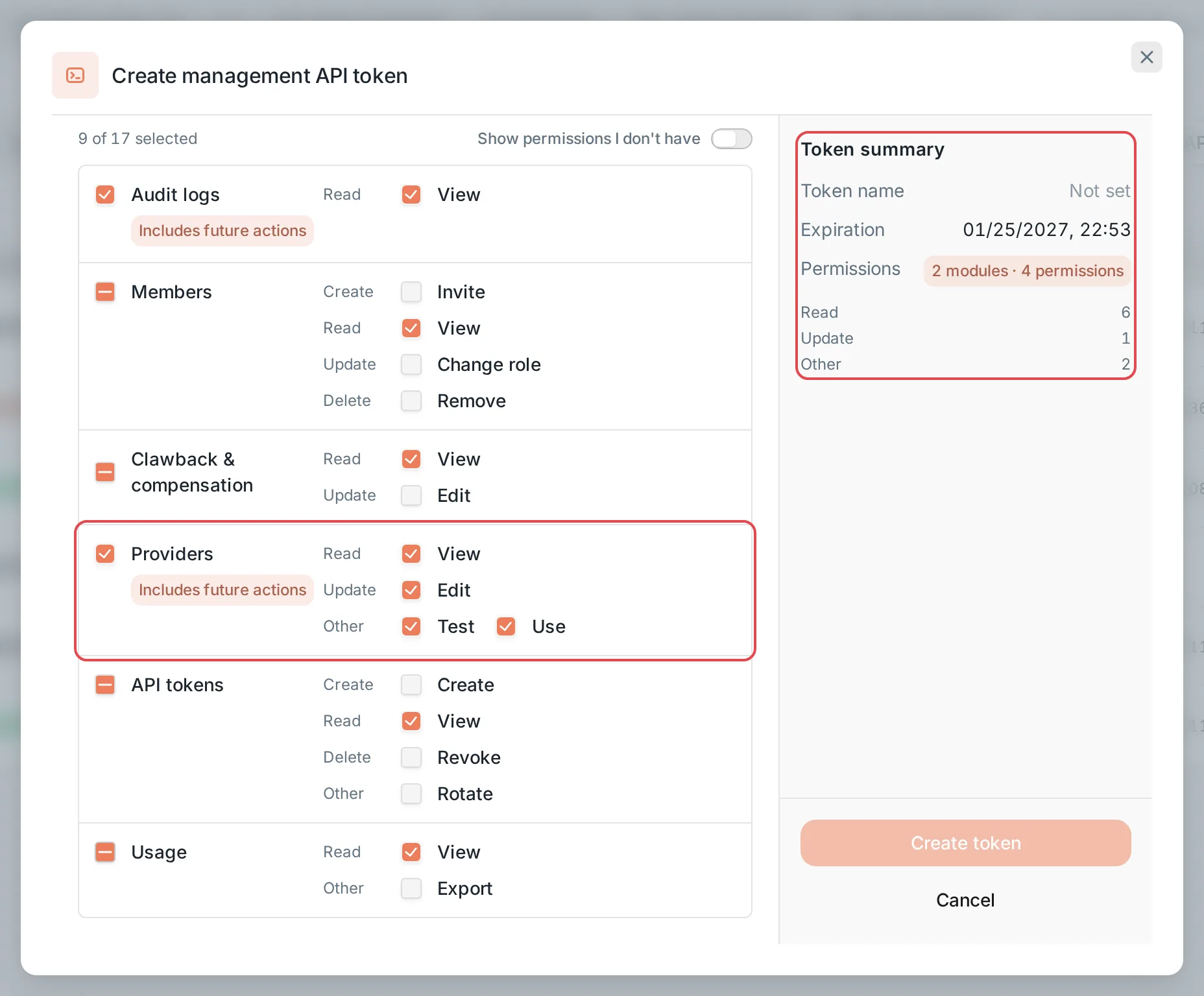 Permissions: a fully selected module marked "Includes future actions", with the token summary on the right
 CCHP
CCHP
The permissions a token can use on each request are the intersection of its grant and the permissions you have at that moment. If your role is lowered or you leave the organization, the token’s permissions shrink or the token stops working. Permissions marked Platform work only while you are still a platform super admin.
Step 4: Create the token and save the plaintext#
Check the name, expiration, and number of permissions in Token summary on the right, and click Create token.
Result: The Save your token dialog opens and shows the token plaintext, which starts with cch_auth_live_. Click Copy, store the plaintext in a password manager or a CI secret variable, and then click I’ve saved it, close.
Warning: The plaintext is shown only this once. CCHP doesn’t store the plaintext, and you can’t view it again after you close the dialog. If you lose it, rotate the token to get new plaintext, or create a new token.
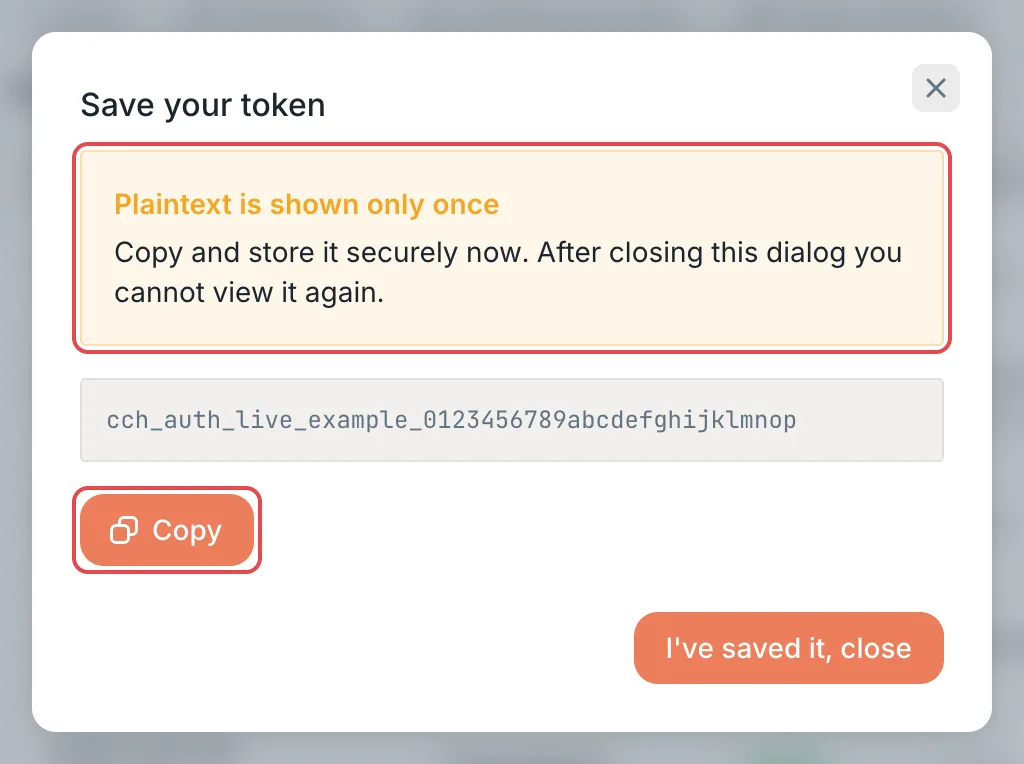 Save your token: the plaintext and the Copy buttonCCHP
View a token’s permissions#
In the list, click the token’s row, or click Details at the end of the row, to open the token details:
- Granted: the form of the grant recorded at creation, for example All permissions (marked Includes future modules), a whole module (marked Includes future actions), or individual permissions.
- Available now: the permissions the token can actually use now. Granted permissions that your role no longer includes don’t appear here; when none are left, it shows “Your current role includes none of the granted permissions.”
For a revoked or expired token, the details note that it can no longer be used.
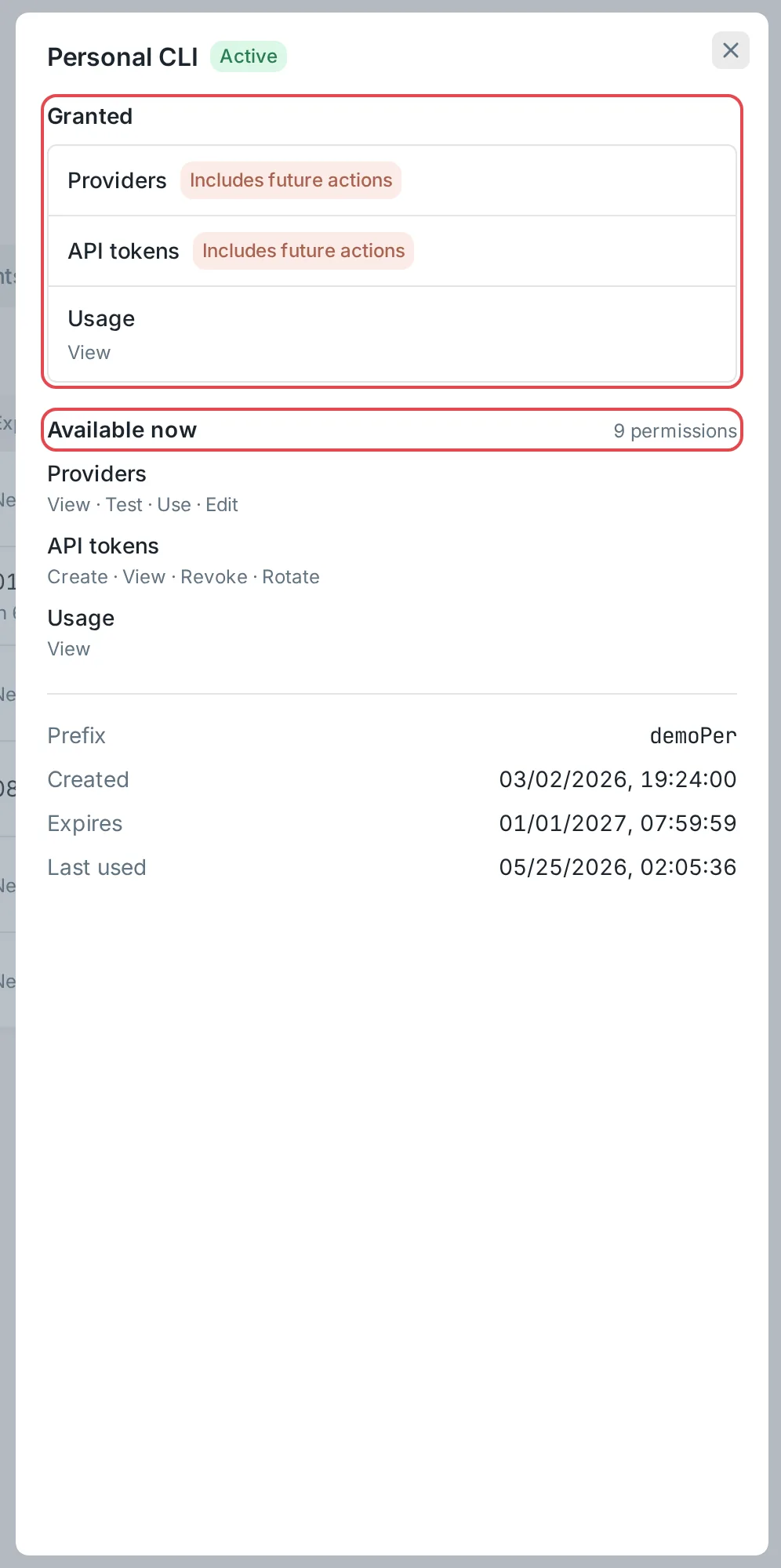 Token details: Granted and Available nowCCHP
Call the management API#
The management API’s address is the console URL, such as https://cchp.example.com, and its paths start with /api/. The gateway URL https://api.cchp.example.com doesn’t accept management API tokens. Send the token in the request header:
Authorization: Bearer cch_auth_live_…The following request returns information about the account that the token belongs to. It needs no extra permissions, so it’s a good way to test whether the token works:
export CCHP_TOKEN='cch_auth_live_…'
curl -s https://cchp.example.com/api/account/me \
  -H "Authorization: Bearer $CCHP_TOKEN"
Result: The request returns JSON in which user.email is the account that created this token and tokenKind is management-api.
If a request fails, troubleshoot by status code:
Keep the following in mind:
- A token can access only the organization it belongs to. Requests don’t need an
X-CCH-Organizationheader. If you include one, it must be the ID of the token’s organization, or the request returns403. - Account security settings such as your password and two-step verification, as well as rotating tokens, can’t be done with a management API token. You can do them only by signing in to the console with your account.
- A platform super admin can request
https://cchp.example.com/api/openapi.jsonwith their own token to get the definitions of all management APIs.
Sign in to the console with a token#
On the sign-in page, click Sign in with management token, paste the plaintext in Management token, and click Sign in.
Result: You enter the console, and Token session appears at the top of the page. The session lasts 30 minutes, and what you can do never goes beyond what this token is authorized for.
If your organization has turned on Require two-step verification, you can’t sign in to the console with a management token. See Set up login providers.
Rotate, revoke, and delete#
Use the actions in the token’s row:
A token’s permissions can’t be changed; when you need different permissions, create a new token.
After a rotation, the Save your token dialog opens and shows the new plaintext. Save it the same way as in step 4. Before a rotation, the console runs a security check by default. If you signed in more than 10 minutes ago, you also need to verify your identity again first.
When a token is about to expire, the Expires column shows Expires soon (up to 7 days in advance). After it expires, its status becomes Expired, and it can no longer be rotated. Create a new token if you need one.
Warning: If you suspect that a token has leaked, rotate or revoke it immediately. Both actions take effect immediately, and scripts that still use the old plaintext receive 401.
Frequently asked questions#
Why can’t I see the Management API tokens tab?#
Your role in the current organization is member, and members don’t have permission to use management API tokens. Ask an organization super admin or a platform super admin to change your organization role to Organization admin. See Change the organization role.
Why can’t I select some permissions?#
You can’t grant a token permissions that you don’t have yourself, and the list hides these permissions by default. Turn on Show permissions I don’t have to see them, but you can’t select them. Permissions marked Platform can be granted only by a platform super admin.
Why do old tokens show “N modules” as their permissions after an upgrade?#
During the upgrade, CCHP checks each token against the permission catalog of the version it was created with: a token that covered a whole module at that time is recorded as that whole module (Includes future actions), and a token that covered everything is recorded as all permissions. Tokens with only read permissions are not converted. Every conversion is written to the audit log as token.grant_convert; when permissions added in later versions are covered by a whole-module or all-permissions grant, token.grant_expand is written.