Chapter 4212 min read
Connect OpenCode
Install OpenCode on macOS, Linux, or Windows, add CCHP as a custom provider in the config file, call models on the CCHP gateway in the OpenAI format with your LLM key, and confirm in Call Records that the requests reached CCHP.
OpenCode is an open-source AI coding assistant that lets you add custom providers in its config file. This page starts with installing OpenCode and then adds CCHP as a custom provider in OpenCode: OpenCode calls the CCHP gateway with your LLM key, and usage and costs are recorded under that key.
OpenCode connects to CCHP in the OpenAI format (Chat Completions). This is the method the official OpenCode docs give for OpenAI-compatible gateways, and CCHP converts requests to the upstream provider’s format when needed, so every model you can call in the OpenAI format works in OpenCode.
What you need#
- An LLM key with the status Active. To create one, see Create an LLM key.
Already installed OpenCode? Skip to configuration.
Step 1: Install OpenCode#
This page is written for OpenCode 2. Select your operating system and choose any installation method. The first method listed is the simplest.
OpenCode 1 and OpenCode 2 both use the opencode command, so you cannot install both at the same time. If OpenCode 1 is already installed on your computer (opencode --version shows version 1.x), run opencode upgrade --major to upgrade to OpenCode 2, and then skip to Confirm the installation.
Do not send messages in OpenCode until you finish configuring CCHP. Until a provider is configured, OpenCode uses its built-in free models, and requests do not go through CCHP.
macOS
OpenCode provides builds for Apple silicon and Intel chips.
Official install script (recommended)
Open Terminal and run:
curl -fsSL https://opencode.ai/v2/install | bashThe script detects your chip type, installs opencode to ~/.opencode/bin, and adds this directory to PATH in your shell config file (~/.zshrc for Zsh). After the installation finishes, open a new terminal window before you use opencode. To update, run opencode upgrade.
Homebrew
If you have Homebrew installed, run:
brew install anomalyco/tap/opencode-v2anomalyco/tap is the official OpenCode Homebrew tap. To update, run opencode upgrade.
Node.js package managers
Requires Node.js. Install with npm:
npm install -g @opencode/cliIf you use another package manager, run only the line for it:
bun install -g --trust @opencode/cli
pnpm add -g --allow-build=@opencode/cli @opencode/cli
yarn global add @opencode/cli
vp install -g @opencode/cli
This package runs a script during installation to pick the right binary for your system. The flags in the Bun and pnpm commands allow this script to run. vp is the Vite+ command. To update, run opencode upgrade.
mise
If you have mise 2026.10.9 or later installed, run:
mise use -g opencodeEarlier versions of mise install OpenCode 1, so upgrade mise first.
Manual download
For Apple silicon, download opencode-darwin-arm64.zip. For Intel chips, download opencode-darwin-x64.zip. If your Intel processor does not support the AVX2 instruction set, download opencode-darwin-x64-baseline.zip instead. Using Apple silicon as an example, run the following commands to download and extract the archive and install it to ~/.local/bin:
curl -fsSLO https://opencode.ai/update/api/latest/cli/opencode/opencode-darwin-arm64.zip
unzip opencode-darwin-arm64.zip
mkdir -p ~/.local/bin
mv opencode ~/.local/bin/
The archive contains a single file, opencode. If ~/.local/bin is not in PATH, run the following two lines to add it. If you use Bash, replace ~/.zshrc with ~/.bash_profile in both lines:
echo 'export PATH="$HOME/.local/bin:$PATH"' >> ~/.zshrc
source ~/.zshrc
To update, download the new archive and repeat these steps.
Linux
OpenCode provides x64 and ARM64 builds and supports both glibc-based distributions and musl-based distributions (e.g., Alpine Linux).
Official install script (recommended)
Requires the curl and tar commands. In a terminal, run:
curl -fsSL https://opencode.ai/v2/install | bashThe script detects the processor architecture, the C library type, and whether the processor supports the AVX2 instruction set. It installs opencode to ~/.opencode/bin and adds this directory to PATH in your shell config file (e.g., ~/.bashrc or ~/.zshrc). After the installation finishes, open a new terminal window before you use opencode. To update, run opencode upgrade.
Homebrew
If you have Homebrew installed, run:
brew install anomalyco/tap/opencode-v2anomalyco/tap is the official OpenCode Homebrew tap. To update, run opencode upgrade.
Arch Linux
Install from the official Arch Linux repositories:
sudo pacman -S opencodeThe version in the official repositories is packaged by Arch Linux and can lag slightly behind the latest release. You can also install opencode-beta from the AUR, which is also OpenCode 2. If you use yay, replace paru with yay in the command:
paru -S opencode-betaAfter that, OpenCode updates along with your system: run sudo pacman -Syu for the version from the official repositories, or paru -Syu for the AUR version.
Node.js package managers
Requires Node.js. Install with npm:
npm install -g @opencode/cliIf you use another package manager, run only the line for it:
bun install -g --trust @opencode/cli
pnpm add -g --allow-build=@opencode/cli @opencode/cli
yarn global add @opencode/cli
vp install -g @opencode/cli
This package runs a script during installation to pick the right binary for your system. The flags in the Bun and pnpm commands allow this script to run. vp is the Vite+ command. To update, run opencode upgrade.
mise
If you have mise 2026.10.9 or later installed, run:
mise use -g opencodeEarlier versions of mise install OpenCode 1, so upgrade mise first.
Manual download
Download the archive for the C library that your distribution uses and for your processor. If your processor does not support the AVX2 instruction set, choose the baseline build.
Using glibc on x64 as an example, run the following commands to download and extract the archive and install it to ~/.local/bin:
curl -fsSLO https://opencode.ai/update/api/latest/cli/opencode/opencode-linux-x64.tar.gz
tar -xzf opencode-linux-x64.tar.gz
mkdir -p ~/.local/bin
mv opencode ~/.local/bin/
The archive contains a single file, opencode. If ~/.local/bin is not in PATH, run the following two lines to add it. If you use Zsh, replace ~/.bashrc with ~/.zshrc in both lines:
echo 'export PATH="$HOME/.local/bin:$PATH"' >> ~/.bashrc
source ~/.bashrc
To update, download the new archive and repeat these steps.
Windows
OpenCode provides x64 and ARM64 builds. OpenCode 2 does not support installation through Windows package managers such as Scoop or Chocolatey.
Node.js package managers
Requires Node.js. In PowerShell, install with npm:
npm install -g @opencode/cliIf you use another package manager, run only the line for it:
bun install -g --trust @opencode/cli
pnpm add -g --allow-build=@opencode/cli @opencode/cli
yarn global add @opencode/cli
vp install -g @opencode/cli
This package runs a script during installation to pick the right binary for your system. The flags in the Bun and pnpm commands allow this script to run. vp is the Vite+ command. To update, run opencode upgrade.
Manual download
For x64 processors, download opencode-windows-x64.zip. For ARM64 processors, download opencode-windows-arm64.zip. If your x64 processor does not support the AVX2 instruction set, download opencode-windows-x64-baseline.zip instead.
Using x64 as an example, run the following commands in PowerShell. The first two lines download the archive and extract the opencode.exe inside it to %USERPROFILE%\.opencode\bin. The last two lines add this directory to the current user’s PATH.
Invoke-WebRequest https://opencode.ai/update/api/latest/cli/opencode/opencode-windows-x64.zip -OutFile opencode-windows-x64.zip
Expand-Archive opencode-windows-x64.zip -DestinationPath "$env:USERPROFILE\.opencode\bin" -Force
$userPath = [Environment]::GetEnvironmentVariable("Path", "User")
[Environment]::SetEnvironmentVariable("Path", "$userPath;$env:USERPROFILE\.opencode\bin", "User")
Open a new PowerShell window before you use opencode. To update, run the first two commands again.
Install in WSL
OpenCode can also run in WSL (Windows Subsystem for Linux). WSL requires Windows 10 version 2004 (build 19041) or later, or Windows 11. If WSL is not installed yet, open PowerShell as an administrator, run the following command, and then restart your computer:
wsl --installThis command installs Ubuntu by default. After the restart, open Ubuntu from the Start menu, follow the prompts to create a Linux username and password, and then run the following in the Ubuntu terminal:
curl -fsSL https://opencode.ai/v2/install | bashIf you install OpenCode in WSL, run all later commands on this page in the WSL terminal. The config file is also in WSL. Keep your projects in the WSL file system (for example, ~/code) so that OpenCode reads and writes files faster. To update, run opencode upgrade in the WSL terminal.
Confirm the installation#
Open a new terminal window and run:
opencode --versionResult: The terminal shows the OpenCode version number, for example 2.1.4. If you get an error that the opencode command is not found, confirm that the installation directory is in PATH, and then open a new terminal window and try again.
After installation: Configure CCHP#
Recommended: Use Magpie or CC Switch to configure CCHP through a graphical interface. Once you verify the connection in that guide, you can start using the client without following the manual steps on this page.
Edit the config file manually: Start at step 2 to get the gateway URL and model details, then edit the config file in step 3. The provider name and model list checks in step 4 are for the manual configuration.
Step 2: Get the gateway URL and model details#
Gateway URL#
In the sidebar, click API Keys. In API base URLs at the top of the page, copy the URL in the OpenAI row, for example https://api.cchp.example.com/v1.
If the page has no API base URLs, your admin has not set the gateway public URL yet. Ask your admin for the gateway URL and add /v1 to the end.
Model ID, context length, and max output#
In the sidebar, click Models & Pricing, click the model that you want to use in OpenCode, and note the following in the details panel:
- The model ID under the name, for example
claude-opus-5-5. - Context length and Max output on the Overview tab.
If your key has a Model whitelist, you can use only the models on the whitelist. You can also query /v1/models for the models that this key can call. See View available models.
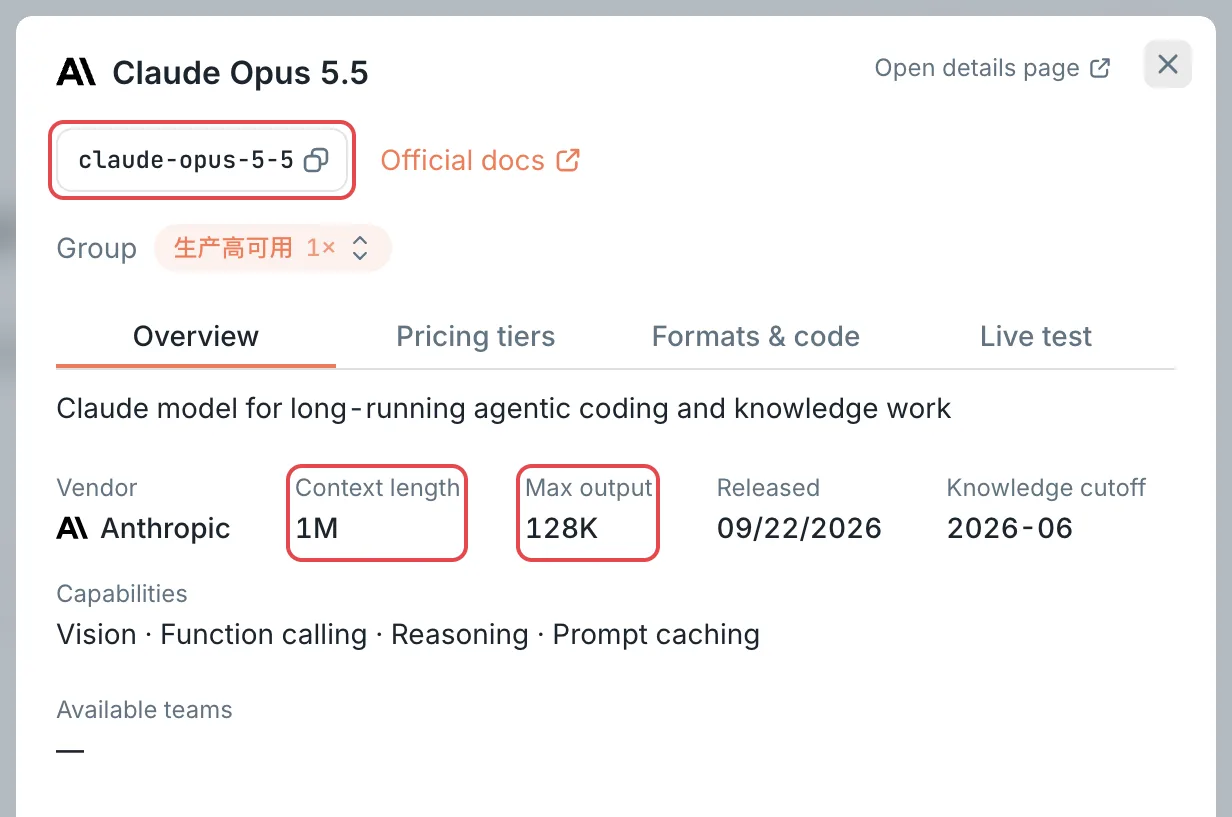 Model details: model ID, context length, and max output
 CCHP
CCHP
Step 3: Add CCHP to OpenCode#
Open the global OpenCode config file, or create it if it does not exist:
- macOS and Linux (including WSL):
~/.config/opencode/opencode.json - Windows:
%USERPROFILE%\.config\opencode\opencode.json
If this directory already contains opencode.jsonc, edit opencode.jsonc instead.
Add the following content. Replace baseURL with the URL that you copied in step 2, replace apiKey with your LLM key, and replace claude-opus-5-5 and its limit with the model that you want to use:
{
  "$schema": "https://opencode.ai/config.json",
  "providers": {
    "cchp": {
      "package": "@opencode/ai/providers/openai-compatible",
      "settings": {
        "baseURL": "https://api.cchp.example.com/v1",
        "apiKey": "cch_llm_live_xxxxxxxx"
      },
      "models": {
        "claude-opus-5-5": {
          "limit": {
            "context": 1000000,
            "output": 128000
          }
        }
      }
    }
  },
  "model": "cchp/claude-opus-5-5"
}$schema: The schema for OpenCode config files. Your editor uses it to check the config and offer completions.cchp: The provider ID. You can change it to another name. In OpenCode, models under this provider are written ascchp/<model ID>.package: Keep@opencode/ai/providers/openai-compatible, which sends requests in the OpenAI format (Chat Completions).settings.baseURL: The gateway’s OpenAI URL, ending in/v1.settings.apiKey: Your LLM key.models: The models to use in OpenCode, keyed by model ID. OpenCode does not read the CCHP model list, so add an entry here for each model that you want to use.limit: Setcontextto the Context length andoutputto the Max output, in tokens. If the page shows128K, enter128000. If it shows1M, enter1000000. OpenCode uses these values to track the remaining context and automatically compacts the session before the context fills up. If you leave them out, OpenCode assumes a context of200000and an output of32000. If the model’s context length is smaller than that, long sessions can fail with an error for exceeding the context length.model: The model that OpenCode uses by default.
If the config file already exists, merge the cchp entry under providers and the model setting into it. Do not overwrite your existing settings. If your existing settings use the OpenCode 1 syntax (provider, npm, and options), OpenCode 2 can still read them, but do not mix the two syntaxes in the settings for the same provider.
Warning: The config file stores your key in plain text. Do not put this config in an opencode.json in a project directory, and do not commit a file that contains the key to a code repository or share it with others.
Because the key is already in the config file, you do not need to run /connect or opencode auth login in OpenCode.
Step 4: Verify the connection#
Save the config file. OpenCode reloads the config automatically. If OpenCode is running but the new model does not appear, run opencode reload.
In a terminal, run the following command to list the models available in OpenCode:
opencode modelsResult: The output includes cchp/claude-opus-5-5.
Send a test message:
opencode run "Introduce yourself in one sentence"Result: The terminal shows the model’s reply. You can also run opencode to open the terminal UI, enter /models to select a model under cchp, and then start a conversation.
Finally, confirm in the console that the request reached CCHP. In the sidebar, click Call Records (a platform super admin sees Usage Records in the sidebar). The request you just sent appears in the list, with Model set to claude-opus-5-5. Organization admins click the record. On the Overview tab, User agent starts with opencode/. The first message in a new session usually produces two records, because OpenCode also sends a separate request to generate the session title.
Frequently asked questions#
What should I do if OpenCode returns a 401 error?#
Troubleshoot by error message:
What should I do if OpenCode returns a 403 or 404 error?#
For other model-related errors, see the frequently asked questions in View available models.
CCHP identifies clients by their request headers, and the built-in detection rules do not include OpenCode. To use OpenCode in an organization or team that has Client restriction turned on, an admin must complete two steps:
- A platform super admin goes to Administration → Operations Settings → Client Detection, clicks New rule, and enters
OpenCodein Client name,user-agentin Header, and^opencode/in Value regex. - An organization or team admin selects
OpenCodein Client restriction. See Manage organizations and Manage teams.
Why are there no requests from OpenCode in Call Records?#
- OpenCode comes with built-in free models. If the model set in
modelis unavailable (for example, the provider ID or the model ID is wrong), OpenCode switches to another available model, and the requests do not go through CCHP. In the terminal UI, enter/modelsand confirm that you selected a model undercchp. - A session that is already open keeps using the model it selected before. After you change
model, start a new session and try again.
To stop OpenCode from offering its built-in free models, run the following command. The command stops the OpenCode background service, and the change takes effect the next time you run OpenCode:
opencode service set env OPENCODE_DISABLE_FREE_MODELS 1Why are there no cchp models in opencode models?#
- Run
opencode debug paths configand confirm that the config file is in the directory shown in the output, that the file is namedopencode.jsonoropencode.jsonc, and that it contains valid JSON. - Confirm that
modelscontains at least one model. OpenCode lists only the models that are written in the config file. - Run
opencode --versionand confirm that the version is 2.x. OpenCode 1 does not support the config syntax on this page. To upgrade, see step 1. - Run
opencode reloadto reload the config.