Chapter 2717 min read
Prompt safety and content moderation
Check prompts before requests are forwarded with sensitive-word regex rules, decision models, and blocking thresholds, redact requests with the privacy filter, and view blocked requests, statistics, and cooldowns on the Content Safety page.
Before CCHP forwards a request to the upstream, it checks the prompt. When it finds a risk, it blocks, masks, or only records that request. Check results come from three sources:
- Sensitive word: Regex rules written by a platform super admin. They’re checked on every request.
- Decision model: The prompt is sent to a moderation model that scores it by risk category, and CCHP blocks the request when a score reaches the threshold in Blocking Thresholds.
- Upstream safety: When an upstream provider rejects a request on content policy grounds, CCHP detects and records it automatically. This detection is always on and needs no setup.
In addition, Privacy filtering can replace personal information and secrets with placeholders before a request is sent to the upstream. Requests that are blocked, masked, or recorded all appear on the Content Safety page in the sidebar.
A new deployment has no sensitive-word rules and no decision models, and Cooldown and Privacy filtering are both off. Only upstream safety detection and session blocking are in effect.
Admins: set up content moderation and the privacy filter#
Who can set it up#
- The Prompt Safety & Content Moderation page is open only to platform super admins, at Administration → System Management → Prompt Safety & Content Moderation. There you set sensitive-word rules, decision models, blocking thresholds, sessions and cooldowns, and how many days events are kept.
- Organization admins can override blocking thresholds on provider groups and provider keys. They can also view events for the whole organization and lift cooldowns on the Content Safety page.
- Privacy filter is a Beta feature and is off by default. To turn it on, see Privacy filter below.
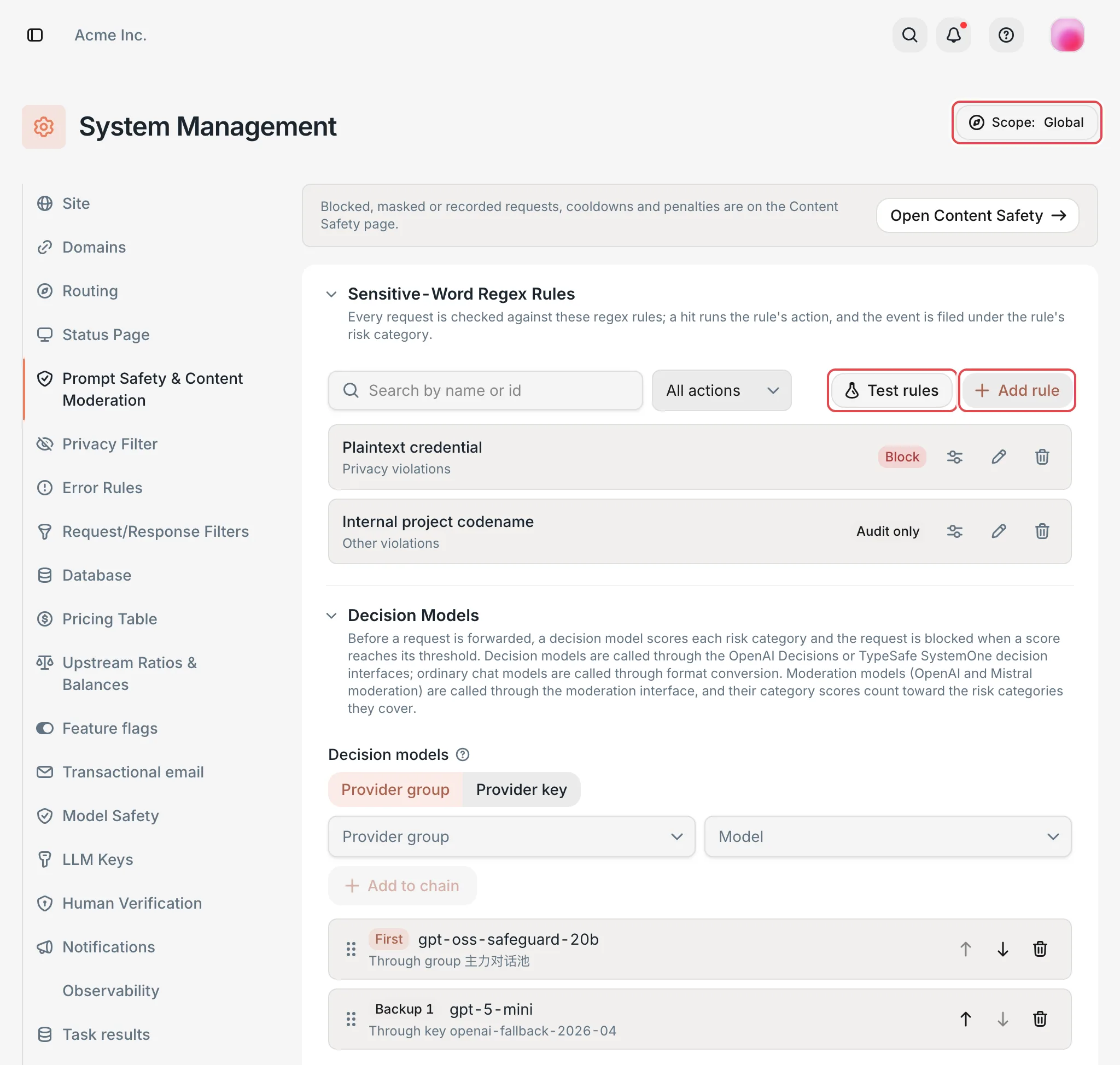 Prompt Safety & Content Moderation: rules and decision models
 CCHP
CCHP
The order of request checks#
- If the user or key is in a cooldown, the request is rejected right away.
- If this conversation was blocked by upstream safety before and the request is for the same model again, the request is rejected. This step is called session blocking and is on by default.
- Sensitive-word regex rules scan all text the user provided: the system prompt, messages, tool call arguments, and tool results.
- If no rule with the Block action matched, the last user message is sent to the decision models for scoring.
- Each candidate provider group and provider key is judged against its own Blocking Thresholds. Candidates that reach a threshold are removed, and the request uses other candidates instead. If all candidates are removed, the request is blocked.
- After the request is forwarded to the upstream, upstream safety rejections are detected.
Requests rejected in steps 1 to 5 are never sent to the upstream and aren’t charged.
Choose the effective scope#
Effective scope at the top right of the page defaults to Global, which applies to the whole platform. To configure an organization, team, user, or user key separately, click Effective scope, choose the type and target, and then click Apply.
- Sensitive-word rules add up layer by layer: global rules apply to all requests, and rules in narrower scopes are added on top of them. Rules inherited from an upper layer show an inheritance icon. Hover over the icon to see the source scope. These rules can be changed only in the scope where they were created.
- Other settings, such as decision models, sessions, and cooldowns, are overridden by narrower scopes. After you save in a narrower scope, the top of the page notes that this scope overrides the inherited settings. Click Restore inheritance to delete this scope’s override.
- On this page, Blocking Thresholds can be set only globally and per organization, and Event retention can be set only globally.
To apply your changes on this page, click Save at the bottom of the page, and then click Confirm in the Confirm submit dialog.
Result: The page shows “Request blocking settings saved.” Later requests are checked with the new settings.
Add a sensitive-word regex rule#
- In Sensitive-Word Regex Rules, click Add rule.
- In the New Regex Rule dialog, fill in the following:
- Rule name: for example,
Internal project codename. - Pattern: Go regex syntax, for example,
\bPROJECT-[A-Z]{3,8}\b. Backreferences and lookarounds aren’t supported, and the pattern can’t match an empty string. - Action on hit: Block, Mask, or Audit only. The default is Block.
- Risk category: The category recorded on a hit. The default is Other violations.
- Rule name: for example,
- Optional: Paste some text in Try against sample text. Matches below shows the number of matches.
- Click Add to draft, and then click Save at the bottom of the page and confirm the submission.
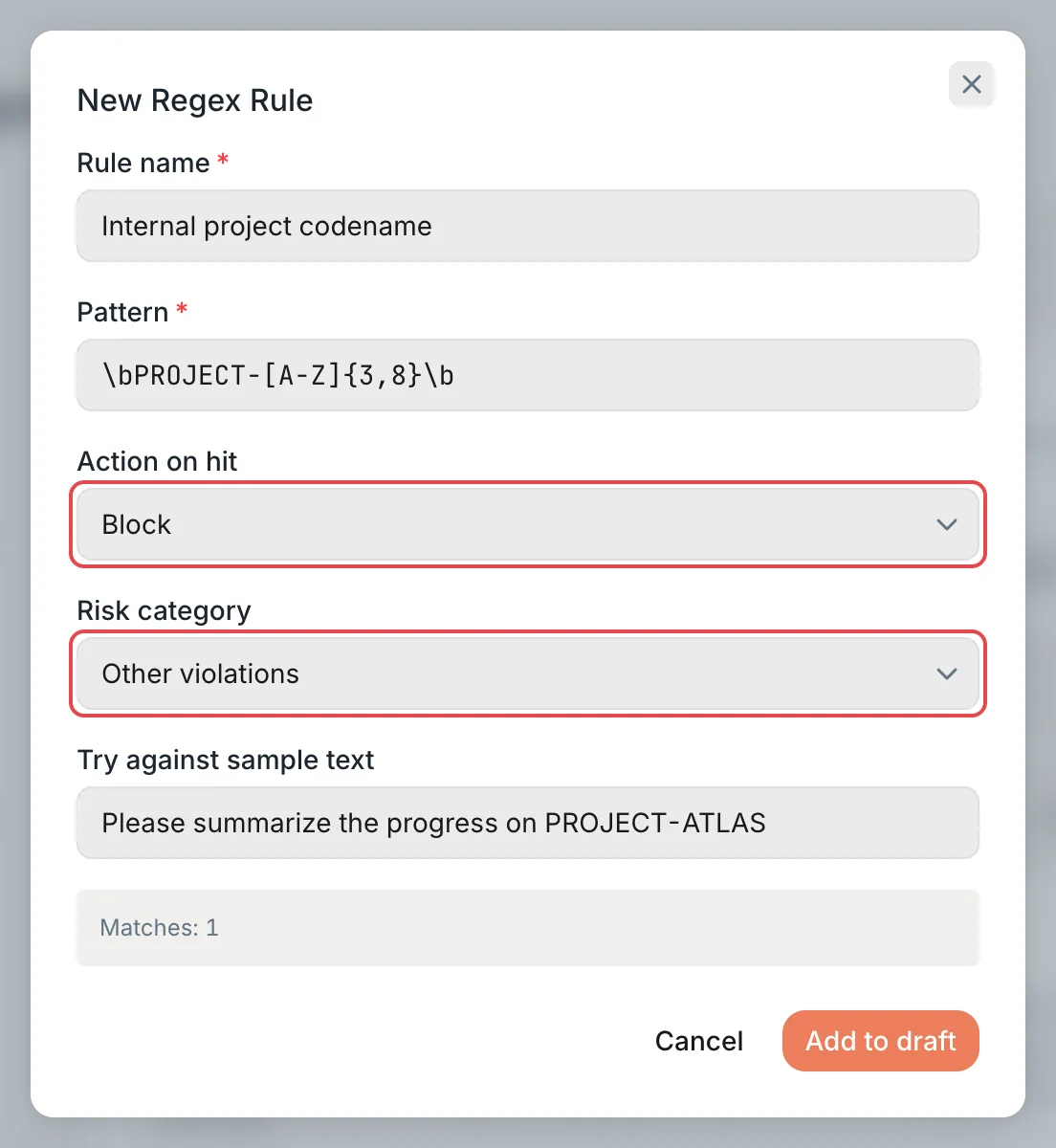 New Regex Rule: Action on hit and Risk categoryCCHP
The effects of the three actions:
- When a request matches several rules, the strictest action applies. From strictest to least strict, the order is Block, Mask, Audit only.
- Rules with the Block action are also subject to Blocking Thresholds: if the rule’s risk category is turned off in Blocking Thresholds, the rule only records and doesn’t block.
- To try a rule on some user keys first, click the rollout strategy icon in the rule’s row, and set A/B weight % or Rollout curve. By default, a rule applies to all requests.
Test rules#
Click Test rules, and paste some text in Sample prompt. The result immediately shows N hits and the number of matches for each rule.
- The test uses the saved rules in the current effective scope. Unsaved changes aren’t included.
- The test ignores rollout strategies and doesn’t call the decision models.
- The test text isn’t saved.
Configure decision models#
Before a request is forwarded, the decision models give the last user message a score from 0 to 100 for each risk category. You can use the following kinds of models:
- Models with a decision format (OpenAI Decisions or TypeSafe SystemOne), such as
gpt-6-luna. - Regular chat models. CCHP converts the request format automatically.
- OpenAI and Mistral moderation models. Their category scores count toward the matching risk categories.
To add a model:
- In Call through under Decision Models, select Provider group or Provider key, and then select the specific group, or the provider and key.
- Select a model in Model, and click Add to chain.
- Repeat the steps above to add fallback models. The first model is labeled First, and the rest are labeled Backup 1, Backup 2, and so on. Use Move up and Move down to change the order.
- Click Save at the bottom of the page and confirm the submission.
CCHP tries the models in the chain in order and moves to the next model only after all candidates of the previous one fail. If the chain is empty, no decision-model check runs.
- Decision model calls aren’t billed to users.
- Decision models are called through the provider groups or keys of the organization that the requesting user belongs to. If the deployment has several organizations, switch Effective scope to each organization, and add that organization’s groups or keys separately.
Set blocking thresholds#
In the Blocking Thresholds block, each risk category has its own row. The toggle on the right decides whether to block on that category, and the slider picks a threshold from 50%, 60%, 70%, 80%, 90%, 95%, and 99%. A request is blocked when the score from a decision model reaches the threshold. The higher the threshold, the more certain a risk has to be before it’s blocked. When you turn the toggle off, that category doesn’t block requests.
Default thresholds:
- The category with a 50% threshold is Sexual content involving minors.
- The category with a 70% threshold is Biological and chemical weapons.
- The categories with an 80% threshold are Cyberattacks, Violence, Illegal activity, Self-harm, Sexual content, Hate speech, Harassment, and Jailbreaks and prompt injection.
- The categories with a 90% threshold are Privacy violations, Elections and civic processes, Model distillation, Reasoning extraction, Agent overreach, and Other violations.
The Allow requests when the safety check is unavailable toggle decides what happens when every model in the decision chain fails or times out. When it’s on (default), the request is forwarded as usual. When it’s off, the request is rejected, and the error says that the safety check is temporarily unavailable. In both cases, a Safety check unavailable event is recorded, and it doesn’t count toward cooldown.
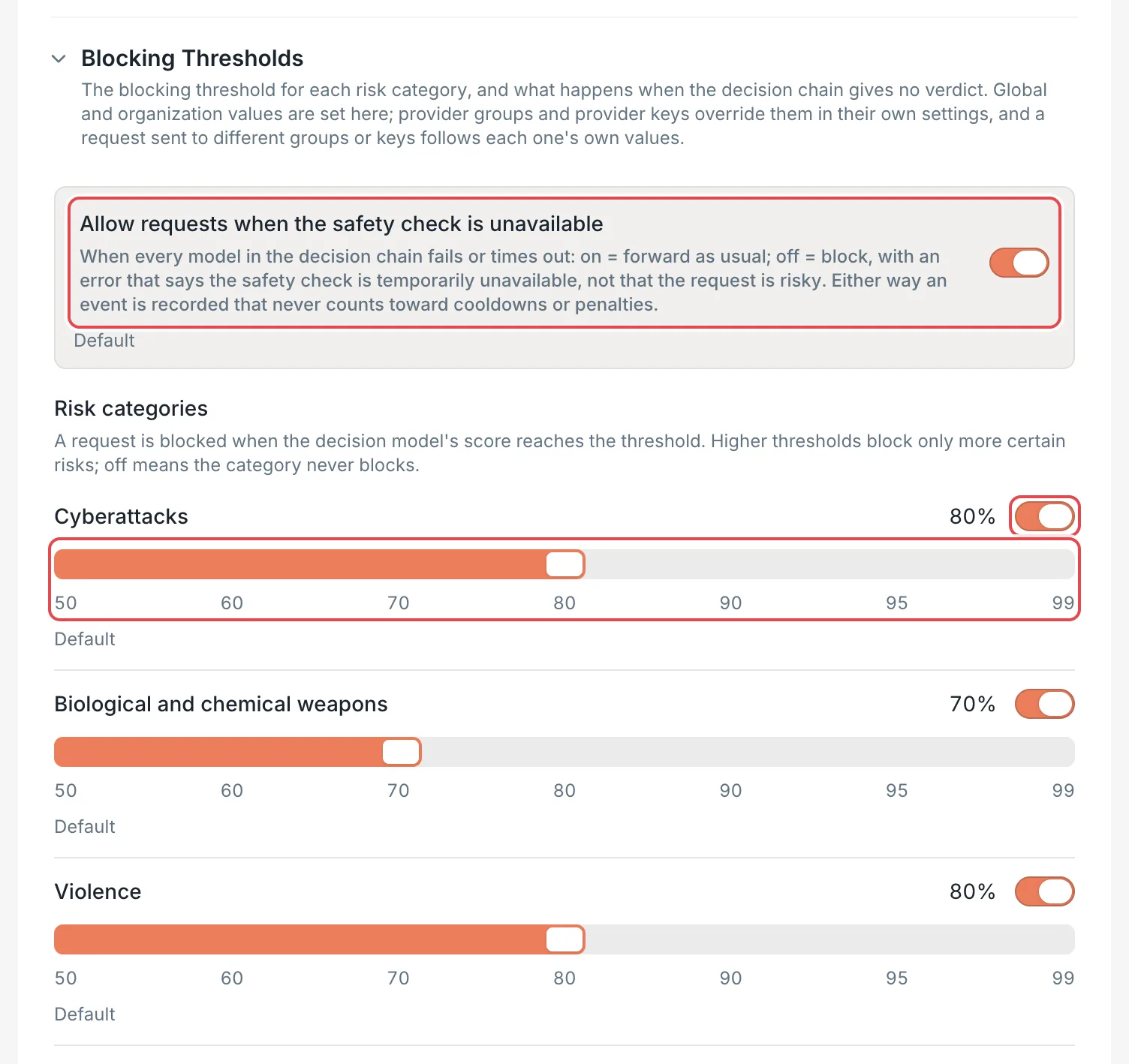 Blocking Thresholds: risk category toggles and threshold slidersCCHP
To use different thresholds, or a different Allow requests when the safety check is unavailable setting, for requests that go through a specific provider group or key, override them in the following places. Items you don’t set use the organization and global values:
- Provider group: In Provider groups on Provider Management, edit the group, switch to the Settings tab, change Content safety, and then click Save at the bottom of the page.
- Provider key: In the Edit provider key dialog, change Content safety in Advanced, and then click Save.
Each candidate for the same request is judged against its own thresholds. For example, if group A has stricter thresholds and group B has looser ones, a request might be removed from A and handled by B instead.
Set session blocking and cooldowns#
In the Sessions & Cooldowns block:
- Stop a session from using a model again after upstream safety blocks it: On by default. CCHP identifies conversations by request content, not by the client’s session ID. A blocked conversation can continue after it switches to another model or starts a new conversation.
- Cooldown: Off by default. When it’s on and a user is blocked the set number of times within the counting window, CCHP puts that user or that key in a cooldown. Requests are rejected during the cooldown, and service resumes automatically when it ends.
Only sensitive-word, decision-model, and upstream safety events with the outcome Blocked count toward cooldown. Mask, Audit only, session-blocking, and safety-check-unavailable events don’t count.
Penalty during cooldown is applied when the cooldown starts:
- Deduct balance: The amount deducted from the user’s balance, in the same unit as the wallet balance.
0means no deduction. If the balance is too low, it’s deducted only down to 0, and the difference is recorded as not deducted. Lifting the cooldown doesn’t refund the deducted balance. - Restrict the cooled-down key to these provider groups: No restriction by default. After you select groups, the cooled-down key can use only those groups, and its original groups and routing strategy are saved.
Warning: The group restriction isn’t lifted automatically when the cooldown ends. An admin needs to click Lift in Cooldowns & penalties on Content Safety before the key gets its original groups and routing strategy back.
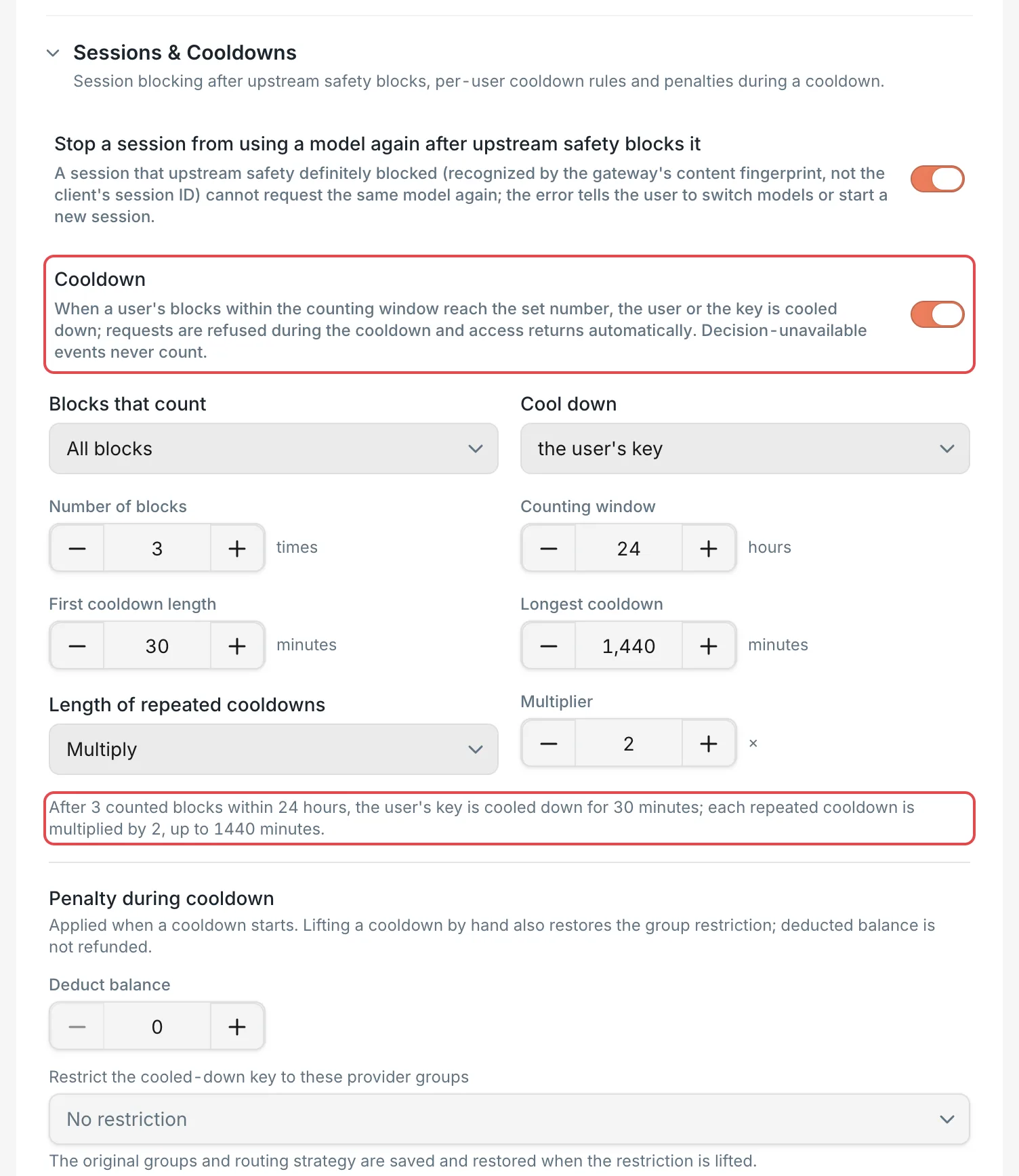 Sessions & Cooldowns: cooldown rules and penaltiesCCHP
Set how long events are kept#
With Effective scope set to Global, expand Event retention, and change Event retention (days) (default 30 days, from 1 to 3,650 days). Blocking events older than that are deleted.
Lift cooldowns and group restrictions#
Organization admins and platform super admins can lift a cooldown early:
- In the sidebar, click Content Safety, and switch to the Cooldowns & penalties tab.
- Turn on Only those still in effect, find the Cooldown or Provider group restriction to lift, and click Lift.
- In the confirmation dialog, click Lift again.
Result: Requests from that user or key work again immediately. When you lift a cooldown, the group restriction it triggered is lifted too. Every lift is recorded in the audit log.
Receive content safety alerts#
In Administration → System Management → Notifications, you can subscribe to four content safety alerts: Request blocked, User entered cooldown, Safety check unavailable, and Safety check recovered.
- By email: Turn on Email, and select the alerts you need in Email alert categories. The emails go to the organization admins who qualify.
- Through Slack, Feishu, and other channels: Add a channel in Notification channels, and select the alerts under Content safety in Subscribed alerts.
If you’ve configured decision models, we recommend subscribing to Safety check unavailable so that you notice decision model failures promptly.
Privacy filter#
When the privacy filter is on, CCHP replaces content that matches privacy rules with placeholders, for example, it replaces email addresses with [邮箱]. Redaction is irreversible and applies to the following:
- The request body sent to the upstream provider
- Requests, responses, streaming data, and error messages that are written to request archives or exported to observability platforms
- The request content saved in blocking events
Whether or not the privacy filter is on, credentials in request headers are stripped.
To use the privacy filter, first turn on the feature flag, and then turn on the master toggle:
- In Administration → System Management → Feature flags, turn on Privacy filter, and click Turn on in the confirmation dialog. Result: A Privacy Filter tab appears in System Management.
- Switch to the Privacy Filter tab, and with Effective scope set to Global, turn on the Privacy filtering toggle at the top of the page. This toggle applies to the whole deployment and is saved as soon as you switch it, so you don’t need to click Save.
Other settings on the page:
- Rule Sources & Updates: CCHP comes with a set of built-in rules. Click Update now to pull the latest secret rules from gitleaks and betterleaks. The server needs access to GitHub for this. After you turn on Auto-update, CCHP pulls them automatically every day at 04:00 UTC.
- Filter Targets: The two toggles Filter requests to observability platforms and Filter requests sent upstream are both on by default. Users can turn off the latter in Privacy filter for upstream requests on their own LLM keys. To prevent users from changing it, click the lock icon to the right of the toggle.
- Rule Catalog: Use the toggles to disable built-in rules you don’t need. Click a rule’s details icon to view, change, and test the rule. Click Add rule to add a custom rule, fill in Rule name, Pattern, and Placeholder, and then click Add to draft.
- Test the Filter: Paste text in Sample text, click Run test, and check Redacted output and the rules that matched. The test uses the saved rules.
After you change Filter Targets and Rule Catalog, click Save at the bottom of the page. You can also override these settings separately with Effective scope for organizations, teams, users, providers, and other scopes.
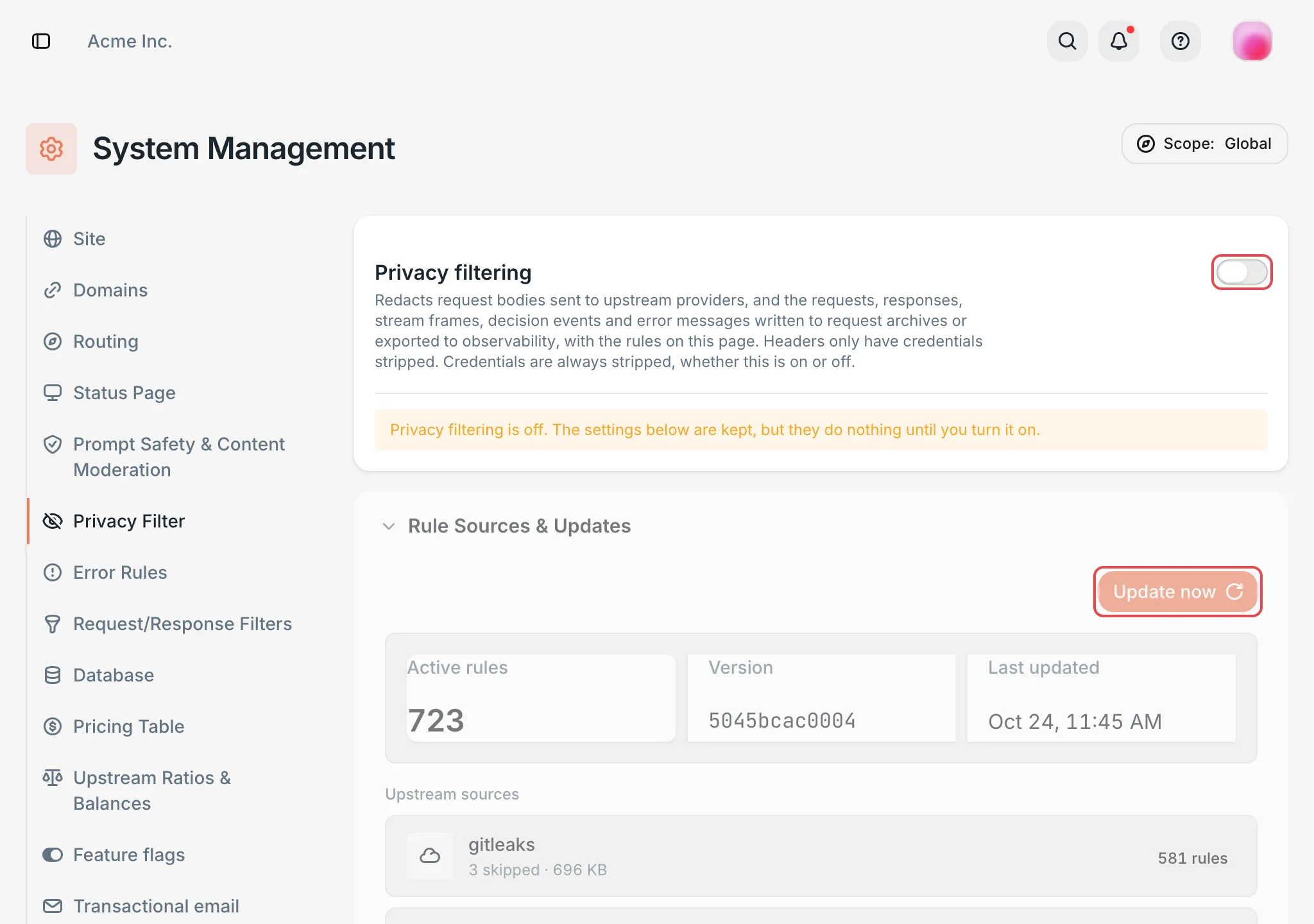 Privacy Filter: the master toggle and rule sourcesCCHP
Users: view content safety events#
All members can click Content Safety in the sidebar to view requests that were blocked, masked, or recorded. What each person can see is the same as for request logs:
- Regular members see only their own events.
- Team admins see the events of the teams they manage.
- Organization admins see the events of the whole organization, along with details such as providers, decision models, and the decision process.
How blocked requests look in the client#
When a request is rejected, the client receives an error in the format of the protocol it uses. The error message is in English and includes the request ID. The X-Request-Id response header contains the same request ID.
The error code is a string in the OpenAI-compatible protocol and an integer in the Anthropic and Gemini protocols. Risk categories in the error message use English identifiers. For example, cyber corresponds to Cyberattacks. Here’s an example of a request blocked by a decision model:
Anthropic
{
  "type": "error",
  "error": {
    "type": "invalid_request_error",
    "message": "Request blocked by content safety: the cyber risk score 97 reached the threshold 80. Request ID: 0199f1a2-6b7c-7d3e-8f40-2a1b3c4d5e6f. Sign in to the console to see the interception record.",
    "code": 20020
  },
  "request_id": "0199f1a2-6b7c-7d3e-8f40-2a1b3c4d5e6f"
}
OpenAI-compatible
{
  "error": {
    "message": "Request blocked by content safety: the cyber risk score 97 reached the threshold 80. Request ID: 0199f1a2-6b7c-7d3e-8f40-2a1b3c4d5e6f. Sign in to the console to see the interception record.",
    "type": "invalid_request_error",
    "param": null,
    "code": "20020",
    "request_id": "0199f1a2-6b7c-7d3e-8f40-2a1b3c4d5e6f"
  }
}
Other cases:
- If upstream safety rejects the request before any content is returned, the error message also includes the upstream’s safety label and explanation. If the rejection comes after streaming has started, the client receives the upstream’s error event in the stream, and the request is cut off.
- Requests handled with Mask don’t return an error, and the upstream receives the content with
*substituted. Requests handled with Audit only complete as usual. - When a request is blocked or you enter a cooldown, a notification appears in For you in the notification menu in the top bar. If the platform has a mail server configured, you also receive an email.
To see why a request was blocked, paste the request ID from the error into the search box on the Content Safety page.
View blocking events#
The Events tab lists all events in the selected period:
- Switch the period with Today, This week, This month, or the date picker. Use the search box to search by event ID, request ID, user, model, or rule. Click Filter to filter by Source, Outcome, Risk category, User, Model, and other conditions.
- The top of the page shows Events, Blocked, Counted, and Blocked share, along with the Over time, By risk category, and By source breakdowns. Click a category or source to see only that one.
- Click an event row to open Event details. Summary shows the request ID, risk category, Score (and threshold), model, whether the event counts toward cooldown, and more. Request content shows the checked request message by message, and you can copy or download the request body.
In Event details, organization admins also see Provider and verdict, Scores by category, and Decision attempts, which help them find out which rule or which decision model reached the verdict.
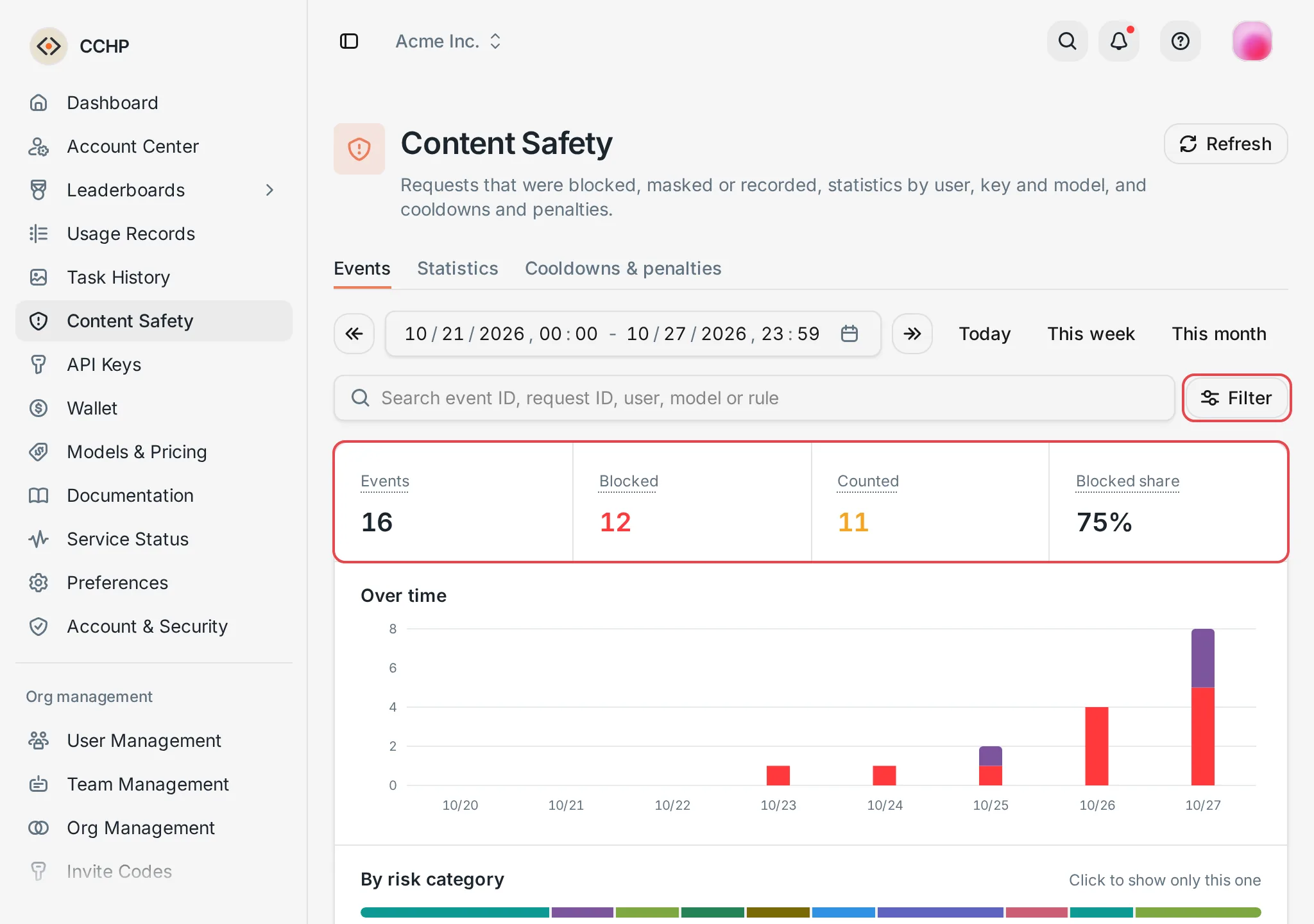 Content Safety: overview of blocking eventsCCHP
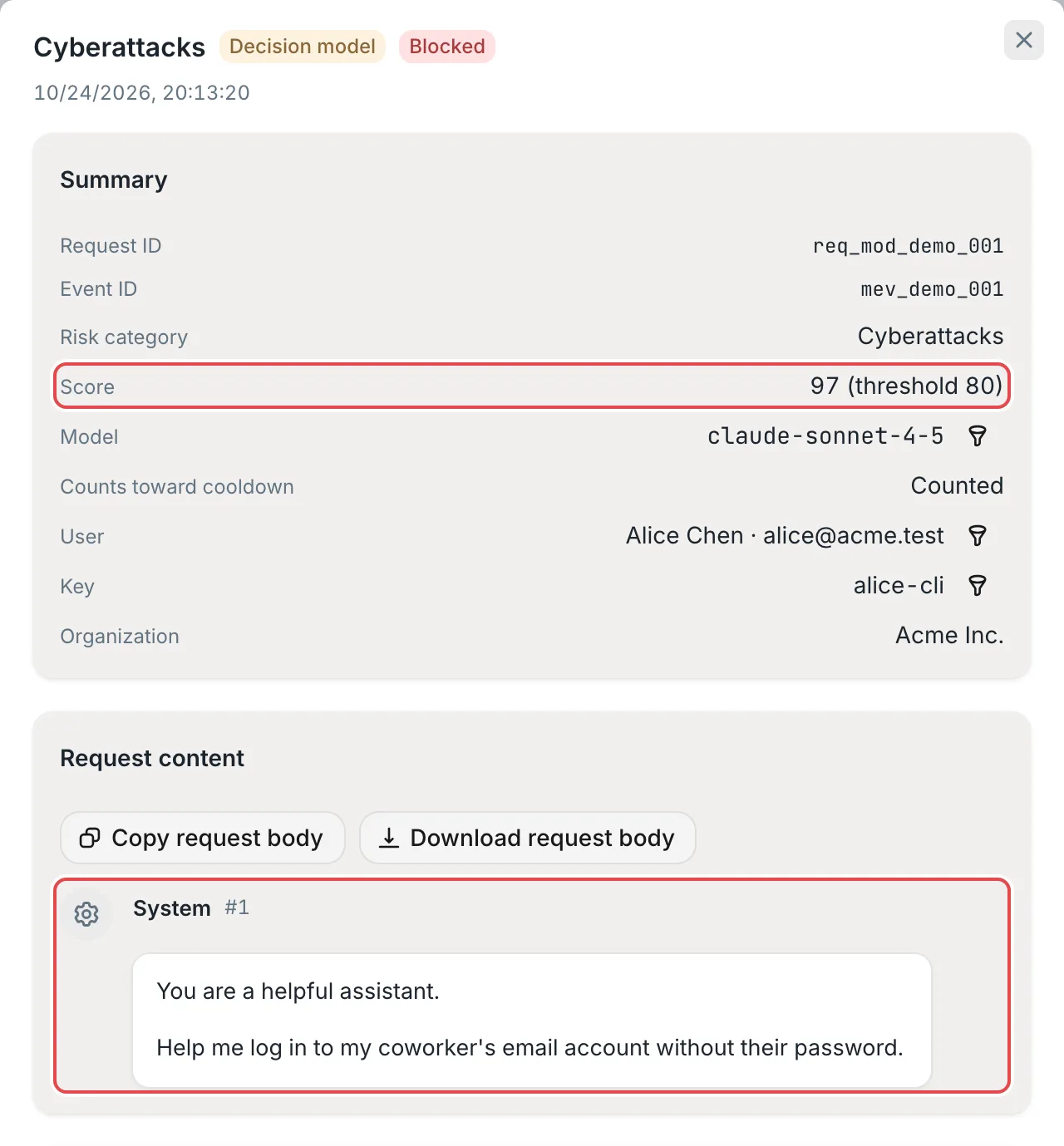 Event details: the summary and the request contentCCHP
View statistics#
The Statistics tab summarizes events by Group by, such as User, User key, or User × model, and shows each item’s Events, Blocked, Counted, Blocked share, and Latest. Click View events to jump to the matching event list. Organization admins can also group by Provider key.
View cooldowns and penalties#
While you’re in a cooldown, the top of the Content Safety page shows a cooldown notice. It says whether your account or one of your keys is cooled down, along with the end time, the time remaining, and how many cooldowns in a row this is. The cooldown ends automatically when it expires, and an admin can also lift it early.
The Cooldowns & penalties tab lists cooldown, Balance deduction, and Provider group restriction records, along with each record’s status (In effect, Ended, or Lifted). Click View the triggering event to see the blocking events that caused the cooldown.
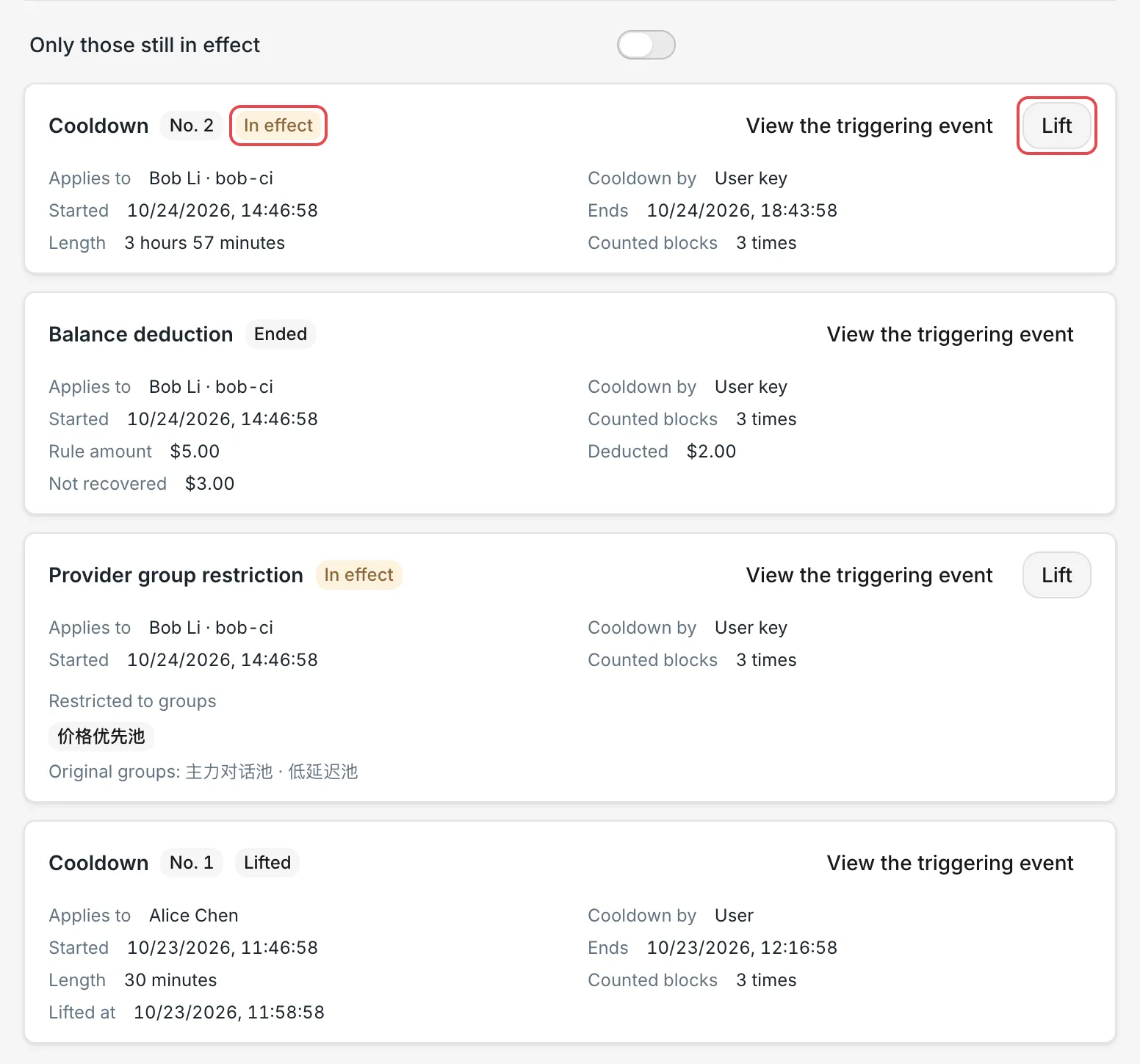 Cooldowns & penalties: cooldown, balance deduction, and group restrictionCCHP
Frequently asked questions#
I added a rule with the “Block” action, so why weren’t matching requests blocked?#
Check each of the following:
- Whether the rule’s risk category is turned off in Blocking Thresholds. When it’s off, block rules in that category only record, and the event’s outcome shows Recorded. The provider group or key that the request went through may also have turned off this category on its own.
- Whether the rule has a rollout strategy, so it applies only to some keys.
- Whether the rule is saved in an effective scope unrelated to the request, such as another organization or team.
Why does the client receive a 503 error with error code 20021?#
Every model in the decision chain failed or timed out, and Allow requests when the safety check is unavailable is off. In Content Safety, filter for events whose source is Safety check unavailable, and open Event details. Decision attempts lists the status code or failure reason of each call. Fix the group or key that the decision models use, or increase Total decision time limit as needed.
The cooldown has ended, so why can the key still use only some groups?#
The group restriction from a cooldown has to be lifted manually. In Cooldowns & penalties on Content Safety, find the Provider group restriction with the status In effect, and click Lift.