Chapter 157 min read
Create a provider
Create a provider in Provider Management, complete basic settings such as the top-up ratio on its details page, and then add endpoints and provider keys to it and add them to provider groups.
A provider represents an upstream service or upstream account, for example your Anthropic account or a relay service. To create a provider, you only need to enter a name. After you create it, you add the request URLs and request formats to its endpoints, and the upstream API keys to its provider keys.
Before you begin#
- Organization admins, organization super admins, and platform super admins can create providers. Without permission, the page doesn’t show the New provider button.
- A provider belongs to the current organization. If you manage several organizations, first click the organization name on the left of the top bar and switch to the organization you want to configure.
- Put several API keys for the same upstream under one provider, as its provider keys. Create separate providers only when you have several accounts with the same upstream that are topped up in different ways.
Supported upstreams#
You don’t need to select a type or a protocol when you create a provider. The requests a provider can handle are determined by the Request format that its endpoints select. The request formats cover these vendors: OpenAI, Anthropic, Google, xAI, Volcengine Ark, Alibaba Cloud Model Studio, MiniMax, Mistral AI, Cohere, Voyage AI, Jina AI, Hugging Face TEI, Deepgram, ElevenLabs, fal, Replicate, Stability AI, Runway, Luma AI, Kling AI, Meshy, Tripo, Hyper3D Rodin, Tencent Hunyuan 3D, AssemblyAI, Volcengine Doubao Speech, Baidu AI Cloud VOD (relaying MiniMax video generation), and TypeSafe.
- Relay services and other compatible services: connect them with the format they are compatible with. Common formats are OpenAI Chat Completions and Responses, Anthropic Messages, and Google Generate Content.
- Azure OpenAI and Vertex AI: connect them with the OpenAI and the Google formats respectively, and in the provider key’s Credential type, select Azure api-key, Azure Entra ID, or Google service account.
- Another CCHP: connect it with the request formats it offers, and use an LLM key issued by that CCHP as the provider key. When you add the key, CCHP recognizes the upstream as CCHP and from then on reads the key’s balance and group multiplier there automatically; see Upstream ratios and balances. Request logs and tasks on both sides use the same session and task
cchp_id. The gateway sends chain request headers such asX-CCHP-Session-Idonly to upstreams recognized as CCHP; other upstreams never receive the client’s session ID.
Step 1: Create the provider#
-
Go to Org management → Provider Management, and click New provider on the right of the page header. When the organization has no providers yet, the button appears in the middle of the page.
-
In the New provider panel, fill in these fields:
-
Click Create and add endpoint. The button is unavailable while the name is empty.
Result: The console opens the details page of the new provider. The new provider is enabled by default, its Top-up ratio is 1, and it has no endpoints or provider keys yet.
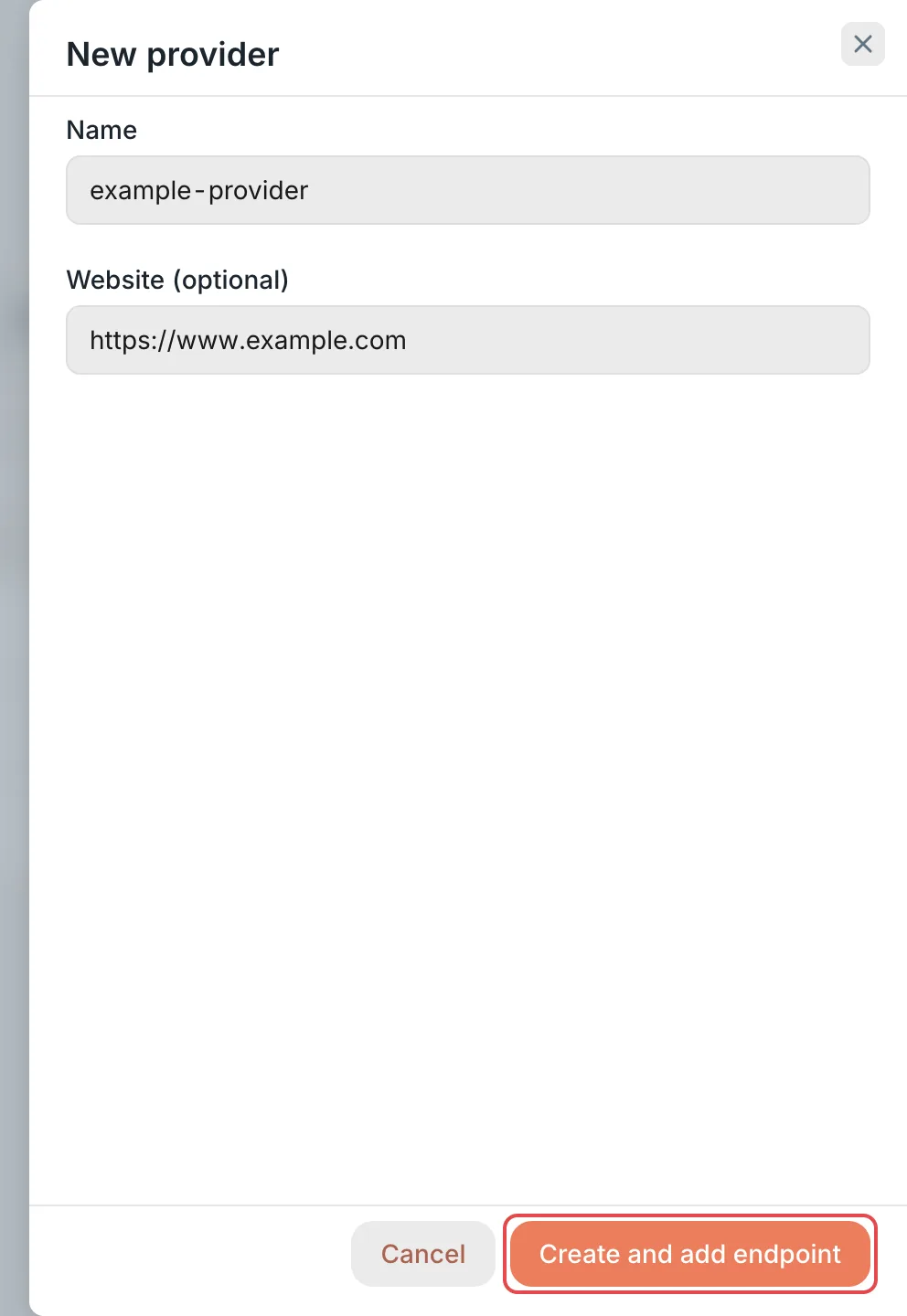 New provider panel: name and website
 CCHP
CCHP
If you already have a batch of API keys and Base URLs, click Smart import in the page header and paste the keys, Base URLs, or configuration. CCHP detects them and creates the providers, endpoints, and provider keys in one go.
Step 2: Complete the basic settings#
The left side of the details page is the section navigation. The Basic section holds the provider’s own information. You can skip this step and change these settings at any time later.
After you change any setting other than Provider enabled, the You have unsaved changes action bar appears at the bottom of the page. Click Save in it.
Warning: Enter the upstream’s group ratio in the Cost multiplier of each provider key, not in the Top-up ratio. If you enter the same group ratio in both places, the cost is counted twice. See Provider cost multipliers vs. user billing multipliers.
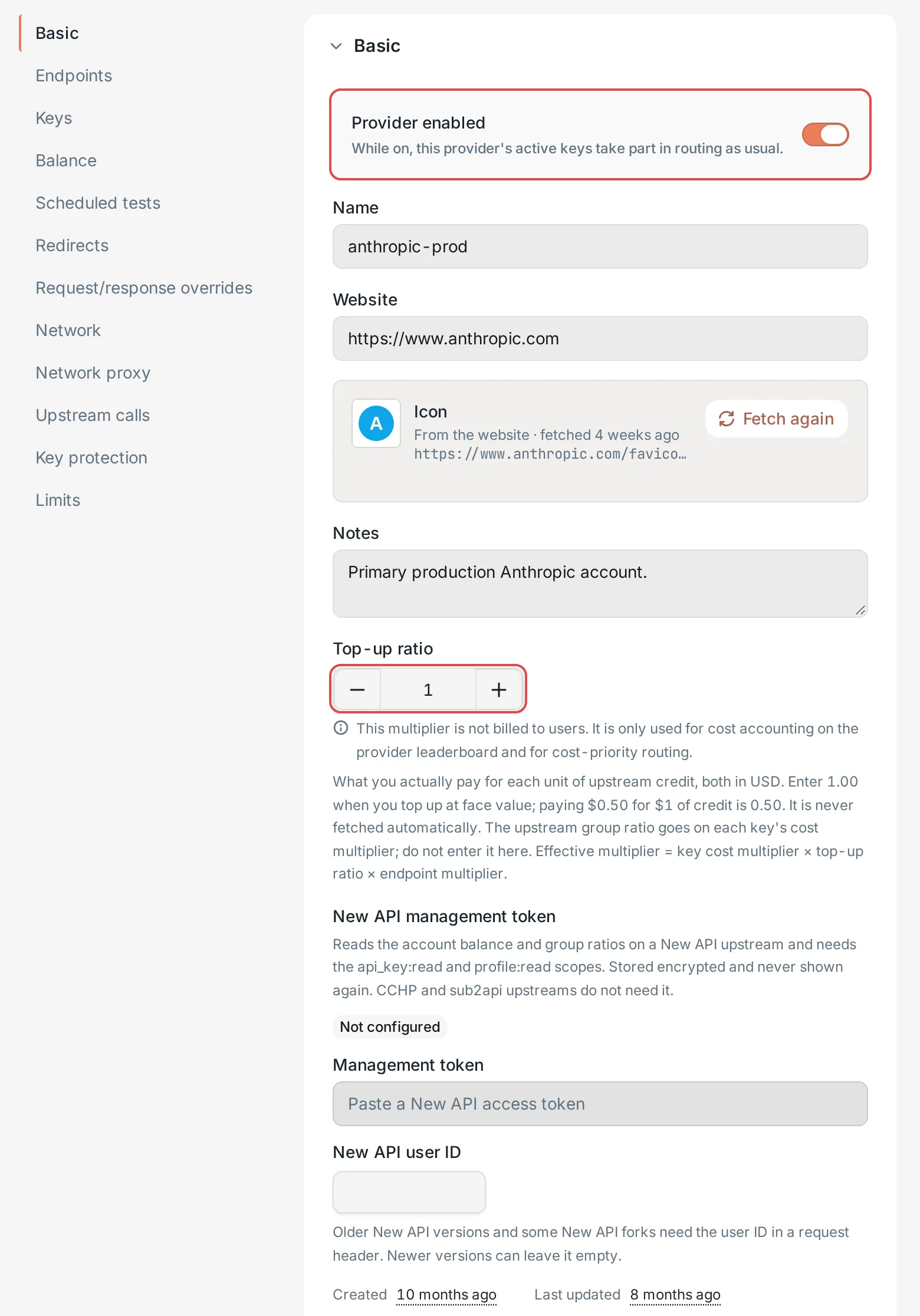 Provider details: the Basic section and the top-up ratioCCHP
Step 3: Add endpoints and keys, and join groups#
The new provider can’t receive requests yet. Complete the configuration in this order before users’ requests can use it:
Other sections of the details page#
The settings in Network, Upstream calls, and Key protection are saved for the scope selected in Effective scope in the page header. By default they apply only to the current provider.
Frequently asked questions#
Deleting a provider shows “Can’t delete yet”#
You can’t delete a provider while other objects still use it, for example when it still has provider keys that haven’t been deleted. The message lists these objects. After you deal with them, click Delete provider in the Basic section. Deletion can’t be undone: the provider’s endpoints, its deleted keys, and its configuration are all removed, while request logs, billing records, and audit records are kept.