Chapter 1212 min read
Default organization and invite codes
Turn on sign-up and set the default organization that new users join automatically, generate organization and team invite codes, approve join requests, revoke invite codes, and learn how users join an organization with an invite code.
New users can enter an organization in two ways: sign up on their own and join the Default organization automatically, or join a specific organization and team with an invite code from an organization admin. A platform super admin sets the sign-up switch and the default organization, which apply to the whole platform. The admins of each organization generate invite codes, which can be used only to join their own organization.
To invite a specific person by email, or to create an account for them directly, see Manage users.
Which organization a new user joins#
After sign-up, a new user joins an organization in this order:
- Signed up through an invitation link: The invite code is redeemed first, and the user joins the organization and team it specifies. The user does not also join the default organization automatically.
- Signed up through an invitation email: The user accepts the invitation and joins the organization that sent it.
- No invitation: In the console, the user joins the default team of the default organization automatically, with the Member role. If the user has a join request waiting for approval, the user waits for the result and is not added automatically.
- No invitation, and the platform has no default organization: The page shows Join an organization, and the user can use the organization’s features only after entering an invite code.
When sign-up is off, people without an invitation cannot sign up on their own, and only a platform super admin can create accounts for them. People who hold a valid invite code (or invitation link), and people who hold an unexpired invitation email sent to their own address, can still sign up and then join an organization by the rules above; an invitation email can be used to sign up only with the address that received it. Users who already have accounts are not affected and can still join other organizations with invite codes.
Turn on sign-up#
Only a platform super admin can change the sign-up switch.
Open the sign-up settings#
Go to Administration → Sign-in Methods, and find the Registration group in Sign-in policy. Keep Effective scope in the upper-right corner of the page set to Global: you can change the sign-up switch only in the global scope.
Turn it on and save#
Turn on Allow external sign-up, and click Save at the bottom of the page.
If the toggle cannot be turned on and a message says that the email service is not configured, first configure the email service in Administration → System Management → Transactional email. Sign-up needs to send email verification codes to new users.
Result: A Sign up link appears in the upper-right corner of the sign-in page, and new users can sign up on their own. With sign-up off, invitation links and invitation emails still work for signing up.
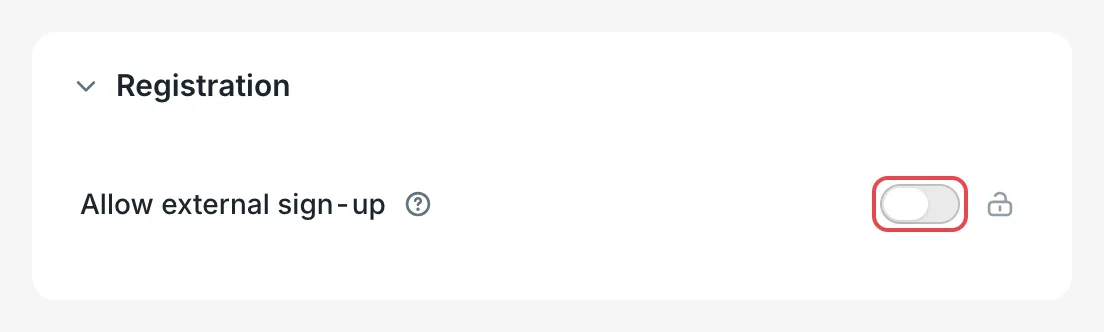 Sign-in Methods: the Allow external sign-up toggle
 CCHP
CCHP
Set the default organization#
The organization created in the setup wizard automatically becomes the default organization, and its team is the default team. A platform super admin can change or clear the default organization:
- Go to Org management → Org Management to open the organization list.
- On the row of the target organization, select the checkbox in the Default org column.
Result: A Default badge appears next to the organization’s name. Clear the checkbox to clear the default organization. After that, new users without an invite code stay on the Join an organization page.
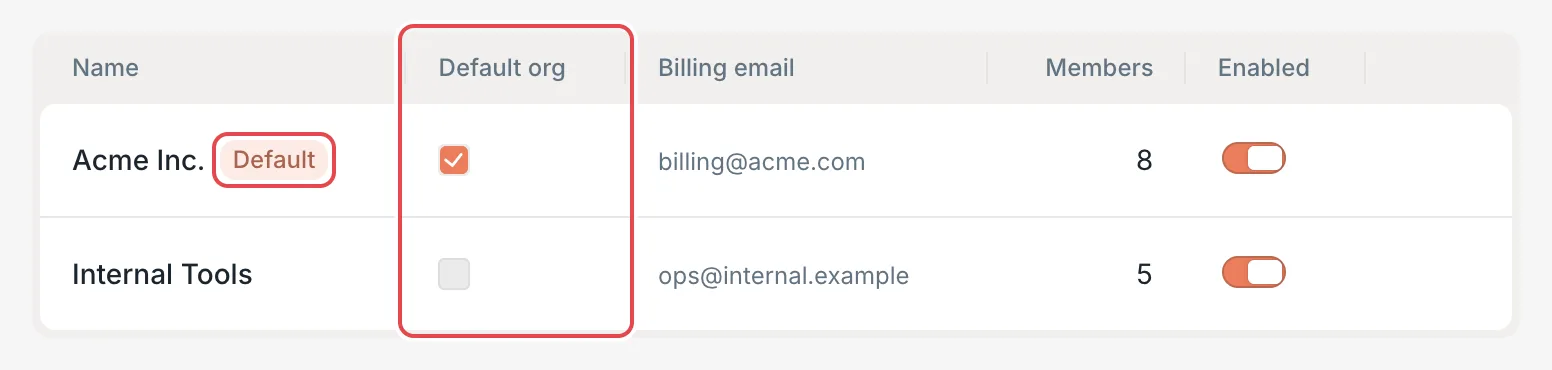 Organization list: the Default org columnCCHP
Set the default team#
New members who join with an organization invite code, or who join the default organization automatically, join that organization’s default team. The first team of an organization automatically becomes the default team. An organization admin opens their organization by going to Org management → Org Management (a platform super admin first clicks Open organization details on the organization’s row), and then clicks Make default for the target team in the Teams section. If the organization has no teams, new members only join the organization and do not join any team.
Default org in Preferences only decides which organization you enter first after you sign in. It is unrelated to the default organization on this page.
Generate an invite code#
An invite code is made up of 6 letters or digits. Organization admins, organization super admins, and platform super admins can all generate invite codes. Depending on the Joins team setting, there are two kinds:
- Organization invite code: Keep Joins team set to Organization default team. The person who redeems it joins whichever team is the default team at the moment of redemption.
- Team invite code: Choose a team. The person who redeems it always joins that team.
Open the invite codes page#
In the sidebar, click Org management → Invite Codes. The page manages the current organization, which is the organization shown on the left of the top bar. To generate invite codes for another organization, first click the organization name to switch organizations.
Fill in the invite code details#
In the Create section, fill in the following:
Create the invite code#
Click Create code.
Result: The new invite code appears in Issued codes with the status Active.
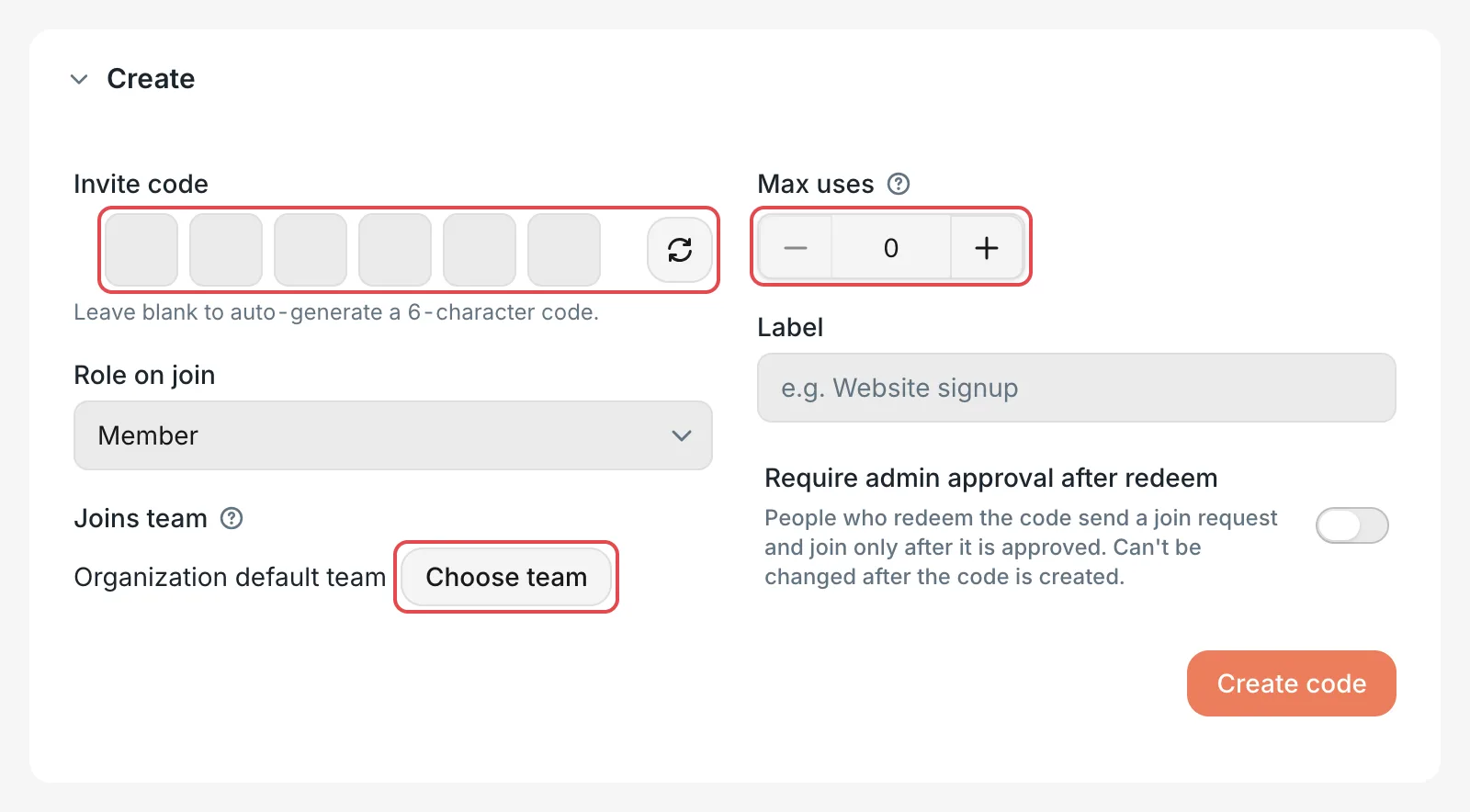 Invite codes: the form for creating an invite codeCCHP
Generate a team invite code on the team page#
An organization admin can also go to Org management → Team Management, open a team, and generate an invite code in the Invite codes section. Here, Joins team is fixed to the current team, and the list shows only this team’s invite codes. Team admins do not see this section by default.
When someone who is already a member of this organization redeems a team invite code, they keep their previous team and role. After a team is deleted, its team invite codes are disabled automatically.
Send the invite code#
In Issued codes, find the invite code that you want to send:
- For people who do not have an account yet: Click Copy link to get a sign-up link, for example
https://cchp.example.com/register?invite=ABC123. - For people who already have an account: Send them the 6-character invite code directly. They enter it in Account & Security. See Users who already have an account.
Under each invite code, you see its team, role, number of Uses, and label. An invite code with no use limit shows Unlimited.
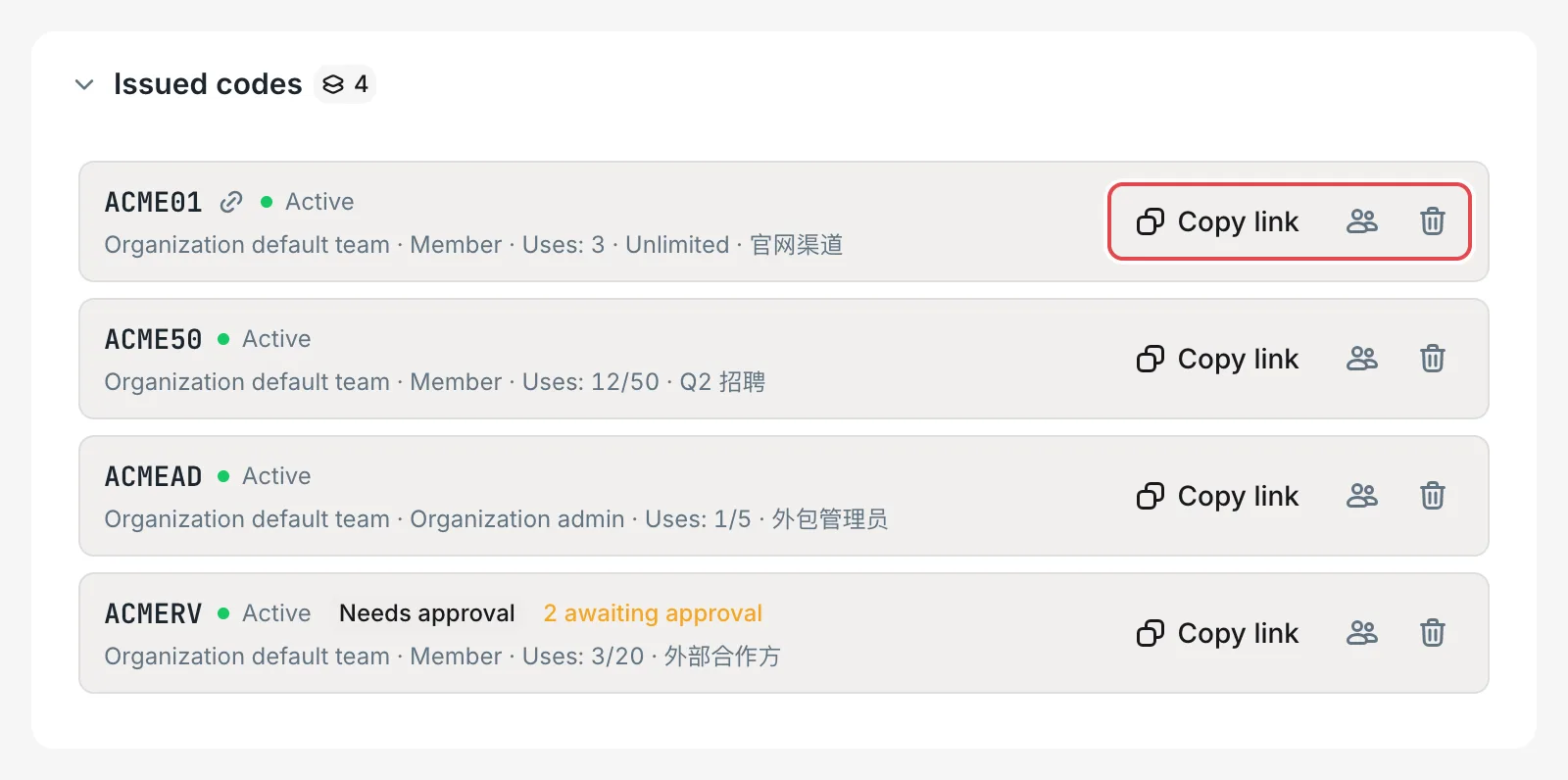 Issued codes: copy link and revokeCCHP
Approve join requests#
When approval is required, redeeming an invite code only submits a join request, and the request takes up one use. There are two ways to turn on approval:
- For a single invite code: Turn on Require admin approval after redeem when you create it.
- For the whole organization: Go to Org management → Org Management and open your organization. In Join approval in the Invite codes section, turn on Require admin approval for every invite code, and click the Save button that then appears. While it is on, all invite codes of the organization (including those created before you turned it on) require approval after redemption. After you turn it off, requests that were already submitted still need to be handled.
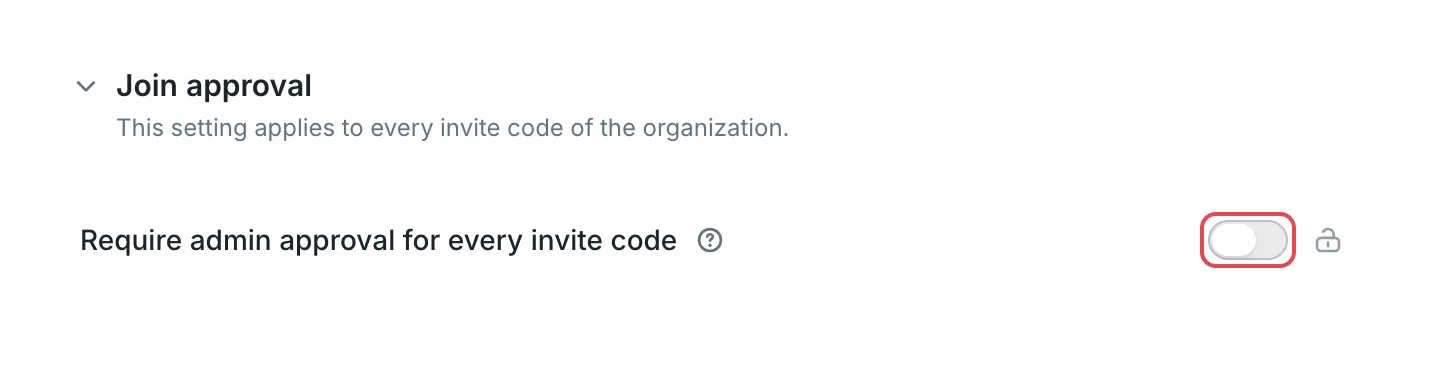 Organization details: require approval for every invite codeCCHP
To handle requests:
- On the Invite codes page, open the Join requests section. This section appears only when there are invite codes that require approval. By default, it lists the requests that are Awaiting approval. Switch to All to see requests that have already been handled.
- Click Approve. Or click Reject, fill in Reason (optional) if needed, and then click Reject in the confirmation dialog.
Result: After approval, the applicant joins the organization and joins the team that the invite code specifies, or the default team at that time. After rejection, the applicant does not join the organization and cannot apply again with the same invite code, and the use that the request took up is returned to the invite code. Applicants can see the outcome and the rejection reason in their own My join requests.
Join requests for invite codes that grant Organization admin can be handled only by a platform super admin or the organization super admin of this organization.
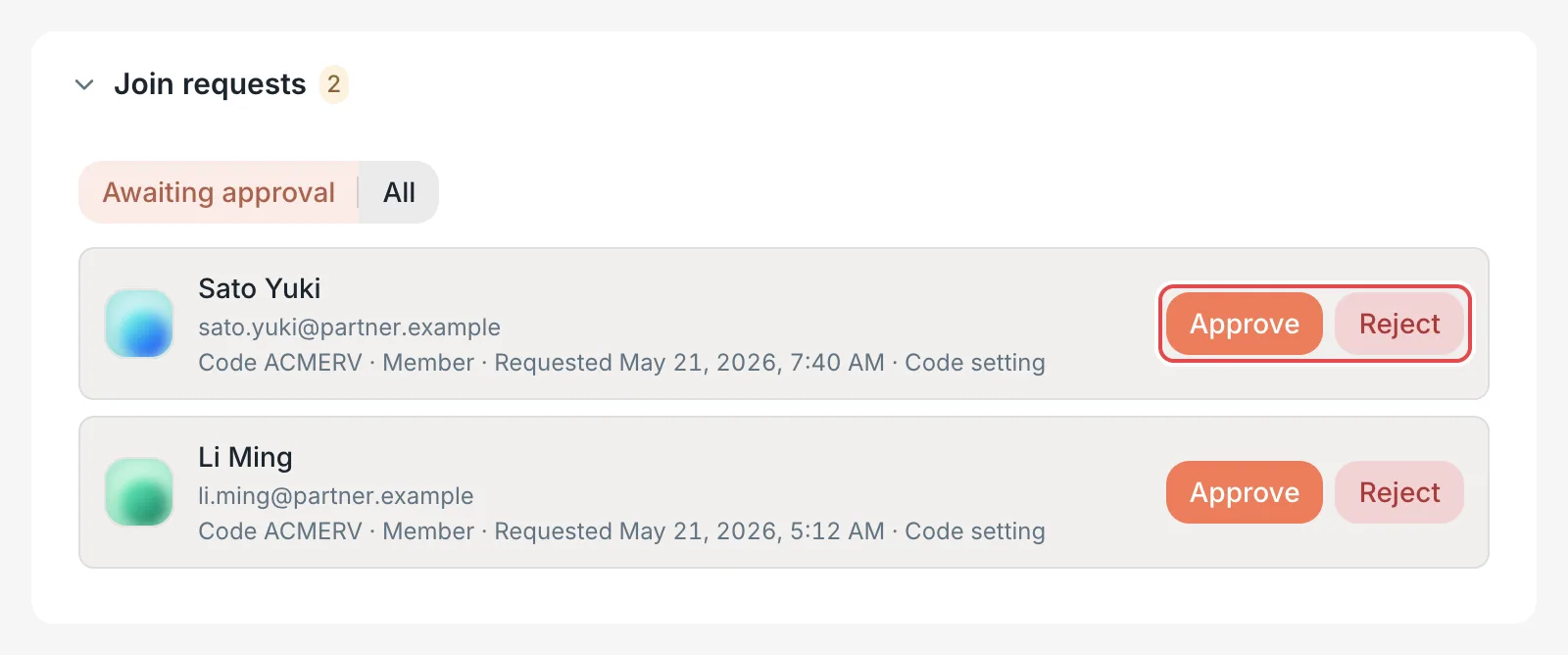 Join requests: approve and rejectCCHP
Transfer redeemed users to another team#
In Issued codes, click an invite code or View redemptions to see the users who joined through it and when they redeemed it. Select users (or click Select all), choose a team in Transfer to team, and click the button such as Transfer 3 (the number is how many users you selected).
Result: The selected users join the target team and leave their previous team. If some users fail to transfer, they stay selected, and you can click transfer again.
Revoke an invite code#
In Issued codes, click Revoke invite code on the row of the invite code, and then click Revoke invite code again in the confirmation dialog.
Result: The status of the invite code changes to Disabled. Neither the invite code nor its sign-up link can be used to join the organization anymore, and its join requests awaiting approval are withdrawn too. Members who already joined through it are not affected. You cannot restore a revoked code. Generate a new invite code when you need one.
How users use invite codes#
New users: sign up through an invitation link#
- Open the link that the admin sent, for example
https://cchp.example.com/register?invite=ABC123. - Enter your Email and click Continue. Then enter the Email code and Display name, set a password if you want, and click Create account.
Result: After sign-up, the invite code is redeemed automatically and you join the organization. If the invite code requires approval, the page says that your join request has been submitted, and you join the organization only after an admin approves it.
The invite code is kept in this browser for 24 hours: it is still there after you switch from sign-up to sign-in, use third-party sign-in or enterprise SSO, or complete two-step verification. After you sign in, the console first opens the organization selection page to redeem the code, and then returns to the page you were on.
Users who already have an account#
If you open an invitation link while signed in, the page goes to the organization selection page, where you redeem the code. You can also enter the invite code by hand:
- After you sign in, go to Account & Security → Orgs & teams.
- In Join an organization, enter the 6-character invite code, and click Join with code.
Result: The new organization appears in Orgs and teams I belong to. Click the organization name on the left of the top bar to switch to it. If approval is required, the request status appears in My join requests on the same page.
Users who have not joined any organization yet see the Join an organization page right after they sign in, and can enter the invite code there.
After redemption, a background task creates the membership, usually within a few seconds. Meanwhile, the page for users without an organization shows that joining is in progress; once it finishes, the console enters the new organization by itself, with no page refresh needed, and other tabs in the same browser update too. For users who already have an organization, the new organization appears in the organization switcher and the current organization stays the same. When joining fails, the page states the reason and offers a way to redeem again; when the wait times out, the page offers a retry. While an invitation join is in progress, the user is not added to the default organization automatically.
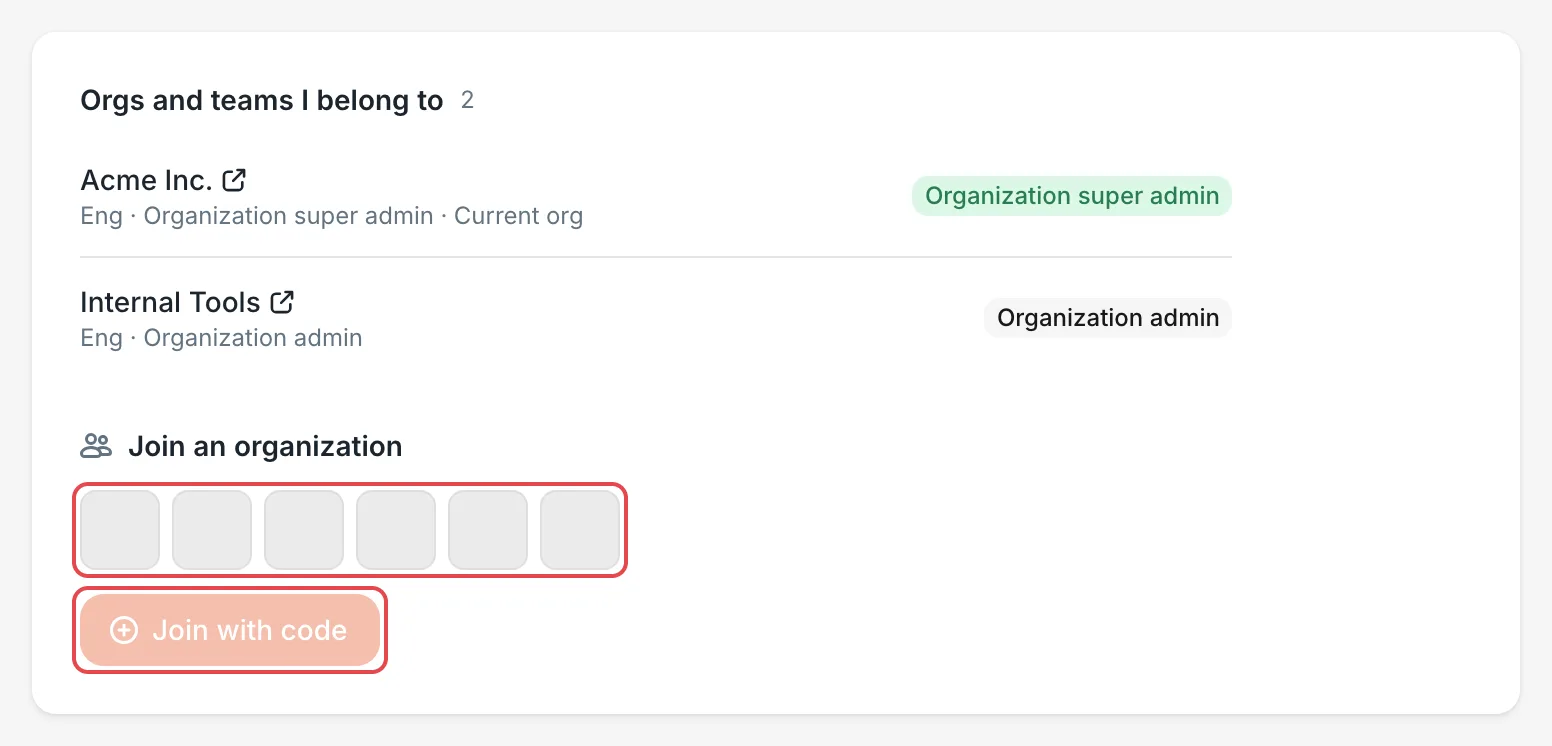 Account & Security: join an organization with an invite codeCCHP
Frequently asked questions#
Redeeming says that the invite code is disabled or has no uses left#
The invite code has been revoked, its team has been deleted, or it has reached its Max uses. Ask an admin for a new invite code.
After joining with a team invite code, the user is still in their previous team#
The user was already a member of this organization before redeeming the code. Existing members who redeem an invite code keep their previous team and role. An admin can adjust this with Transfer to team in the redemption records, or add the user to the new team in Manage teams.
Can I apply again after my join request is rejected?#
Not with the same invite code. Contact an admin for a new invite code.
A new user cannot sign up after opening the invitation link#
When the site has not opened sign-up, an invitation link with an invite code still shows the sign-up form. Check each of these:
- The page shows Registration is closed: the link you opened has no invite code. Make sure the link is complete and ends with
?invite=and the 6-character invite code. - Submitting says that the invite code is disabled, expired, or used up: ask an admin for a new invite code.
- The page says that this site has no email service configured yet: sign-up needs to send an email verification code to the new user, so first configure the email service in Administration → System Management → Transactional email.
If you do not want the person to sign up, a platform super admin can create an account for them in Manage users.