Chapter 3310 min read
System announcements
Platform super admins create, schedule, edit, and delete system announcements, email selected users when an announcement is published, and view read stats. Users read announcements in the sign-in popup, the top bar notifications, and the announcements page.
System announcements are notices that a platform super admin sends to all users on the platform, for example about scheduled maintenance or newly listed models. An announcement is shown to every user on the platform during the time window you set, regardless of organization or team. When you publish it, you can also send an email to selected users at the same time.
This page has two parts: Manage announcements is for platform super admins, and How users see announcements explains what regular users see in the console.
Before you begin#
- Only platform super admins can manage announcements, in Administration → Operations Settings → Announcements.
- An announcement itself can’t be shown to only some users. To notify only some users, use Email push to choose recipients.
- To send emails, first set up an outgoing mail server in Administration → System Management → Transactional email.
Manage announcements#
Open the announcement list#
Go to Administration → Operations Settings, and select Announcements on the left. The Announcements tab at the top of the page is selected by default.
The list is sorted by priority from high to low. Each row shows the title, display status, display time window, type, priority (for example P100), and Read stats. There are three display statuses:
- Scheduled: The display start time hasn’t arrived yet.
- Active: Users are seeing this announcement now.
- Expired: The display end time has passed, and users no longer see it.
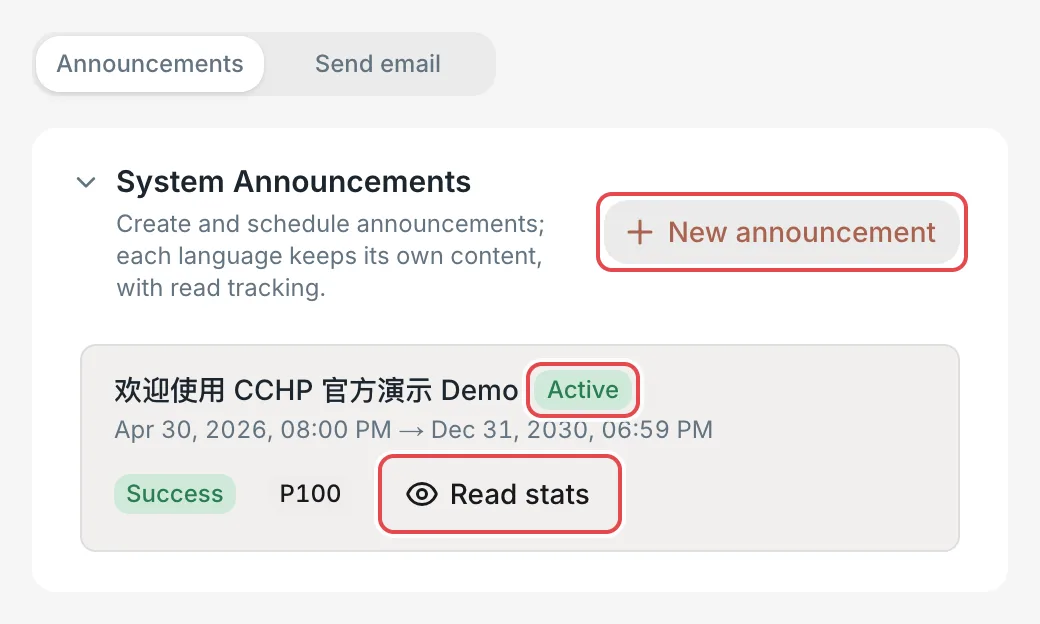 Announcements: the announcement list and the New announcement button
 CCHP
CCHP
Fill in the announcement#
Click New announcement, and fill in the New announcement dialog:
- Times are precise to the minute, and you enter them in the time zone the console displays. To clear a selected time, delete all the digits in the date field with the Backspace key. Show until must be later than Show from.
- 简体中文 (marked with
*) is the default language, and its title and body are required. Other languages are optional. If you fill one in, fill in both the title and the body. Users see the version that matches their UI language, and when there’s no version in that language, they see the Simplified Chinese version. - Body supports Markdown and some HTML. Unsafe content such as
script,iframe, and forms is removed when you save. Preview below the body shows what users will see.
For example, to publish an announcement about newly listed models, enter New models: claude-opus-5-5 and gpt-6.1-sol in Title, and enter this in Body:
## New models available

Starting today, you can view and call the following models in **Models & Pricing**:

- `claude-opus-5-5`
- `gpt-6.1-sol`

See the Models & Pricing page for prices.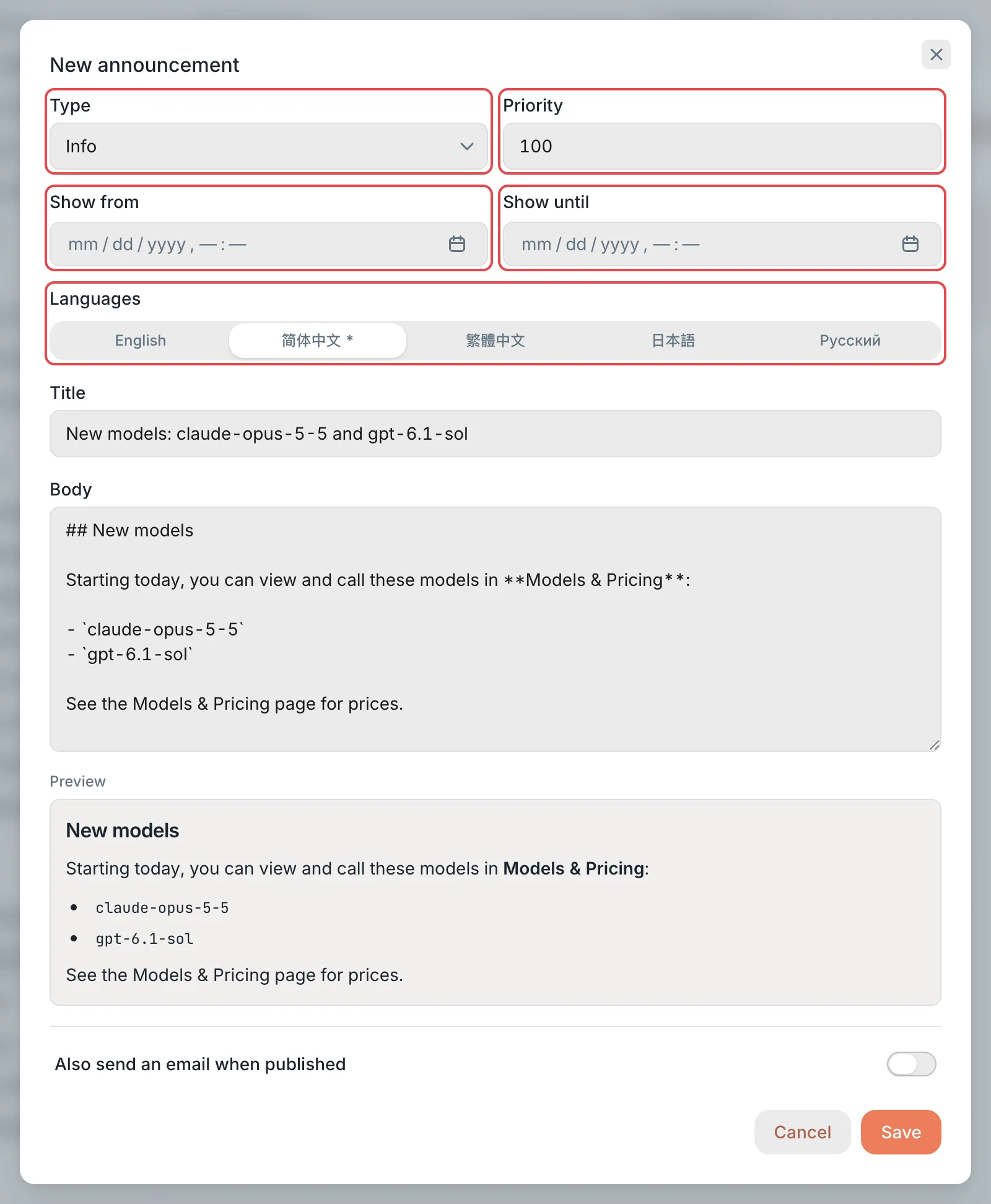 New announcement: type, times, and bodyCCHP
Set up email push (optional)#
To send an email at the same time, turn on Also send an email when published, and then choose the recipients and the template:
- All users: Sends to every user on the platform. When it’s on, the four options below are hidden.
- Users, User tags, Teams, and Organizations: When All users is off, select at least one. The recipients are the combined set of the selected users, the organization members with the selected tags, the members of the selected teams, and the members of the selected organizations. You set member tags in Manage users.
- Email template: System announcement by default, which sends the announcement’s title and body. Marketing uses the marketing email template and isn’t sent to users who turned off product updates. For the content of both templates, see Email content.
When all four options show All, nothing has been selected yet, which isn’t the same as all users.
Emails go only to users who are active, have an email address, and have joined at least one organization. The recipients are fixed when you save. When Show from is a future time, the email is sent at that time. Otherwise, it’s sent right after you save.
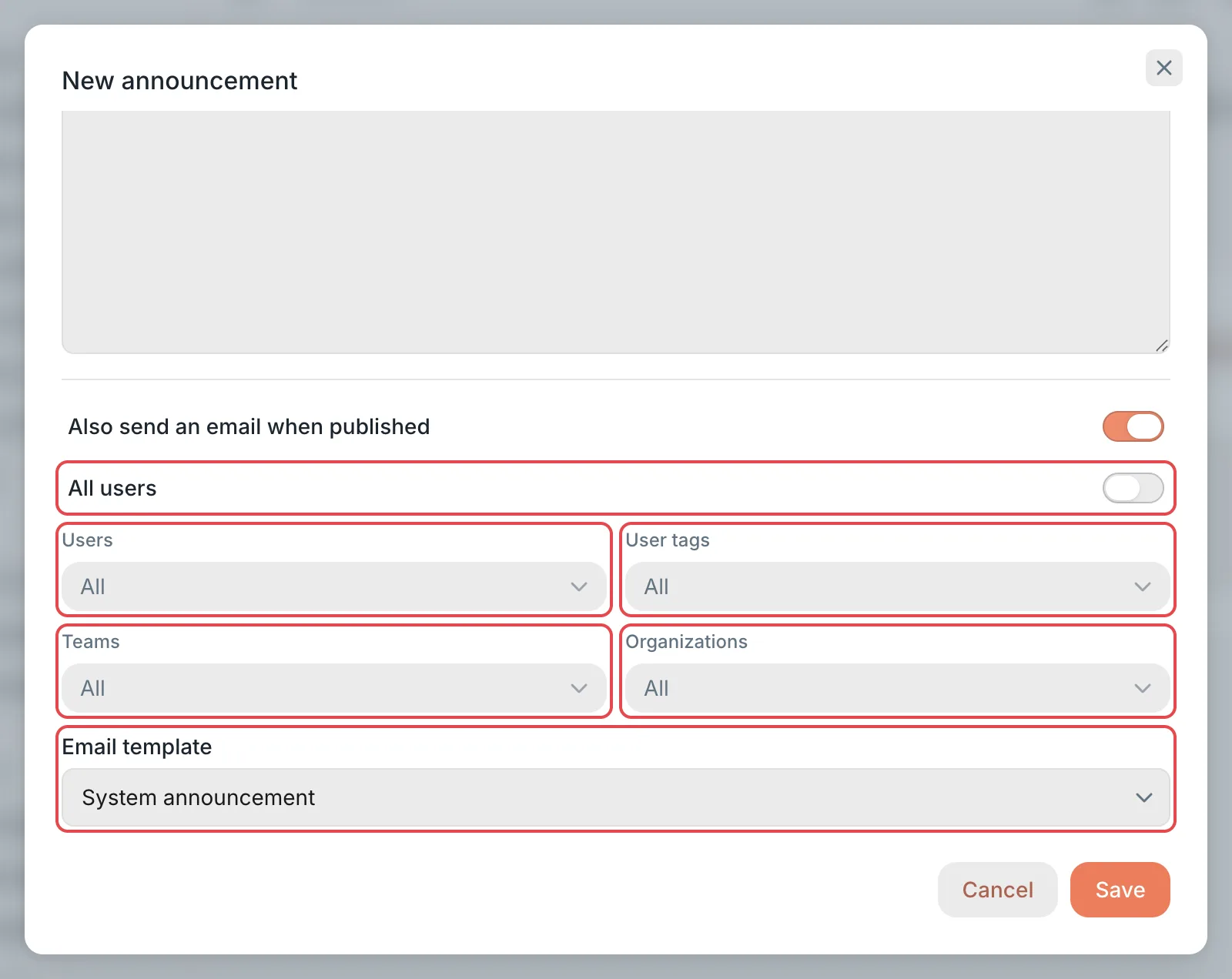 New announcement: email push recipients and templateCCHP
Save#
Click Save.
Result: The announcement appears in the list. When Show from is blank or has arrived, the status is Active, and users see the sign-in popup the next time they open the console. If email push is on, the email is sent at the time from the previous step.
Email content#
- Each recipient gets the language version that matches Language in their Preferences. When there’s no version in that language, the Simplified Chinese version is used.
- System announcement template: The email subject is “System announcement”, and the email contains the announcement’s title and body. The body appears as plain text in the email: Markdown symbols appear as is, and line breaks aren’t kept. For announcements that you email, keep the body to short plain text where you can.
- Marketing template: By default, it contains only fixed campaign copy and a button that opens the console, without the announcement’s title and body.
- You can edit both templates: go to Administration → System Management → Transactional email, and in Operations and announcements under Emails and templates, click Edit template for System announcement or Marketing. In the template, use
{{ .Announcement.Title }}and{{ .Announcement.Body }}to insert the announcement’s title and body. - If you turn off the toggle for System announcement or Marketing in the same place, emails that use that template are no longer sent.
Edit, end early, and delete announcements#
Edit: Hover over the announcement row, click the edit icon that appears, make your changes in the Edit announcement dialog, and then click Save. Changes take effect for users right away. Users who have already read this announcement don’t see the popup again. Email push is handled as follows:
- If the email hasn’t been sent yet, it’s rescheduled with the updated recipients, template, and time.
- If the email is already being sent or has been sent, it isn’t sent again.
- If you turn off Also send an email when published, emails that haven’t been sent yet are canceled along with it.
To end the display early, change Show until to the current time or earlier, and then save. The announcement status changes to Expired, and users no longer see it. To show it again, clear Show until or change it to a future time.
Delete: Click the more actions icon at the end of the announcement row, select Delete announcement, and then click Delete announcement again in the confirmation box.
Warning: You can’t restore an announcement after you delete it. Users no longer see it, its read records are cleared, and push emails that haven’t been sent yet are canceled too. Emails already sent can’t be recalled.
View read stats#
Click Read stats in the announcement row.
Result: A panel opens that shows “M of N users have read this.” and lists the users who have read it, by the time they read it. The button’s label also changes to this sentence. The total is the number of all active users on the platform.
An announcement counts as read when a user clicks Mark as read or View full announcement in the sign-in popup, or opens the announcement details page. Just closing the popup doesn’t count as read.
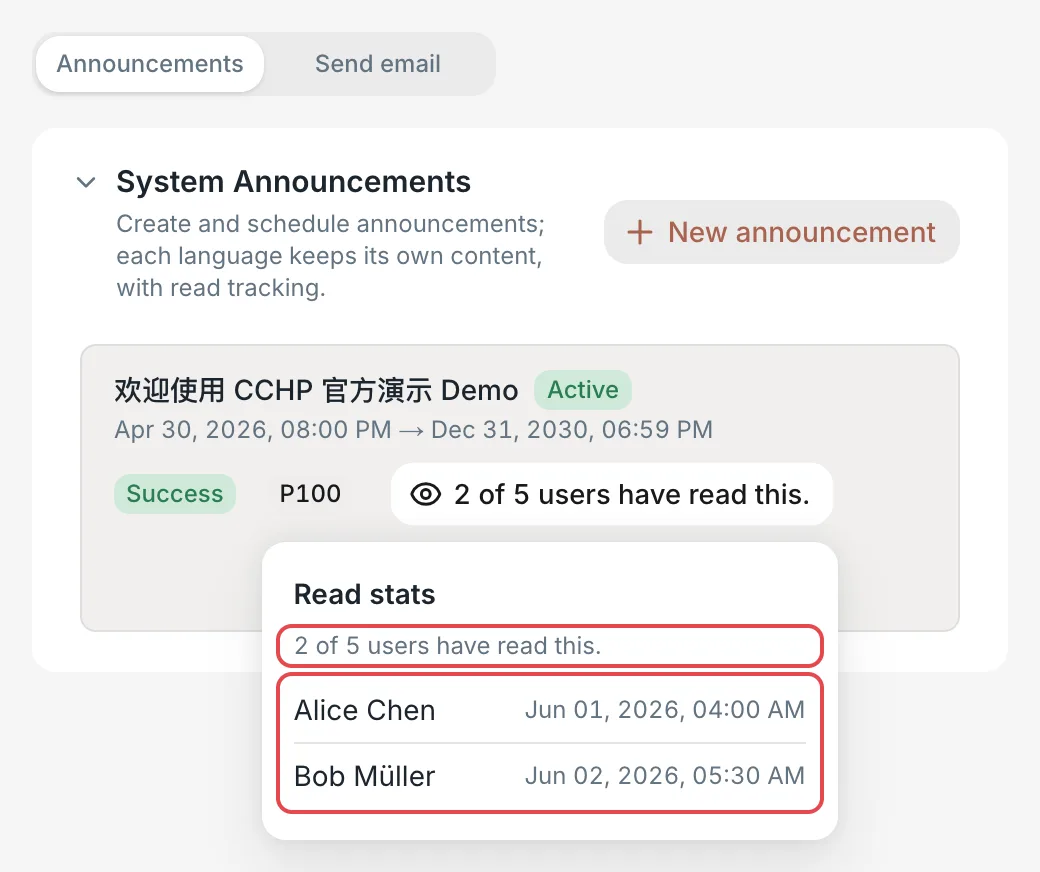 Announcements: the read stats panelCCHP
Send an email on its own#
To send just an email without publishing an announcement, switch to Send email at the top of the page:
- In Recipients, turn on All users, or select at least one of Users, User tags, Teams, and Organizations. The rules are the same as for Email push.
- In Template, select System announcement or Marketing.
- Leave Send time blank to send right away, or select a future time to send on schedule.
- Click Send.
You can’t enter a subject or body here. The email content comes entirely from the selected template. Before you send, edit the template and write the content you want to send, as described in Email content. After you change the template, announcement email push also uses the new content.
Announcements at the bottom of the page lists emails sent on their own and announcement push emails, with their status, number of recipients, and send time. When the status is Scheduled, click Cancel to cancel the email. When no outgoing mail server is set up, the top of the page shows Outgoing mail server isn’t set up, and the Send button is unavailable.
How users see announcements#
Sign-in popup#
When a user opens the console and there are active, unread announcements, the one with the highest priority pops up, showing the type, title, publish time, and body. The publish time is Show from, or the announcement’s creation time when that isn’t set.
- Mark as read: Closes the popup and marks the announcement as read. If there are other unread announcements, the next one pops up right away.
- View full announcement: Marks the announcement as read and opens the announcement details page.
- Clicking the close button in the upper-right corner, pressing
Esc, or clicking outside the popup: Closes it only this time. This doesn’t count as read, and the popup appears again the next time the user opens the console.
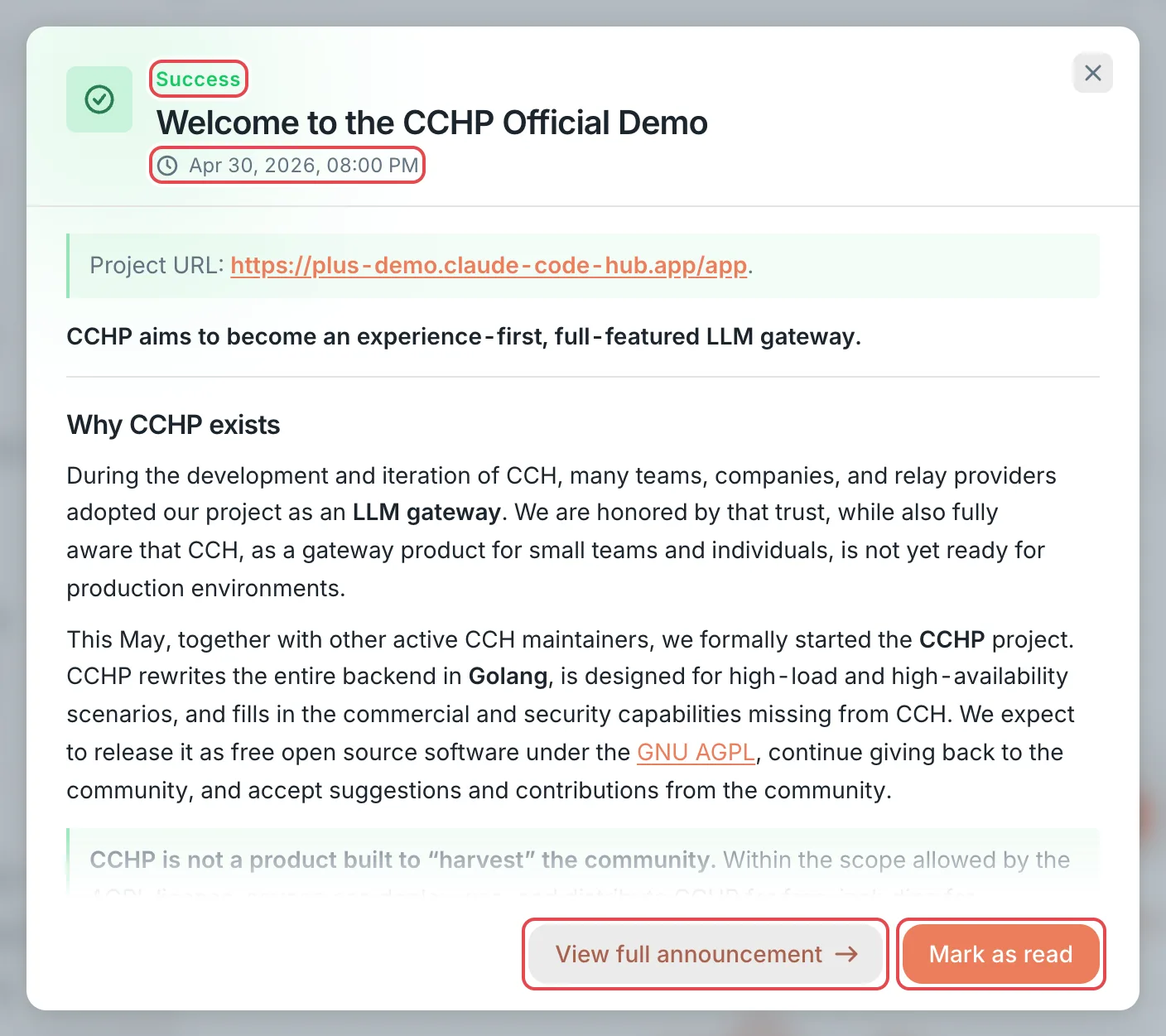 Sign-in popup: an unread announcementCCHP
Top bar notifications#
The Notifications button in the upper-right corner of the top bar shows a red dot when there are unread announcements or unread personal notifications. When the user clicks it, System Announcements in the lower half of the panel lists read announcements with a summary of their body, and clicking one opens its details page. Unread announcements don’t appear here. Users read them in the sign-in popup or on the announcements page. When there are more than 3 read announcements, View all appears at the bottom, and clicking it opens the Announcements page.
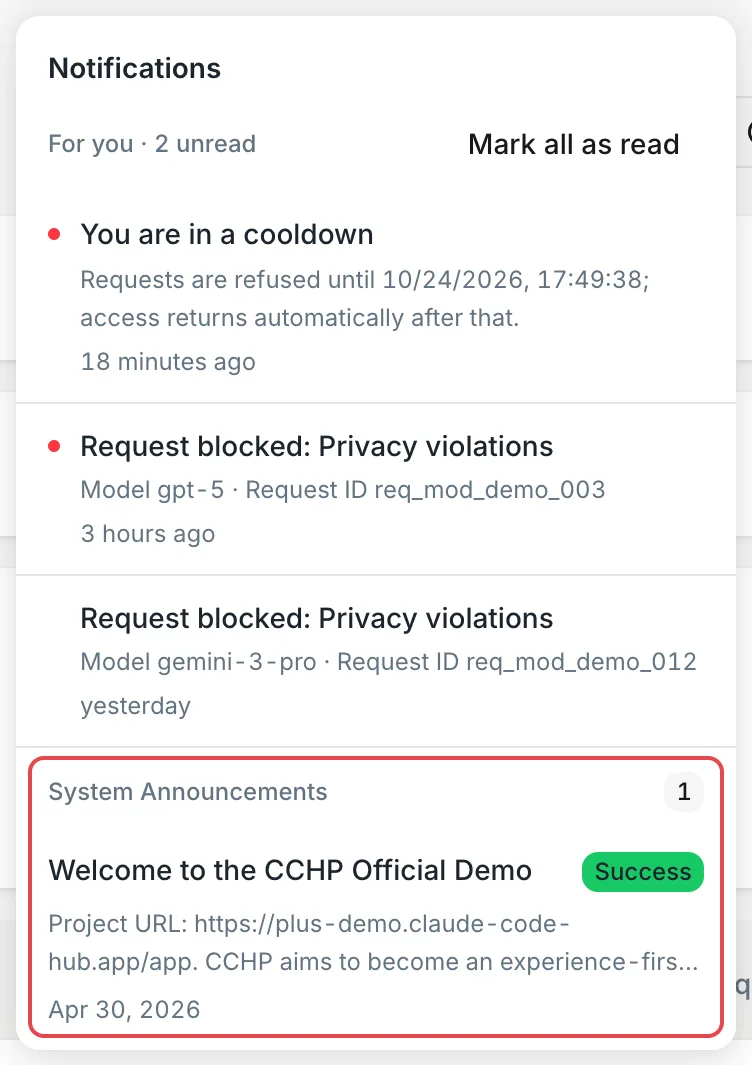 Top bar notifications: read system announcementsCCHP
Announcements page and Account Center#
- The Announcements page lists all active announcements, 10 per page, with higher priority first. Click one, or click View full announcement, to open its details page. Opening the details page marks the announcement as read.
- In the Notifications card of Account Center, switch to System to see the same announcements. Unread ones carry a dot. Click View all to open the Announcements page.
- Announcements are shown in the version that matches the user’s UI language, and they change when the user switches languages.
- After an announcement stops being shown or is deleted, it disappears from all of these places. Opening its old details page link shows This announcement does not exist or is no longer available.
When an admin has turned on email push and the user is among the recipients, the user also receives an email. For its content, see Email content.
Frequently asked questions#
Saving an announcement shows “This site can’t send email right now. Ask an administrator to set up the outgoing mail server.”#
Also send an email when published is on, but the recipients’ organizations have no usable outgoing mail server. In this case, the announcement isn’t saved either. Set up an outgoing mail server in Administration → System Management → Transactional email and save again, or turn off email push and then save.
Saving shows “No recipients are selected, or nobody in the selected audience can receive it. Adjust the recipients.”#
None of the selected recipients can receive email: the users are suspended, have no email address, or haven’t joined any organization. With the Marketing template, it may also be that all selected users turned off product updates. Adjust the recipients, or turn on All users instead.
What if a user says they didn’t see the sign-in popup?#
Check these in order:
- Whether the announcement status is Active. Scheduled and Expired announcements don’t pop up.
- Whether the user has already read this announcement. Read announcements don’t pop up again, and the user can find them in Notifications in the top bar.
- Whether there are unread announcements with a higher priority. The popup shows only one at a time, and the user sees the next one only after reading the previous one.
- When you test as a platform super admin, pages whose address starts with
/admin, such as Operations Settings and System Management, don’t show the announcement popup. It pops up only after you open another page.