Chapter 2410 min read
Set up login providers
Set the registration toggle, two-step verification, and session lengths, add GitHub, Google, Linux.do, or custom OIDC third-party sign-in to the login page, and learn about human verification and Enterprise SSO.
This page is for platform super admins and explains how to decide which methods users can use to sign in to CCHP. Sign-in settings are in Administration → Sign-in Methods in the sidebar. This page covers two of its tabs: Sign-in policy and Login providers.
The login page offers these sign-in methods:
- Email and password: always available.
- Email verification code: available when email delivery is configured and Sign-in code in System Management → Transactional email is on.
- Passkey: available after a user adds a passkey in Account & Security.
- Third-party sign-in: buttons such as “Continue with GitHub”, which you add in Login providers. See Add third-party sign-in.
- Enterprise SSO: configured by each organization’s admins and shown only on that organization’s login page. See Enterprise SSO.
Set the sign-in policy#
Go to Administration → Sign-in Methods. The page opens on the Sign-in policy tab by default. After you make changes, click Save at the bottom of the page, and click Confirm in the Confirm submit dialog.
Scope at the top right of the page defaults to Global, which applies to the whole platform. Select Organization and choose an organization to give it its own settings, but they can only be stricter than the global ones: session lengths can only be shorter, and when two-step verification is required globally, an organization can’t turn it off.
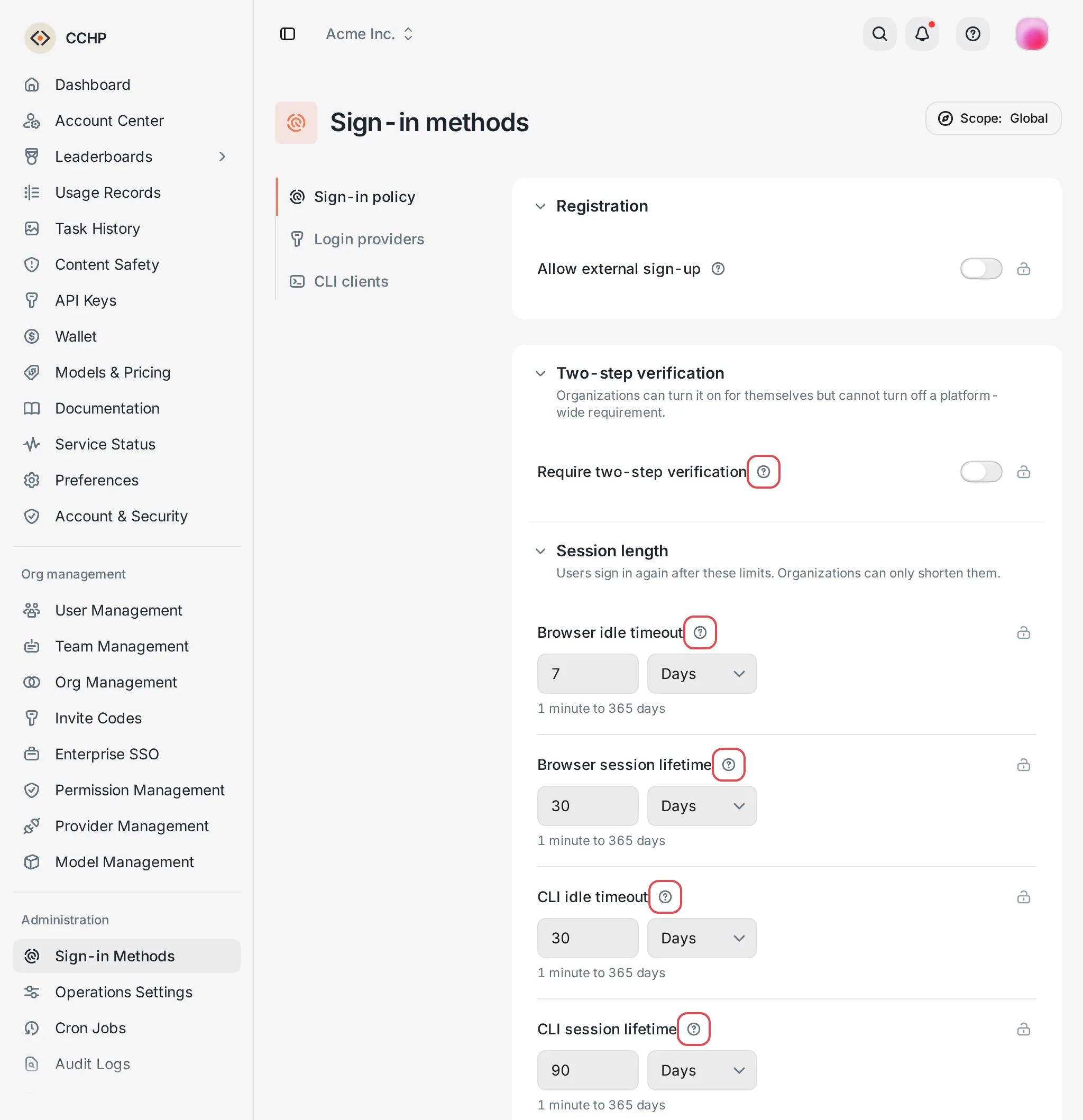 Sign-in policy: two-step verification and session length
 CCHP
CCHP
Registration#
Allow external sign-up is off by default and can be changed only in the Global scope. When it’s on, new users can sign up on the login page themselves. Configure email delivery before you turn it on. For the steps and which organization new users join, see Turn on registration.
This toggle also decides whether third-party sign-in and Enterprise SSO can create new accounts: when it’s off, people without an account can’t sign in for the first time with a third-party account or Enterprise SSO, unless they hold a valid invite code or an invitation email sent to that address. See Which organization a new user joins. Users who already have an account are not affected.
Two-step verification#
Require two-step verification is off by default. When it’s on, users must complete two-step verification before they access organization resources. Users who haven’t set up a second factor must add a passkey or set up an authenticator after they sign in before they can keep using the console. In an organization that requires two-step verification, members can no longer use Sign in with management token to enter the console.
Warning: If you haven’t set up two-step verification yourself, you also have to add a passkey or set up an authenticator after you save before you can keep using the console. The confirmation dialog reminds you of this before you save.
Session length#
Users have to sign in again after a session passes any of these limits:
You can set each one from 1 minute to 365 days, in minutes, hours, or days. Don’t set the idle timeout of a session type longer than its lifetime.
LinuxDo sign-in#
LinuxDo minimum trust level defaults to Any, and you can choose level 1 to 4. After you set it in the Global scope, Linux.do accounts below this trust level can’t sign in. Linux.do accounts that aren’t activated or that are silenced can never sign in.
Add third-party sign-in#
CCHP supports four platforms: GitHub, Google, Linux.do, and Custom. Custom connects other identity providers that support OpenID Connect (OIDC). For the extra fields, see Add a custom OIDC provider.
The steps below use GitHub as an example.
Create an OAuth app on the third-party platform#
Create an OAuth app on the third-party platform, and note its Client ID and Client Secret:
- GitHub: Create an OAuth App. See the GitHub docs.
- Google: Create an OAuth client of the Web application type. See the Google docs.
- Linux.do: Create an app in Linux.do Connect.
You get the CCHP callback URL only in step 4. If the third-party platform requires a callback URL now, enter the console URL https://cchp.example.com for now, and change it in step 4.
Open the add form#
Go to Administration → Sign-in Methods, click the Login providers tab, and then click Add login method.
Fill in the form and create the provider#
- Platform: Select GitHub. You can’t change it after you create the provider.
- Display name: The login button reads “Continue with” followed by this name. For example, enter
GitHub. - Client ID and Client secret: Enter the values you noted in step 1. The client secret is stored encrypted and isn’t shown again.
- OAuth scopes: Keep the default value that is filled in automatically.
Click Create.
Result: The new provider appears in the list with Show on login page turned off, so it doesn’t appear on the login page yet.
Register the callback URL#
Hover over the provider’s row, click the more actions button that appears on the right, and select Copy callback URL. The callback URL has this format:
https://cchp.example.com/api/auth/oauth/<provider ID>/callbackCCHP generates <provider ID> automatically when you create the provider. Go back to the third-party platform, and paste this URL exactly as it is into the OAuth app’s callback URL (also called the redirect URI or the Authorization callback URL).
The callback URL is built from the console’s public URL CCH_PUBLIC_BASE_URL. If you change the console’s domain later, update the callback URL on the third-party platform too.
Show the provider on the login page#
Turn on the Show on login page toggle on the provider’s row, click Save at the bottom of the page, and click Confirm in the confirmation dialog.
Result: The login page shows a “Continue with GitHub” button.
Test sign-in#
On the provider’s row, click the more actions button, select Test login, and click Test login in the dialog. The test runs through the real sign-in flow in the current browser, just as when a user clicks the button on the login page. We recommend that you first link your own third-party account in Account & Security → Linked accounts, and then test with that account.
Within one scope, only one provider of each platform can be shown on the login page: when you turn on Show on login page for one provider, the other providers of the same platform are turned off automatically. All Custom providers count as the same platform.
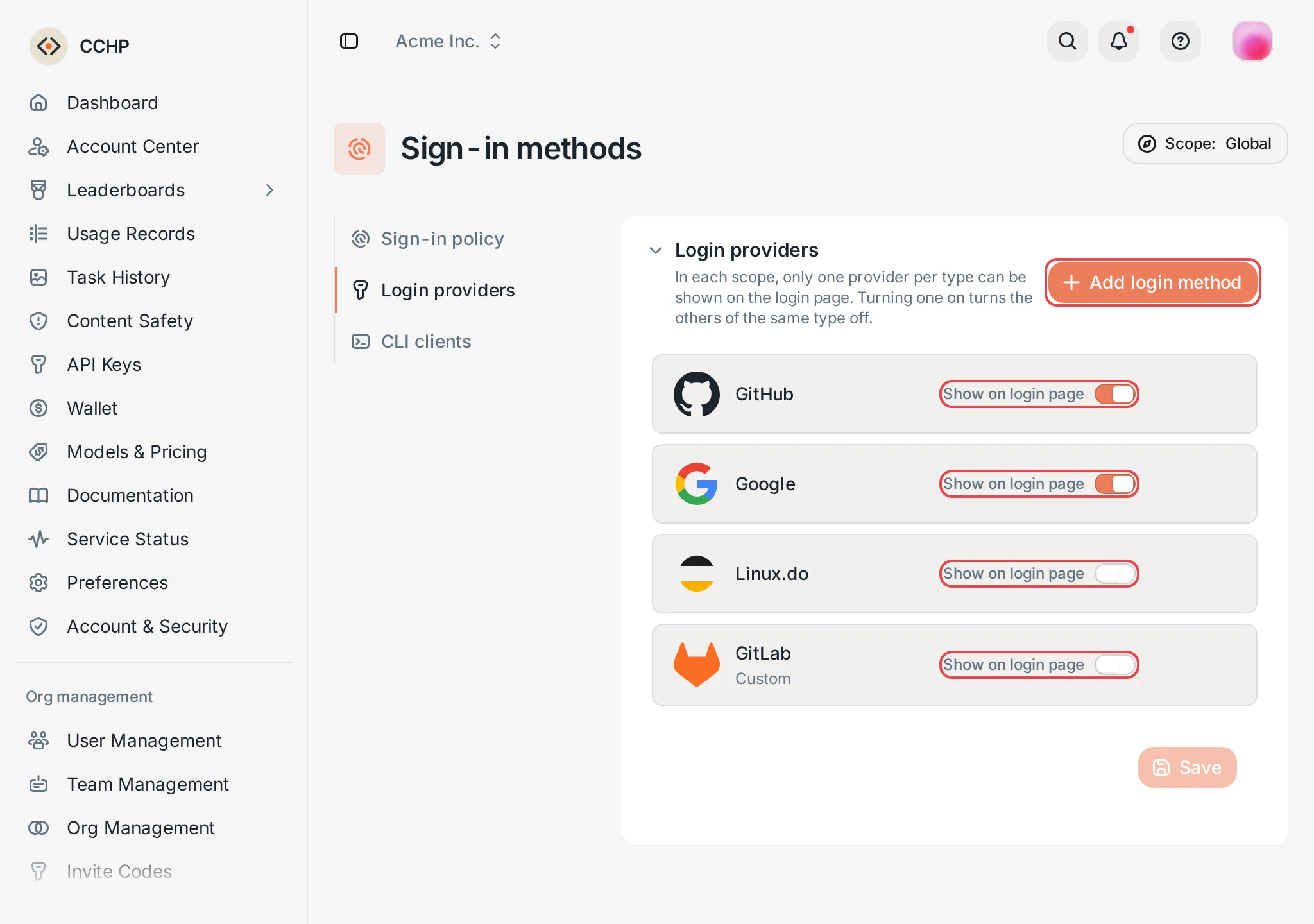 Login providers: the provider list and the show togglesCCHP
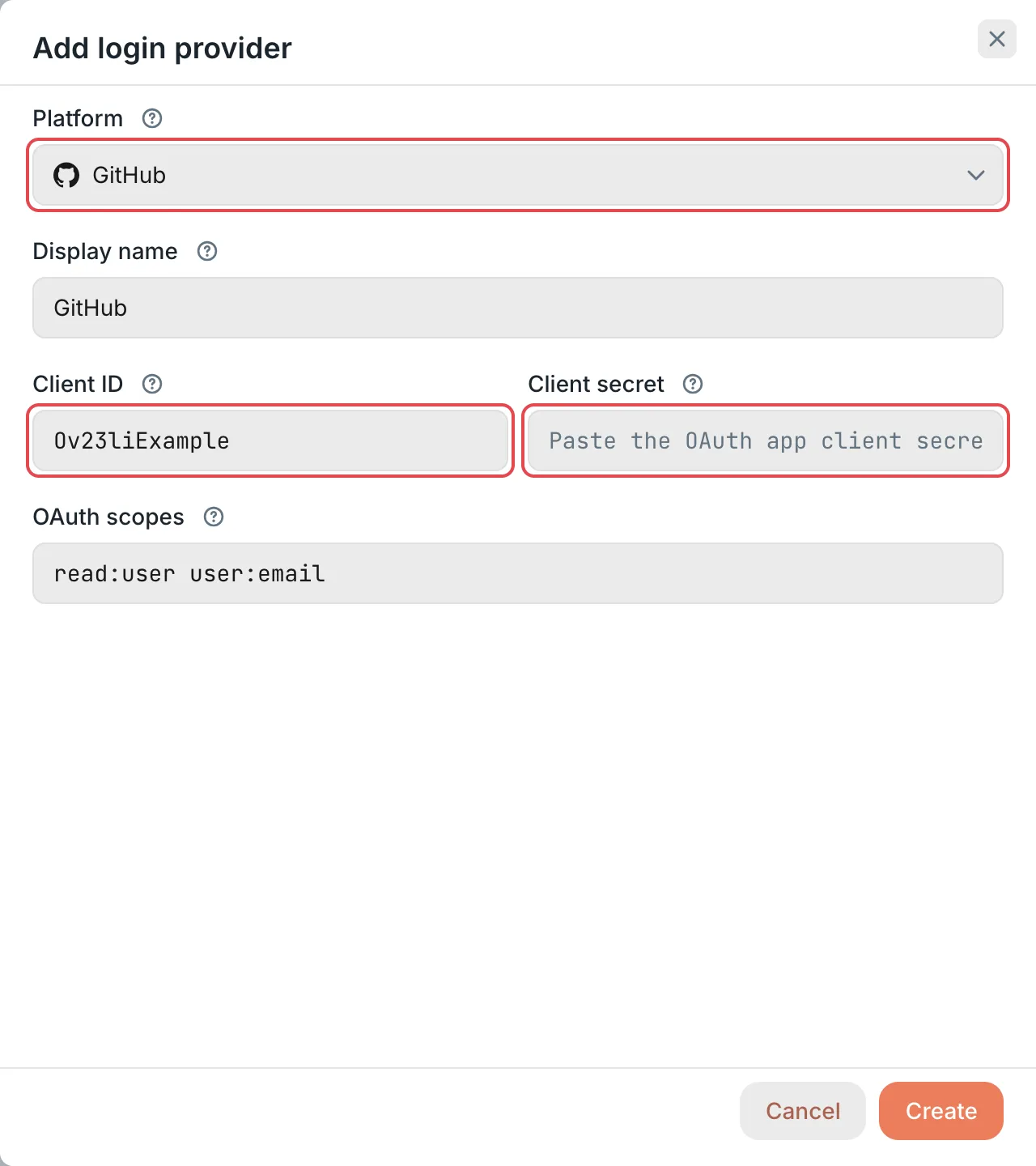 New login provider: the GitHub platformCCHP
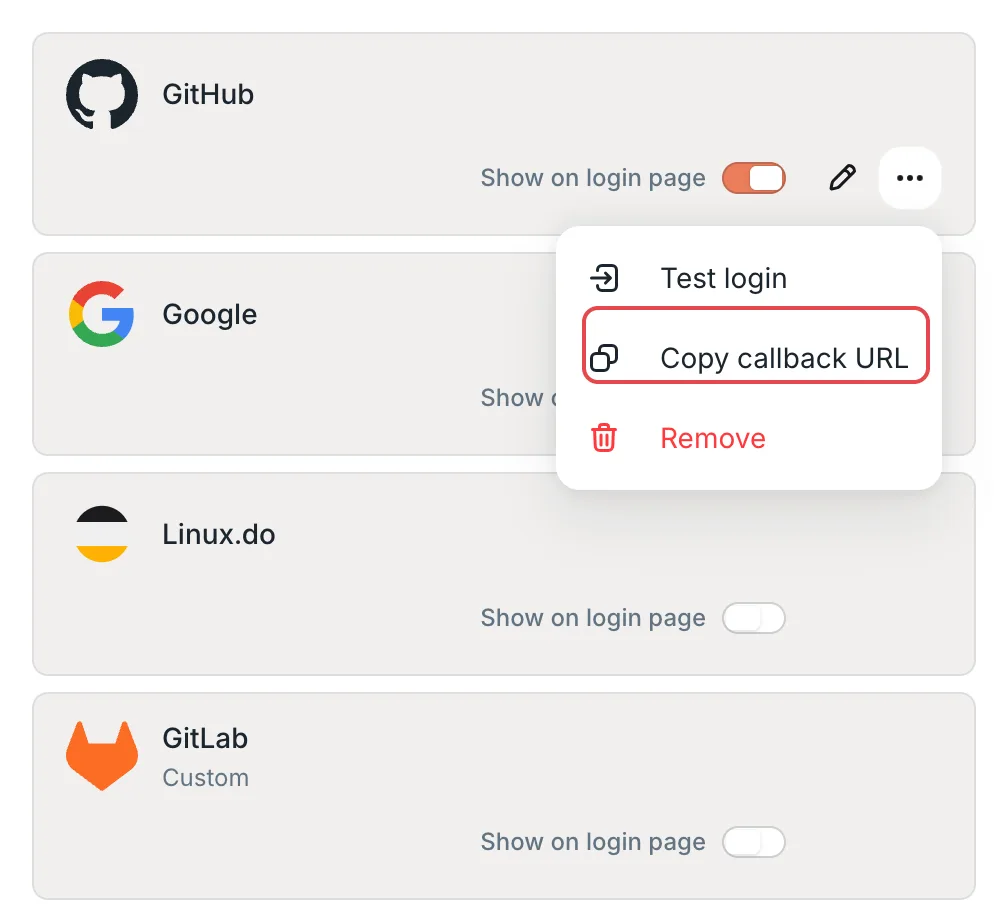 More actions menu: Copy callback URLCCHP
Add a custom OIDC provider#
Select Custom in Platform to connect identity providers that support OIDC, such as Keycloak and Authentik. When you create the app in the identity provider, choose the Web application type with a client secret. In addition to the fields in the previous section, fill in these fields:
- Icon URL (light): Required. The URL of the icon on the login button. Icon URL (dark) is optional and is used in the dark theme.
- Issuer URL: Required, and it must start with
https://. CCHP reads the identity provider’s endpoints from<Issuer URL>/.well-known/openid-configuration. - Authorization endpoint, Token endpoint, and User info endpoint: Leave them blank, and CCHP uses the endpoints it reads automatically. If you fill them in, they must exactly match the endpoints that the identity provider publishes, or users can’t sign in.
- Name field and Email field: The names of the matching fields in the user profile. When left blank, they are
nameandemail. - Email verified field: The field that shows whether the identity provider has verified the email, with a value of
trueorfalse. When left blank, it’semail_verified. It’s required when Email field isn’temail. If the email isn’t verified, the user confirms it with an email verification code on the first sign-in.
You can leave OAuth scopes blank. CCHP always requests openid, profile, and email.
The identity provider’s URLs must use HTTPS, and its domain must resolve to a public IP address: an identity provider whose domain resolves to a private address (for example 10.0.0.0/8 or 192.168.0.0/16) can’t be used for sign-in.
Configure an organization or team separately#
On the Login providers tab, you can set Scope at the top right of the page to Global, Organization, or Team. After you select an organization or team, the Show on login page toggles in the list apply only to that scope. A scope without its own settings uses the next level up (team → organization → global).
Separate settings take effect only on the domains bound to that organization or team: users who open the login page from a domain bound to it in System Management → Domains see its settings, and users who open the login page from a domain that isn’t bound to any organization or team see the global settings.
Provider details such as the name and credentials are shared across all scopes: whichever scope you edit them in, you change the same provider.
Edit or remove a login provider#
- Edit: Hover over the provider’s row and click the edit button that appears. You can’t change Platform. Leave Client secret blank to keep its current value.
- Remove: Click the more actions button, select Remove, and click Remove in the confirmation dialog. CCHP stops accepting new sign-ins through this provider, and existing user accounts are kept. Users who signed in only with this third-party account then have to sign in with an email verification code, or reset their password and sign in with it.
Human verification#
Sign-in, sign-up, sending verification codes, and similar actions require human verification by default. They use the built-in Cap verification, which needs no extra configuration. To switch to a cloud provider such as Cloudflare Turnstile or hCaptcha, or to change the verification method for an action, go to Administration → System Management → Human Verification.
Enterprise SSO#
Enterprise SSO lets an organization’s members sign in with their company’s identity provider (OIDC or SAML). The organization admins of that organization add connectors in Org Management → Enterprise SSO. It isn’t set up in Sign-in Methods. The Enterprise SSO button appears only on that organization’s login page: the organization’s white-label domain, or https://cchp.example.com/login/<Slug>, where <Slug> is the organization’s Slug, for example acme. Members who sign in with Enterprise SSO for the first time join the organization automatically. As with third-party sign-in, creating an account on the first sign-in requires Allow external sign-up to be on, or the member to hold a valid invite code or invitation email.
Frequently asked questions#
A user sees “This account isn’t linked yet” when signing in#
The email of this third-party account already belongs to an account on this site, and CCHP doesn’t merge the two automatically. The message names the account after the site name. Have the user first sign in to that account with a password or an email verification code, and then click a button such as Link GitHub in Account & Security → Linked accounts to link the accounts. After that, the user can sign in with the third-party account.
A user sees “An invitation is required” when signing in#
This third-party account has no matching account, and Allow external sign-up is off. Turn on registration; or have the user first open the invitation link or invitation email from an admin and then sign in with the third-party account; or create an account for the user first. See Manage users.
A user sees “This sign-in method is unavailable” when signing in#
The provider is misconfigured, or CCHP temporarily can’t reach the identity provider. Check the following in order: whether the Client ID and Client Secret are correct; and, for a custom OIDC provider, whether its Issuer URL is reachable from the CCHP server and resolves to a public IP address, and whether the endpoints you entered match the ones that the identity provider publishes.
If the user ends up on an error page of the third-party platform and doesn’t return to CCHP, the callback URL registered on the third-party platform usually doesn’t match the URL from Copy callback URL.