Chapter 379 min read
Check service status
See the success rate, time to first token, and output speed of the most-used models in each provider group on the status page, and learn what the colors and overall status mean and what to do when the success rate drops. Platform super admins can turn off the status page or choose which groups are public.
The availability status page (page title Service Status) lists the request success rate history of the most-used models in each provider group, along with time to first token (TTFT) and output speed. Anyone can open it without signing in. The page shows only group names and model names, not providers, provider keys, or upstream URLs. The status page is on by default in new deployments.
Open the status page#
- In a browser, open the console URL followed by
/status, for examplehttps://cchp.example.com/status. - In the console sidebar, click Service Status.
- When you aren’t signed in, the home page top bar has a Status link by default.
The status page isn’t displayed inside the console frame. Click Open console in the top-right corner of the page to go back to the console. When the status page is turned off, Service Status doesn’t appear in the sidebar, Status doesn’t appear in the home page top bar, and visiting /status returns 404.
Read the status page#
The top of the page has the success rate color legend and the History window switch. You can choose 24 hours or 72 hours, and the default is 24 hours.
Overall status#
The card below the legend shows the overall status, the success rate, Requests, Time to first token, and Output speed. Updated on the right is the time the data was generated. The overview page counts requests across all groups, and each request is counted only once. A group page counts only that group.
The overall status is based on the success rate. Each band includes its lower bound but not its upper bound:
Success rates on groups, models, and signal bars use the same colors.
After you sign in, two charts also appear below the card: Live request rate (RPM) and Live token rate (TPM). They show the platform-wide request and token counts for the last minute and refresh every 2 seconds. Visitors who aren’t signed in don’t see these two charts.
Groups and models#
Each provider group has its own card. The card title shows the group name, the group’s success rate, and the number of models. Click Group page on the right to open a page that contains only this group, at /status/<group tag>.
The card has one row per model, and the model name is the name clients put in their requests. By default, each group lists the 15 models with the most requests in the last 24 hours. Each row shows the model’s Success rate, Requests, Time to first token, and Output speed over the selected window, with a row of signal bars below:
- Each signal bar represents a time slot: one bar every 30 minutes under 24 hours, and one bar every 2 hours under 72 hours. The rightmost bar includes the current time.
- Each bar is colored by the success rate of its time slot, using the same rules as the table above. Gray means there were no requests in that time slot.
- Hover over a signal bar (tap it on a phone) to see that time slot’s success rate, time to first token, output speed, and request count.
How each metric is calculated:
- Success rate: The share of requests that reached the model and succeeded. Client errors (for example, invalid request parameters), canceled requests, requests rejected by the gateway (for example, for insufficient balance or a reached limit), and requests internal to tasks aren’t counted.
- Time to first token: The average time for successful streaming requests to receive the first content block, in ms.
- Output speed: The average output speed of successful streaming requests that generated for long enough, in tokens per second.
- Requests: The number of requests that reached the model.
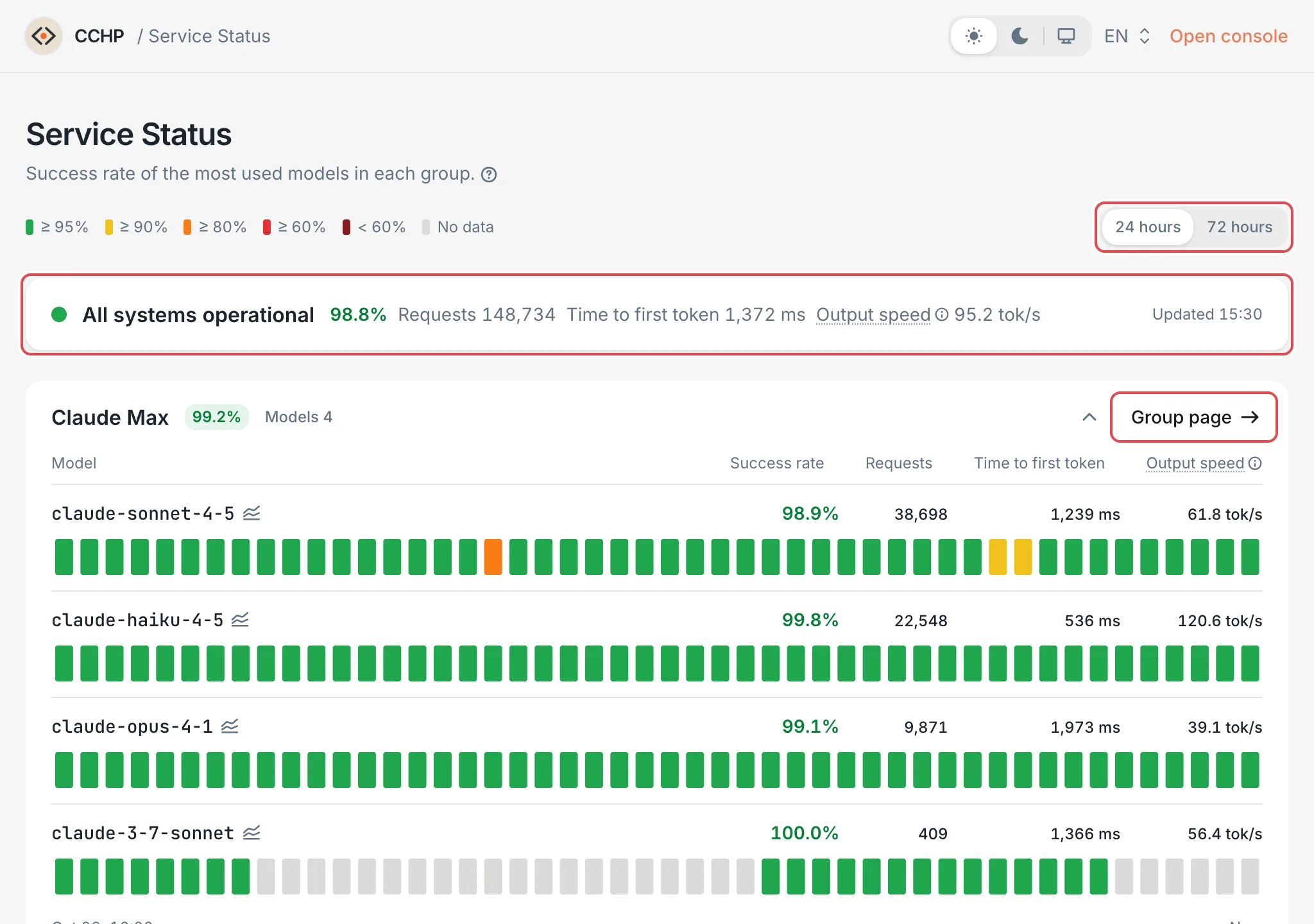 Service Status: the overall status and group cards
 CCHP
CCHP
View a model’s performance history#
Click a model name to open the model’s performance panel (it slides in from the right on wide screens and from the bottom on phones). The top of the panel summarizes the selected time range: the status and success rate, Requests, Time to first token p50, and Output speed p50. Below that are history charts of time to first token, output speed, and success rate:
- Time range: Choose 6 hours, 24 hours, or 7 days. The default is 24 hours.
- Percentile: Choose p50, p90, or p99. pX means X% of requests do better than this value. For example, a time to first token p90 of 2 seconds means that 90% of requests have a time to first token of 2 seconds or less.
- Distribution: On by default. In the time to first token and output speed charts, the shaded area shows the range from p10 to p90.
- Log scale: Off by default. When it is on, the time to first token chart uses a logarithmic vertical axis.
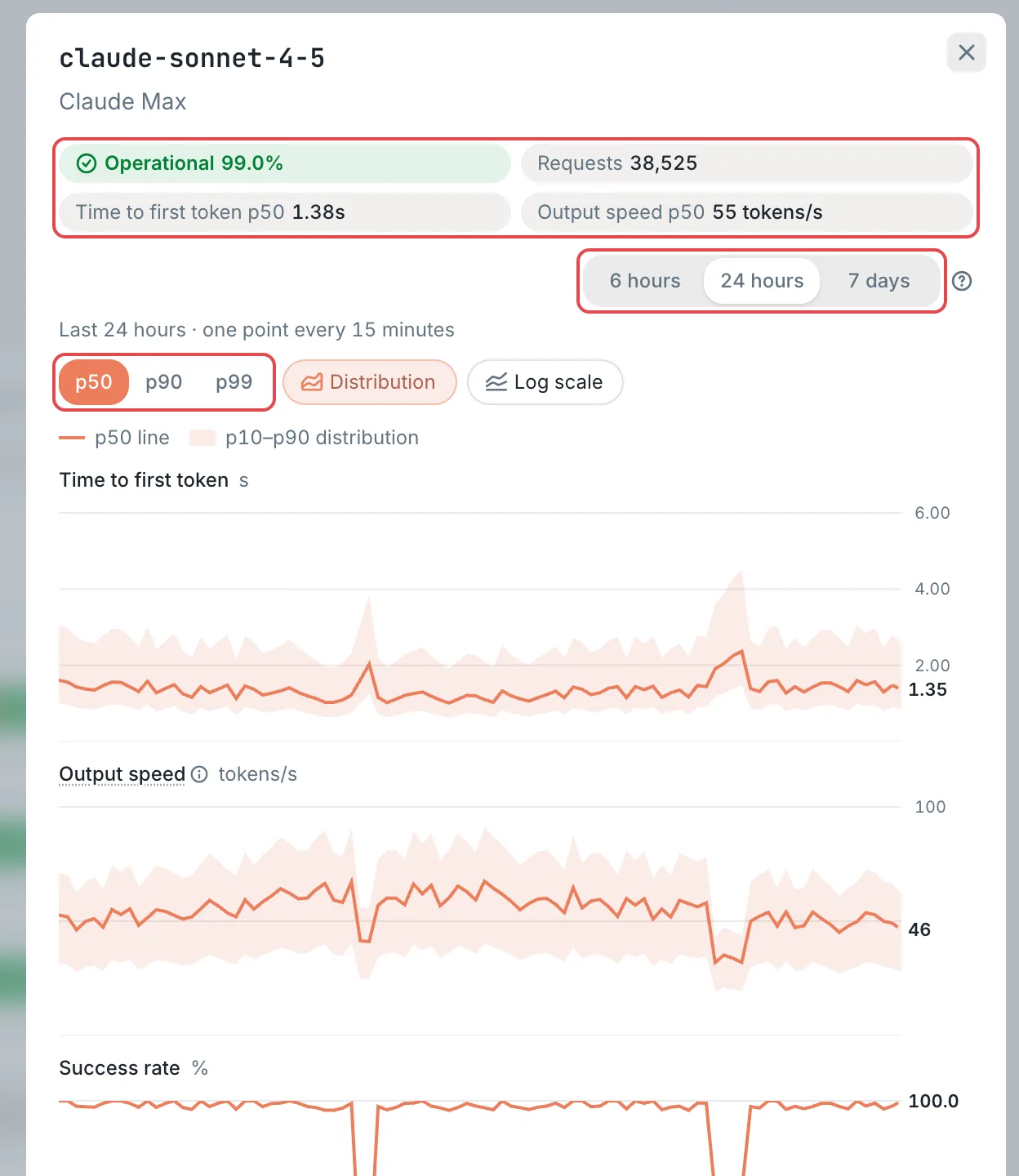 Model performance panel: the summary, time range, and percentileCCHP
What to do when the success rate drops#
The status page counts requests from all users. When a group or model turns yellow or red, work through these steps in order:
- In Call Records, check whether your recent requests failed. When your LLM key includes several groups and one group fails, the gateway switches to the next group, so your request doesn’t necessarily fail. The earlier group’s success rate on the status page still drops, though.
- If your requests are actually affected, open this key’s Settings in API Keys, set the routing strategy to Pinned groups, and drag a healthy group to the first position in Attempt order. You can also switch to another model whose status is normal. Different groups can have different billing multipliers. See Provider groups and your final price.
- If all the groups you can use are unhealthy, or the problem persists, contact your organization admin.
The status page doesn’t show the providers and provider keys in a group. To troubleshoot, an admin opens the group in Org management → Provider Management → Provider groups, checks the reason given in the Schedulable column on the Keys tab, and then follows Provider keys.
Turn on and configure the status page#
Prerequisite: Only a platform super admin can change the status page settings.
Open the settings page#
Go to Administration → System Management → Status Page.
Change the settings#
- Public status page: On by default. When it is off, visiting
/statusreturns 404, and Service Status in the sidebar and Status in the home page top bar no longer appear. - Public groups: The provider groups to show. Click the drop-down, search groups by name, and select them; selected groups appear as name chips that you can remove, and deleted groups are marked no such group. When none is selected, all groups with requests in the selected window are shown. When groups are selected, only those groups are shown, including groups with no requests.
- Show TTFT and TPS: On by default. When it is off, the status page shows only success rates and request counts.
- Models per group: Defaults to
15, and can be set from1to50. The status page picks the most-used models by request count over the last 24 hours.
Save#
Click Save, and then click Confirm in the Confirm submit dialog.
Result: The status page shows the new settings immediately.
Public groups and the organization shown#
The URL of a group page on the status page uses the group tag, for example claude-max in https://cchp.example.com/status/claude-max. A group’s tag is generated automatically from its name when the group is created, and it doesn’t change if you rename the group later.
The status page shows the provider groups of only one organization: the Default organization for visitors in System Management → Site → Public access. When it is left at System default organization, the platform’s default organization is used. See Default organization and invite codes. You can change this option only when Show models & pricing to visitors is on.
Live rate charts#
Live request rate (RPM) and Live token rate (TPM) are shown to all signed-in users by default. If you turn off Show system health to users who are not platform admins in the Console section of Administration → System Management → Feature flags, only platform super admins can see these two charts.
Frequently asked questions#
Why does /status return 404 with no Service Status in the sidebar?#
- The status page is turned off: a platform super admin turns on Public status page and saves.
- The Default organization for visitors has been suspended, or it is left at System default organization and the platform has removed its default organization. Reactivate that organization, or select an active organization in Default organization for visitors.
Why isn’t the group I use on the status page?#
- The status page shows only the groups of the Default organization for visitors. If you are in a different organization, the groups on the page differ from the groups you can use. To see the success rate of each group in your organization, open the model details page in Models & Pricing. See View available models.
- When no group is selected in Public groups, only groups with requests in the selected window are shown.
- When groups are selected in Public groups, only those groups are shown.
Why does the status page have no data, or why don’t my latest requests appear?#
A background job aggregates status data once a minute, so the data on the page usually lags 1 to 2 minutes behind. A new deployment has no data until requests go through a provider group. Until then, the page shows No status to show yet. For time slots marked Preparing data in the performance charts, the background job is still backfilling. Refresh in a moment.
If there is no data for a long time, a platform super admin checks in Administration → Cron Jobs that status_model_rollup is enabled and running normally. For binary or k3s / k8s installations, also make sure that the worker (background jobs) service is running.
Why does the performance panel say “The status page does not show data for this model right now”?#
This model is no longer among the most-used models for the current window, or its group is no longer shown on the status page. Each group makes public only as many models as Models per group is set to.