Chapter 1013 min read
Manage users
Invite users or create accounts directly, assign members to teams, change organization roles, set expiry dates and limits, change a member's email or password, and suspend or remove members.
User Management lists all members of the current organization. Here you can add new users to the organization and manage each member’s team, organization role, limits, LLM keys, and sign-in account. This page is for organization admins. Actions that only a platform super admin can perform are noted separately.
Open User Management#
In the sidebar, click Org management → User Management. The page shows only the members of the current organization shown in the top bar. To manage the members of another organization, first switch organizations in the top bar. Organization super admins, organization admins, and platform super admins can open this page. Users with the Member role and team admins do not see this menu item.
On the list page, you can:
- Search by username, email, LLM key name, or key prefix in the search box. Filter by Team, Status, or Tag, or change the sort order.
- Click the expand button on the left of a user’s row to see that member’s LLM keys in this organization.
- Use the Enabled toggle to suspend or restore a member. See Suspend, restore, and remove members.
- See the sum of the wallet balances of all members in this organization in Member wallets total. Each member has one wallet in each organization.
- See the invitations that you have sent and that have not been accepted yet, and when each one expires, in Pending invitations at the bottom of the page.
Click a username or the Open detail icon at the end of a row to open the user details page. The left side of the details page is the section navigation, and you do each task below in the matching section.
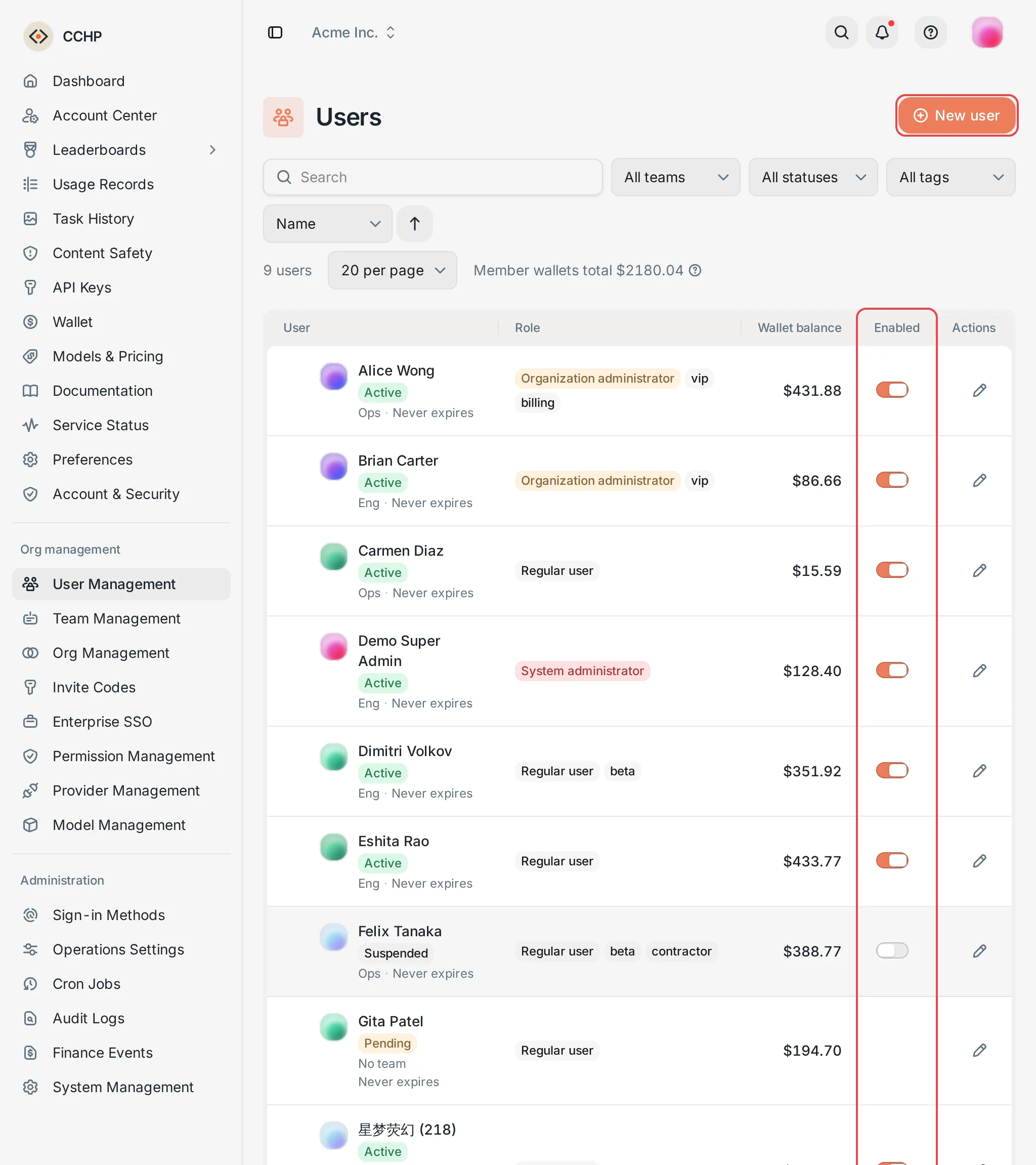 User Management: the member list and the Enabled toggle
 CCHP
CCHP
Add users#
There are two ways:
- Invite by email: Generate an invitation link for the person’s email address. They join the organization after they accept it with their own account. Organization admins use this method.
- Create account: Create an account with a temporary password directly and add it to the organization, without relying on an email service. Only platform super admins can use it.
To let a batch of users join on their own with the same code, or join a specific team directly, use invite codes. See Default organization and invite codes.
Invite a user#
Open the add dialog#
In the upper-right corner of the User Management page, click New user. A platform super admin keeps Invite by email selected at the top of the dialog.
Fill in the invitee#
Enter the Name and Email, and click Create. The invitation is for the current organization shown in the top bar. To invite a user to another organization, first switch to that organization in the top bar.
If this site cannot send the invitation email (for example, because the outgoing mail server is not set up), the dialog shows the reason, and you can still create the invitation.
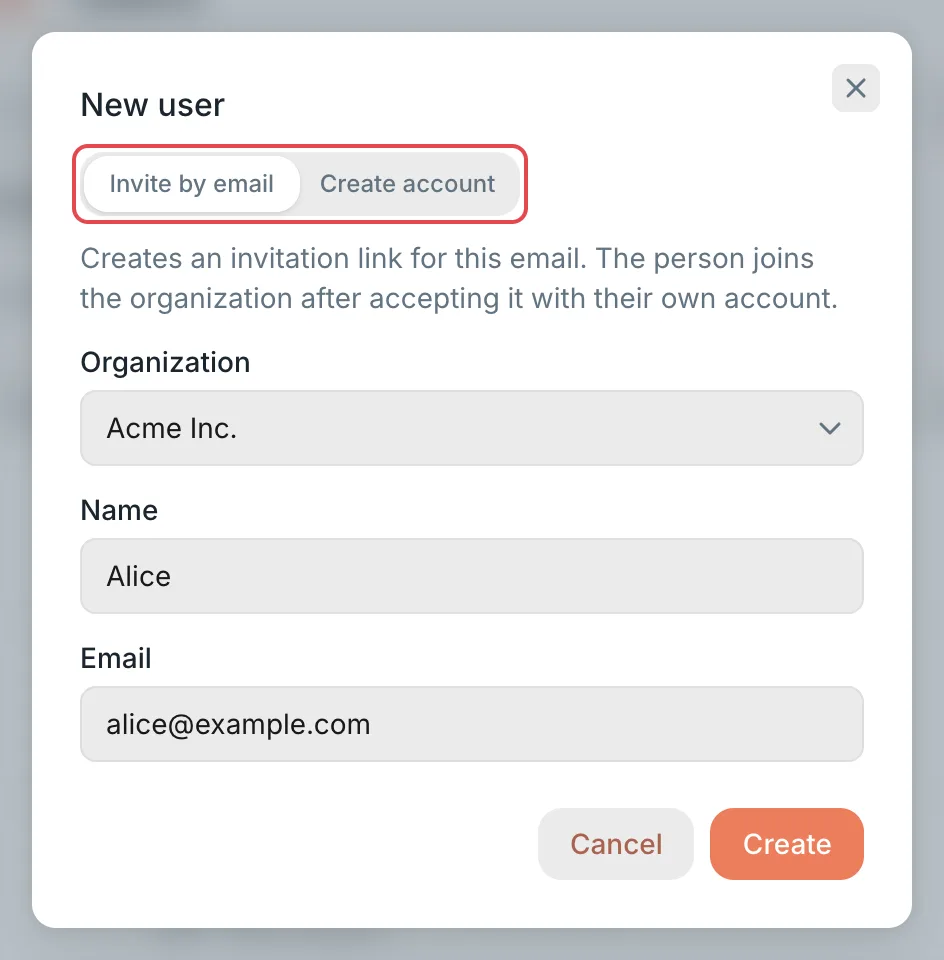 New user: Invite by emailCCHP
Give the invitation link to the invitee#
In the Copy the invitation link dialog, copy the link and send it to the invitee. The link is shown only this once, and you cannot view it again after you close the dialog.
Result: The invitation appears in Pending invitations at the bottom of the page. If the invitation email was sent, the invitee also receives an email with the same link. If the dialog shows Invitation created, but no email was sent, you have to forward the link yourself.
After accepting the invitation, the invitee joins the organization as a Member and does not belong to any team. If needed, assign them a team or change their organization role.
- The invitee must sign in with the account for the invited email address before accepting the invitation. People who do not have an account yet can click Create account on the invitation page to sign up. If this site has no email service configured, only people who already have an account can accept invitations. When sign-up is not open, invitees can still sign up with the email address that received the invitation; if they use a different address, the sign-up page explains that only the invited address can be used.
- The invitation link is valid for 7 days. If the link is lost or expires, invite the person again.
Create an account directly (platform super admins)#
Select Create account#
Click New user, and select Create account at the top of the dialog. If this site has no email service configured, this option is selected by default.
Fill in the account details#
- Name, Email: Required. You cannot create the account if another account already uses the email address.
- Organization: Shown when you manage several organizations. Defaults to the current organization in the top bar.
- Temporary password: A 16-character password is generated automatically. You can click Generate new, or enter your own password of 8 to 128 characters.
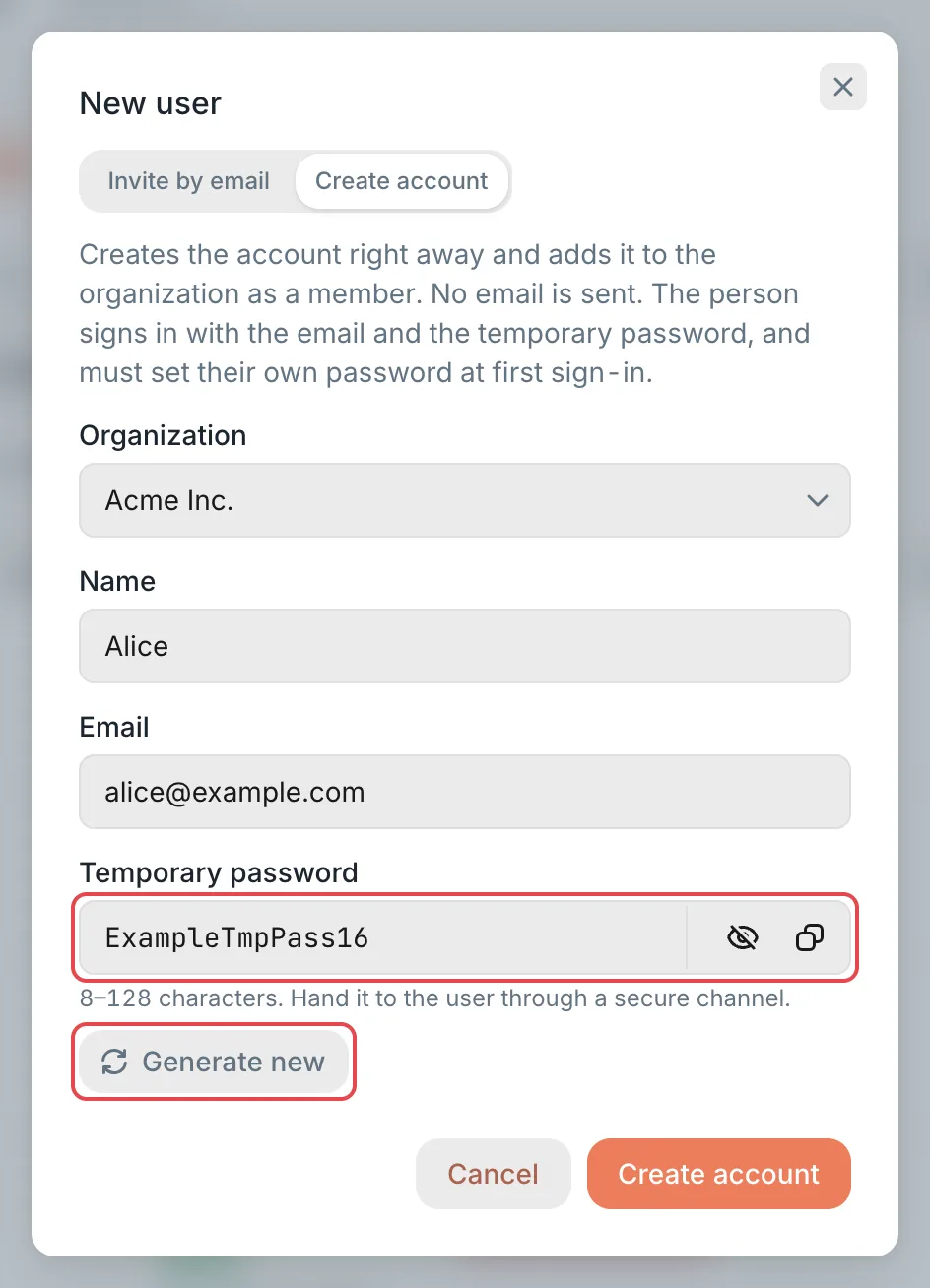 New user: Create account and the temporary passwordCCHP
Create the account and hand over the sign-in details#
Click Create account. If you signed in more than 10 minutes ago, you must verify your identity again first. In the Account created dialog, click Copy all sign-in details, give the sign-in URL, email, and temporary password to the person securely, and then click I’ve saved it.
Result: The new account joins the selected organization as a Member and joins the organization’s default team (if the organization has no teams, it joins no team). The email address is marked as verified right away, and no email is sent.
The temporary password is shown only this once. The person signs in with the email and the temporary password, and must set their own password at first sign-in. By default, the temporary password is valid for 24 hours. After it expires, reset their password in the Account security section of the user details page.
Set the expiry date, note, and tags#
In the Basic info section of the user details page, change the following fields, and then click Save at the bottom of the page. Click Discard changes to undo unsaved changes. Email, Name, and Role are read-only here.
- Expires at: After this date, the member can no longer enter this organization, and their LLM keys in this organization stop working. Clear the date for Never expires.
- Note: Shown under the user’s name in the list.
- Tags: Used to filter members by Tag in the list.
Assign or change a team#
In the Orgs & teams section of the user details page, the Current organization row shows the member’s team.
- Assign or change a team: Click Join team (if the member is not in a team yet) or Switch team. In the Switch team dialog, click Assign here on the row of the target team. The member joins as a Team member. A user can belong to only one team in the same organization, so after joining the new team, the member leaves the previous team automatically.
- Remove from the team: Click the Remove from team icon at the end of the Current organization row, or click Remove from team in the Danger zone section, and then confirm. The member stays in the organization but no longer belongs to any team.
To make a member a team admin, open the team in Manage teams and change the role on the member’s row.
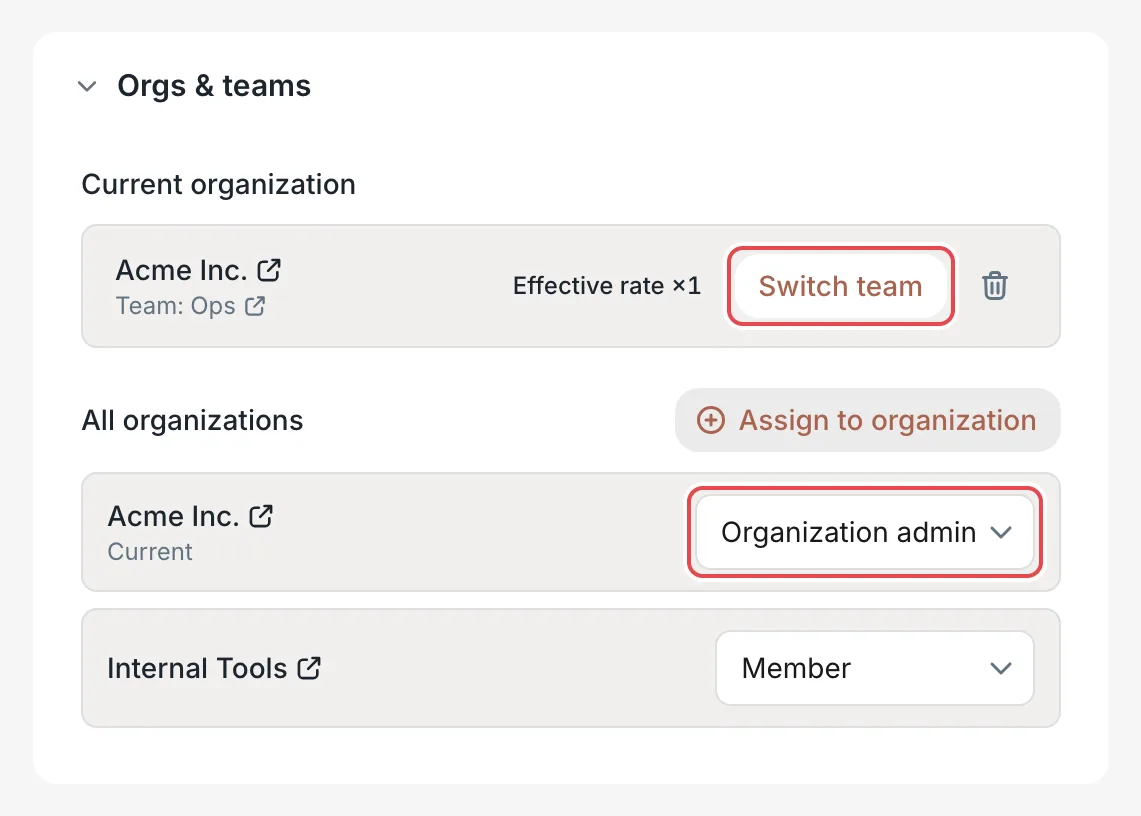 User details: the Orgs & teams sectionCCHP
Change an organization role#
In the Orgs & teams section of the user details page, All organizations lists the organizations that the user has joined and that you can see. In the dropdown on the organization’s row, select Organization admin or Member. The change takes effect after a moment.
Rules for changes:
- Your role must be higher than both the person’s current role and the new role. As a result, an organization admin cannot change the organization role of any member. Appointing or removing an organization admin requires an organization super admin or a platform super admin.
- Each organization keeps at least one organization super admin, and the last one cannot be demoted, suspended, or removed.
The Role column in the list uses the role names from Permission Management: System administrator is the organization super admin, and Regular user is a member. For what each role does, see Organizations vs. teams. For the exact permissions of a role, open that role in Org management → Permission Management and view its Permission matrix.
Set user limits#
In the Limits section of the user details page, click Add quota rule, select what to limit in Limit type, enter the Limit value, and then click Save. The limit types are Requests per minute (RPM), Concurrent sessions, 5-hour credits, Daily credits, Weekly credits, Monthly credits, and Total credits. When you no longer need a limit, delete its rule.
User limits are set by organization admins, or by the team admins of the member’s team (or a parent team). Team admins set them on the member’s row in the team details page. See Set the limits of team members.
A user limit counts only this member’s usage. It applies together with the organization’s Default limits per member, the organization and team limits, and the LLM key limits: every request is held on all levels at once, when the same item is set at several levels the smaller value applies, and a request is rejected when any level cannot take it. See Limits on every level and postpaid organizations.
Manage a member’s LLM keys#
An organization admin can create and manage a member’s LLM keys in this organization on the member’s behalf:
- Expand the user’s row in the list, and click New key at the end.
- Or work in the LLM keys section of the user details page: create keys, rename them and change settings, disable and enable, rotate, revoke, and view usage.
The creation steps are the same as when members create keys themselves. See Create an LLM key. After creation, the key’s owner can view the full key again in their own key list.
The LLM keys section appears only for members whose status is Active. Manage your own keys in API Keys. You can only view the keys of platform super admins and of members whose role is higher than yours.
Manage member billing#
In the Billing section of the user details page, you can view this member’s Wallet balance, Packages in effect, Limits, and Billing actions in this organization, and perform the following actions:
- Redeem a code: Use one redeem code to credit the member’s balance or activate a package.
- Adjust balance: Increase or decrease the member’s balance.
- Revoke a package: In Packages in effect, click Revoke on the package, and choose Refund the unused part, Refund an amount, or No refund. The refund goes back to the member’s balance, and the package stops taking effect immediately.
- Adjust limits: Increase or decrease each item one by one, set it to a specific value, or remove the member’s own limits.
Each action requires a Reason. Click Show effect to check the result before you confirm. The action is recorded in Billing actions.
Organization super admins and organization admins can use this section by default. It appears only for members whose status is Active. You can only view the billing of yourself, of platform super admins, and of members whose role is higher than yours.
Change a member’s email or password#
Organization admins: the Account section#
In the Account section of the user details page:
- Change email: In the dialog, enter the New email and click Change email. The new email cannot already be used by another account, and it is marked as verified right away when saved. The old and the new email addresses each receive an account change notice.
- Set temporary password: The confirmation dialog already has a generated temporary password. You can also click Generate new or enter your own of 8 to 128 characters, and then click Reset password. The temporary password is shown only this once. Copy it, give it to the member securely, and then click I’ve saved it. The member must change the password at the next sign-in, and all of their sessions end immediately.
You cannot change the following members’ accounts here, and the section explains why: yourself (change your own in Account & Security), platform super admins, members whose role is higher than yours, and members who also belong to other organizations (only a platform super admin can change these). When you submit, you may need to verify your identity again.
Platform super admins: the Account security section#
When a platform super admin opens another user’s details page, they see the Account security section (the Account section is not shown):
You must confirm reset and sign-out actions again. If you signed in more than 10 minutes ago, you must verify your identity again first. Manage your own account in Account & Security.
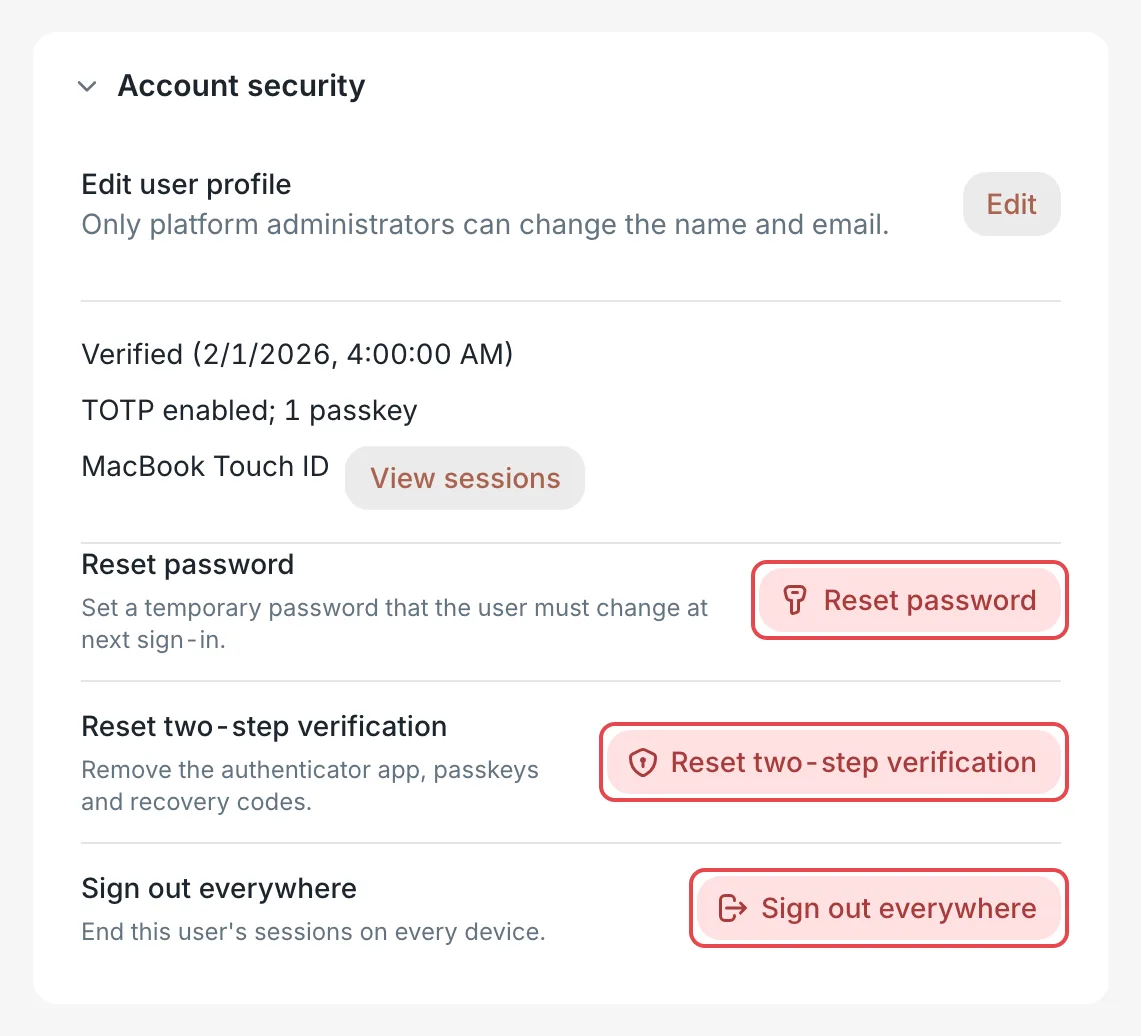 User details: the Account security sectionCCHP
Suspend, restore, and remove members#
Your role must be higher than the member’s role to suspend, restore, or remove them. Members whose status is Pending have no Enabled toggle.
Warning: Removing a member from the organization cannot be undone, and revoked LLM keys cannot be restored. If you only want to block access temporarily, suspend the member instead. To let a removed member join again, invite them again.
Frequently asked questions#
The invitee opened the link but cannot accept the invitation. What should I do?#
Make sure that the email of the account the person signed in with matches the invited email address, and that the email address is verified. The invitation link is valid for 7 days. If the link has expired or is lost, click New user in User Management to invite them again.
This site has no email service configured. How do I add users?#
Without an email service, invitees cannot sign up on their own, and invitation links work only for people who already have an account. Ask a platform super admin to select Create account in New user and create an account with a temporary password directly. Or use invite codes to let users who already have accounts join. See Default organization and invite codes.