Chapter 2312 min read
Set up payment channels
Connect payment gateways such as Stripe, Alipay, and WeChat Pay in the operations settings, configure and test the callback URLs, and let users top up and buy packages online in their wallet.
Payment channels let users top up, buy packages, and renew packages online in Wallet. Each channel connects to one payment gateway and applies to every organization on the platform. You can add several channels for the same gateway and control separately whether each one is enabled and visible to users.
Before you begin#
- Only a platform super admin can configure payment channels, in Administration → Operations Settings → Payments.
- After a user pays, the payment platform notifies CCHP through the callback URL, so this URL must be reachable from the internet. The callback URL uses the site’s public URL: the global domain if you added one in System Management → Domains, or otherwise the console’s public URL
CCH_PUBLIC_BASE_URL, for examplehttps://cchp.example.com. If you only try CCHP locally athttp://localhost:8080, the payment platform can’t call back. - Get the required credentials in the table below ready in the gateway’s merchant dashboard.
Supported gateways and required credentials#
Some gateways need extra attention:
- EPay compatible: When you choose Custom as the payment method, enter in Custom payment method the call value listed under “payment methods” in the provider’s admin panel, for example
qqpay,bank, orusdt; it is passed to the checkout astypewhen an order is placed. It can contain only letters, digits, underscores, dots, and hyphens, up to 30 characters. With EPay, this field is optional; leave it empty to let the payer choose at the checkout. - LINUX DO Credit: API base in the panel is prefilled with the official URL, and you usually don’t need to change it. Order signing defaults to Ed25519 (official API). Click Generate key pair to generate the private key, and then copy the Merchant public key that appears into “Ed25519 public key” in your LINUX DO Credit app settings. If you select MD5 (EPay compatible), you don’t need a private key.
- Alipay F2F: You can also use certificate mode. Leave Alipay public key blank, and fill in App certificate path, Alipay root certificate path, and Alipay certificate path instead. These three are file paths on the CCHP server, so the certificate files must be in a location that CCHP can read.
- WeChat Pay F2F: If you offer JSAPI, set the site’s domain as the web authorization domain of the Service Account, and add the wallet page to the JSAPI payment authorization directory. Without Service Account AppSecret, the panel shows “JSAPI payments need more settings”: if other payment methods are also offered, JSAPI payment isn’t available inside WeChat; if only JSAPI is offered, the channel can’t accept payments.
Step 1: Create a payment channel#
- Go to Administration → Operations Settings → Payments, and click New channel.
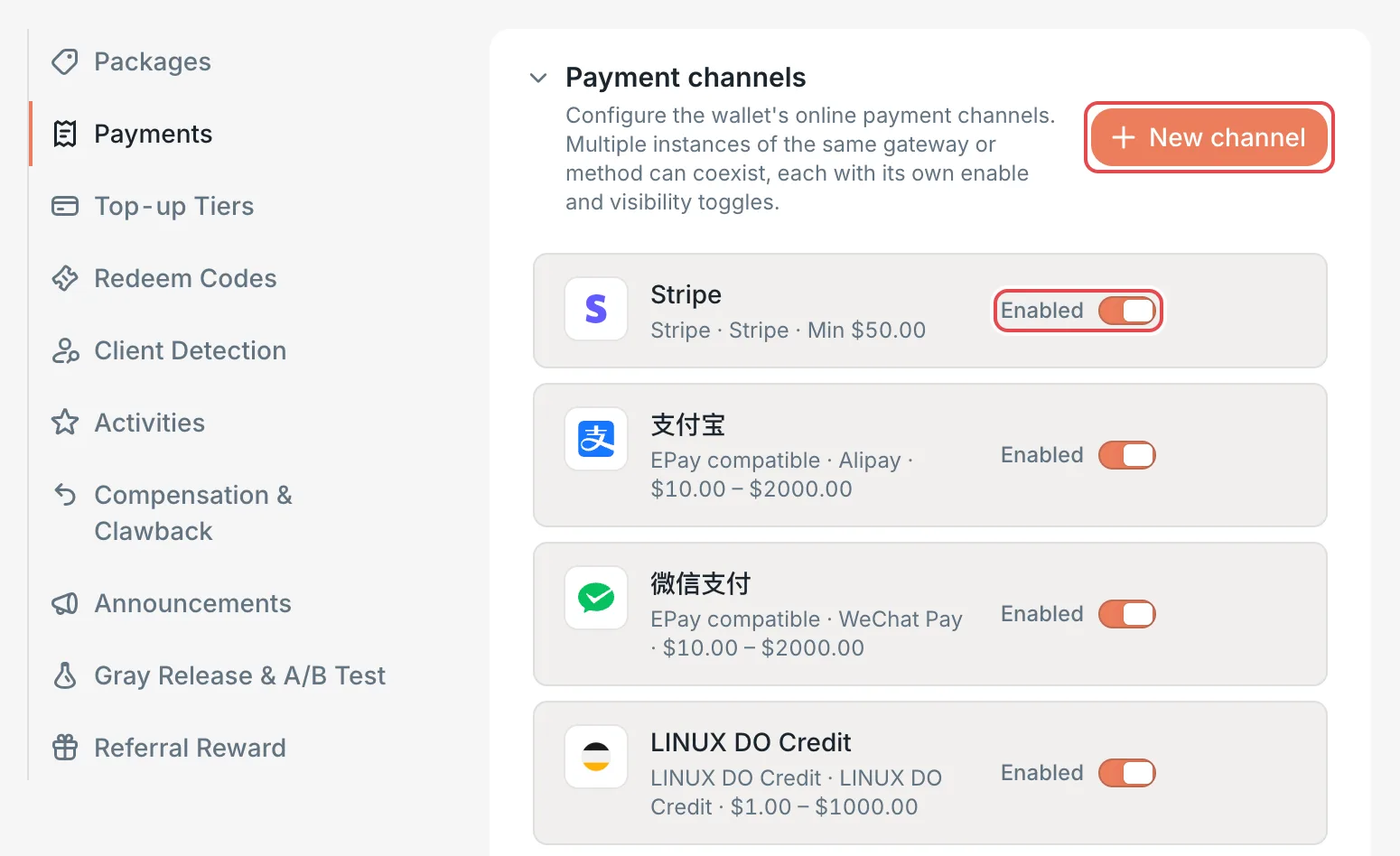 Payment channels list: the New channel button
 CCHP
CCHP
-
In the New payment channel panel, select Gateway and Payment method, and then fill in these settings:
-
In Credentials & callbacks, fill in the required credentials for the selected gateway (see the table in the previous section). After you save, secrets are shown only as masked values. When you edit the channel, leave a secret blank to keep its current value.
-
We recommend that you turn off Visible to users first and turn it on after the test passes, so that users don’t see a channel that can’t accept payments yet.
-
Click Create. The button is unavailable if the channel name is empty or if the amounts, fee, or deliver ratio are invalid.
Result: The new channel appears in the list, with its gateway, payment method, and amount range under the name, such as “$10.00 – $2000.00”. If Maximum amount ($) is blank, only the minimum shows, such as “Min $10.00”.
Warning: For the Alipay F2F, PayPal, and UnionPay (Allinpay) gateways, Production mode is off by default, so orders go to the gateway’s sandbox environment and no real charges are made. Turn on Production mode before you accept real payments. Waffo also uses its test environment by default: for the Waffo payment method, enter production in Environment (sandbox/production); for Waffo Pancake, enter prod in Pancake mode (test/prod).
Step 2: Configure the callback URL#
The callback URL is where the payment platform notifies CCHP of the payment result, and the return URL is the wallet page that the user’s browser returns to after payment. For example, with the console URL https://cchp.example.com:
Callback URL: https://cchp.example.com/api/payment/webhooks/<channel ID>
Return URL: https://cchp.example.com/app/wallet
There are two cases, depending on the gateway:
- EPay compatible, LINUX DO Credit, Waffo (with the Waffo payment method), Alipay F2F, WeChat Pay F2F, and UnionPay (Allinpay): Callback URL and Return URL are already filled in in the panel. CCHP sends them to the gateway when it creates an order, so you usually don’t need to change them. To use other URLs, enter full URLs that start with
https://. LINUX DO Credit requires both URLs to be 100 characters or fewer. - Stripe, Creem, and PayPal: Add a webhook in the gateway’s dashboard, set its URL to the callback URL, and subscribe to the events in the table below. Waffo Pancake also requires you to enter the Callback URL from the panel in the webhook settings of the Waffo dashboard.
The Stripe, Creem, and PayPal panels have no Callback URL field. The channel ID is generated when you open the New payment channel panel and doesn’t change after you save. To copy the full callback URL, before you fill in the other settings, temporarily set Gateway to EPay compatible, click the copy button to the right of Callback URL, and then set Gateway back to the original gateway. For a saved channel, copy it the same way in the edit panel, and then click Cancel instead of saving.
You can save the channel first, create the webhook in the gateway’s dashboard, and then edit the channel to enter the signing secret or webhook ID.
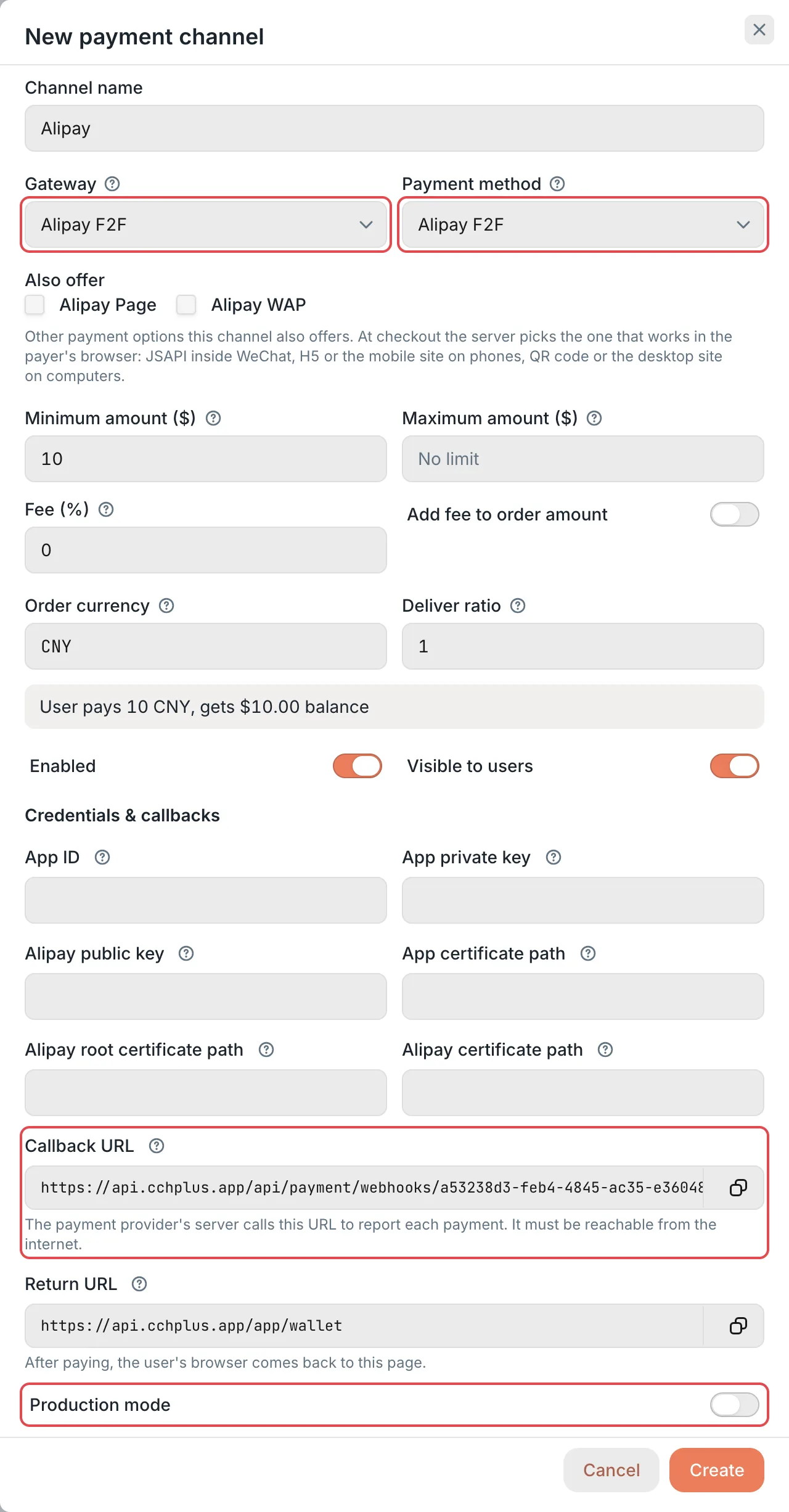 New payment channel panel: the gateway and the callback URLCCHP
Step 3: Test the channel and open it to users#
-
Hover over the channel row, click the more actions button on the right, and select Test connection.
Result: A message at the top right says “Alipay reachable (…ms)”, where “Alipay” is the channel name.
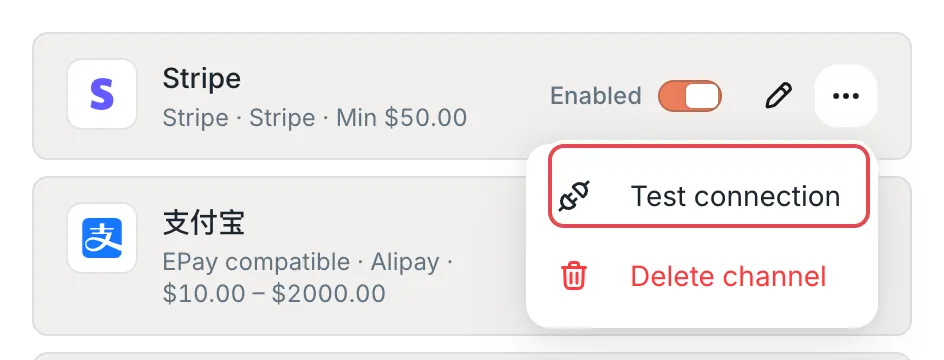 Channel more actions menu: Test connectionCCHP
-
If the test fails, act on the message:
-
Click the edit button on the right of the channel row, turn on Visible to users, and click Save.
Result: Users can select this channel when they top up in Wallet.
Test connection checks that the credentials are complete, that the callback URL can be built, and that the credentials load correctly. It doesn’t create an order, and it can’t confirm that the gateway accepts these credentials. To confirm that the channel can really accept payments, use Create custom order (described below) to create a small order for yourself and pay it before you turn on Visible to users.
The Enabled toggle on a list row takes effect as soon as you click it. You don’t need to save.
How users top up#
- The user opens Wallet and clicks Top up.
- In Amount, the user selects an amount, or selects Custom and enters an amount from 1 to 10,000. Some preset amounts have a discount and show the discount rate, such as
-10%. Preset amounts and discounts are set in Operations Settings → Top-up Tiers. - In Payment method, the user selects a channel. Only channels that are enabled, visible to users, and whose limits include the current amount are listed. A payment method that works only in a specific browser shows a note on its card, for example “Open this page in WeChat to use this method”.
- The user clicks Pay (the button shows the amount due) and completes the payment on the payment page or with the QR code that opens.
Result: After the payment is confirmed, the order status changes to Paid, and the balance is credited. An order is valid for 15 minutes after it’s created. If it isn’t paid in time, its status changes to Expired.
When users buy or renew packages in Wallet, they use the same payment channels. See Set up packages.
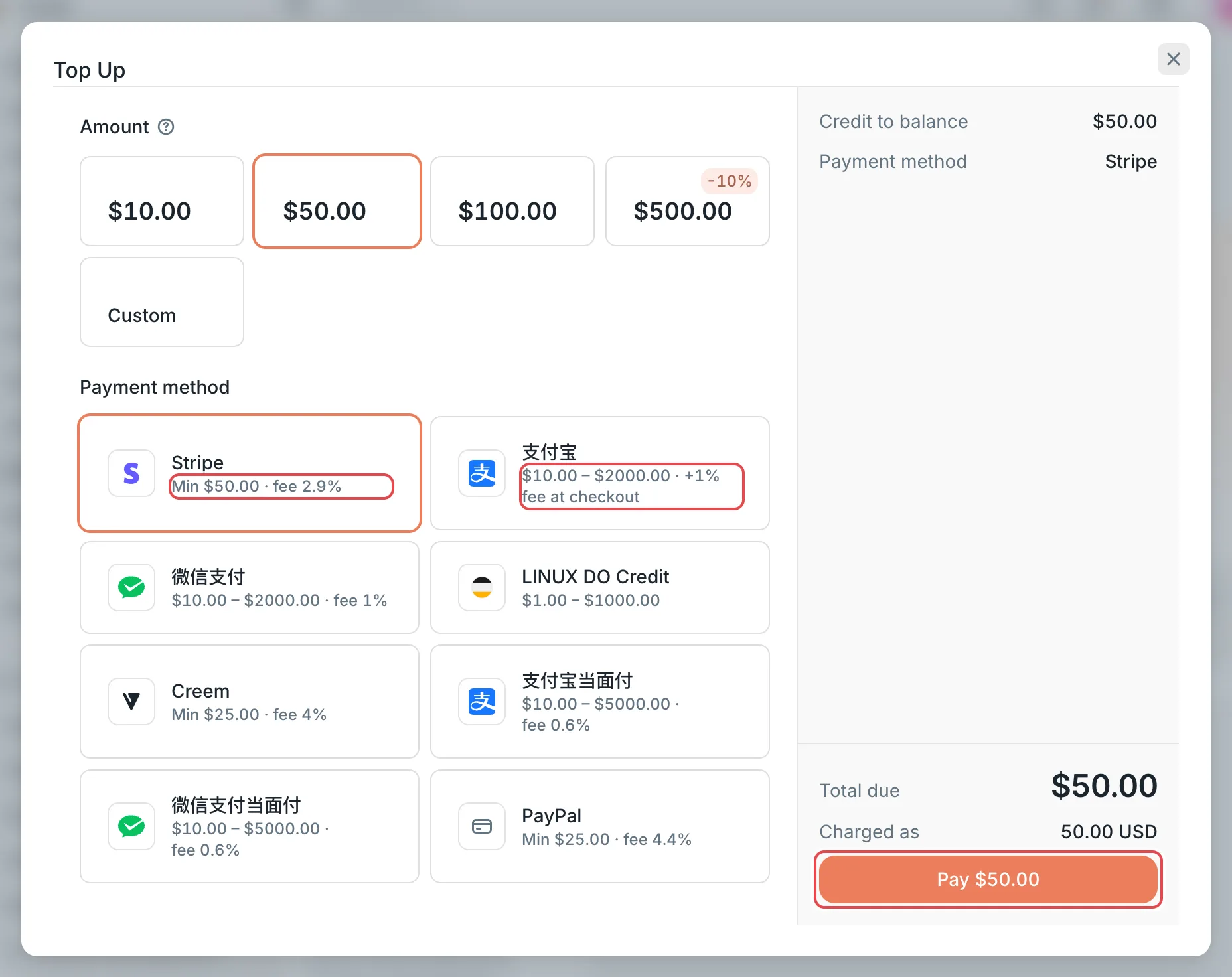 Top Up dialog: the amount and the payment methodsCCHP
Generate a payment link for a specific user#
Create custom order generates a payment order for a specific user. You send the payment link to the user, and after the user pays, the balance or package is credited to that user automatically.
- In Create custom order at the bottom of the Payments section, click Pick a user and select the Recipient. The recipient must be a member of the current organization (the organization shown on the left of the top bar).
- Select a Payment channel. Every enabled channel is available, including channels with Visible to users turned off.
- Enter the Payment amount ($), and select a Delivery type:
- Credit: In Credited amount ($), enter the balance to credit. It defaults to the payment amount. If you enter more, the difference is a bonus. If you enter less, the difference is a discount.
- Package: Select one of the packages available to the recipient’s team.
- Click Create order, click Copy payment link, and send the link to the user.
Result: After the user pays, the page shows “Order paid — credited to” followed by the user’s name. This order is also valid for 15 minutes.
Frequently asked questions#
Why wasn’t the balance credited after the user paid?#
CCHP credits the balance as soon as it receives the callback from the payment platform. If no callback arrives, the background job Check pending payments asks the gateway about pending orders once a minute and credits the balance automatically once the payment is confirmed. If the balance still isn’t credited after a long time, check that the callback URL is reachable from the internet. For Stripe, Creem, and PayPal, also check the channel ID in the webhook URL and the subscribed events.
Why does deleting a channel show “Channel has open orders”?#
You can’t delete a channel that still has orders that are awaiting payment or being confirmed. Wait until those orders complete or expire, and then delete the channel. If you only want to stop accepting payments, turn off the channel’s Enabled toggle. Orders already created are not affected.
Why doesn’t a channel appear in the wallet?#
Check the following in order: the channel’s Enabled and Visible to users are both on, the top-up amount the user selected is within the channel’s amount range, and, if WeChat Pay F2F offers only JSAPI, Service Account AppSecret and Return URL are filled in.