Chapter 1613 min read
Provider endpoints
Add endpoints to a provider by entering the upstream's Base URL and selecting request formats, and learn how several endpoints take part in routing, plus endpoint status, network settings, and reachability checks.
An endpoint is one upstream address of a provider: a Base URL, plus the request formats that this address supports (Request format), for example Anthropic Messages and OpenAI Chat Completions. The gateway uses the request format to decide which protocol to call the upstream with, and joins the Base URL and that format’s path into the actual request URL. A provider can have several endpoints, for example different regions of the same upstream, or several formats offered by the same relay service.
A provider needs at least one endpoint before its provider keys can call the upstream. We recommend that you add endpoints first, and then add provider keys.
Before you begin#
- Organization admins, organization super admins, and platform super admins can add, edit, and delete endpoints. With view permission only, the endpoint list is read-only.
- Create a provider first.
Step 1: Open the Endpoints section#
- Go to Org management → Provider Management, and on the Providers tab, click the provider name to open the provider details page.
- Click Endpoints in the section navigation on the left.
Each row in the list is an endpoint and shows its name, status, request formats, and Base URL.
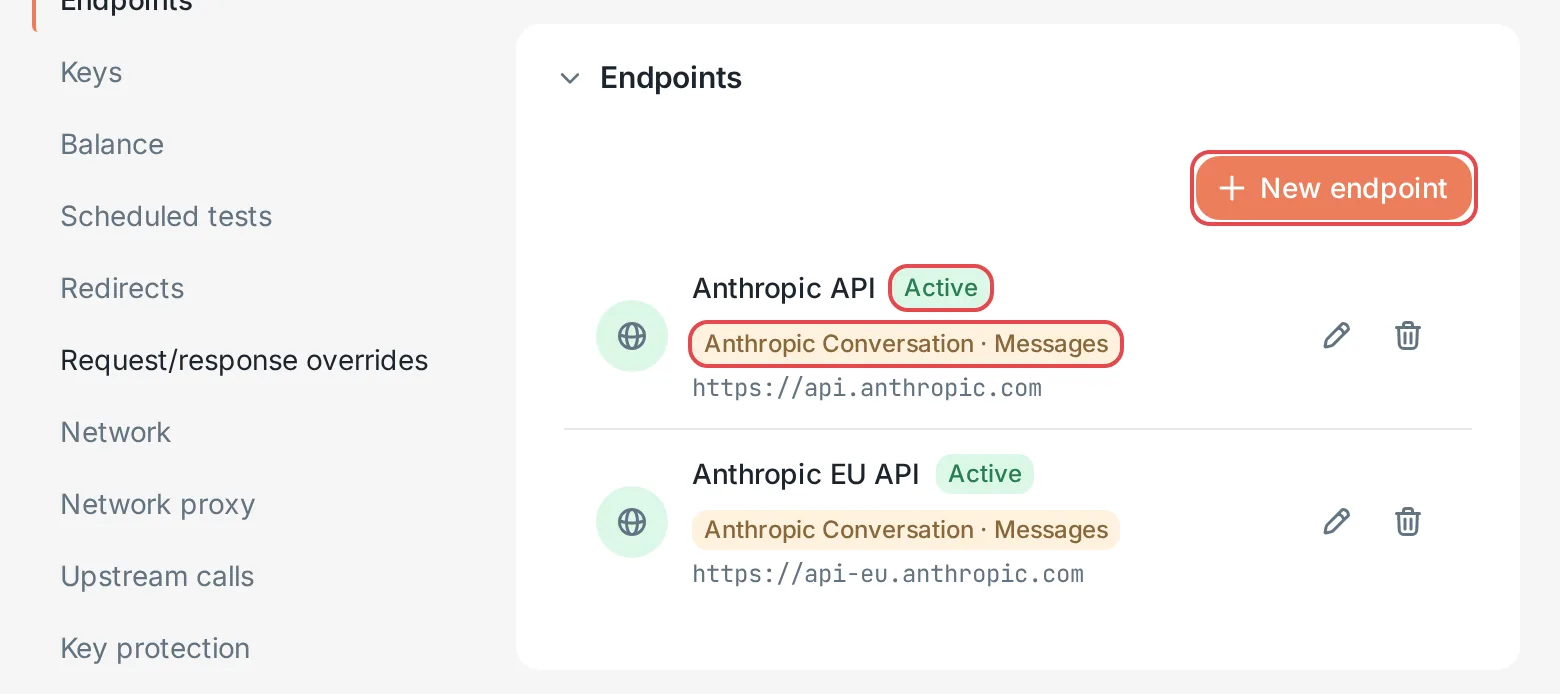 Provider details: the endpoint list
 CCHP
CCHP
Step 2: Enter the Base URL and request formats#
-
Click New endpoint.
-
In Basic info on the Basic tab, fill in these fields:
-
In Request format, click Pick the request formats this endpoint supports, and select the formats that the upstream supports. The most common conversation formats are listed under Common · Conversation. You can also search by path or name.
-
Check Request URLs below the Base URL. It lists the actual upstream URL that each format calls, and the model list URL of the same vendor (used to fetch the upstream model list). If a URL is wrong, see “How request URLs are built” below.
-
Click Create. The button is unavailable while Base URL is empty or no request format is selected.
Result: The endpoint appears in the list with the status Active. Provider keys that aren’t explicitly bound to endpoints start using this endpoint right away.
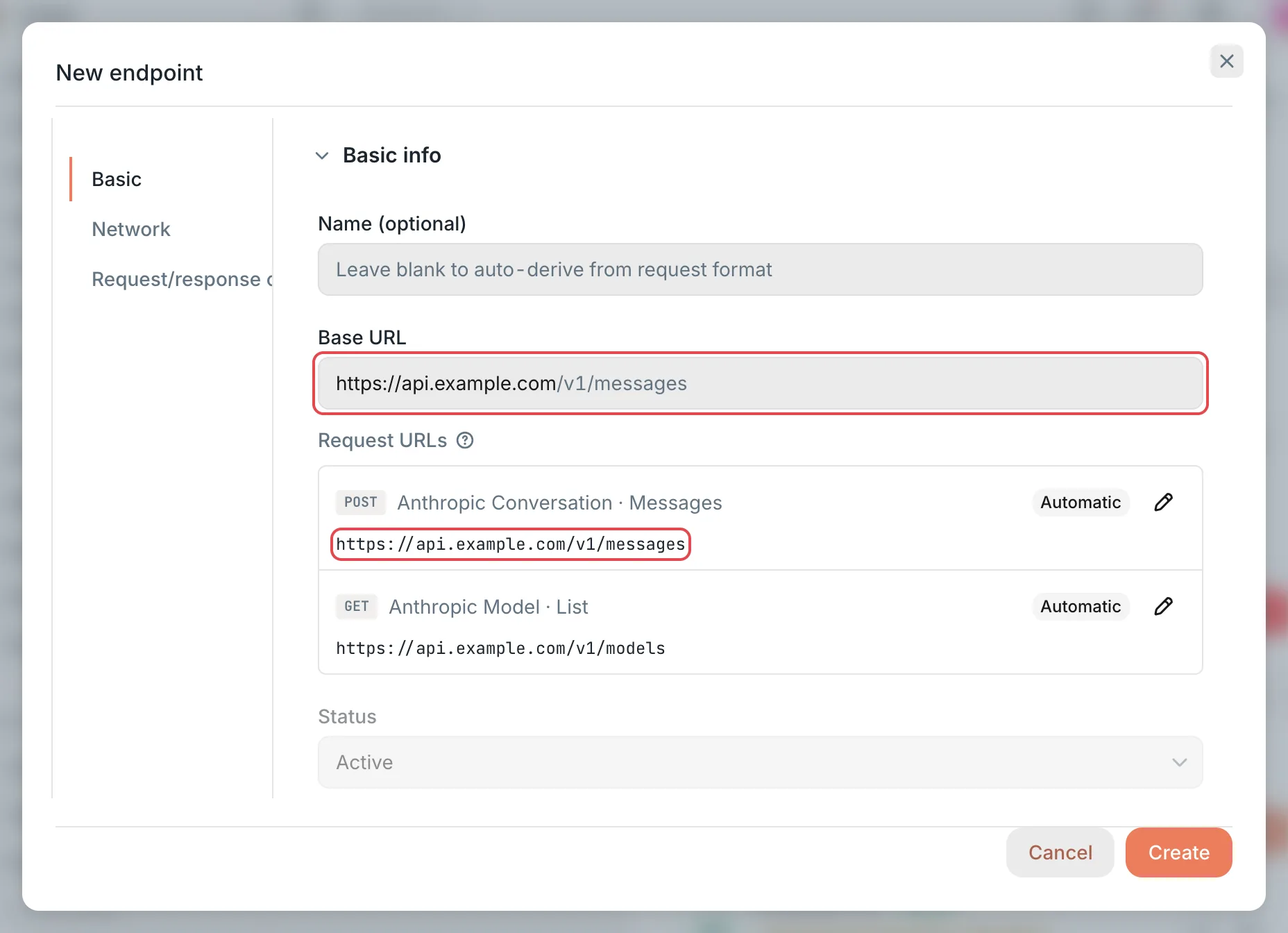 New endpoint: Base URL and request URLsCCHP
How request URLs are built#
The gateway appends the request format’s path to the Base URL. When the Base URL ends with a version segment such as /v1, /v4, or /v1beta, the version segment at the start of the path is replaced with the Base URL’s version. Take OpenAI Conversation · Chat Completions (path /v1/chat/completions) as an example:
If the upstream’s path differs from the automatically built result, click the edit button on that row and enter the actual path in Path after base URL, for example /chat/completions. A custom path is appended to the Base URL as is, with no version segment replacement. It must start with /, can’t contain spaces, #, or \, and can be at most 512 characters long. Click Reset to automatic to remove the custom path.
Google Gemini API formats come in two versions, /v1beta and /v1. In the list, each format shows its path below the name, and /v1 formats carry v1 in the name, for example Google Conversation · Generate Content (v1). When an endpoint selects only the /v1beta format, same-format requests that clients send through /v1 can use this endpoint too, and the gateway builds the request URL with the client’s version; when the Base URL ends with a version segment or a Path after base URL is set, the endpoint’s setting is used. Requests converted from another format are sent with the version of the format the endpoint selected, and requests sent to a /v1 format carry only the fields that the official /v1 API defines.
Select several request formats#
In one endpoint, each type of request (conversation, image, embeddings, and so on) can have only one request format. Formats of different types can share one endpoint, for example one conversation format plus one embeddings format, and the gateway uses the format that matches the type of the request.
When you select several formats of the same type, for example both Anthropic Conversation · Messages and OpenAI Conversation · Chat Completions, the form shows “Formats of the same type go to separate endpoints, so this saves as 2 endpoints”, and the button changes to Create 2 endpoints. After you save, you get several endpoints that use the same Base URL and the same network settings. If you left the name blank, each one is named after its format. If you entered a name, the format name is added after it to tell them apart.
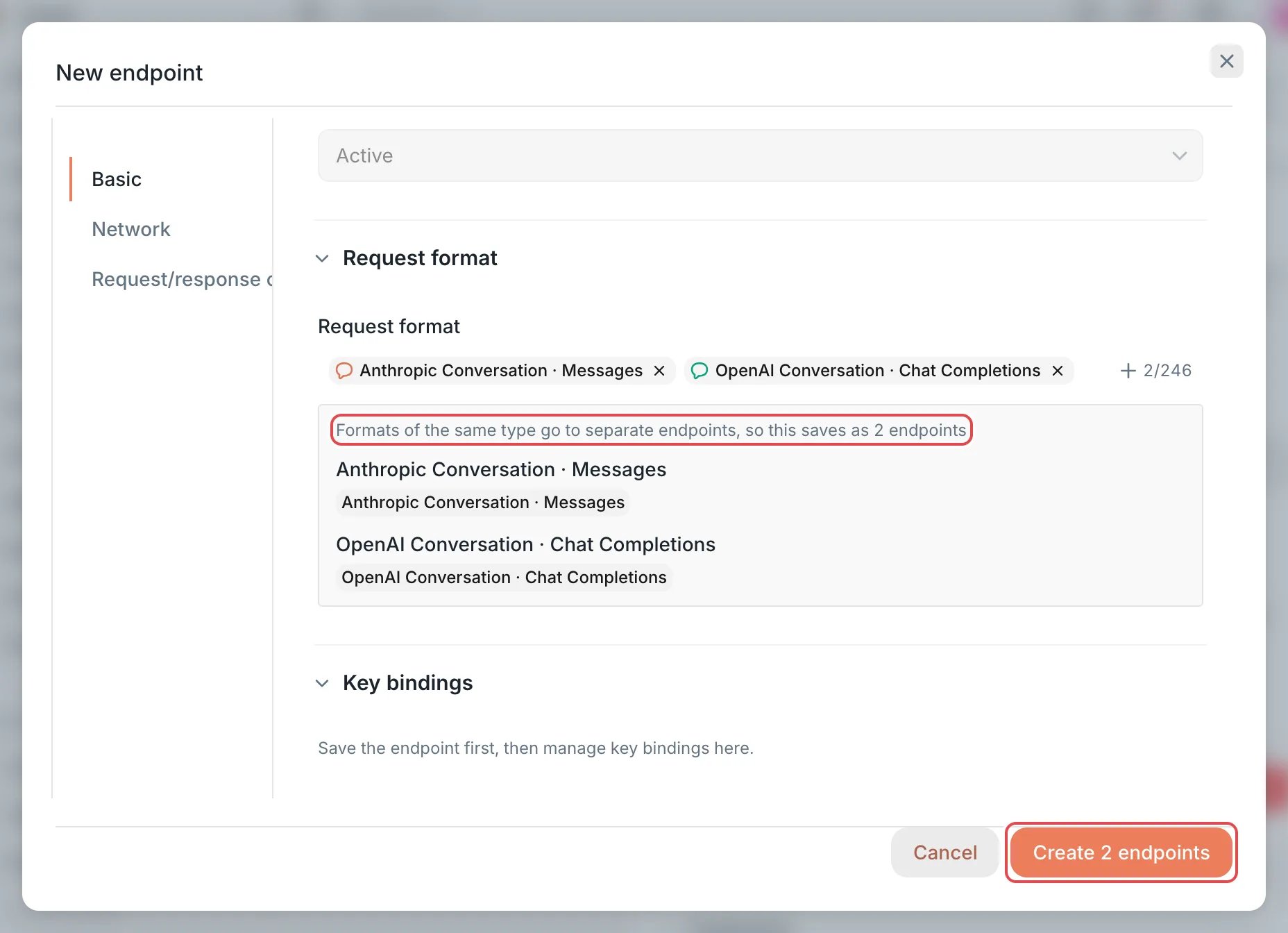 New endpoint: split preview for formats of the same typeCCHP
Step 3: Check which keys use this endpoint#
By default, a provider key uses all endpoints of its provider, so you don’t need to do anything after you save a new endpoint. Only a key that is explicitly bound to endpoints uses just the bound endpoints. To let such a key also use the new endpoint, bind the new endpoint to it:
- In the endpoint list, click the endpoint to open Edit endpoint.
- In Key bindings on the Basic tab, click a key to select or clear its binding. Each row shows the key name and the last four characters of the key. If the key is also bound to other endpoints, the row lists them too.
Changes in Key bindings take effect immediately, and clicking Cancel in the dialog doesn’t undo them. When you add a new endpoint, you must save it before you can manage key bindings. If a key is bound only to this endpoint, you can’t clear it here.
Warning: After you select a binding for a key that still uses all endpoints, the key uses only the selected endpoints and stops using this provider’s other endpoints. To make the key use all endpoints again, open the key’s edit dialog and clear all selections in the Endpoints section.
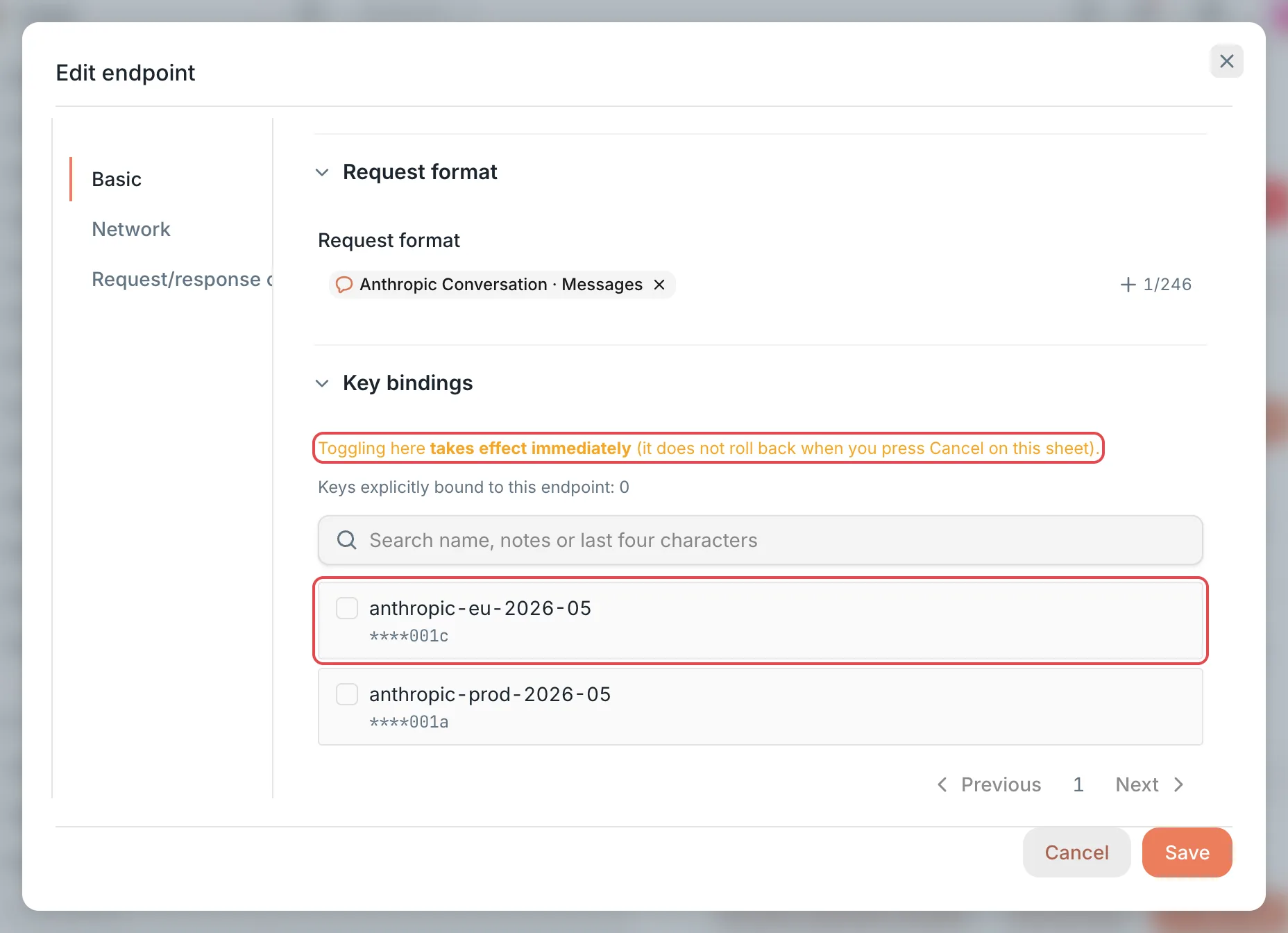 Edit endpoint: key bindingsCCHP
How several endpoints take part in routing#
- A request uses only endpoints that can handle it: the endpoint’s request format is the same as the client’s, or the gateway can convert between the two formats, for example between several conversation formats.
- When the same provider key has several available endpoints, each endpoint is a candidate for the request. The gateway picks one by the group’s routing strategy, and can switch to another candidate after a retryable failure.
- Endpoints have no priority or weight of their own. The Priority and Weight that the Manual routing strategy uses are set on provider keys.
- Endpoints whose status isn’t Active and endpoints that are Unreachable don’t take part in routing.
- Queries, cancellations, and downloads of async tasks (video, audio, and so on), follow-up requests on resources such as files, batches, vector stores, and containers, and follow-up requests of realtime sessions all go to the provider key that created them, and use only the endpoints on the same upstream site (same provider, same Base URL, same credentials) that carry the operation. When one Base URL is split into several endpoints by request format, queries and cancellations still work. When no endpoint qualifies, the decision chain in the request details gives the reason, for example The task belongs to another provider key or Endpoint performs a different task operation.
Edit and delete endpoints#
In the endpoint list, click an endpoint, or click the edit button at the end of the row, to open Edit endpoint. Make your changes and click Save. When you edit, you can also select several formats of the same type: the set that overlaps most with the existing formats stays in the current endpoint, the rest are split into new endpoints, and the button shows a count such as Save as 2 endpoints.
Status has three values:
Changing the status doesn’t affect requests already sent to the upstream. They finish as usual.
To delete an endpoint, click the delete button at the end of the row and confirm. Deletion can’t be undone:
- Keys bound to this endpoint have it removed from their bindings.
- Configuration that applies to this endpoint is deleted with it, for example the endpoint-level Always call the upstream with streaming.
- Request logs, billing records, and audit records are kept.
Network settings#
In Edit endpoint, click the Network tab:
The four Upstream connection settings can be set globally (System Management → Routing → Routing Lifecycle), on an organization, on a provider (the Network section of its details page), on a provider key (the Advanced section of its edit dialog), and on an endpoint. Each setting shows its effective value and where it comes from (set here, inherited from which level, or the default); click Reset to inherit to go back to the level above. In the request details, each attempt shows the protocol negotiated with the upstream, and when it fell back from HTTP/2 to HTTP/1.1.
After you change Upstream connection, Always call the upstream with streaming, or Streaming keep-alive, click Save. The console opens Confirm submit, and the change takes effect after you click Confirm.
Request body compression and Responses WebSocket upstream can’t be set per endpoint. You set them in the Upstream calls section of the provider details page, and they apply to the whole provider.
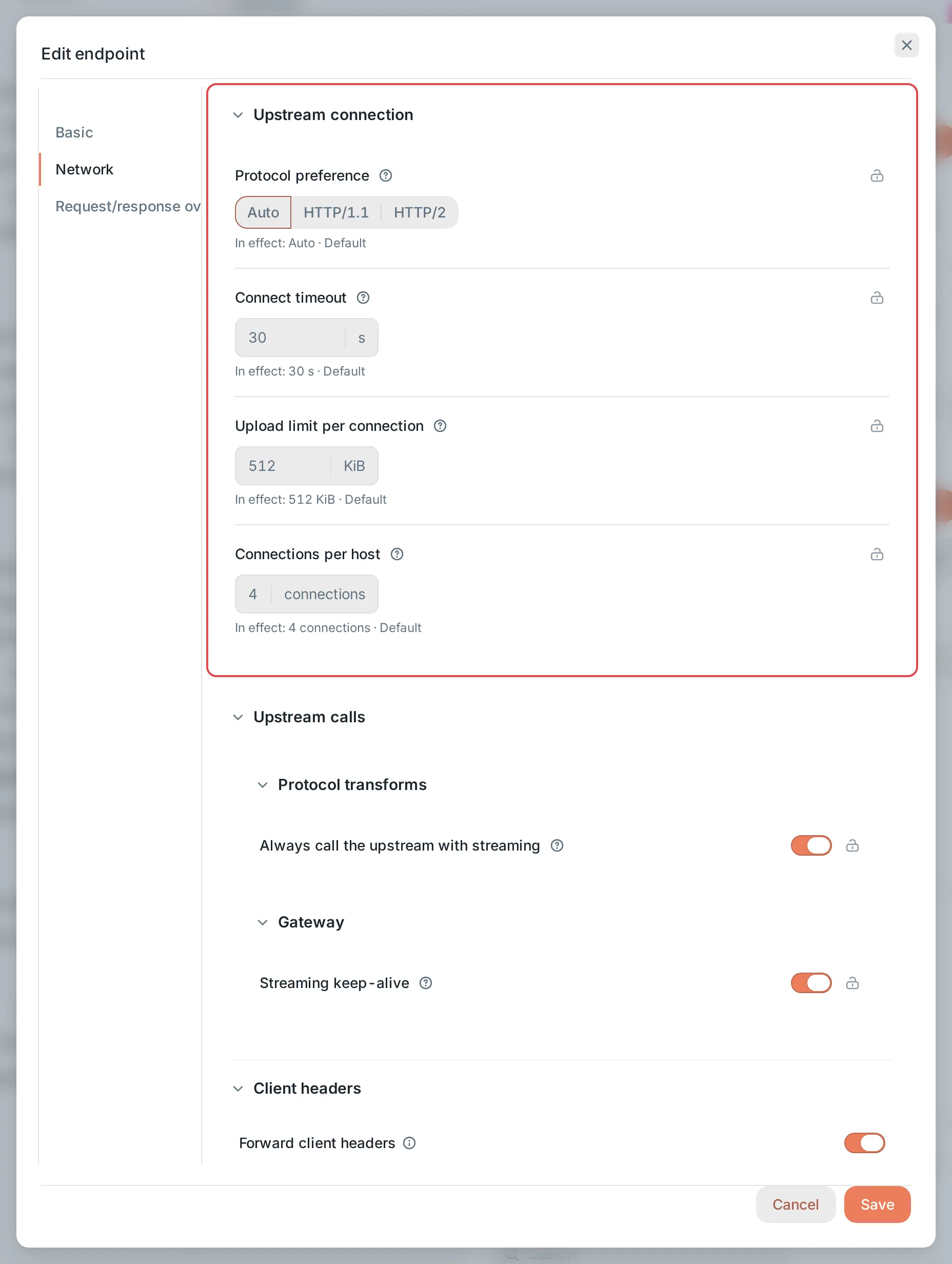 Edit endpoint: the Network tabCCHP
Endpoint reachability checks#
By default, a background job runs a network-level check on every Active endpoint once a minute: DNS lookup, TCP connection, and TLS handshake. The check sends no HTTP request and uses no upstream credit. The result appears as a badge in the endpoint list:
- Hover over the badge to see the failed stage (for example, DNS lookup failed or TLS handshake failed), the error message, the time each stage took, and the check time.
- The endpoint recovers as soon as the next check succeeds. If a real request succeeds after the latest failed check, the endpoint isn’t marked unreachable either.
- Upstream errors or timeouts don’t make an endpoint unreachable. They only lower its score in routing.
- Endpoints with no check result yet, and endpoints that are Disabled or Draining, show no badge.
Frequently asked questions#
Saving an endpoint shows “Host could not be resolved” or “Private address not allowed”#
When you save, the console resolves the host name in the Base URL. “Host could not be resolved” means the DNS lookup failed. Check the spelling of the host name. “Private address not allowed” means the host resolves to a private, loopback, or link-local address, and these addresses are blocked by default.
If the upstream is deployed on an internal network, allow its host name or IP range as described in An upstream on an internal network fails to connect.
An upstream on an internal network fails to connect#
By default, CCHP refuses outbound requests to internal addresses: private addresses (for example 10.0.0.5 or 192.168.1.10), loopback and link-local addresses, and host names that resolve to them. If the upstream is deployed on an internal network, requests can’t connect to it:
- The endpoint’s check badge shows Check failing or Unreachable. When you hover over the badge, the failed stage is DNS lookup failed, and the error message looks like
upstream "llm.corp.example" resolves to 10.0.0.5: private IP rejected. - A test of the provider key shows Blocked.
To allow this upstream, ask a platform super admin to go to Administration → System Management → Routing → Outbound Addresses and add one of the following under Providers and other outbound requests:
- Host names: The upstream’s host name, for example
llm.corp.example.*.svc.internalallows every subdomain ofsvc.internal, but notsvc.internalitself. - IP ranges: The upstream’s IP address or IP range, for example
192.168.1.10or10.0.0.0/8. If the Base URL uses an IP address directly, add it here.
Then click Save at the bottom of the page, and click Confirm in Confirm submit. The setting takes effect right away, with no restart. Outbound address restrictions (configuration keys network.egress.*) apply to the whole deployment and can be changed only in the global scope.
Warning: Allow only the upstream’s host name or IP range, and don’t turn off Block private addresses. With it off, outbound requests can reach any internal service on the deployment’s network, and any account that can change endpoint addresses can use that to access the internal network. Cloud metadata addresses (for example 169.254.169.254) are refused under every setting.
Deleting an endpoint shows “Can’t delete yet”#
The most common cause is that this endpoint is the only endpoint bound to an enabled provider key. Deleting it would make that key switch to using all endpoints, so the deletion is blocked. The message lists the objects that still use this endpoint. Open the key’s edit dialog, and in the Endpoints section, bind other endpoints instead or clear all selections. Then delete the endpoint.