Chapter 0325 min read
Install with Docker Compose
Install CCHP on a Linux server with Docker Compose, set up HTTPS, complete the first-run setup wizard, and learn how to upgrade, back up, and uninstall.
This page shows how to install CCHP on one Linux server with Docker Compose. Docker Compose runs all services on one machine and is the recommended installation method for most users. When you finish, you can open the console at https://cchp.example.com, and the gateway is ready at https://api.cchp.example.com.
Example domains: Replace cchp.example.com (console) and api.cchp.example.com (gateway) on this page with your own domains.
Deployment architecture#
The Compose file starts these services:
cchp starts only after migrate finishes successfully, and it does not become ready while the database is missing migrations. The Compose project name is cch-plus, so all volume names start with cch-plus_.
To run the console, the gateway, and the worker as separate workloads on k3s, choose Install on k3s / k8s. For all installation methods, see Installation overview.
What you need#
Hardware requirements#
These are VPS specs. Two things take up most of the disk: the PostgreSQL database (request logs, billing details, and more, cleaned up according to the retention days in System Management → Database) and CCHP’s local data. At the default limits, node data such as request archives takes about 14.9 GiB and temporary files take about 10.3 GiB (4 cores), so the disk that holds the Docker volumes must leave at least 26 GiB for them. Importing data from CC Hub needs extra space.
Software and network#
- A Linux server with an amd64 or arm64 CPU. CCHP images are available for both architectures.
- Docker Engine and the Compose plugin 2.23 or later. Run
docker compose versionto check the version. - The
curlandopensslcommands. - Network access from the server to:
ghcr.io(CCHP images), Docker Hub (timescale/timescaledb), anddocker.dragonflydb.io(Dragonfly image)cch-plus.com, where the worker syncs the model price list- The upstream LLM providers you plan to connect
Domains and HTTPS#
Sign-in cookies, cross-site request checks, passkeys, and third-party sign-in callbacks are all bound to the console’s public URL, CCH_PUBLIC_BASE_URL. This URL must be one of the following, and it cannot contain a path:
- A URL that starts with
https://, for examplehttps://cchp.example.com - A loopback address, for example
http://localhost:8080
If you set it to any other http:// URL (for example, the server IP plus a port), cchp cannot start. For testing inside a LAN only, you can turn on the reduced-security deployment and use the console over plain http on a LAN IP; see Reduced-security deployment (LAN testing). To open the console from another computer in regular use, you need:
- Two domains that resolve to the server:
cchp.example.comfor the console andapi.cchp.example.comfor the gateway - A reverse proxy on the server that terminates TLS. Step 5 gives Caddy and Nginx examples.
For a local trial on the server itself, you can skip the domains and open http://localhost:8080 directly.
Ports#
8080 and 8081 serve plain HTTP. In production, do not expose them directly to the internet.
Step 1: Create the deployment files#
Create an empty directory to use as the deployment directory. Run all later commands in this directory:
mkdir cchp && cd cchpIn the deployment directory, create compose.yml with this content:
name: cch-plus

services:
  postgres:
    image: timescale/timescaledb:2.31.0-pg18
    restart: unless-stopped
    # Preload pg_stat_statements for the database Top statements view
    command:
      - postgres
      - -c
      - shared_preload_libraries=timescaledb,pg_stat_statements
      - -c
      - pg_stat_statements.max=10000
      - -c
      - track_io_timing=on
    environment:
      POSTGRES_USER: hub
      POSTGRES_PASSWORD: ${POSTGRES_PASSWORD:?}
      POSTGRES_DB: app
      POSTGRES_INITDB_ARGS: "--auth-host=scram-sha-256"
      PGDATA: /var/lib/postgresql/data/pgdata
    volumes:
      - cch_pg:/var/lib/postgresql/data
    healthcheck:
      test: ["CMD-SHELL", "pg_isready -h 127.0.0.1 -U $${POSTGRES_USER} -d $${POSTGRES_DB}"]
      interval: 5s
      timeout: 5s
      retries: 20

  dragonfly:
    image: docker.dragonflydb.io/dragonflydb/dragonfly:v2.0.2
    restart: unless-stopped
    ulimits:
      memlock: -1
    volumes:
      - cch_df:/data
    healthcheck:
      test: ["CMD", "redis-cli", "ping"]
      interval: 5s
      timeout: 3s
      retries: 10

  # One-time job: runs the database migrations, then exits
  migrate:
    image: ghcr.io/cch-hq/cch-plus:latest
    entrypoint: ["/usr/local/bin/migrate"]
    command: ["apply"]
    environment:
      APP_ENV: production
      ATLAS_DATABASE_URL: postgres://hub:${POSTGRES_PASSWORD:?}@postgres:5432/app?sslmode=disable
      CCHP_DATABASE_RUNTIME_ROLE: cchp_runtime
      CCHP_DATABASE_RUNTIME_PASSWORD: ${CCHP_DATABASE_RUNTIME_PASSWORD:?}
      CCH_MASTER_KEY: ${CCH_MASTER_KEY:?}
      CCH_SCRATCH_DIR: /var/cache/cchp
    depends_on:
      postgres:
        condition: service_healthy

  # Console (8080), LLM gateway (8081), and worker (background jobs)
  cchp:
    image: ghcr.io/cch-hq/cch-plus:latest
    restart: unless-stopped
    # On stop, wait for in-flight requests to finish
    stop_grace_period: 930s
    command: ["api", "--role=all", "--control-addr=:8080", "--addr=:8081"]
    environment:
      APP_ENV: production
      DATABASE_URL: postgres://cchp_runtime:${CCHP_DATABASE_RUNTIME_PASSWORD:?}@postgres:5432/app?sslmode=disable
      CCHP_DATABASE_RUNTIME_ROLE: cchp_runtime
      DRAGONFLY_URL: redis://dragonfly:6379/0
      CCH_TOKEN_PEPPER: ${CCH_TOKEN_PEPPER:?}
      CCH_MASTER_KEY: ${CCH_MASTER_KEY:?}
      DRAGONFLY_KEY_SECRET: ${DRAGONFLY_KEY_SECRET:?}
      CCH_PUBLIC_BASE_URL: ${CCH_PUBLIC_BASE_URL:?}
      CCH_CONTROL_PLANE_ALLOWED_ORIGINS: ${CCH_PUBLIC_BASE_URL:?}
      CCH_GATEWAY_PUBLIC_URL: ${CCH_GATEWAY_PUBLIC_URL:?}
      # For LAN testing only; see "Reduced-security deployment (LAN testing)"
      CCH_INSECURE_DEPLOYMENT: ${CCH_INSECURE_DEPLOYMENT:-false}
      CCH_SIEM_MODE: disabled
      # Lets cchp start before any provider is added
      CCH_ALLOW_EMPTY_ROUTING_BOOTSTRAP: "true"
      CCH_ARCHIVE_INTERNAL_URL: http://127.0.0.1:8091
      CCH_REPLAY_NODE_ID: cchp
      CCH_REPLAY_OWNER_PROXY_NODES: cchp=http://127.0.0.1:8081
      # Reads the database volume's capacity and free space (read-only mount below)
      CCHP_DATABASE_STORAGE_SOURCE: filesystem
      CCHP_DATABASE_STORAGE_PATH: /var/lib/cchp/database
    volumes:
      - cch_objectstore:/var/lib/cchp/data/objectstore
      - cch_task_results:/var/lib/cchp/data/task-results
      - cch_archive:/var/lib/cchp/node
      - cch_scratch:/var/cache/cchp
      - cch_pg:/var/lib/cchp/database:ro
    ports:
      - "8080:8080"
      - "8081:8081"
    # Healthy only when the gateway, console, and worker are all ready
    healthcheck:
      test:
        - CMD
        - /usr/local/bin/gateway
        - healthcheck
        - --url=http://127.0.0.1:8081/readyz
        - --url=http://127.0.0.1:8080/readyz
        - --url=http://127.0.0.1:8082/readyz
      interval: 10s
      timeout: 15s
      retries: 12
      start_period: 30s
    depends_on:
      postgres:
        condition: service_healthy
      dragonfly:
        condition: service_healthy
      migrate:
        condition: service_completed_successfully

volumes:
  cch_pg:
  cch_df:
  cch_objectstore:
  cch_task_results:
  cch_archive:
  cch_scratch:
Then create .env with this content. Leave the five secrets blank for now. You generate them in step 2:
# Public URLs of the console and the gateway. Replace them with your domains
CCH_PUBLIC_BASE_URL=https://cchp.example.com
CCH_GATEWAY_PUBLIC_URL=https://api.cchp.example.com

# Required secrets: generate them before the first start, and never change them afterward
POSTGRES_PASSWORD=
CCHP_DATABASE_RUNTIME_PASSWORD=
CCH_TOKEN_PEPPER=
CCH_MASTER_KEY=
DRAGONFLY_KEY_SECRET=
Result: The directory contains two files, compose.yml and .env.
Step 2: Generate the secrets#
The end of .env has five required secrets with empty values. If any of them is empty, Compose refuses to start. The commands below delete these five lines, then write random values generated with openssl:
grep -v -E '^(POSTGRES_PASSWORD|CCHP_DATABASE_RUNTIME_PASSWORD|CCH_TOKEN_PEPPER|CCH_MASTER_KEY|DRAGONFLY_KEY_SECRET)=' .env > .env.new
for key in POSTGRES_PASSWORD CCHP_DATABASE_RUNTIME_PASSWORD CCH_TOKEN_PEPPER CCH_MASTER_KEY DRAGONFLY_KEY_SECRET; do
  printf '%s=%s\n' "$key" "$(openssl rand -hex 32)" >> .env.new
done
mv .env.new .envResult: Each of the five variables at the end of .env has a 64-character hex value.
Warning: Generate the secrets only once, before the first start. If you regenerate them after CCHP has started, saved provider keys cannot be decrypted, and the database owner password no longer matches the volume. Copy .env to a safe place. It is as important as your database backups.
Step 3: Set the public URLs#
Open .env in a text editor and replace the domains in the first two lines with your own:
CCH_PUBLIC_BASE_URL=https://cchp.example.com
CCH_GATEWAY_PUBLIC_URL=https://api.cchp.example.comCCH_PUBLIC_BASE_URL: The console’s public URL. Always open the console at this URL from now on.compose.ymlalso uses it as the allowed browser origin, so do not add a trailing/.CCH_GATEWAY_PUBLIC_URL: The gateway URL that the console shows to users.
For a local trial on the server, or for access through SSH port forwarding, change the two lines to http://localhost:8080 and http://localhost:8081.
Check that the configuration parses:
docker compose config --quietResult: The command prints nothing. If it reports required variable ... is missing a value, the variable it names in .env is still empty.
Step 4: Start the services#
docker compose up -dCompose starts postgres and dragonfly, runs migrate, and then starts cchp. The first start downloads the images and can take a few minutes. The cchp health check covers the gateway, the console, and the worker, and cchp shows as healthy only after all three are ready.
Check the status:
docker compose ps --allResult: The status of cchp includes healthy, and the status of migrate is Exited (0).
You can also check the readiness endpoints directly:
curl -s -o /dev/null -w '%{http_code}\n' http://localhost:8080/readyz
curl -s -o /dev/null -w '%{http_code}\n' http://localhost:8081/readyz
Result: Both commands print 200.
Step 5: Set up a reverse proxy and HTTPS#
Skip this step for a local trial on the server.
Install a reverse proxy on the server that forwards cchp.example.com to 127.0.0.1:8080 and api.cchp.example.com to 127.0.0.1:8081. The console and gateway in Install from binaries use the same ports, so that installation also uses the configuration in this step. Pick one of the following:
Caddy
Caddy requests and renews certificates automatically. This requires both domains to resolve to this server, and its ports 80 and 443 to be reachable from the internet.
cchp.example.com {
	reverse_proxy 127.0.0.1:8080
}

api.cchp.example.com {
	reverse_proxy 127.0.0.1:8081
}
Nginx
Replace the certificate paths with your own certificate, which must cover both domains. Key points of the configuration:
- Response buffering is off, and the read and write timeouts are 3600 seconds, so streaming responses return promptly. Both settings match the Ingress in the Kubernetes manifests.
- The console’s request body limit is 50 MB, the same as the Ingress. CC Hub export files can be 20 to 50 GB, so the upload endpoint
/api/admin/cchub-import/uploadhas no size limit and forwards the data as it receives it. - The gateway’s request body limit is
512m, which matches the gateway’s default limit of 512 MiB for a single request body. WebSocket upgrade requests to the gateway are forwarded.
map $http_upgrade $connection_upgrade {
    default upgrade;
    ''      close;
}

server {
    listen 80;
    server_name cchp.example.com api.cchp.example.com;
    return 301 https://$host$request_uri;
}

# Console and management API, forwarded to 8080
server {
    listen 443 ssl;
    server_name cchp.example.com;
    ssl_certificate     /etc/ssl/cchp/fullchain.pem;
    ssl_certificate_key /etc/ssl/cchp/privkey.pem;

    client_max_body_size 50m;
    proxy_http_version 1.1;
    proxy_set_header Host $host;
    proxy_set_header X-Forwarded-For $proxy_add_x_forwarded_for;
    proxy_set_header X-Forwarded-Proto $scheme;
    proxy_read_timeout 3600s;
    proxy_send_timeout 3600s;
    proxy_buffering off;

    location / {
        proxy_pass http://127.0.0.1:8080;
    }

    # CC Hub export upload: no size limit, forwarded as it is received
    location = /api/admin/cchub-import/upload {
        client_max_body_size 0;
        proxy_request_buffering off;
        proxy_pass http://127.0.0.1:8080;
    }
}

# LLM gateway, forwarded to 8081 (streaming responses and WebSocket)
server {
    listen 443 ssl;
    server_name api.cchp.example.com;
    ssl_certificate     /etc/ssl/cchp/fullchain.pem;
    ssl_certificate_key /etc/ssl/cchp/privkey.pem;

    client_max_body_size 512m;
    proxy_http_version 1.1;
    proxy_set_header Host $host;
    proxy_set_header X-Forwarded-For $proxy_add_x_forwarded_for;
    proxy_set_header X-Forwarded-Proto $scheme;
    proxy_set_header Upgrade $http_upgrade;
    proxy_set_header Connection $connection_upgrade;
    proxy_read_timeout 3600s;
    proxy_send_timeout 3600s;
    proxy_buffering off;
    proxy_request_buffering off;

    location / {
        proxy_pass http://127.0.0.1:8081;
    }
}
Warning: In your cloud server’s security group, open only 80, 443, and the SSH port to the internet. Ports that Docker publishes may not be restricted by the host firewall (for example, ufw), so do not rely on the host firewall alone to block 8080 and 8081.
Result: Open https://cchp.example.com in a browser. The page shows Enter the setup token.
Without a domain: In the server’s .env, set the two URLs to http://localhost:8080 and http://localhost:8081. On your own computer, run ssh -L 8080:localhost:8080 -L 8081:localhost:8081 user@your-server to forward the ports, then open http://localhost:8080 locally. If you switch to domains later, passkeys and third-party sign-in callback URLs stay bound to the old URL, so you must register them again.
Step 6: Enter the setup token#
On a fresh installation, the console writes a one-time setup token to the startup log. Only people who can read the deployment logs can create the first administrator. To view the token, run:
docker compose logs cchp | grep 'CCHP setup token'If the log does not contain it, print the current token with this command:
docker compose exec cchp gateway identity setup-tokenIn a browser, open the CCH_PUBLIC_BASE_URL address. The page goes to the setup wizard at /onboarding automatically. In Setup token, paste the token that starts with cchp_setup_, then click Verify and continue.
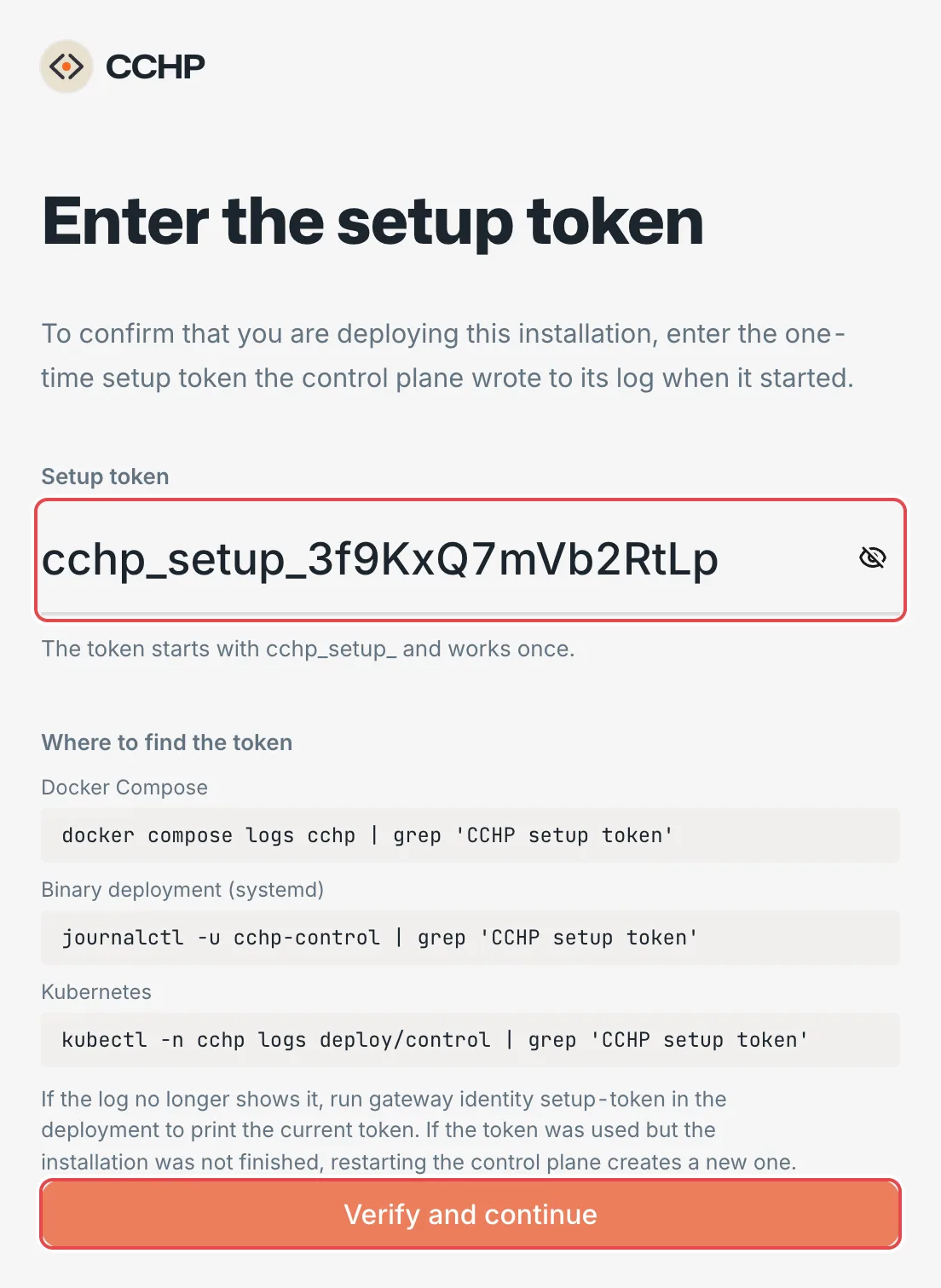 Setup wizard: enter the setup token
 CCHP
CCHP
The token works only once. After you redeem it, this browser gets a setup session that is valid for 24 hours, which you use to complete the next two steps. The session ends when you create the administrator. If the token was used but setup did not finish (for example, because you switched browsers), run the setup-token command above again to get a new token. Restarting cchp also writes a new token to the log.
Result: The page shows step 1 of the setup wizard, Site, and the top of the page shows Step 1 of 7.
Step 7: Complete the setup wizard#
The wizard has 7 steps, and you can go back to a completed step to change it. After you complete the last step, Organization, setup ends and the browser opens the console. All three installation methods use the same wizard. Only the check result of the Database step depends on the deployment method. For k3s / k8s and binary installations, see their own pages.
The worker syncs the model price list from cch-plus.com automatically, so you do not need to import it in the wizard.
Site#
In Site name, enter a name, for example Example Inc. The site name appears on the sign-in page, in the console sidebar, at the top of the public status page, in emails, and on browser tabs. Search engines and chat apps also read it for link previews. You can change it later in System Management → Site. Confirm that Public URL shows your CCH_PUBLIC_BASE_URL, then click Continue.
If You opened a different address appears, the URL you used to open the page differs from CCH_PUBLIC_BASE_URL. Open the page at the CCH_PUBLIC_BASE_URL address instead.
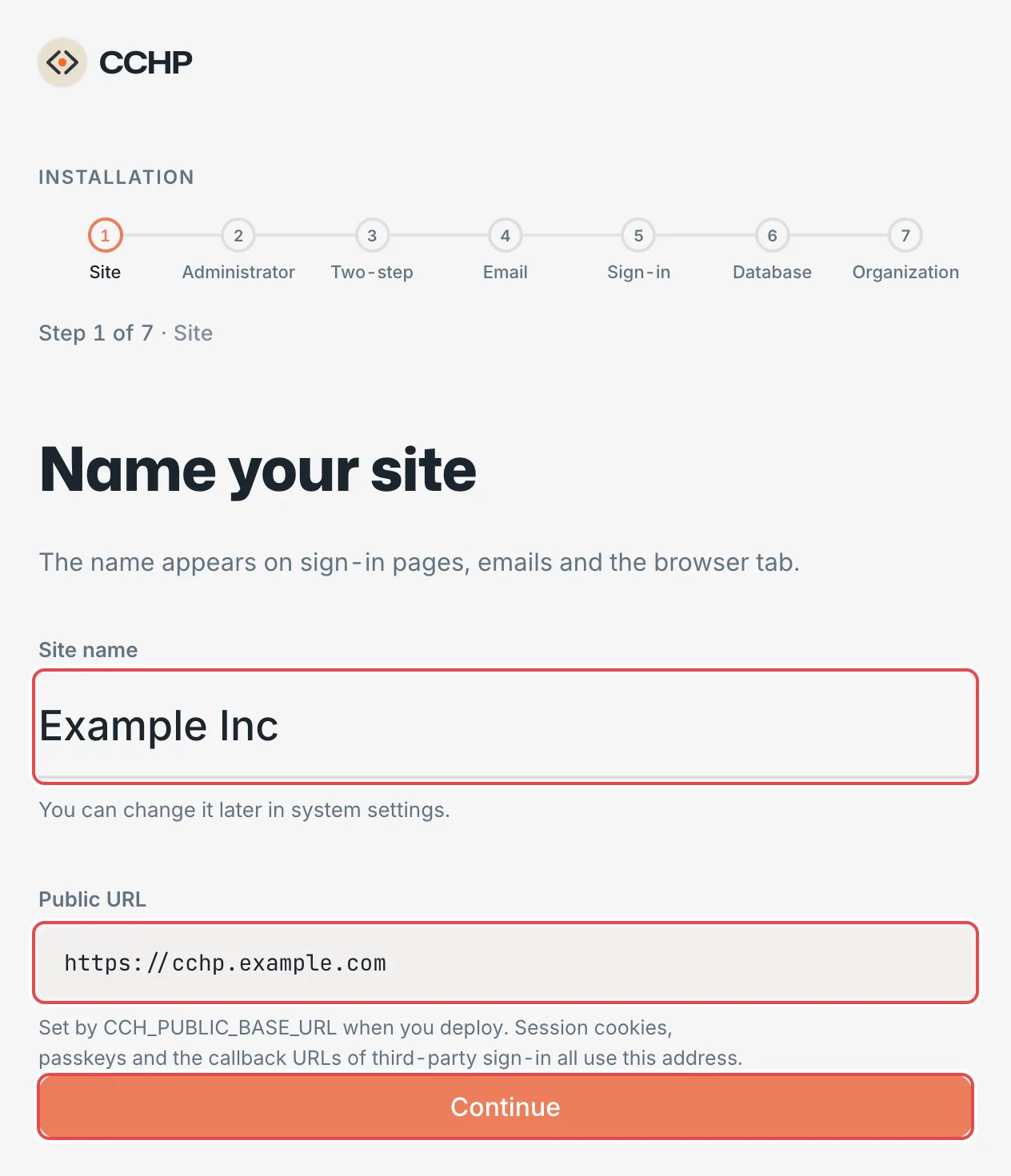 Setup wizard: Site name and Public URLCCHP
Administrator#
Enter Email (for example, admin@example.com), Display name, Password, and Confirm password, then click Create account. This account manages the whole platform and is signed in automatically after you create it. The email address is trusted as is and no verification email is sent, so this step does not need an email service.
The password must be 8 to 128 characters long. It cannot be a common or leaked password, and it cannot contain the product name, the site domain, the email address, or the display name.
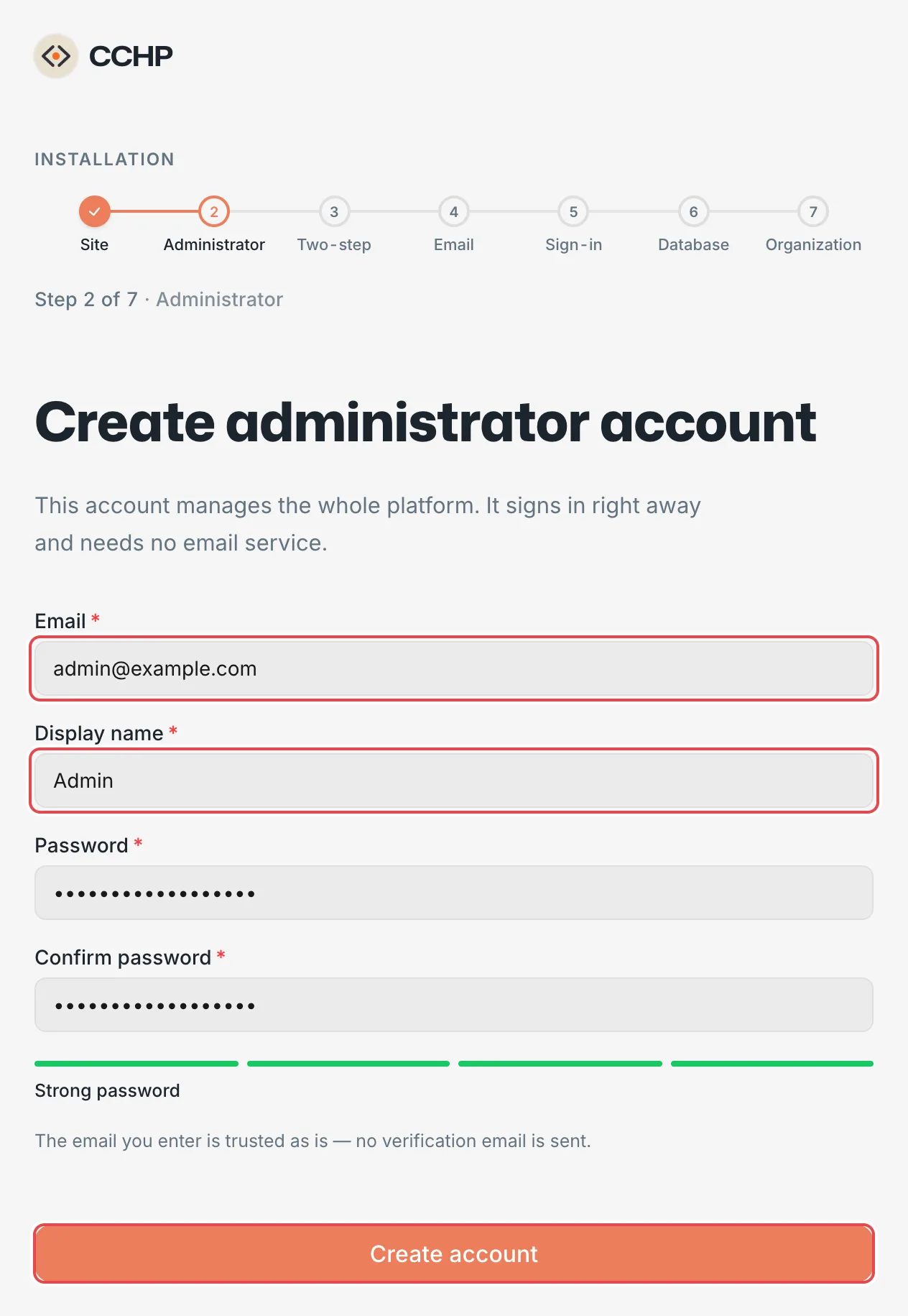 Setup wizard: create the administrator accountCCHP
Two-step#
In Passkey, click Add passkey, or scan the QR code with an authenticator app, and save the recovery codes in a safe place. After you register, click Continue. To skip registration for now, click Skip for now.
Passkeys are bound to the domain of CCH_PUBLIC_BASE_URL. If you change the domain later, you must add your passkeys again.
Email#
Fill in the SMTP details, such as Sender name, Sender email, SMTP host, SMTP port, SMTP username, SMTP password, and Connection security. Click Save email settings, then click Continue.
If you do not have an email service yet, click Skip — continue without email. If you skip it, registration, sign-in with an email code, and password recovery do not work. Admins can still create accounts with temporary passwords in user management. You can configure email later in System Management → Transactional email.
Sign-in#
Choose whether to turn on Allow registration and Require two-step verification, and add Third-party sign-in as needed (GitHub, Google, LinuxDo, or any OpenID Connect service). Register the Callback URL shown on the page with the other platform. Open registration requires an email service. You cannot skip this step, but you can keep the defaults and click Continue, then change them later in Administration → Sign-in Methods.
If you turn on Require two-step verification after you skipped two-step verification in the earlier step, you must add a passkey or an authenticator before you can finish setup.
Database#
This step checks whether Top statements in System Management can read PostgreSQL statistics. The Compose deployment already preloads pg_stat_statements, and migrate creates the extension, so the check passes right away. Click Continue.
If the check fails, the page lists statements that a PostgreSQL superuser must run. After you run them, click Check again, or click Skip, handle it later in System Management.
Organization#
Enter Organization name (for example, Example Inc) and Team name (for example, Core team), then choose a card under Organization type:
- Prepaid: top up first, then use. Requests stop when the balance runs out. Suited to reselling access to others.
- Postpaid: use without topping up. Suited to your own use or internal routing. When you choose it, a credit limit setting appears below the cards, with no limit by default; the organization’s monthly credit usage is then bound only by the spend limits on each level. Turn on Set a postpaid credit limit and enter Organization postpaid credit limit, and the organization’s monthly credit usage cannot exceed that amount. The limit resets on the 1st of each month (UTC).
You must choose an organization type. Later, only a platform super admin can change it, in Billing mode on the organization settings page. Click Create and continue. After the organization is created, setup ends and the browser opens the console. For how limits on every level work together with the billing mode, see Limits on every level and postpaid organizations. For the difference between organizations and teams, see the “Organizations and teams” section later in these docs. For how to migrate from CC Hub, see the later sections.
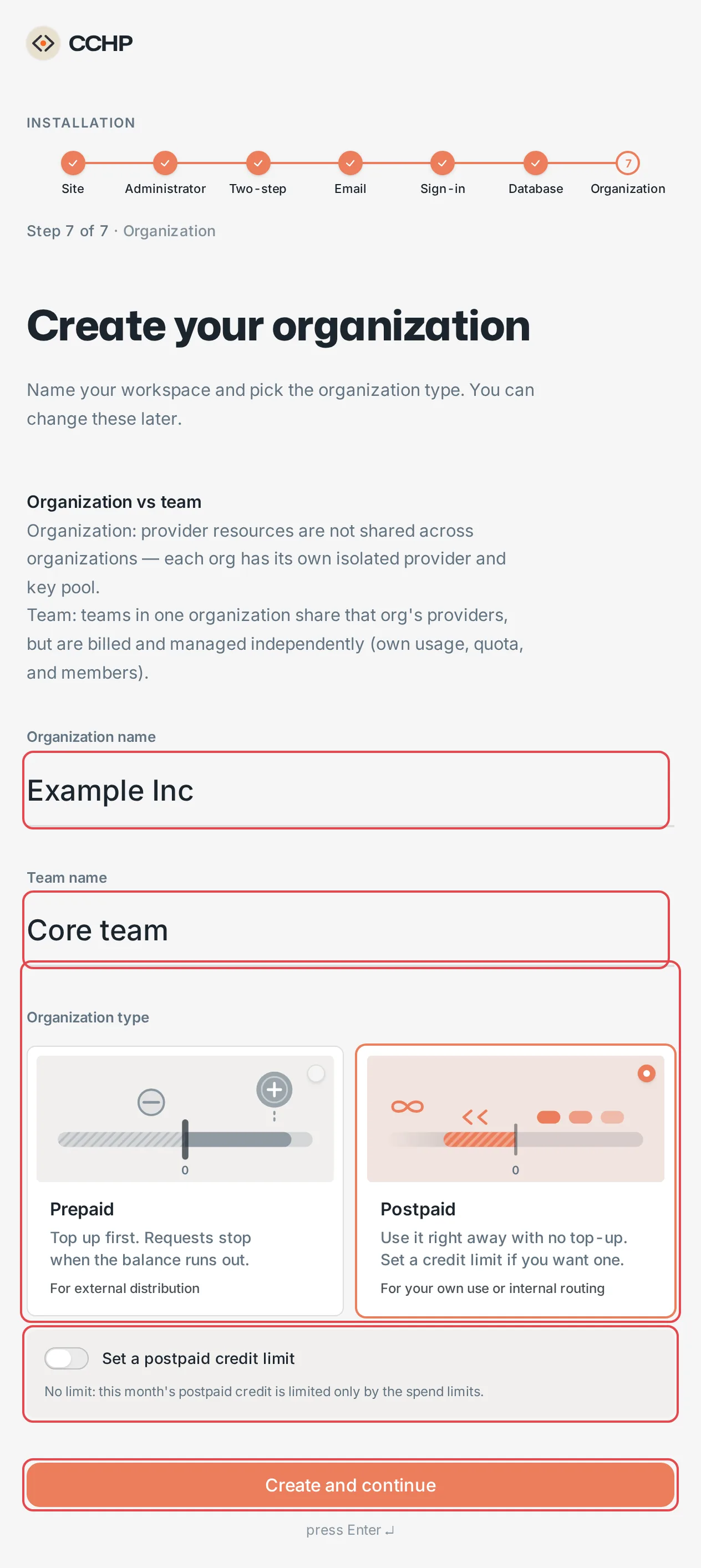 Setup wizard: organization name, team name, and organization typeCCHP
Result: The browser opens the console home page, and the setup wizard no longer appears.
Step 8: Verify the installation#
Check through the public URLs that the console and the gateway are ready, and confirm that the reverse proxy and the certificates work:
curl -s -o /dev/null -w '%{http_code}\n' https://cchp.example.com/readyz
curl -s -o /dev/null -w '%{http_code}\n' https://api.cchp.example.com/readyz
For a local trial on the server, replace the URLs with http://localhost:8080/readyz and http://localhost:8081/readyz.
Result: Both commands print 200.
There are no providers yet, so the gateway answers proxy requests with an error saying that no route is available. The next sections show how to add providers, create LLM keys, and connect clients such as Claude Code and Codex.
Upgrade#
Warning: Back up the database before you upgrade. Database migrations only run forward and cannot be rolled back.
Upgrade manually#
latest in compose.yml always points to the latest stable release, so pulling the new image is the upgrade:
-
Back up the database and
.env(see “Backup and restore”), and note the Current version in System Management → About. You need it if you roll back. -
When a new version is released, the deployment files on this page are updated to match. Update
compose.ymlfrom this page (and any overlay files you use). In.env, only add the variables that are new on this page. Do not overwrite your.envwith the one on this page, because you must keep the secrets in your original file. -
Pull the images and recreate the containers:
bash docker compose pull && docker compose stop cchp && docker compose up -d -
Run
docker compose ps --allto confirm thatmigrateisExited (0)andcchpishealthy.
Result: cchp runs the new version. When you upgrade across several versions, migrate runs all missing migrations at once, so you do not need to upgrade one version at a time.
docker compose stop cchp waits for in-flight requests to finish, for up to 930 seconds. Be patient.
To run a specific version, change ghcr.io/cch-hq/cch-plus:latest in both places in compose.yml, migrate and cchp, to a version tag, for example ghcr.io/cch-hq/cch-plus:1.0.11, then run the command in item 3 above. Change it back to latest to follow the latest stable release again.
If a migration fails, migrate exits with code 1 and cchp stays not ready. Run docker compose logs migrate to see why, fix the cause, and run docker compose up -d migrate. After the migration finishes, cchp starts serving automatically. You can also change latest to the version you noted before the upgrade, as described above, and run docker compose pull && docker compose up -d. If the old version cannot run correctly on the migrated database, your only option is to restore a backup.
If you upgrade from an older version that set path variables per subsystem, the cch_imports and cch_wasm_cache volumes are no longer used. You can delete them with docker volume rm cch-plus_cch_imports cch-plus_cch_wasm_cache.
Automatic updates (Watchtower)#
The overlay file compose.watchtower.yml uses Watchtower (nickfedor/watchtower) to update CCHP automatically. In the deployment directory, create compose.watchtower.yml with this content:
services:
  migrate:
    labels:
      com.centurylinklabs.watchtower.enable: "true"
      com.centurylinklabs.watchtower.scope: cchp

  cchp:
    labels:
      com.centurylinklabs.watchtower.enable: "true"
      com.centurylinklabs.watchtower.scope: cchp

  watchtower:
    image: nickfedor/watchtower:1.23.1
    restart: unless-stopped
    volumes:
      - /var/run/docker.sock:/var/run/docker.sock
    environment:
      # Update only containers that have the labels above
      WATCHTOWER_LABEL_ENABLE: "true"
      WATCHTOWER_SCOPE: cchp
      # Also rerun the exited migrate with the new image
      WATCHTOWER_INCLUDE_STOPPED: "true"
      WATCHTOWER_REVIVE_STOPPED: "true"
      # Matches the stop_grace_period of cchp
      WATCHTOWER_TIMEOUT: 930s
      WATCHTOWER_CLEANUP: "true"
    labels:
      com.centurylinklabs.watchtower.scope: cchp
Start it:
docker compose -f compose.yml -f compose.watchtower.yml up -d- Once a day, Watchtower checks whether the CCHP image tag in
compose.yml(latest) has a new image. - It updates only
migrateandcchp. PostgreSQL and Dragonfly keep the images pinned incompose.yml. - Update order: it stops
cchpfirst (draining in-flight requests for up to 930 seconds), runsmigratewith the new image, and then starts the newcchp. The service is down during the update until the newcchpis ready. - Watchtower does not make backups. If you turn on automatic updates, schedule regular backups.
- If a migration fails, first run
docker compose stop watchtowerto pause automatic updates, then follow the steps in “Upgrade manually”.
When you use overlay files: Add the same -f flags to every later docker compose command. You can also add the line COMPOSE_FILE=compose.yml:compose.watchtower.yml to .env. This is a built-in Docker Compose feature, and after that you can just run docker compose ....
Other automatic update tools#
Watchtower without --include-stopped, and other tools that only recreate running containers, bypass Docker Compose: they only swap cchp to the new image and never run migrate, which has already exited. When the new image brings new database migrations, the new cchp stops at its startup check, /readyz returns 503, and every 30 seconds the log writes a line with the missing migration versions and the command to fix it, docker compose up -d migrate. After you run that command, cchp starts serving within 10 seconds without a restart.
If you use such a tool, pick one of these:
- Switch to
compose.watchtower.ymlabove. If a Watchtower that also manages other containers is already running, addWATCHTOWER_INCLUDE_STOPPEDandWATCHTOWER_REVIVE_STOPPEDto it, and putmigrateandcchpin the same scope as it. - In
compose.yml, add the labelcom.centurylinklabs.watchtower.enable: "false"tomigrateandcchpso they are not updated automatically, and upgrade them as in “Upgrade manually”.
Do not put migrations in the cchp start command: migrations need the database owner password, while cchp connects to the database only with a restricted runtime role.
Check the version and updates#
In the console, go to System Management → About. Current version shows the running version. In Updates, select an Update channel (Stable or Dev), then click Check now to see whether a new build is available. The check only notifies you and never upgrades automatically.
Optional: database connection pool (PgDog)#
The overlay file compose.pooler.yml adds a PgDog connection pool in transaction mode between cchp and PostgreSQL. A single-server deployment also runs fine without a connection pool. In the deployment directory, create compose.pooler.yml with this content:
services:
  pgdog:
    image: ghcr.io/pgdogdev/pgdog:v0.1.60
    restart: unless-stopped
    command: ["pgdog", "--config", "/etc/pgdog/pgdog.toml", "--users", "/etc/pgdog/users.toml"]
    configs:
      - source: pgdog_config
        target: /etc/pgdog/pgdog.toml
      - source: pgdog_users
        target: /etc/pgdog/users.toml
    healthcheck:
      test: ["CMD", "curl", "-fsS", "http://127.0.0.1:8080/"]
      interval: 5s
      timeout: 3s
      retries: 20
    stop_grace_period: 65s
    depends_on:
      postgres:
        condition: service_healthy

  cchp:
    environment:
      # Regular queries go through PgDog. Session-level connections (LISTEN, scheduled-job locks) connect to PostgreSQL directly
      DATABASE_URL: postgres://cchp_runtime:${CCHP_DATABASE_RUNTIME_PASSWORD:?}@pgdog:6432/app?sslmode=disable
      DATABASE_DIRECT_URL: postgres://cchp_runtime:${CCHP_DATABASE_RUNTIME_PASSWORD:?}@postgres:5432/app?sslmode=disable
    depends_on:
      pgdog:
        condition: service_healthy

configs:
  pgdog_config:
    content: |
      [general]
      default_pool_size = 24
      min_pool_size = 2
      prepared_statements_limit = 4096
      # Recycle backend connections after 5 minutes of use (plus up to 1 minute of random jitter)
      server_lifetime = 300000
      server_lifetime_jitter = 60000
      healthcheck_port = 8080

      [[databases]]
      name = "app"
      host = "postgres"

  pgdog_users:
    content: |
      [[users]]
      name = "cchp_runtime"
      database = "app"
      password = "${CCHP_DATABASE_RUNTIME_PASSWORD}"
Start it:
docker compose -f compose.yml -f compose.pooler.yml up -d- Regular
cchpqueries go through PgDog (pgdog:6432). Session-level connections, such as LISTEN and scheduled-job locks, still connect to PostgreSQL directly.migratealways connects directly. - If you also use automatic updates, specify all three files, for example
COMPOSE_FILE=compose.yml:compose.pooler.yml:compose.watchtower.yml.
Backup and restore#
What to back up#
Back up#
Export the database, and note the Current version in System Management → About. You need it when you restore:
docker compose exec -T postgres pg_dump -U hub -d app -Fc > cchp-$(date +%F).dumpResult: The current directory contains a backup file named cchp- followed by the date.
Back up the node data volume. Stop cchp first so you do not copy half-written files:
docker compose stop cchp
docker run --rm -v cch-plus_cch_archive:/data:ro -v "$PWD":/backup alpine tar czf /backup/cch_archive-$(date +%F).tar.gz -C /data .
docker compose start cchp
Restore the database#
These steps restore the database to its state at the time of the backup:
-
Stop
cchp. If you use automatic updates, stop Watchtower too:bash docker compose stop watchtower cchpIf you do not use automatic updates, run
docker compose stop cchp. -
In
compose.yml, changelatestin both places,migrateandcchp, to the version that was running at the time of the backup, for example1.0.11. -
Recreate the database and restore the backup. Replace the file name with your backup file:
bash docker compose exec -T postgres psql -U hub -d postgres -c 'DROP DATABASE app WITH (FORCE)' -c 'CREATE DATABASE app' docker compose exec -T postgres psql -U hub -d app -c 'CREATE EXTENSION IF NOT EXISTS timescaledb' -c 'SELECT timescaledb_pre_restore()' docker compose exec -T postgres pg_restore -U hub -d app < cchp-YYYY-MM-DD.dump docker compose exec -T postgres psql -U hub -d app -c 'SELECT timescaledb_post_restore()'timescaledb_pre_restore()andtimescaledb_post_restore()are the pre-restore and post-restore steps that TimescaleDB requires. Result:pg_restoreprints no errors. -
Start all services:
bash docker compose up -d
Result: migrate confirms that all migrations for that version have run, and cchp resumes service. When you want to upgrade later, change the version back to latest and follow “Upgrade manually”.
When you rehearse a restore on another server, block that server’s outbound network access first, then run docker compose up -d. The restored database contains the production provider and notification settings, and cchp contacts them as soon as it starts.
Stop and uninstall#
Stop and remove the containers, and keep the volumes:
docker compose downLater, run docker compose up -d to start again with the existing data. If you use overlay files, add the same -f flags to down as well, or set COMPOSE_FILE in .env.
To uninstall completely, delete the volumes too, then delete the deployment directory:
docker compose down -v
cd .. && rm -rf cchp
Warning: docker compose down -v deletes all volumes, and the database, request archives, and uploaded files cannot be recovered. Make sure you have a backup before you run it. The .env in the deployment directory contains the secrets, so make sure you no longer need it before you delete it.
Frequently asked questions#
Startup reports required variable … is missing a value#
A variable in .env is empty, and the message names the variable. Generate the secrets as in step 2, and set the public URLs as in step 3.
cchp does not start, and the log says the public URL is invalid#
When CCH_PUBLIC_BASE_URL is neither an HTTPS URL nor a loopback address, the error in the log contains invitation public base URL is invalid. When the URL contains a path, the error is public origin must not contain a path. Change it to a URL that starts with https:// and has no path, then run docker compose up -d. If you need an http URL for LAN testing only, see Reduced-security deployment (LAN testing).
The page says “You opened a different address”, or submissions are rejected#
The URL you used to open the console differs from CCH_PUBLIC_BASE_URL, for example, you opened a console configured with a domain by its server IP. The cross-site check rejects requests that the browser submits. Always open the console at the CCH_PUBLIC_BASE_URL address.
You cannot find the setup token, or the token is reported as invalid#
Run docker compose exec cchp gateway identity setup-token to print the current token. A token can be redeemed only once. If it was redeemed but setup did not finish, this command generates a new token, and restarting cchp also writes a new token to the log. After the administrator is created, there is no setup token anymore, and the command fails with installation already has users. Sign in directly.
migrate fails with password authentication failed#
POSTGRES_PASSWORD in .env was changed after the first start, so it no longer matches the password stored in the volume. Put your backed-up .env back in place, then run docker compose up -d.
cchp stays unhealthy, and /readyz returns 503#
When the database is missing migrations that this image needs, cchp starts no features, and /readyz returns 503 and lists the missing migration versions. Run docker compose logs migrate and docker compose logs cchp to see why, fix the cause, and run docker compose up -d migrate. Every 30 seconds the cchp log writes a line with the missing migration versions and the command to fix it. If this happens after an automatic update tool upgraded CCHP, see Other automatic update tools.
Stopping or upgrading cchp takes a long time#
cchp waits up to 930 seconds on stop so that in-flight requests can finish. When there are no in-flight requests, it stops quickly. If you really need to stop it right away, run docker compose stop -t 30 cchp. In-flight requests are interrupted.
You forgot the admin password, and no email service is configured#
Set a temporary password for the account from the deployment directory:
printf '%s\n' '<temporary-password>' | docker compose exec -T cchp gateway identity set-password --email admin@example.comThe command signs the account out on all devices. You can sign in with the temporary password within 24 hours, and you must set a new password when you sign in.
Pulling images fails or is slow#
Make sure the server can reach ghcr.io, Docker Hub, and docker.dragonflydb.io. You can also replace the image addresses in compose.yml with mirror addresses for the same images.
The disk is running out of space#
When the disk that holds the request archives runs low on space, cchp stops saving request content until its next start. Requests are still handled, and system health shows a degraded node. cchp refuses to start only when the space for billing data runs out. When the combined limits of all local data exceed the disk capacity, cchp refuses to start, and the log event is storage_volume_too_small. Expand the disk. You can adjust the database retention days in System Management → Database.
Every client IP in request logs is the same address#
By default, the client IP is the connection address. Behind a reverse proxy, CCHP sees the reverse proxy’s address (the Docker bridge’s address in a Docker deployment), so the source IP in request logs and audit logs is always that address. To identify the real source IP from X-Forwarded-For, a platform super admin goes to Administration → System Management → Security. In the Client IP block, set Client IP detection to X-Forwarded-For (trusted proxy ranges), add the reverse proxy’s address to Trusted proxy ranges (the Docker bridge’s subnet in a Docker deployment), add X-Forwarded-For to Trusted headers, and save. If one of them is missing, the page points it out before saving. This applies to all three installation methods.