Chapter 3415 min read
Create an LLM key
Create an LLM key in API Keys and choose a routing strategy, restrict the models the key can call and set limits, copy the full key or view it again, disable or revoke the key, and check its usage in Call Records.
An LLM key is the credential that clients such as Claude Code and Codex use to call the CCHP gateway. Each key belongs to you and to the organization you created it in, and the costs it incurs count toward your wallet in that organization.
In the sidebar, click API Keys to open the key list. The list shows only your keys in the current organization selected in the top bar. When an admin has configured the gateway public URL, the API base URLs card at the top of the page lists the URLs for the Claude, OpenAI, and Gemini request formats, which you can copy straight into a client.
The Actions column of each row has the Import to CC Switch, Settings, View request logs, and Revoke icons. When the table is narrow (as in the screenshot below), these actions are collapsed into the menu at the end of the row.
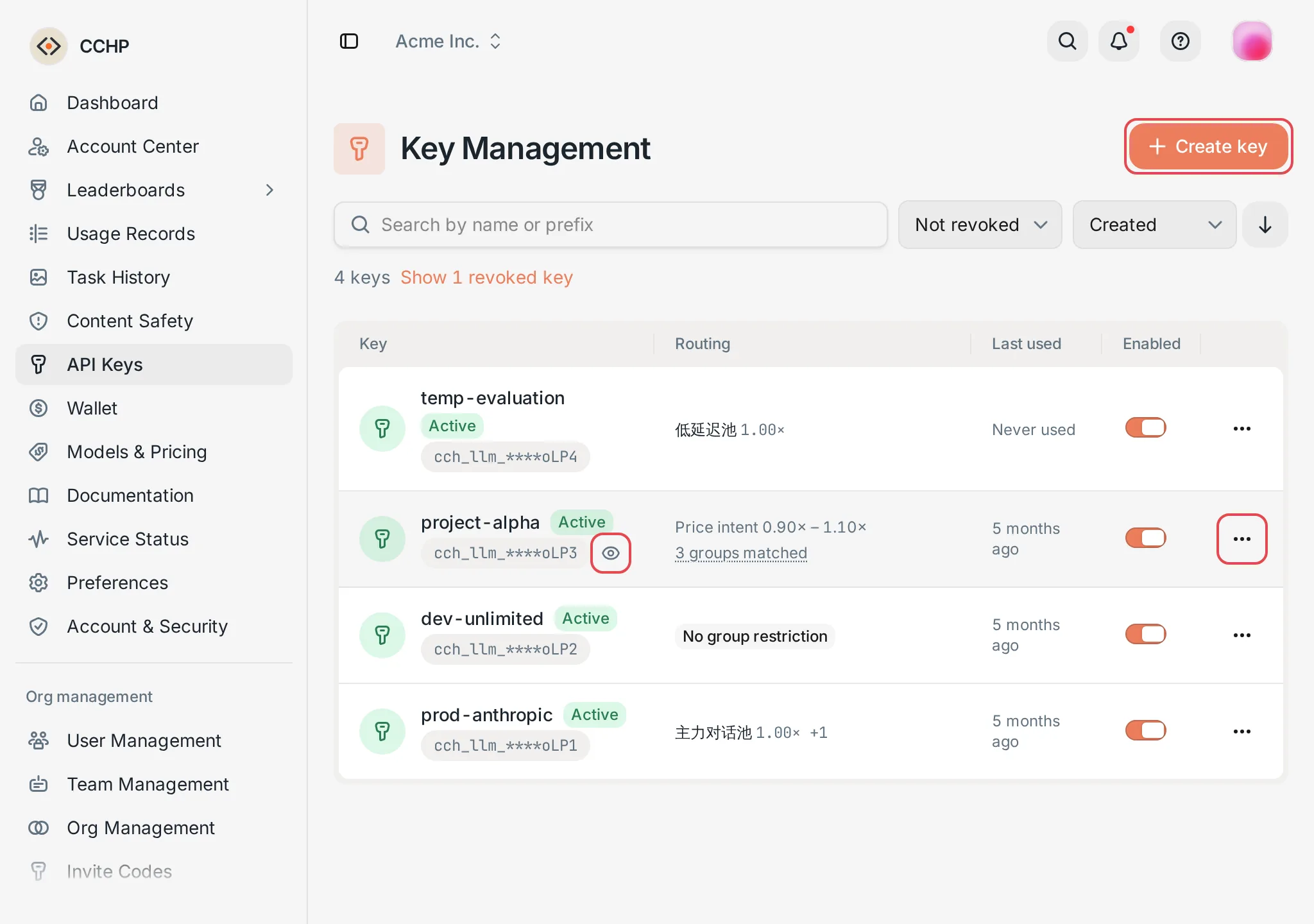 Key Management: the key list, the create button, and the row menu
 CCHP
CCHP
Step 1: Fill in the basics#
In the top-right corner of the Key Management page, click Create key to open the Create LLM Call Key dialog. The Summary on the right side of the dialog shows your choices as you make them, and items you haven’t filled in show Pending.
- Key name: Required, up to 128 characters, with no control characters such as line breaks or tabs; leading and trailing spaces are removed. Use it to tell keys apart in the list and in call records, for example
alice-key. You can change it later in Settings in the key details. - Expiry: Defaults to Never expires. You can also select 30 days, 90 days, 180 days, or Custom date. After the key expires, the gateway rejects calls made with it.
When you select Custom date, make sure to pick a date and time later than now next to it. If you don’t pick a date, the key is created as never expiring.
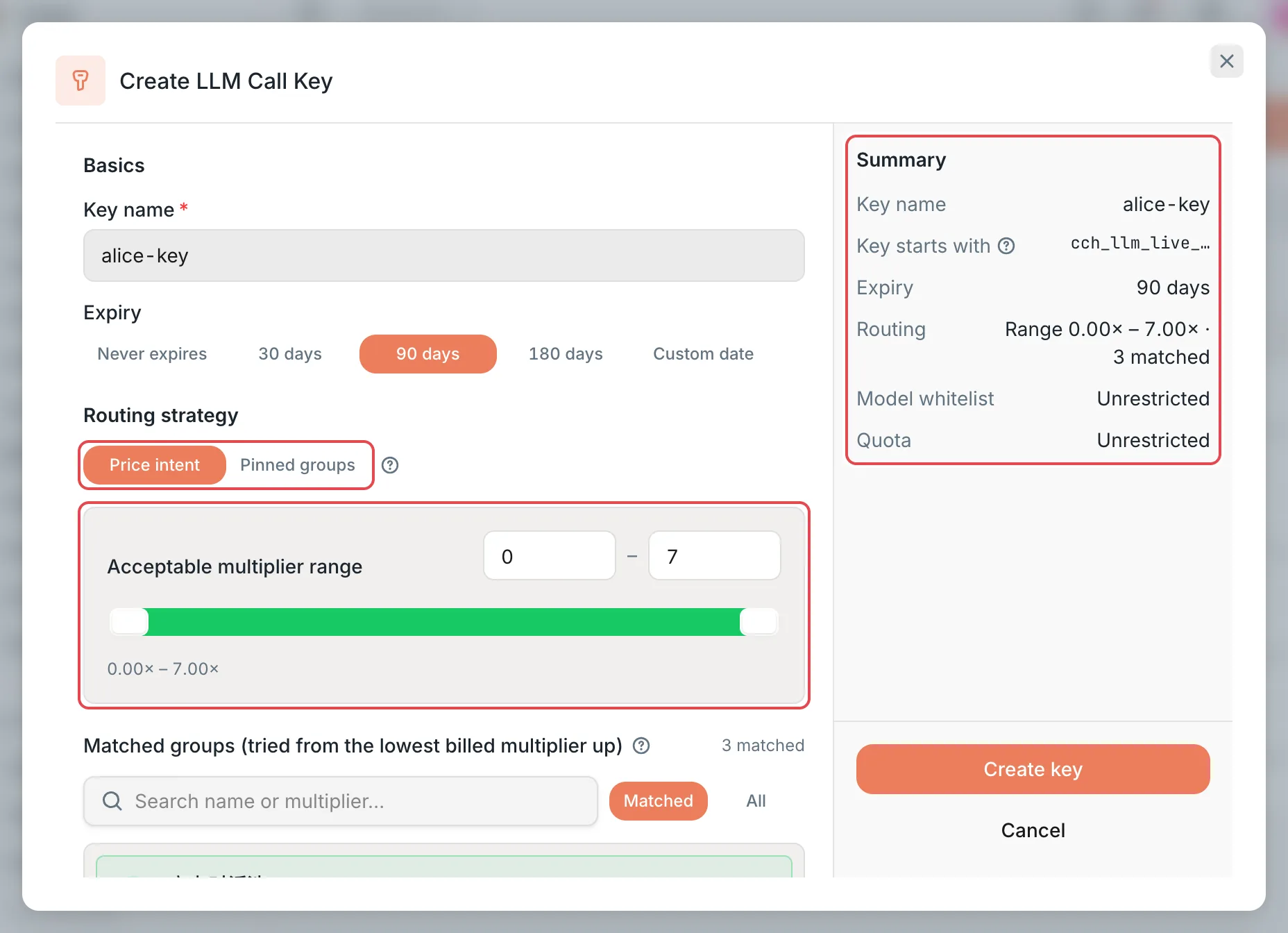 Create LLM Call Key: the basics and the routing strategyCCHP
Step 2: Choose a routing strategy#
The routing strategy decides which provider groups this key’s requests go through, and in what order they are tried. The multiplier after a group’s name is that group’s billing multiplier for you, and it already includes any markup an admin set on that group for your organization or team. The lower the multiplier, the lower the price for the same model. For the full cost calculation, see Provider groups and your final price.
- Price intent (default): Set the Acceptable multiplier range, that is, the Minimum multiplier and the Maximum multiplier. The default is
0.00×to7.00×, which includes all groups. The key uses every group whose billing multiplier falls within the range. It tries the group with the lowest multiplier first and uses the next group only after all earlier groups fail. Groups added later whose multiplier falls within the range are also used by this key automatically. The matching groups are listed below the range. Switch to All to also see the groups outside the range. - Pinned groups: In Available groups, click Add to the right of a group, then drag groups in Attempt order to arrange them. The gateway tries the first group first and uses the next group only after all earlier groups fail. Use this when you want to use only a few specific groups.
Whichever strategy you choose, the key needs at least one group before you can create it.
Step 3: Restrict available models (optional)#
Expand Advanced settings, and in Model whitelist, set the models this key can call. Leave it blank for no restriction: the key can call every model in the selected groups.
- Click Add, enter a model ID in the Add models dialog, for example
gpt-6.1-sol, and then select it in the suggestion list. The candidates come from Models & Pricing, and only models available in the selected groups are listed. You can also add a name that isn’t in the catalog, but it can’t be called until the organization lists that model. - To allow a whole family of models, enter a regular expression in the same input box, then select the rule under Add as rule. The regex must match the full model name:
claude-.*matches every model that starts withclaude-, andclaude-opus-5-5matches onlyclaude-opus-5-5itself. Models listed later whose names match the rule are allowed automatically. Regexes don’t support backreferences or lookahead and lookbehind assertions. - Click Test and enter a model name to check whether it would be allowed or rejected.
You can use exact names and regex rules together, and a model can be called if it matches any one of them. When a client requests a model outside the whitelist, the gateway returns 403. When a client fetches the model list (GET /v1/models), it sees only the models in the whitelist.
Step 4: Set limits (optional)#
Limits is in Advanced settings, and only users with permission to manage limits, such as organization admins and team admins, can set it. Regular members don’t see this item when they create a key, but after creating it they can view the limits an admin set in the key details. If you need limits, ask an organization admin to set them for your key in Manage users.
- In Limits, click Add quota rule (when rules already exist, the button is Add rule).
- Select a Limit type, enter a Limit value, and click Save.
- To limit several dimensions, repeat these steps. Each limit type can have only one rule.
- For credit limits, enter an amount in the same unit as the amounts shown in Wallet and in call records.
- 5-hour credits, Daily credits, Weekly credits, and Monthly credits are counted over a rolling window by default; Monthly credits covers the last 30 days and appears as 30-day credits on the limit card. When a platform super admin switches them to fixed periods, 5-hour credits run in 5-hour periods starting from 1970-01-01 00:00 UTC, daily credits reset every day at 00:00 UTC, weekly credits every Monday at 00:00 UTC, and monthly credits on the 1st of each month at 00:00 UTC.
- Credit is held at the estimated cost before a request is sent and settled at the actual cost after it finishes. When the actual cost is higher than the hold, the last request can push usage slightly over the limit. Requests after that are rejected.
- The key’s limits apply together with the limits an admin set for you, your team, and your organization. When any one of them is used up, requests are rejected.
After the key is created, you can change or delete rules in Settings → Limits in the key details, and see how much of each limit is used, when it resets, and when the next period starts in Usage → Quota usage.
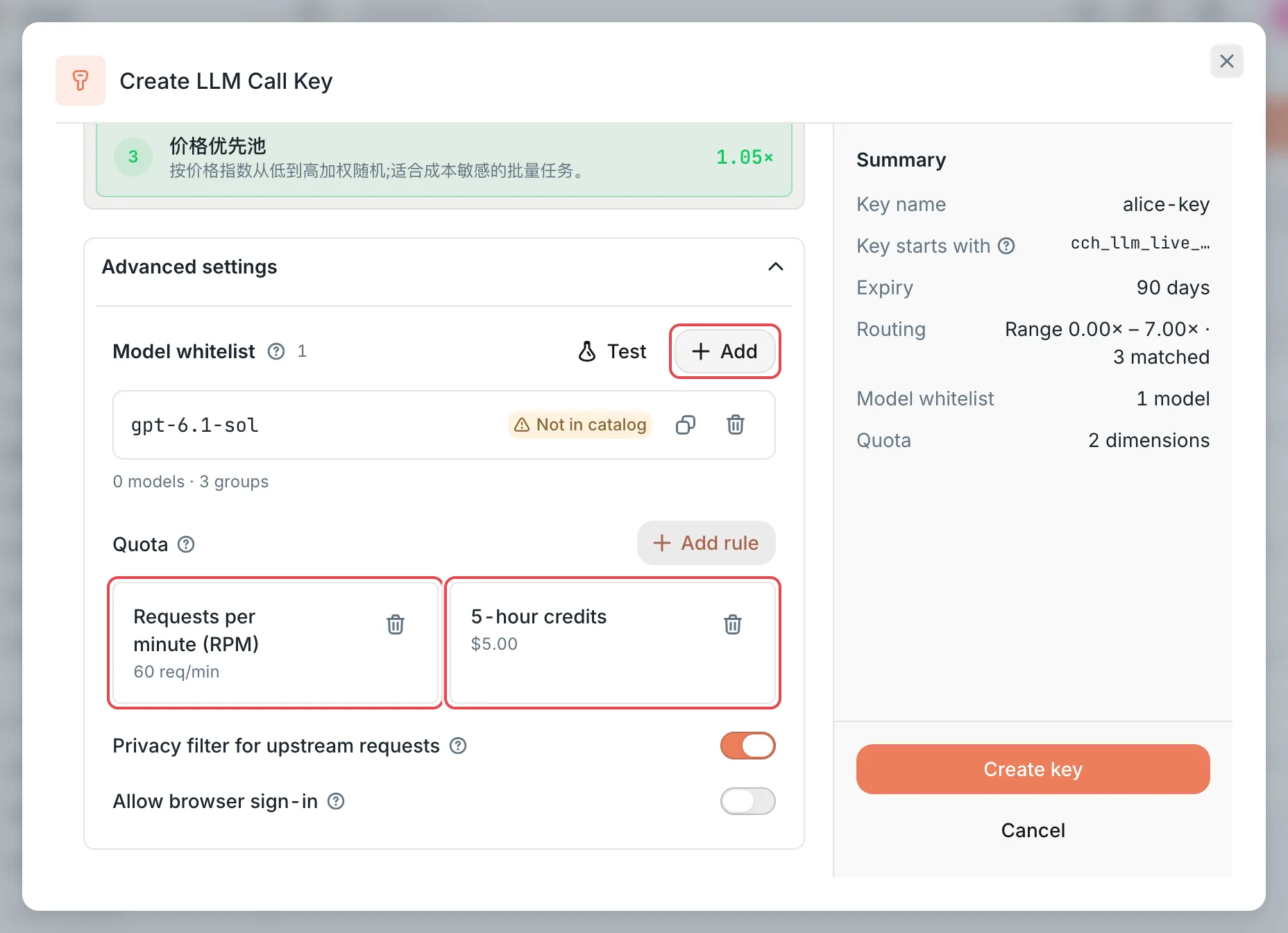 Advanced settings: the model whitelist and limitsCCHP
Advanced settings also has two toggles, which you can usually leave at their defaults:
- Privacy filter for upstream requests: On by default. Content in requests sent to upstream providers that matches the privacy rules is masked. It appears only after the platform turns on the privacy filter feature, and you can’t change it when an admin has locked it.
- Allow browser sign-in: Off by default. When it is on, anyone who has this key can click Sign in with LLM token on the sign-in page to open a read-only console that shows this key’s own request logs, usage, and limits.
Step 5: Create and save the key#
Click Create key. If the admin has turned on human verification for key creation, the page first runs a verification, which usually shows Verifying… and then completes automatically.
Result: The page shows Key created, and the Save your key dialog opens with the full key. The key starts with the characters shown under Key starts with in the Summary, which default to cch_llm_live_. Click Copy, paste the key into your client, and then click I’ve saved it, close. After you close the dialog, you can still view the full key again at any time.
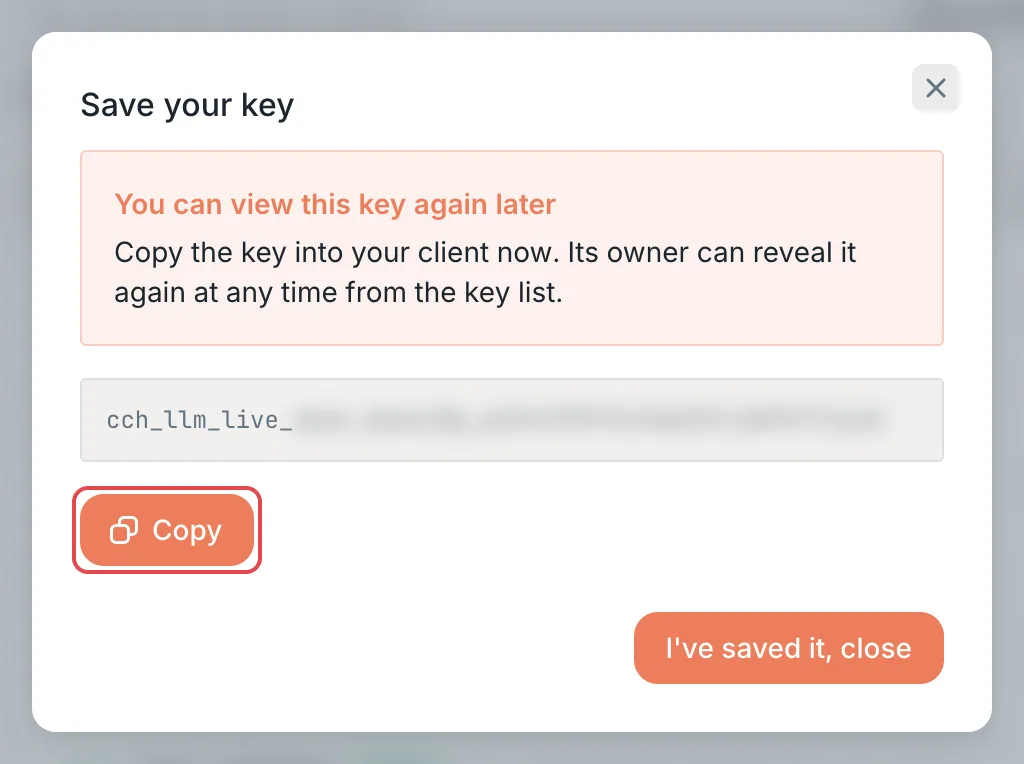 Save your key: copy the full keyCCHP
Clients pass the key in the Authorization: Bearer <key> or x-api-key: <key> request header. To confirm that the key works, run the following command first. Replace the gateway URL with yours, and replace the key with the full key you just copied:
curl https://api.cchp.example.com/v1/models \
  -H "Authorization: Bearer cch_llm_live_xxxxxxxx"
Result: The response lists the models this key can call. If you get 401, check that you copied the whole key. For how to query with other request formats, see View available models.
To connect a client, you can use Magpie or CC Switch to configure it through a graphical interface. With CC Switch installed, you can also import the key into Claude Code, Codex CLI, or Gemini CLI from its row. See each client’s guide for manual configuration.
If creation fails, the dialog stays open and keeps what you entered. If it shows Couldn’t confirm whether the key was created (for example, after a network interruption), click Create key again: if the key was already created, CCHP retrieves that key instead of creating a duplicate.
View the full key again#
Open the full key#
In the key list, hover over the key’s masked value (for example, cch_llm_****oLvC) and click the Reveal full value icon that appears. You can also click the masked key in Overview in the key details.
Complete verification#
The page may first run a human verification check, which usually shows Verifying… and completes automatically. If you signed in more than 10 minutes ago, the Verify your identity dialog also opens. Follow the prompts to confirm it’s you with a passkey, an authenticator app, a recovery code, your password, or an email verification code.
Copy the key#
In the Key plaintext dialog, click Copy. The dialog closes automatically after 30 seconds and hides the key.
Only keys with the Active status can show the full key. Disabled, expired, and revoked keys have no Reveal full value icon.
Edit, disable, and revoke keys#
Click a key’s row to open the key details. The details have four tabs: Overview, Usage, Settings, and Overrides, and organization admins also see Route preview. In Overrides, you can add rules for this key to rewrite the requests it sends or the responses returned to the client.
Change settings#
In Settings, you can change the key name (at the top), the routing strategy, Privacy filter for upstream requests, Allow browser sign-in, Expiry, and Model whitelist under Advanced options. Then click Save settings at the bottom (it becomes clickable once you change something). After a rename, call records and usage charts show the new name right away.
Result: The page shows Settings updated, and later requests follow the new settings.
Rules in Limits are saved separately: a rule takes effect as soon as you click Save in the rule dialog, and you don’t need to click Save settings afterward.
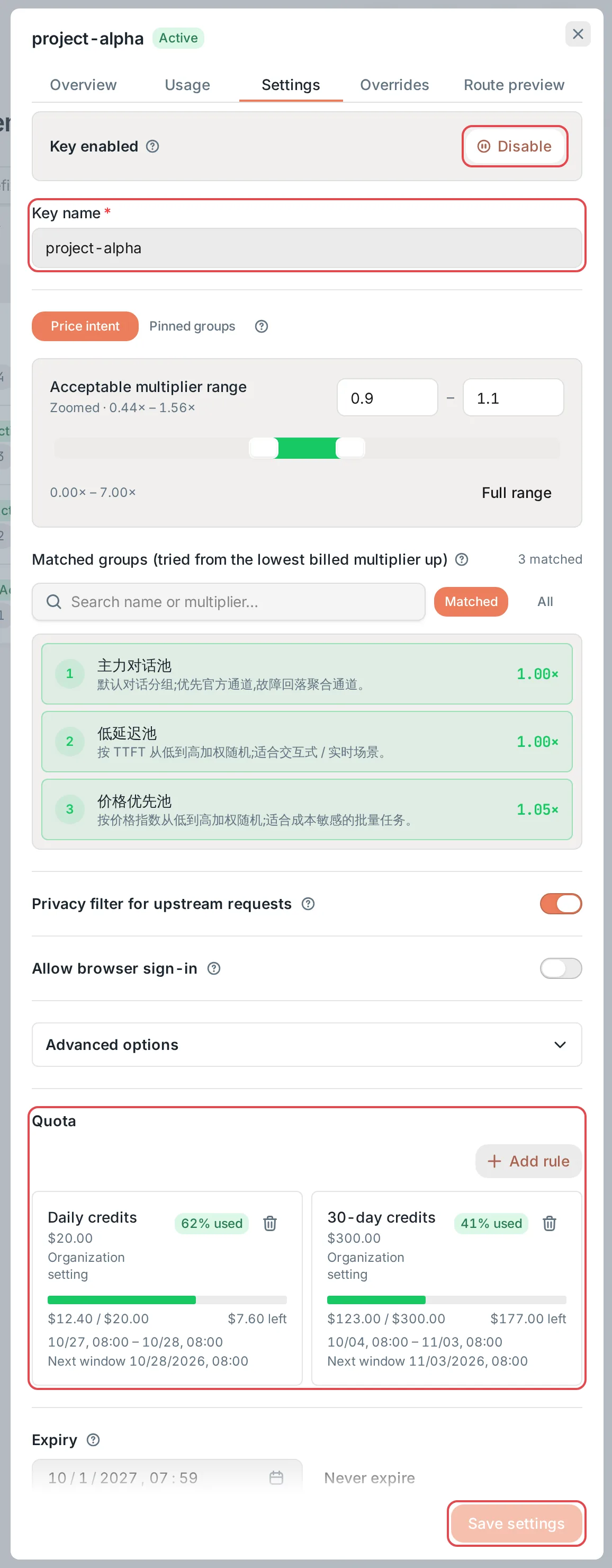 Key details: the Settings tabCCHP
Disable and re-enable#
Turn off the toggle in the Enabled column of the list, or click Disable in Settings. Once the key is disabled, the gateway immediately rejects calls made with it, and its settings and usage records are kept. Click Enable to restore it. When the key shows Disabled by an organization admin, only an organization admin can re-enable it.
Renew after expiry#
After a key expires, in Settings, select a new Expiry later than now, or click Never expire, and then click Save settings.
Result: The key is Active again. Expired keys can also be renamed.
Revoke a key#
Click the Revoke icon at the end of the key’s row, or click Revoke in Revoke key at the bottom of Settings, and then click Revoke again in the confirmation dialog.
Warning: Revoking takes effect immediately and can’t be undone. Clients that use this key can no longer make calls right away. To keep calling, you have to create a new key.
CCHP has no option to delete a key. Revoked keys can’t be renamed and are hidden from the list by default. To see them, select Revoked in the status filter. When you are removed from an organization, all your keys in that organization are revoked, and they are not restored if you rejoin.
Errors that clients receive#
When the gateway rejects a request, it returns a JSON error body: error.message explains the reason, and error.code is the error code. Common key-related errors:
A 402 means that your wallet balance is too low, or that the postpaid organization’s postpaid credit for this month is used up. See Provider groups and your final price.
When you reach a limit#
- Requests per minute (RPM) and Concurrent sessions: for
429,error.codeis10005, anderror.messagehas the format<scope> <limit type> exceeded, for exampleuser_key rpm exceeded. - Credit limits: for
429,error.codeis20003,error.details.levelis the level that is used up, anderror.details.metricis the limit type, for example with theerror.messageThis request would exceed the team's spend limit (credit1m). …. Every request is held on all levels at once, and the level with the least left decides. See Limits on every level and postpaid organizations.
rpm and activeSessions are temporary rate limits: the Retry-After response header gives the suggested wait in seconds (1 to 60 seconds), x-should-retry is true, and the client can simply retry later. A credit limit means the credit is used up: the x-should-retry response header is false, and the response includes anthropic-ratelimit-unified-status: rejected, so Claude Code treats it as credit used up and stops retrying automatically. Wait for the credit to recover over time, or ask an admin to raise the limit.
View usage and call records#
- In Usage in the key details, see Requests, last 14 days, Total requests, Total cost, and Quota usage.
- Click View request logs in Usage, or the View request logs icon on the key’s row, to open Call Records showing only this key’s requests.
- You can also click Call Records in the sidebar (the page title is Request Logs), click Filter → Key, and select the key you want to view. Each record shows the request’s time, status, model, tokens, and cost. You can see only your own requests. For how to check costs, see Provider groups and your final price.
- In Request Logs, clicking a request ID or a model name copies it without opening the request details; clicking elsewhere on the row opens them as usual.
- The Session column shows the session ID that the client sent; when the client sends none, it shows the gateway’s session
cchp_id. The cchp_id section of the request details lists the sessioncchp_id, the response cache ID, and, when the request belongs to a task, the taskcchp_id. - When the client set a reasoning effort and the value the gateway sent upstream differs from it, the request details also show Reasoning effort sent upstream.
Check balance and limits through the API#
Request the gateway’s GET /v1/cchp/account with an LLM key to read that key’s own account: the available balance (wallet, plans, and total), the limits and usage of the key and of you, and the lowest billing multiplier among the groups the key can use. The request is not billed and takes no parameters.
curl -s https://api.cchp.example.com/v1/cchp/account \
  -H "Authorization: Bearer $CCHP_API_KEY"
The returned balance.spendable is the amount this key can still spend now, in US dollars, taken as the smallest of: the amount the organization’s billing mode covers (for a prepaid organization, your available wallet and plan balance; for a postpaid organization, the organization’s remaining credit for this month, left out when no limit is set), and the remaining amount of each spend limit on the key, on you, on your team, and on the organization. When nothing constrains it, spendable is null and unlimited is true. When the organization has turned off Share billing multiplier downstream, ratio contains only {"disclosed": false}.
Frequently asked questions#
Why can’t I click Create key?#
Check the following:
- Key name is empty, longer than 128 characters, or contains control characters such as line breaks; the text under the field explains why.
- With Price intent, no group falls within the range, and the dialog shows No group falls in this range — widen it. Raise the Maximum multiplier or lower the Minimum multiplier.
- With Pinned groups, you haven’t added any groups yet.
Why can’t I see the Reveal full value icon?#
Only keys with the Active status can show the full key. If the key is disabled, re-enable it first. If it has expired, renew it first. A revoked key can’t be viewed again, so you can only create a new one.