Chapter 398 min read
Connect with a configuration manager
Add CCHP as a custom provider in Magpie or CC Switch and configure your AI clients with the gateway, key, and models.
Magpie and CC Switch help you connect AI tools (agents) such as Claude Code and Codex to CCHP through a graphical interface, without using scripts or an editor to change their configuration files. You still have conversations in your chosen AI tool; the configuration manager helps you set up its connection.
Before you start, install the AI tool you want to use. Magpie and CC Switch don’t replace it. If you haven’t installed one yet, go to Choose an AI tool, follow its installation guide, then return to this page. For OpenClaw, also complete the initial setup before configuring it with CC Switch. Then follow this page to install and use Magpie or CC Switch.
These tools are maintained by third parties. Their interfaces, supported clients, and steps may change, so this page may become outdated. The essential task is to add CCHP as a custom provider, using the CCHP gateway URL, an LLM key, and available models. If this page differs from the interface you see, follow the official documentation and your installed version:
Choose a tool#
- Magpie: Add CCHP once, then select its models in multiple supported clients. Magpie converts supported request formats through its local gateway, so clients and the provider don’t have to use the same format. Keep the gateway running while using it. Choose this to manage multiple clients and models in one place.
- CC Switch: Direct mode manages configuration without converting request formats by default, and you normally add the provider separately for each client. Its Universal Provider can sync one configuration to Claude Code, Codex, and Gemini CLI; local routing can also be enabled for format conversion in some clients. Choose this to manage each client’s configuration directly.
Format conversion doesn’t guarantee compatibility with every model capability. Available models and features still depend on the key’s permissions, the CCHP gateway, and the client.
What you need#
-
Make sure the AI tool you want to use is installed. If it isn’t, find its installation guide in Choose an AI tool.
-
In the CCHP console, open API Keys from the sidebar. If you don’t have a key yet, create an LLM key and copy the full key with Active status. If you already have one, view and copy the full key again. The masked key with asterisks in the list cannot be used directly.
-
On the same page, copy the address you need from the API base URLs card at the top: the OpenAI URL normally ends in
/v1, while the Claude URL doesn’t. The steps below explain which one to choose. If the card isn’t shown, ask your administrator for the gateway URL. See the API Keys page guide. -
Choose a model your key can call in Models & Pricing, then click its model ID in the details to copy it. OpenCode and OpenClaw may also need its context length and max output; Hermes Agent needs the context length.
These tools read or modify client configuration and hold your key. Protect your computer and exported configuration; don’t commit keys to a repository or share them with others. With WSL or Docker, the client may use a different config directory from the host. Check that the tool changes the config the client actually reads, then verify the request in Call Records.
Magpie#
Magpie runs a local gateway that forwards client requests to configured providers. Keep the Magpie gateway running while you use it. You can select models for multiple clients in one place. Download and install the version for your operating system from the Magpie website.
Supported clients#
Upstream currently lists: Claude Code, Claude Desktop, Claude Science, Codex, Gemini CLI, Antigravity CLI, OpenCode, OpenChamber, MiMo Code, DevEco Code, Pi, oh-my-pi, StepCode, MothX, PenguinHarness, Aside, OmO, Prime Agent, Goose, Cursor CLI, Cursor Private Inference, Zed, VS Code Chat, VS Code Insiders, VSCodium Chat, Zoo Code, JetBrains Air, Copilot (JetBrains), Copilot CLI, Crush, DeepSeek Harness, Reasonix Studio, Command Code, fx, Devin, Hermes Agent, Mister Morph, Kimi Code, jcode, Qwen Code, Muse Code, Empryo, MiniMax Code, Droid, Cline, Qoder, Qoder CN, Grok Build, Grok App, ZCode, WorkBuddy, WorkBuddy AI, CodeBuddy Code, Pencil, OpenPencil, NewMax, Raycast, Kiro Crew, T3 Code, OpenHanako, AtomCode, Snow CLI, Alma, Cindy, Lody, AionUi, Ante, AstrBot. What appears depends on the clients installed on your machine. For the current support list, see Magpie’s supported agents.
Add CCHP#
-
Open Magpie, go to Providers → Add provider, and select Custom. You can name the provider
CCHP.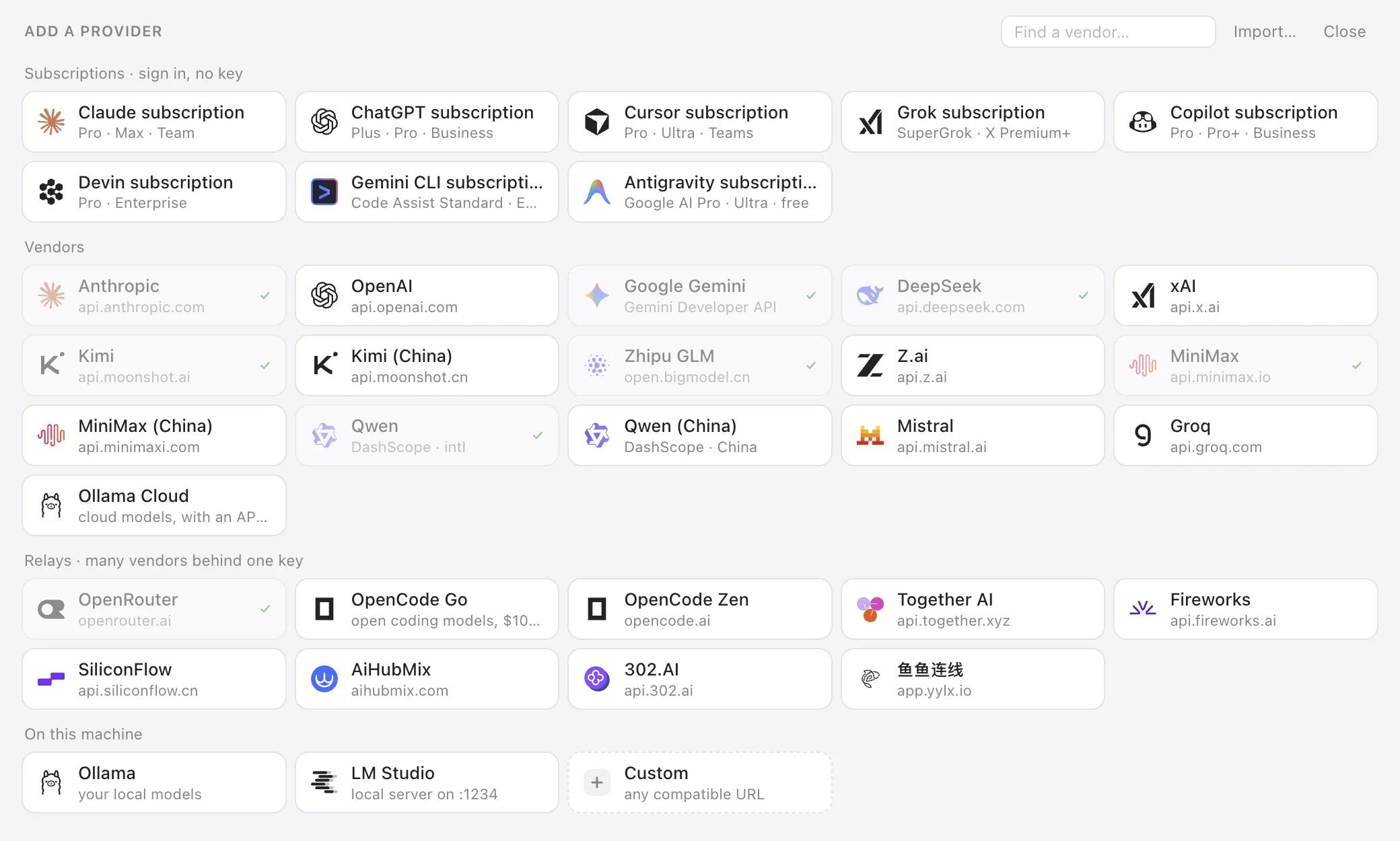 Magpie's Add a Provider page: select Custom
 CCHP
CCHP -
Under Base URL, click each format tab below and copy and paste the URL from the corresponding row in API base URLs in the CCHP console:
Copy the URL exactly as shown in the console; you don’t need to add or remove
/v1yourself.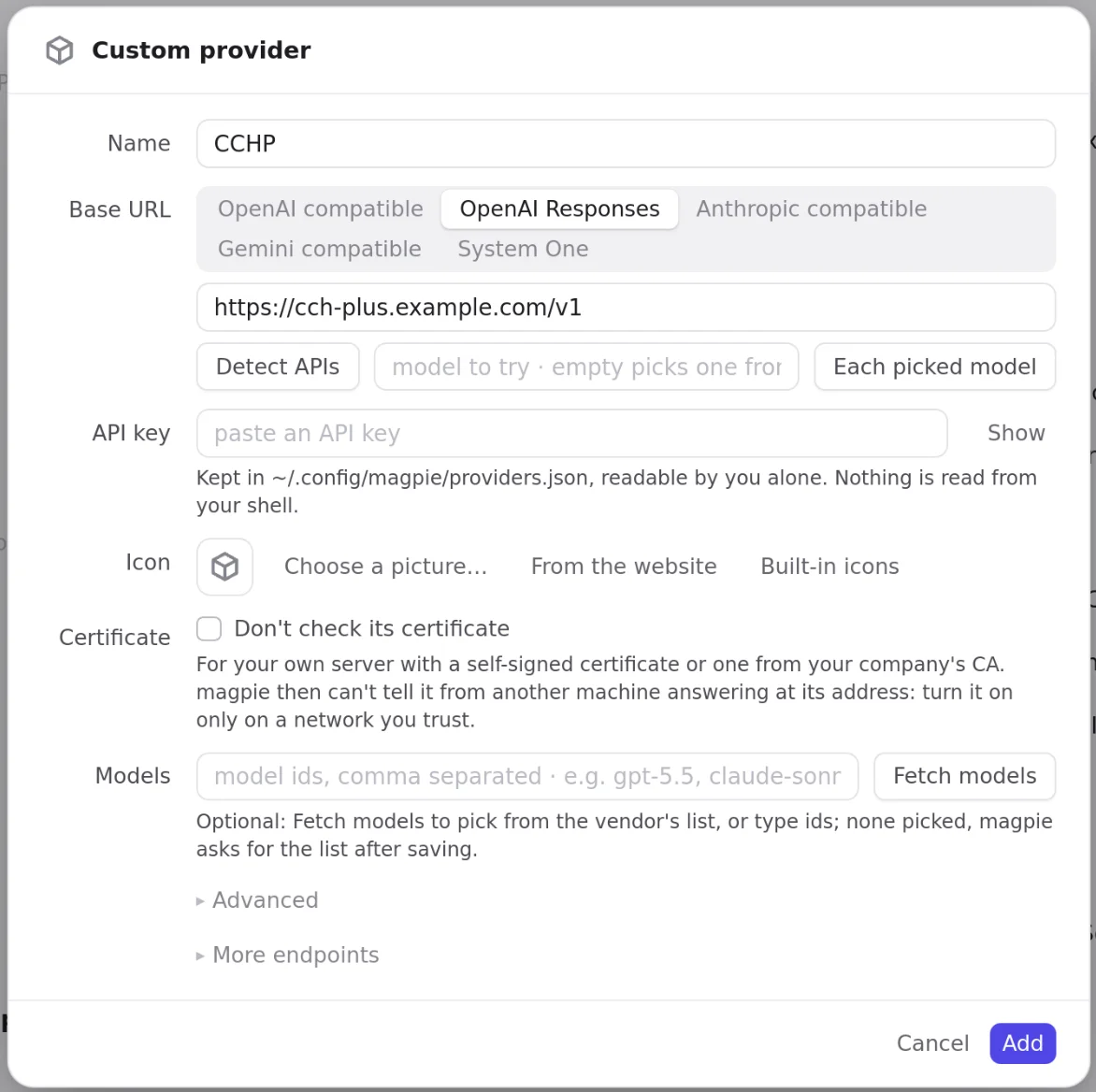 Magpie custom provider: enter the CCHP URL, key, and modelsCCHP
 -
Paste your full LLM key into API key.
-
Click Fetch models, select all models in the list and confirm, then click Add to save the provider.
-
Open the Agents page, find the installed client, turn on the switch at the right of its row, click its model, and select the CCHP provider and model you added. Start a new session; for Codex, also restart the Codex app and any open sessions.
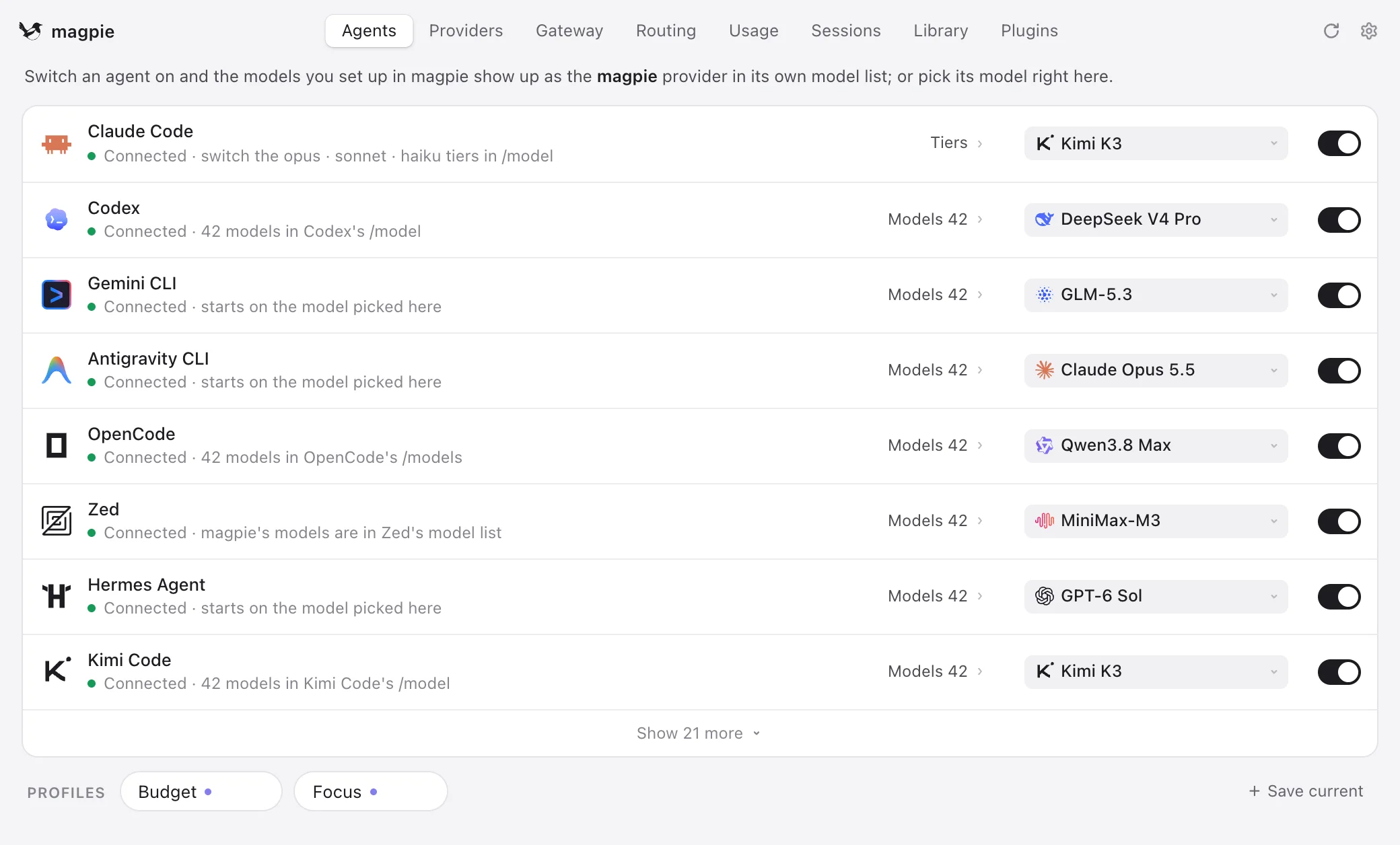 Magpie's Agents page: turn on the switch and select a modelCCHP
 -
Keep Magpie running, then verify the connection below.
For custom URLs, model lists, and other options, see Magpie’s getting started guide: Add your providers. Magpie discovers some existing accounts on your machine by default; see its README for privacy controls.
CC Switch#
CC Switch can add and switch providers for different clients. Download and install the version for your operating system from the CC Switch project.
Supported clients#
Upstream currently lists: Claude Code, Claude Desktop, Codex, Gemini CLI, Grok Build, OpenCode, OpenClaw, Hermes Agent, Pi, MiniMax Code, Kimi Code, Oh My Pi. Features differ by client; see CC Switch’s feature table for current support.
Choose a connection method#
Choose one of the following methods; you don’t need to do both:
- Recommended: Import from the CCHP console for Claude Code, Codex CLI, or Gemini CLI.
- Add a custom provider yourself for tools not offered by the console import, such as OpenCode, OpenClaw, and Hermes Agent, or when you need to customize the configuration.
Option 1: Import from the CCHP console (recommended)#
-
Install and open CC Switch. In API Keys in the CCHP console, click Import to CC Switch on a key that belongs to you and is Active. On narrow screens, the action is in the menu at the end of the row. You may need to verify your identity first; see View the full key again.
-
Select the Target CLI in the dialog and check that Endpoint is the gateway URL. Claude Code uses the Claude URL without
/v1; Codex uses the OpenAI URL ending in/v1. If the endpoint shows the console URL instead, ask your administrator for the gateway URL and use the custom provider method below.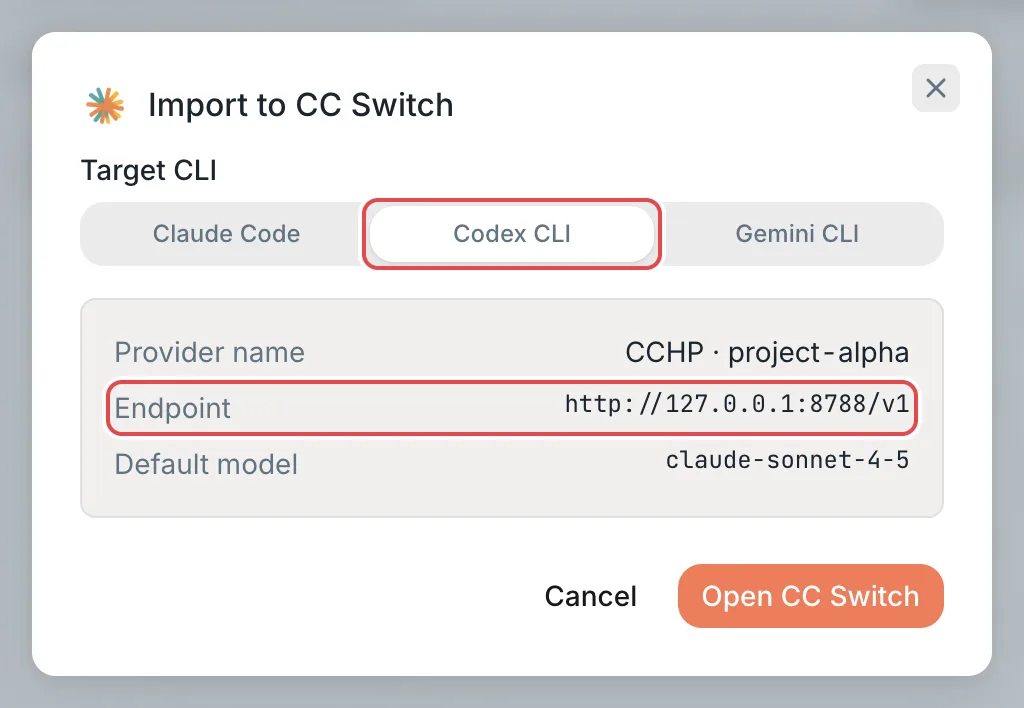 Import to CC Switch from CCHP: selecting Codex CLICCHP
 -
Click Open CC Switch, confirm the import in CC Switch, and switch to the imported provider. If the key’s Model whitelist has exact model names, the dialog sets Default model to the first one; you can change it in CC Switch. If no usable default model is set or a request says the model doesn’t exist, select an available model in CC Switch. A provider imported into Codex CLI already carries
supports_websockets = true; see “Optional settings” in Connect Codex for what it does. -
Restart Codex or Gemini CLI after changing its configuration, then verify the connection below. Once the import succeeds, you don’t need option 2.
Option 2: Add a custom provider yourself#
Select the AI tool in the CC Switch sidebar, click Add Provider, choose a custom configuration, and enter the CCHP gateway URL, LLM key, and model. Forms and steps differ by tool and version; follow CC Switch’s provider documentation. After configuring it, verify the connection below.
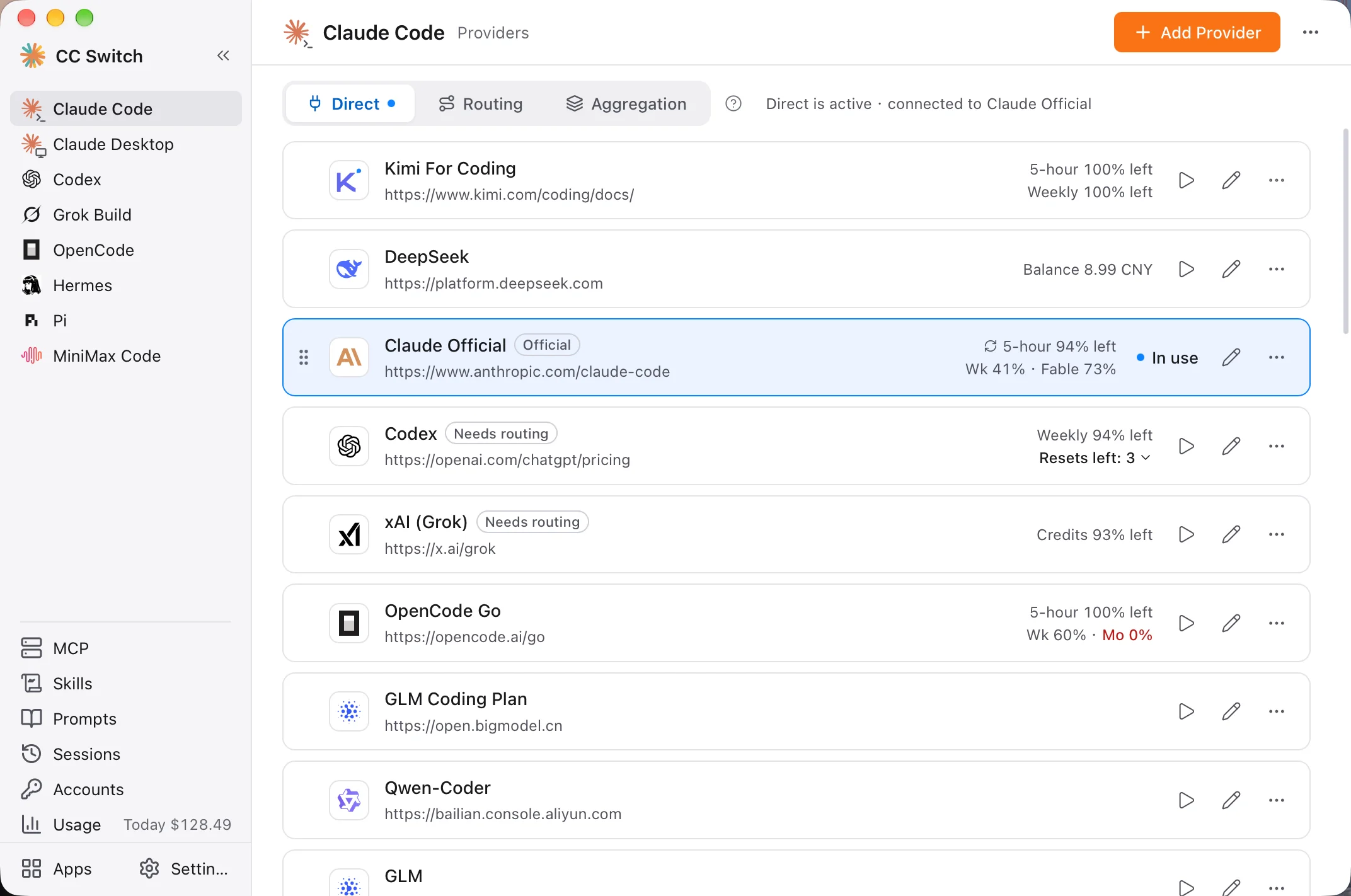 CC Switch: select an AI tool and add a providerCCHP
To share a configuration across Claude Code, Codex, and Gemini CLI, you can also use CC Switch’s Universal Provider; see the same official documentation for details.
Verify the connection#
Select the model you configured in your client and send a message. Then open Call Records in the CCHP console (Usage Records for a platform super admin) and confirm that the request used the expected model and key and has status 200. A test call may incur charges.
The costs shown by Magpie and CC Switch may be estimates based on standard model prices and may not reflect CCHP billing settings such as provider group multipliers. Refer to the CCHP console for actual usage and charges. For details, see Understanding provider groups and final pricing.
With Magpie, the client may display Magpie’s local gateway as the provider or URL rather than CCHP. Check CCHP’s call records to confirm the request reached it. If the request fails, check the key, gateway URL, model availability, and API format used by the tool. The troubleshooting section in each client’s guide can also help.