Chapter 3111 min read
Referral rewards
Set up referral links and reward rules, set separate rules for an organization or team, assign referral suffixes to specific users, and learn how users generate referral links, bind to an inviter, and view referral rewards.
Referral rewards let users invite new users to CCHP. A user generates their own referral link in Wallet, and an invited user who signs up through the link is bound to the inviter. After that, every eligible online payment order from the invitee grants a reward to both the inviter and the invitee, in proportion to the order. The rewards are held for a period first, and when that period ends they go into both users’ wallet balances.
The first part of this page is for platform super admins and explains how to configure referral rewards. The second part is for regular users and explains how to invite friends and view rewards.
Before you begin#
- You configure referral rewards in Administration → Operations Settings → Referral Reward. Only platform super admins can see this page.
- Referral links and referral rewards are both on by default. The default rule is First top-up cashback: for the invitee’s first payment order after binding, the inviter gets 10% of the amount paid and the invitee gets 5%, credited after 15 days. Before you open online payments, make sure these rules fit your operations plan.
- For new users to sign up through a referral link, Allow external sign-up must be on. See Turn on sign-up.
- Rewards are granted only for orders paid online, so you need to set up a payment channel first. See Set up payment channels.
Step 1: Set up referral links#
Go to Administration → Operations Settings, select Referral Reward on the left, and make sure Effective scope in the upper-right corner is Global. From top to bottom, the page has three parts: Link Generation, Manual Assignment, and Reward Rules.
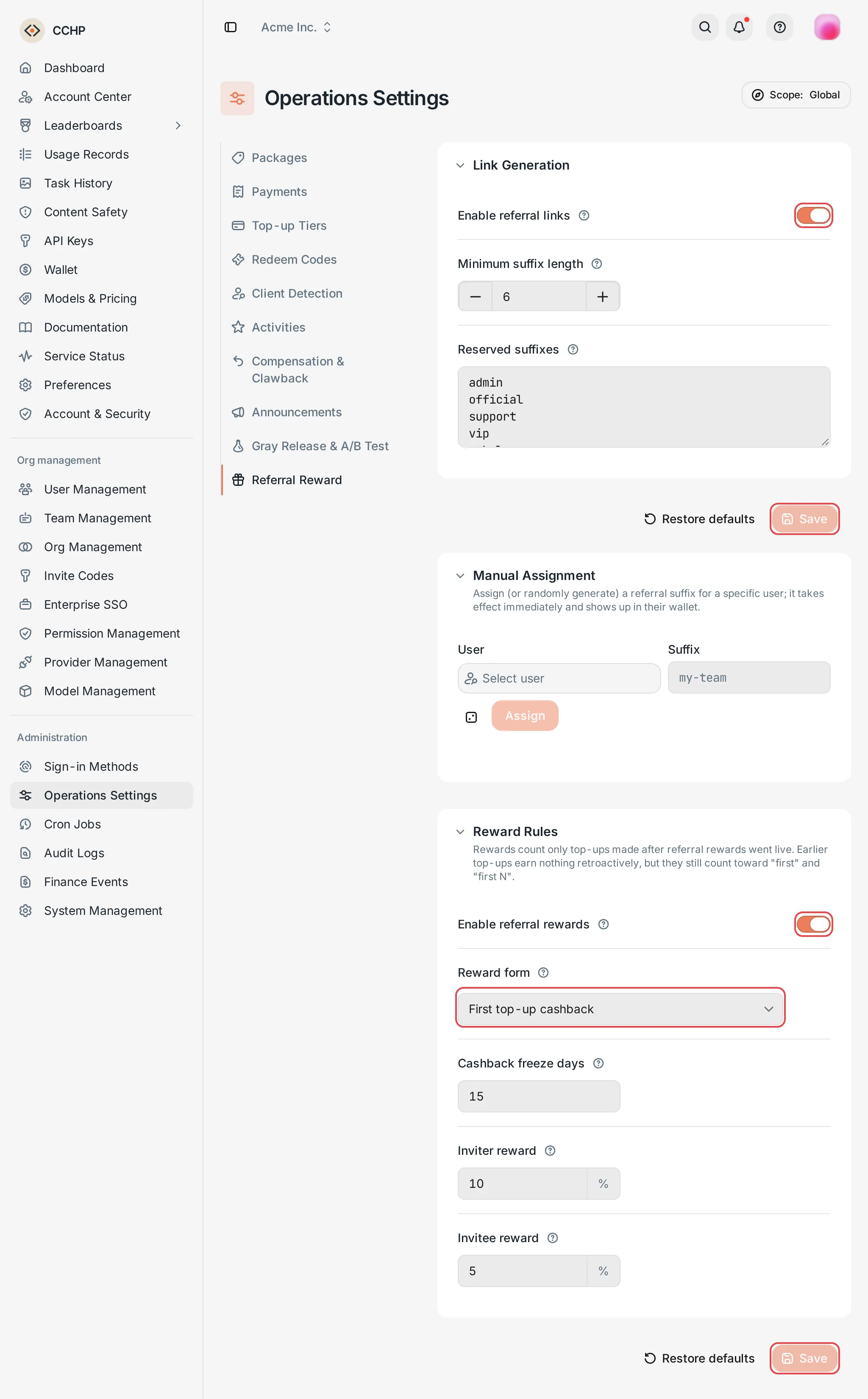 Referral Reward: link generation and reward rules
 CCHP
CCHP
In Link Generation, set the following fields:
Click Save below Link Generation, and then click Confirm in the Confirm submit dialog. Link Generation and Reward Rules each have their own Save button, and you need to save them separately.
Step 2: Set up reward rules#
In Reward Rules, make sure Enable referral rewards is on, and then select a Reward form. All three forms pay cashback on the amount paid for the invitee’s orders. They differ in which orders earn cashback:
Then set the reward percentages and when rewards are credited:
- Inviter reward: The cashback percentage the inviter gets, as a percentage of the amount paid for the invitee’s order. The default is
10. - Invitee reward: The cashback percentage the invitee gets, calculated the same way. The default is
5. - Cashback freeze days: The number of days a reward is held after it’s created. You can enter
0to90. The default is15. When the hold period ends, the reward goes into both users’ wallet balances. If you enter0, the reward is credited about 1 minute after payment.
Enter every value as an integer. You can enter 1 to 100 for both reward percentages. Finally, click Save below Reward Rules, and then click Confirm in the confirmation dialog.
For example, under the default rules, the invitee tops up $100 for the first time after binding: the inviter gets $10, the invitee gets $5, and both rewards are credited after 15 days. The invitee’s later payments don’t earn any more rewards.
Which orders earn rewards#
- Balance top-up and package purchase orders that the invitee pays after binding, including orders that an admin creates for them with Create custom order and that they then pay. Orders paid before binding don’t count.
- The order must be paid in the organization where the binding was made. See How friends bind to their inviter.
- Rewards are based on the amount paid. The part of a package purchase paid from the wallet balance, redeem codes, and check-in rewards don’t earn rewards.
- First top-up cashback and First N top-ups cashback count in payment order: every payment order after binding counts once, including orders paid while Enable referral rewards was off.
- Orders that the invitee pays after removing the binding no longer earn rewards.
Holds, voided rewards, and rule changes#
- If an order is refunded or flagged as abnormal during the hold period, the reward is voided and neither user receives it.
- After a reward is credited, it isn’t taken back automatically. To take it back, see Revoke or claw back grants.
- Changing the rules or turning off Enable referral rewards affects only orders paid afterward. Rewards that already exist keep their original amounts and credit times.
- You can view the status of each reward in Administration → Finance Events. In records with the category Referral reward, Processing means the reward is still in its hold period, Succeeded means it has been credited, and Failed means it was voided.
Set separate rules for an organization or team#
By default, the whole platform uses the Global referral settings. To give an organization or team different rules:
- Click Effective scope in the upper-right corner. In Select scope, select Organization or Team, select the specific organization or team, and then click Apply.
- Change the settings in Link Generation or Reward Rules, click the matching Save, and confirm.
Result: The organization or team gets its own settings. A team takes priority over an organization, and an organization takes priority over global. Link Generation and Reward Rules are saved separately: when you save only one of them, the other keeps using the level above. After you save, that part no longer follows changes at the level above. To go back to the settings of the level above, click Restore inherited in that scope.
Rewards are calculated with the settings of the inviter’s organization and team, no matter which team the invitee joins. For example, if you set Time-limited cashback for the team Sales, users invited by members of Sales all receive rewards under Time-limited cashback.
Assign a referral suffix to a user#
In Manual Assignment, you can set the referral link suffix for a specific user directly, for example to give a partner a link that’s easy to remember:
- Click Select user, and then search for and select the user.
- Enter a suffix in Suffix, or click Randomize.
- Click Assign.
Result: The assignment takes effect right away, and you don’t need to save again. The referral link in the user’s Wallet switches to the new suffix and carries an Assigned by admin badge. The user’s old link stops working right away, and the user can no longer change or discard this link.
- A suffix can contain only lowercase letters, digits, and hyphens. A hyphen can’t be at the start or end, and hyphens can’t be consecutive. The length can’t be less than Minimum suffix length.
- Suffixes are unique across the platform. You can’t assign a suffix that another user already uses.
- Reserved suffixes restrict only the links users generate themselves. Admins can assign a reserved suffix to a user, for example
official.
How users generate a referral link#
The user opens Wallet in the sidebar and works in Referral:
- Enter a suffix in Custom suffix, for example
alice-ai, and then click Generate link. You can also click Randomize suffix to generate a link with a random suffix right away. - Click the generated link to copy it, for example
https://cchp.example.com/r/alice-ai, and then send it to friends.
Result: The page shows Referral link generated. Reward rules on the right shows the cashback percentages that apply to you, which orders earn cashback, and the number of days until rewards are credited.
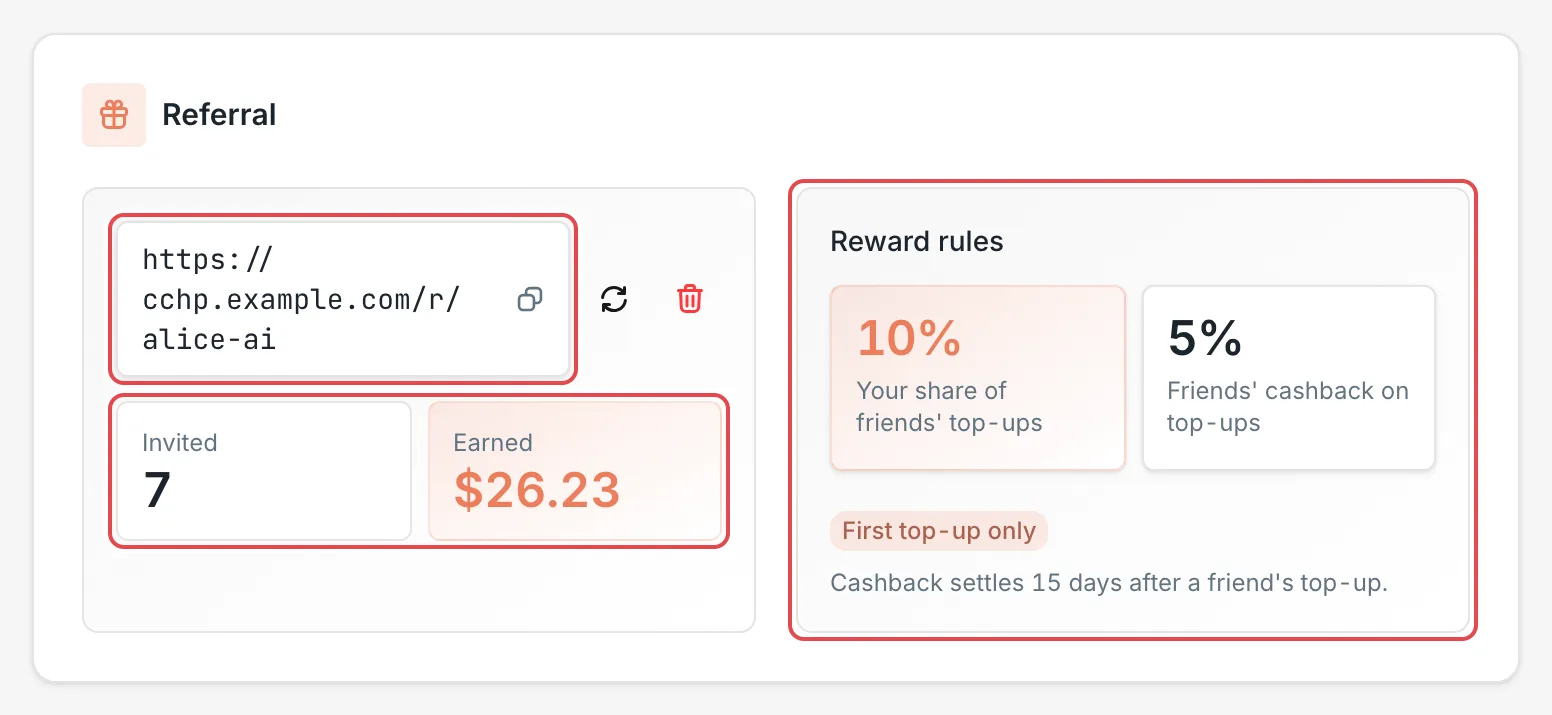 Wallet referral card: the referral link and reward rulesCCHP
- Click Regenerate link next to the link to switch to another suffix, or click Discard link to delete the link. After you change or discard it, the old link stops working right away. Friends who are already bound aren’t affected.
- When the link has an Assigned by admin badge, an admin set it, and you can’t change or discard it.
- A referral link belongs to the organization you were in when you generated it, that is, the organization shown on the left of the top bar at that time. Friends must be in this organization to bind to you.
How friends bind to their inviter#
Each account can bind to only one inviter. How a friend binds depends on whether they already have an account:
- New users: Opening the referral link takes them to the sign-up page. The referral code is kept in this browser for 24 hours, and it is still there after they switch to sign-in, use third-party sign-in, or complete two-step verification. After signing up they join an organization (by redeeming an invite code or joining the default organization automatically), and the console binds them to the inviter once in the current organization. Automatic binding works only for accounts that signed up within the last 24 hours.
- Users who already have an account: Opening the referral link while signed in takes them to Account & Security → Linked accounts with the referral code already filled in under Inviter, and they just click Add inviter. They can also enter a referral code by hand here, or paste the referral link the inviter sent. This method works no matter when the account signed up.
The referral code is the suffix at the end of the referral link, for example alice-ai.
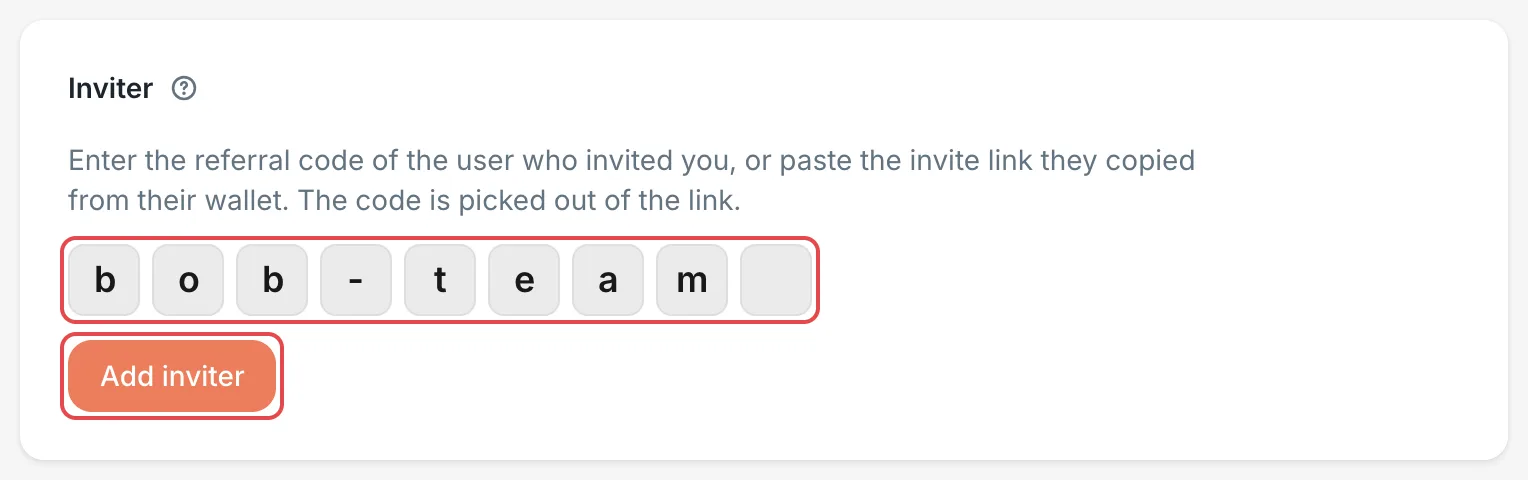 Linked accounts: enter a referral code to add an inviterCCHP
Binding has these restrictions:
- The referral code must belong to a user in the current organization. For which organization a new user joins after signing up, see Which organization new users join. A referral link works only for new users who join the same organization.
- You can’t bind to your own referral code.
- Orders paid before binding don’t earn rewards.
- After binding, you can click Remove inviter in Linked accounts. After you remove it, orders paid afterward no longer earn rewards for either user, and rewards still in their hold period are credited as usual. After removing it, you can’t bind to any inviter again.
How users view rewards#
In Wallet, you can see:
- Referral: Shows the Invited count and Earned. Earned includes rewards that are still in their hold period.
- Referral Earnings: Lists each user you invited (with name and email partly hidden), when they signed up, and the cashback amount. The status Not yet means the user hasn’t paid yet, Converted · pending means the reward is still in its hold period, and Converted · settled means the hold period has passed.
- Top-up History: After a reward is credited, a record with the category Referral reward appears. Rewards the inviter receives are labeled For inviting a friend, and rewards the invitee receives are labeled Invitee reward.
Frequently asked questions#
Why hasn’t the reward been credited after a friend paid?#
Check these in order:
- Whether the hold period has ended. The number of days until rewards are credited is shown below Reward rules in Referral.
- Whether the order is within the cashback scope. For example, First top-up cashback rewards only the first payment order after binding, First N top-ups cashback rewards only the first N, and Time-limited cashback rewards only orders paid within the time limit.
- Whether Enable referral rewards was on at the time of payment.
- Whether the order was paid after binding and before the binding was removed, and in the organization where the binding was made. Redeem codes, check-in rewards, and payments from the balance don’t earn rewards.
- Whether the order was refunded or flagged as abnormal during the hold period. In that case, the reward is voided.
- A platform super admin can confirm in Administration → Cron Jobs that the Enabled toggle of the
referral_reward(Settle referral rewards) job is on. This job checks for and grants rewards every minute.
Why does a new user see that the referral link is invalid after signing up?#
The sign-up succeeded, but the user wasn’t bound to an inviter. Common causes:
- The inviter has already changed or discarded the link.
- The organization the new user joined isn’t the organization the referral link belongs to.
- Enable referral links is turned off in the inviter’s organization or team.
- The user opened their own referral link.
After ruling out the cause, the new user can bind to the inviter afterward in Account & Security → Linked accounts. When doing so, the inviter’s organization must be selected on the left of the top bar.
Why does opening a referral link say that referral links bind automatically only at sign-up?#
The account signed up more than 24 hours ago, or it’s already bound to an inviter. An account that doesn’t have an inviter yet can enter the referral code in Account & Security → Linked accounts and click Add inviter. An account that already has an inviter or has removed its binding can’t bind to another inviter.