Chapter 4317 min read
Connect OpenClaw
Download and install OpenClaw, complete the initial setup, add CCHP as a custom model provider in the config file, choose the OpenAI or Anthropic request format, authenticate with an LLM key and set the default model, then test the connection and confirm the requests in Call Records.
OpenClaw is an AI assistant that runs on your own devices. After you add CCHP to OpenClaw as a custom model provider, OpenClaw sends all its model requests to the CCHP gateway. The requests are authenticated and billed with your LLM key and recorded in Call Records.
This page starts with installing OpenClaw. To connect it to CCHP manually, you edit two files: the environment file ~/.openclaw/.env holds the key, and the config file ~/.openclaw/openclaw.json holds the gateway URL and the models.
What you need#
- LLM key: A full key with the status Active. We recommend that you create a separate key for OpenClaw, so that you can tell its usage apart in Call Records and set limits for it alone. To create one, see Create an LLM key.
- Gateway URL: In the console sidebar, click API Keys. The API base URLs card at the top of the page lists the URL for each request format. If the page doesn’t show this card, ask your admin for the gateway URL.
Already installed OpenClaw? Skip to initial setup. Already completed initial setup? Skip to CCHP configuration.
Step 1: Install OpenClaw#
Select your operating system and pick any installation method. The first method in each tab is the recommended one. The commands on this page all skip OpenClaw’s built-in onboarding wizard: the wizard tries to use AI services that are already on your computer, such as an existing Claude Code or Codex sign-in or an API key, but this page sets OpenClaw up to use CCHP. Step 2 completes the initial setup with one command.
macOS
System requirements: macOS 13.5 or later.
Official install script (recommended)
Open Terminal and run:
curl -fsSL https://openclaw.ai/install.sh | bash -s -- --no-onboardThe script checks Node.js: if Node.js isn’t installed or its version doesn’t meet the requirements, the script installs Node.js 26 through Homebrew, and installs Homebrew first if your computer doesn’t have it. If Git is missing, the script installs it too. Then it installs the latest OpenClaw.
Install to your user directory
If you don’t want to change the Node.js on your system, use this script to install both Node.js and OpenClaw to ~/.openclaw. It doesn’t need admin rights, and it doesn’t start the onboarding wizard by default:
curl -fsSL https://openclaw.ai/install-cli.sh | bashThe command is installed at ~/.openclaw/bin/openclaw, and this directory isn’t added to your PATH automatically. macOS uses Zsh by default, so run these two lines to add it to your PATH:
echo 'export PATH="$HOME/.openclaw/bin:$PATH"' >> ~/.zshrc
source ~/.zshrc
npm, pnpm, or Bun
For users who manage Node.js themselves. OpenClaw needs Node.js 24.x at version 24.22.1 or later, or Node.js 26.12.1 or later. Node.js 26 is recommended. Run node -v to check your version. If Node.js isn’t installed or the version is too old, install it from the Node.js website first.
With npm 11.16 or later (including npm 12), run the command below. With npm 11.15 or earlier, remove --allow-scripts=openclaw. Run npm -v to check your npm version.
npm install -g openclaw@latest --allow-scripts=openclawWith pnpm, run the command below. If pnpm says that the global directory isn’t in your PATH, run pnpm setup first, reopen the terminal, and then install.
pnpm add -g --allow-build=openclaw openclaw@latestWith Bun, run:
bun add -g --trust openclaw@latestInstall from source
For users who need to modify the OpenClaw code. The official install script clones the source from the OpenClaw GitHub repository to ~/openclaw, builds it, and installs the command to ~/.local/bin/openclaw:
curl -fsSL https://openclaw.ai/install.sh | bash -s -- --install-method git --no-onboardDesktop app
OpenClaw also offers a macOS menu bar app, which needs macOS 26.2 or later. To install it, download the .dmg from OpenClaw’s GitHub Releases. This page connects OpenClaw from the command line, and you need to run the openclaw command in a terminal, so install OpenClaw with one of the methods above.
Linux
System requirements: an x64 or arm64 processor. 32-bit ARM (ARMv7) isn’t supported.
Official install script (recommended)
In a terminal, run:
curl -fsSL https://openclaw.ai/install.sh | bash -s -- --no-onboardThe script checks Node.js: if Node.js isn’t installed or its version doesn’t meet the requirements, the script installs Node.js 24 through NodeSource on distributions that use apt, dnf, or yum (e.g., Debian, Ubuntu, Fedora, and RHEL), and installs Node.js through apk on Alpine. If Git is missing, the script installs it too. Then it installs the latest OpenClaw. Installing system packages uses sudo, so enter your password when prompted.
Install to your user directory
If you don’t want to change the Node.js on your system, use this script to install both Node.js and OpenClaw to ~/.openclaw. It doesn’t need root access, and it doesn’t start the onboarding wizard by default:
curl -fsSL https://openclaw.ai/install-cli.sh | bashThe command is installed at ~/.openclaw/bin/openclaw, and this directory isn’t added to your PATH automatically. If you use Bash, run these two lines to add it to your PATH. If you use Zsh, replace ~/.bashrc in both lines with ~/.zshrc:
echo 'export PATH="$HOME/.openclaw/bin:$PATH"' >> ~/.bashrc
source ~/.bashrc
npm, pnpm, or Bun
For users who manage Node.js themselves. OpenClaw needs Node.js 24.x at version 24.22.1 or later, or Node.js 26.12.1 or later. Node.js 26 is recommended. Run node -v to check your version. If Node.js isn’t installed or the version is too old, install it from the Node.js website first.
With npm 11.16 or later (including npm 12), run the command below. With npm 11.15 or earlier, remove --allow-scripts=openclaw. Run npm -v to check your npm version.
npm install -g openclaw@latest --allow-scripts=openclawWith pnpm, run the command below. If pnpm says that the global directory isn’t in your PATH, run pnpm setup first, reopen the terminal, and then install.
pnpm add -g --allow-build=openclaw openclaw@latestWith Bun, run:
bun add -g --trust openclaw@latestInstall from source
For users who need to modify the OpenClaw code. The official install script clones the source from the OpenClaw GitHub repository to ~/openclaw, builds it, and installs the command to ~/.local/bin/openclaw:
curl -fsSL https://openclaw.ai/install.sh | bash -s -- --install-method git --no-onboardDesktop app
OpenClaw also offers a Linux desktop app (AppImage and .deb), which you can download from OpenClaw’s GitHub Releases. The x64 AppImage needs glibc 2.35 or later, for example Ubuntu 22.04 or Debian 12. This page connects OpenClaw from the command line, and you need to run the openclaw command in a terminal, so install OpenClaw with one of the methods above.
Windows
System requirements: Windows 10 or Windows 11.
PowerShell install script (recommended)
Open PowerShell and run:
& ([scriptblock]::Create((iwr -useb https://openclaw.ai/install.ps1))) -NoOnboardThe script needs PowerShell 5 or later, which comes with Windows 10 and Windows 11. The script checks Node.js: if Node.js isn’t installed or its version doesn’t meet the requirements, the script tries winget, Chocolatey, and Scoop in turn to install Node.js LTS. If none of them is available, it downloads the official Node.js 26 archive to %LOCALAPPDATA%\OpenClaw\deps\portable-node. The script adds the directory that contains the openclaw command to your user PATH. After the installation finishes, close and reopen PowerShell.
npm, pnpm, or Bun
For users who manage Node.js themselves. OpenClaw needs Node.js 24.x at version 24.22.1 or later, or Node.js 26.12.1 or later. Node.js 26 is recommended. Run node -v to check your version. If Node.js isn’t installed or the version is too old, install it from the Node.js website first.
With npm 11.16 or later (including npm 12), run the command below. With npm 11.15 or earlier, remove --allow-scripts=openclaw. Run npm -v to check your npm version.
npm install -g openclaw@latest --allow-scripts=openclawWith pnpm, run the command below. If pnpm says that the global directory isn’t in your PATH, run pnpm setup first, reopen PowerShell, and then install.
pnpm add -g --allow-build=openclaw openclaw@latestWith Bun, run:
bun add -g --trust openclaw@latestInstall from source
For users who need to modify the OpenClaw code. The official install script clones the source from the OpenClaw GitHub repository to %USERPROFILE%\openclaw, builds it, and installs the command to %USERPROFILE%\.local\bin\openclaw.cmd. If your computer doesn’t have Git, the script downloads a portable Git automatically.
& ([scriptblock]::Create((iwr -useb https://openclaw.ai/install.ps1))) -InstallMethod git -NoOnboardWSL2
OpenClaw is most compatible when it runs in WSL2, the same as on Linux.
-
Open PowerShell as an administrator, and install WSL2 and Ubuntu. If this is your first WSL installation, restart your computer when prompted. To see the other distributions that you can install, run
wsl --list --online.powershell wsl --install -d Ubuntu-24.04 -
Open the Ubuntu terminal and enable systemd:
bash sudo tee /etc/wsl.conf >/dev/null <<'EOF' [boot] systemd=true EOF -
In PowerShell, run
wsl --shutdownto restart WSL. Then reopen the Ubuntu terminal and install OpenClaw with any method in the Linux tab, for example:bash curl -fsSL https://openclaw.ai/install.sh | bash -s -- --no-onboard
From here on, run all the commands on this page in the Ubuntu terminal, and use the macOS / Linux file locations.
Desktop app
OpenClaw also offers a Windows desktop app, Windows Hub. You can download its installer from Windows Hub’s GitHub Releases. This page connects OpenClaw from the command line, and you need to run the openclaw command in a terminal, so install OpenClaw with one of the methods above.
Verify the installation#
Open a new terminal (PowerShell on Windows, or the Ubuntu terminal if you use WSL2) and run:
openclaw --versionResult: The output shows version information that starts with OpenClaw.
If the openclaw command can’t be found, the directory that contains it usually isn’t in your PATH. To fix this, see Node.js troubleshooting in the OpenClaw docs.
Update#
To update OpenClaw later, run openclaw update. This command detects how you installed OpenClaw and completes the update.
Step 2: Complete the initial setup#
OpenClaw must complete the initial setup once before the Gateway can run. The Gateway is the service that OpenClaw runs in the background. It calls models and connects to chat apps. Run the command below to complete the initial setup non-interactively. This way, OpenClaw doesn’t detect or ask which AI to use. You add CCHP in later steps.
openclaw onboard --non-interactive --accept-risk --install-daemon--accept-risk: Required in non-interactive mode. It confirms that you understand that OpenClaw’s agents are powerful and that granting them full system access carries risk.--install-daemon: Installs the Gateway as a background service and starts it. macOS uses a LaunchAgent, Linux and WSL2 use a systemd user service, and Windows uses a scheduled task.
This command writes the settings for the local Gateway, creates the default agent and its workspace, and waits for the Gateway to start. When it finishes, check the Gateway status:
openclaw gateway statusResult: The output shows that the Gateway is running and listening on port 18789.
- If the installation already started OpenClaw’s onboarding wizard, press
Ctrl+Cto exit the wizard, then run the command above. - If you already completed the initial setup with OpenClaw’s wizard or desktop app, skip this step.
After initial setup: Configure CCHP#
Recommended: Use CC Switch to add CCHP through a graphical interface and verify the connection using that guide. Magpie does not currently support OpenClaw; use CC Switch if you want a configuration manager.
Edit the config file manually: Start at step 3 to set the key, provider, and default model, then verify the connection and restart the Gateway.
Step 3: Choose a request format and a model#
OpenClaw can call CCHP in two request formats. In step 5, you fill in the config for the one you choose:
- OpenAI format: Suits most models. OpenClaw calls the gateway’s
/v1/chat/completions. For the gateway URL, use the URL in the OpenAI row of API base URLs, for examplehttps://api.cchp.example.com/v1. - Anthropic format: Suits Claude models. OpenClaw calls the gateway’s
/v1/messages. For the gateway URL, use the URL in the Claude row, for examplehttps://api.cchp.example.com, with no/v1at the end.
Then, in the sidebar, click Models & Pricing, click the model you want to use, and note the following in the details panel on the right:
- Model ID: the monospace text under the model name. Click it to copy it. The model name in the OpenClaw config must be the model ID.
- Context length, Max output, and Capabilities in Overview. You need them in step 5.
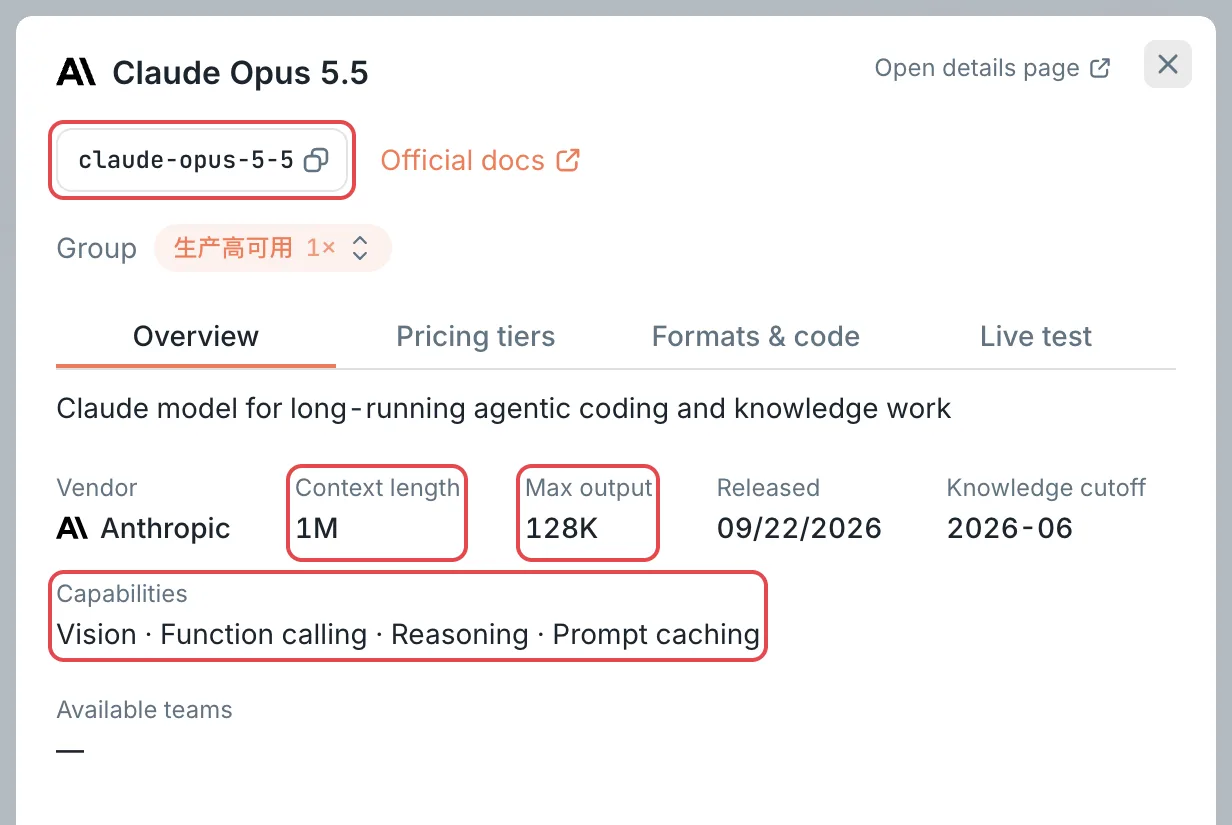 Model details: the model ID, context length, and max output
 CCHP
CCHP
To check which formats the model supports, click Formats & code in the details panel and look at the options in the format dropdown. A format whose call endpoint is /v1/chat/completions is the OpenAI format, and a format whose call endpoint is /v1/messages is the Anthropic format. If Native appears next to the endpoint, the gateway doesn’t need to convert the request format. If Converted appears, the gateway converts the format before it sends the request to the upstream. If both formats are available, prefer the one that shows Native. You can’t call this model in a format that isn’t in the dropdown.
Step 4: Save the key#
The Gateway that you installed in step 2 runs as a background service, so it can’t read variables that you set with export in a terminal. Save the key to OpenClaw’s global environment file. If the file doesn’t exist, create it:
- macOS, Linux, and WSL2:
~/.openclaw/.env - Windows:
%USERPROFILE%\.openclaw\.env
Add this line at the end of the file, and replace cch_llm_live_xxxxxxxx with your full key:
CCHP_API_KEY=cch_llm_live_xxxxxxxxYou can choose your own variable name, but it can contain only uppercase letters, digits, and underscores, and it can’t start with a digit. Otherwise, OpenClaw doesn’t substitute it in the config.
Step 5: Add the CCHP provider#
Open the OpenClaw config file: ~/.openclaw/openclaw.json on macOS, Linux, and WSL2, or %USERPROFILE%\.openclaw\openclaw.json on Windows. To see where the config file actually is, run openclaw config file. The file is in JSON5 format, so it can contain comments and trailing commas.
Step 2 already wrote the Gateway settings and others to the file. Keep these settings, and add the models section below at the top level of the file. If the file already has models.providers, add only cchp to it. Use the tab for the format you chose in step 3, and replace the URL and the model with your own values.
OpenAI format
{
  // Keep the other settings that are already in the file
  models: {
    providers: {
      cchp: {
        baseUrl: "https://api.cchp.example.com/v1",
        apiKey: "${CCHP_API_KEY}",
        api: "openai-completions",
        models: [
          { id: "gpt-6.1-sol", contextWindow: 1000000, maxTokens: 128000 },
        ],
      },
    },
  },
}
Anthropic format
{
  // Keep the other settings that are already in the file
  models: {
    providers: {
      cchp: {
        baseUrl: "https://api.cchp.example.com",
        apiKey: "${CCHP_API_KEY}",
        api: "anthropic-messages",
        models: [
          { id: "claude-opus-5-5", contextWindow: 1000000, maxTokens: 128000 },
        ],
      },
    },
  },
}cchp: The provider ID. You can choose your own. In OpenClaw, you refer to this provider’s models ascchp/<model ID>, for examplecchp/gpt-6.1-sol.baseUrl: The gateway URL. The OpenAI format URL ends with/v1, and the Anthropic format URL doesn’t.apiKey:${CCHP_API_KEY}reads the environment variable that you saved in step 4. Don’t replace it with the key in plain text.api: The request format:openai-completionsfor the OpenAI format, oranthropic-messagesfor the Anthropic format.models: The models to use in OpenClaw, one entry per model. Setidto the model ID. SetcontextWindowto Context length andmaxTokensto Max output, converted from the displayed values: for example,1Mbecomes1000000and128Kbecomes128000. OpenClaw uses these two values to control the conversation length and the length of each output.- The displayed values are rounded to one decimal place. A value with a decimal (e.g.,
1.1M) can be slightly larger than the actual value, so enter a slightly smaller integer instead, such as1000000. If the details panel doesn’t show these two items, you can leave them out. - If the model’s Capabilities include Vision, add
input: ["text", "image"]to its entry so that OpenClaw sends images to the model. If they include Reasoning, you can addreasoning: trueso that OpenClaw uses the model’s reasoning.
After you save, OpenClaw applies the changes to the config file automatically. OpenClaw accepts only a config that fully matches its format: if a field name is misspelled or you add an unsupported field, the change doesn’t take effect.
Validate the config#
openclaw config validateResult: No errors appear. If the command points out a field with a problem, fix the config file as it suggests and run the command again.
Set the default model#
openclaw models set cchp/gpt-6.1-solReplace cchp/gpt-6.1-sol with the model you configured, for example cchp/claude-opus-5-5. This command writes the model to agents.defaults.model.primary in the config, as the model that OpenClaw uses by default.
Result: The command returns no errors.
Step 6: Test the connection#
Send a test request#
openclaw infer model run --local --model cchp/gpt-6.1-sol --prompt "Reply with exactly: pong"Replace cchp/gpt-6.1-sol with the model you configured. This command sends only one prompt to the model and doesn’t need the Gateway to be running. It sends a real request, which is billed like a normal call.
Result: The output is pong. If the command returns an error, see Frequently asked questions.
View the request in Call Records#
In the console sidebar, click Call Records (a platform super admin’s sidebar shows Usage Records instead) to open the Request Logs page.
Result: In the latest record, the Model column shows the model you tested, the Key column shows the key you use for OpenClaw, and the Status column shows 200.
Step 7: Restart the Gateway#
Restart the Gateway that runs in the background, so that it reads the key you added in step 4:
openclaw gateway restartIf the Gateway runs in a foreground terminal, press Ctrl+C to stop it, then start it again.
Result: When you send a message in OpenClaw’s control UI (run openclaw dashboard to open it) or in a connected chat app, OpenClaw replies with the default model that you set in step 5, and the request appears in Call Records.
Switch and add models#
- To use more models, add an entry for each model in
models, and setidto the model ID. - To change the default model, run
openclaw models set cchp/<model ID>. - To see the CCHP models configured in OpenClaw, run
openclaw models list --provider cchp.
All models of one provider share one baseUrl, but the two request formats use different URLs. To use both formats, add a second provider, for example cchp for the OpenAI format and cchp-claude for the Anthropic format. The apiKey of both providers can reference the same environment variable.
Frequently asked questions#
How do I troubleshoot an error from the test request?#
Look up the status code and the message of the error in the table below:
What do I do if OpenClaw’s requests are rejected after client restrictions are turned on?#
When an organization or team turns on Client restriction, the gateway identifies clients by their request headers and lets only allowed clients through. It identifies OpenClaw by User-Agent. OpenClaw doesn’t send its own User-Agent when it calls a custom URL, so the gateway can’t tell that the request comes from OpenClaw, and the request returns 403.
To fix this:
-
In the config file, add
headerstocchpso that OpenClaw’s requests carryUser-Agent: openclaw:openclaw.jsonjson5 cchp: { // Keep the other fields as they are headers: { "User-Agent": "openclaw" }, }, -
Ask your organization admin to allow OpenClaw in the organization’s or team’s Client restriction. See Manage organizations and Manage teams.
What do I do if step 2 says it can’t install the Gateway service?#
On Linux and WSL2, --install-daemon needs systemd user services. If the command says systemd user services are not reachable:
-
If you use WSL2, enable systemd and restart WSL as described in items 2 and 3 under WSL2 in the Windows tab of step 1. Then run the command from step 2 again.
-
In an environment without systemd (e.g., a container), remove
--install-daemonand add--skip-healthto complete the initial setup. Then run the Gateway in the foreground withopenclaw gateway run, and keep this terminal open:bash openclaw onboard --non-interactive --accept-risk --skip-health openclaw gateway run